Org Admin on the desktop
Org Admin is where an agency administrator sets up REDENES for everyone else: who the members are, what the apps show, how incidents and dispatch work, and the radios, hardware and integrations behind them. This guide walks through every tab and tile.
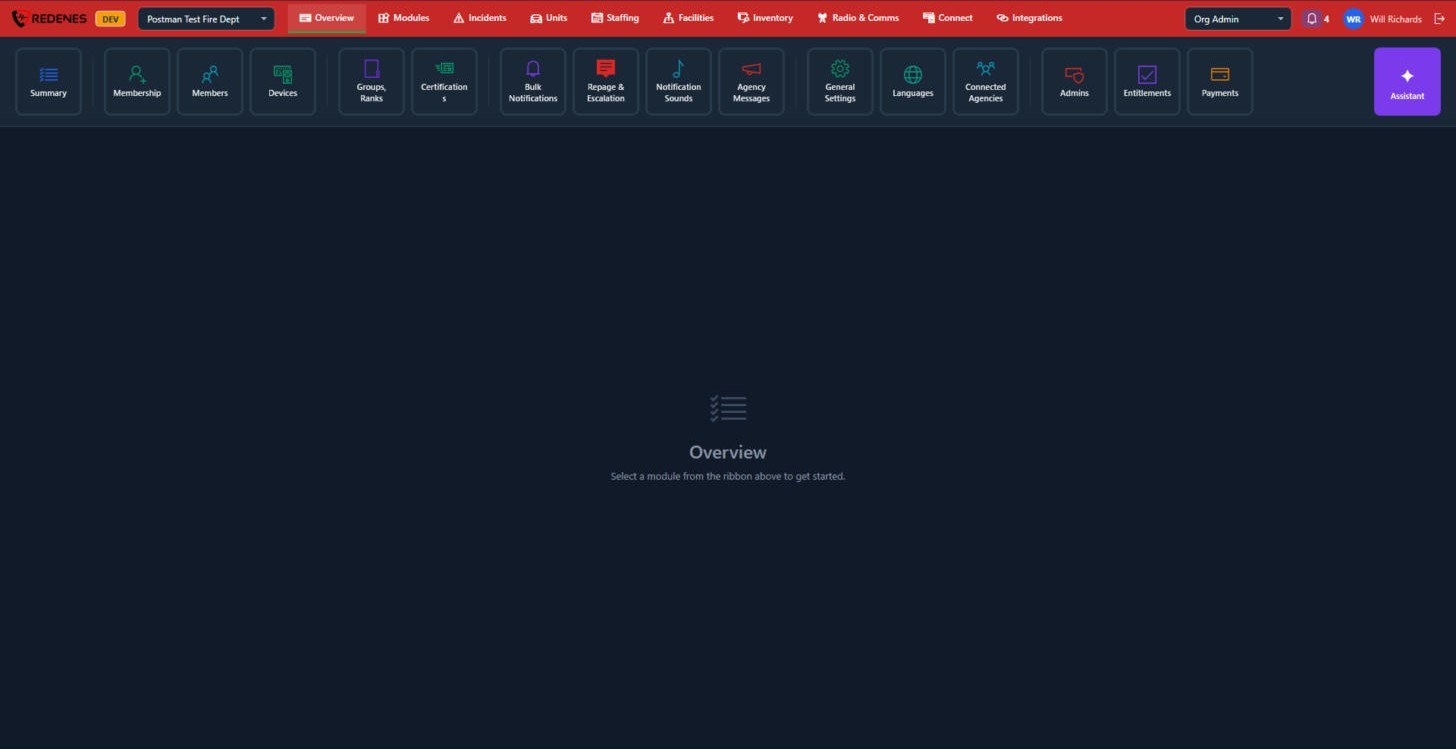 12345
Finding your way
- Agency 1: the agency you are working in. If you belong to more than one, switch here.
- Mode 2: choose Org Admin. You only see this choice if you are an admin of the agency.
- Tabs 3: the ten areas of Org Admin. Each has its own section in this guide.
- Tiles 4: the screens inside the open tab. Thin divider lines group related tiles. Click a tile to open it; the open tile has a green outline.
- Assistant 5: ask a question or say what you want set up. See Assistant.
The ten tabs
| Tab | What you set up there |
|---|---|
| Overview | The agency itself: members, devices, groups, notifications, settings, admins and billing. |
| Modules | What the apps show: modules, who may use them, worksheets, PDFs and the map. |
| Incidents | Incident types, dispatch, statuses and what incidents share. |
| Units | Engines, trucks, boats, drones and every other unit you keep. |
| Staffing | Schedules, the roster, unit crews and seniority. |
| Facilities | Stations and other locations, districts and who is based where. |
| Inventory | Equipment, where it is stored and its condition. |
| Radio & Comms | Radio channels, comm plans, voice dispatch and phone calls. |
| Connect | REDENES Connect hardware: gateways, displays and sweep nodes. |
| Integrations | Outside systems, QR codes, link boards and camera feeds. |
Things every screen has in common
- Lists on the left, details on the right. Most screens show a list. Click a row to open it on the right, or use the blue + button to add a new one.
- Save is at the top right. Screens with settings keep the title and Save fixed at the top. Beside it you see Unsaved changes or All changes saved, so you always know where you stand.
- Refresh (the round arrow) reloads the list from the server. Use it if someone else is editing at the same time.
- Changes reach the apps on their own. Members do not need to sign out. Most changes show on phones within moments.
What you see depends on your agency
Tiles for features your agency does not have are hidden, and a limited admin sees only the areas a full admin gave them. If a tile in this guide is missing for you, check Entitlements and Admins.