Admins
Choose who can use the admin software and how much of it.
Where: OverviewAdmins
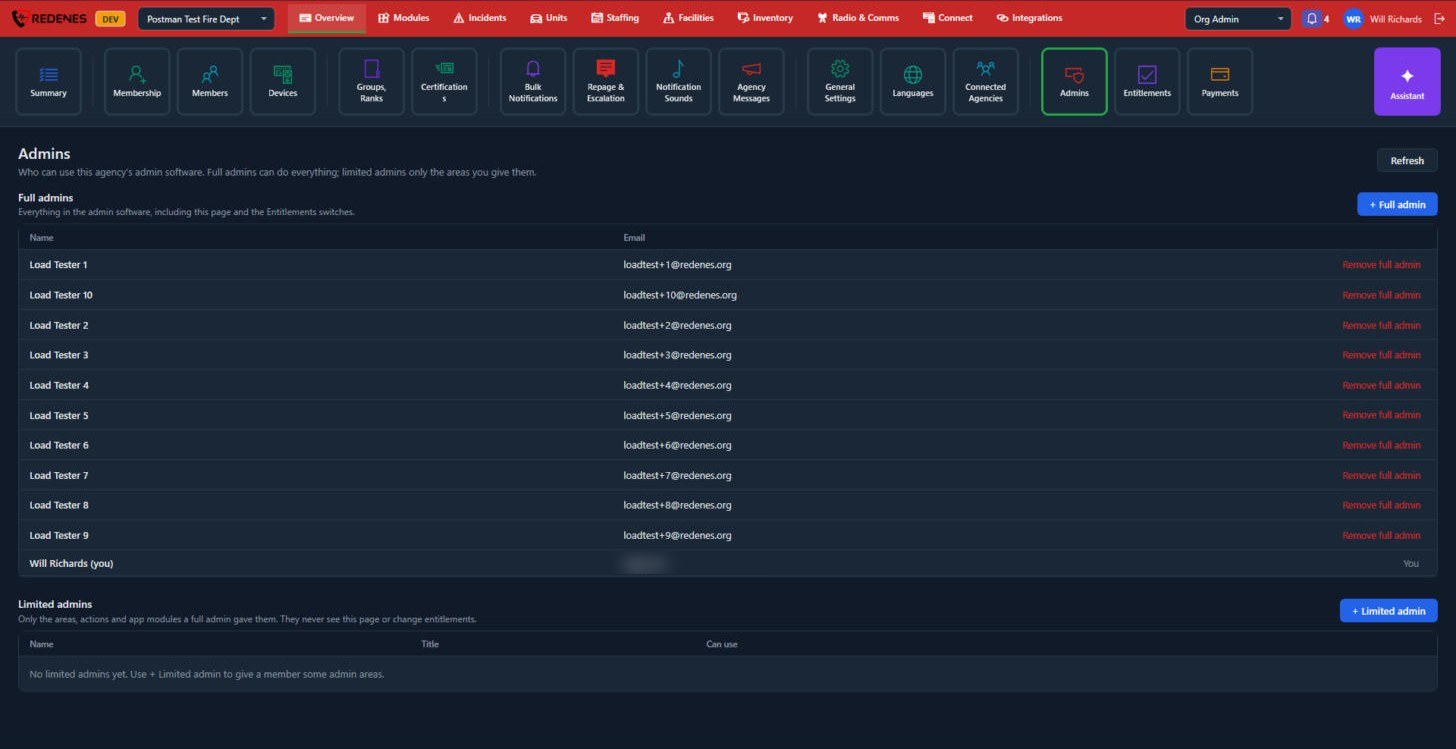 1234
Two kinds of admin
- Full admins 1 can do everything in the admin software, including this page and Entitlements.
- Limited admins 2 get only the areas, actions and app modules a full admin gave them. They never see this page and cannot change entitlements.
Add an admin
- Click + Full admin 3 and pick a member.
- Or click + Limited admin 4, pick a member, give them a title, and tick what they can use.
Remove full admin on a row takes the access away. The person stays a member.
caution
Keep at least two full admins, so the agency is never locked out when one person is away.
The limited admin window
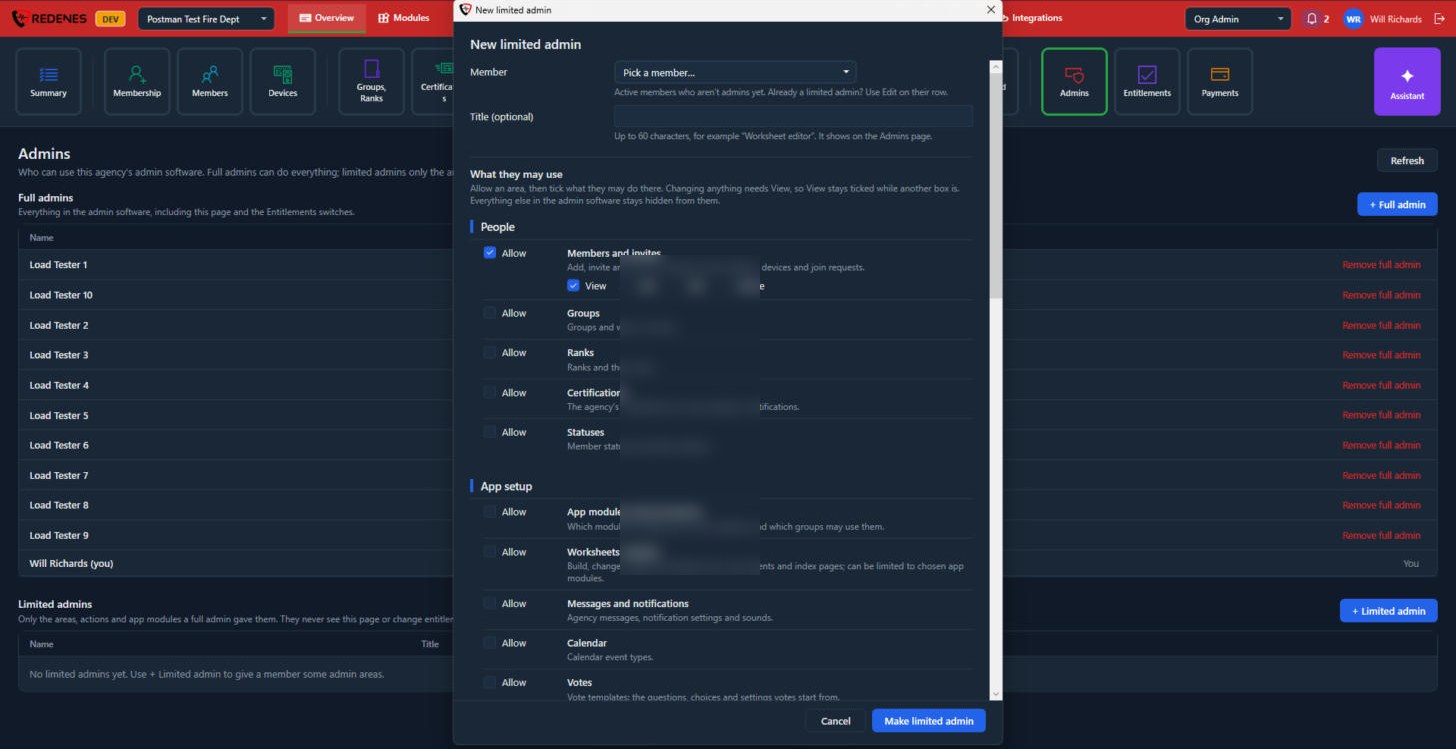 123
- Pick the Member and, if you like, a Title 1 such as Worksheet editor. The title shows on the Admins page. Only active members who are not admins yet are listed.
- Under What they may use, tick Allow 2 on each area the person needs. Areas are grouped under headings such as People and App setup, and each has a line saying what it covers.
- Tick what they may do in that area 3: View, Add, Edit, Delete. Changing anything needs View, so View stays ticked while another box is.
- Click Make limited admin.
Everything you did not allow stays hidden from that person in the admin software. To change someone later, use Edit on their row.