Schedules
A schedule describes a group of shifts: their times, the posts and seats to fill, and who may fill them.
Where: StaffingSchedules
 12345
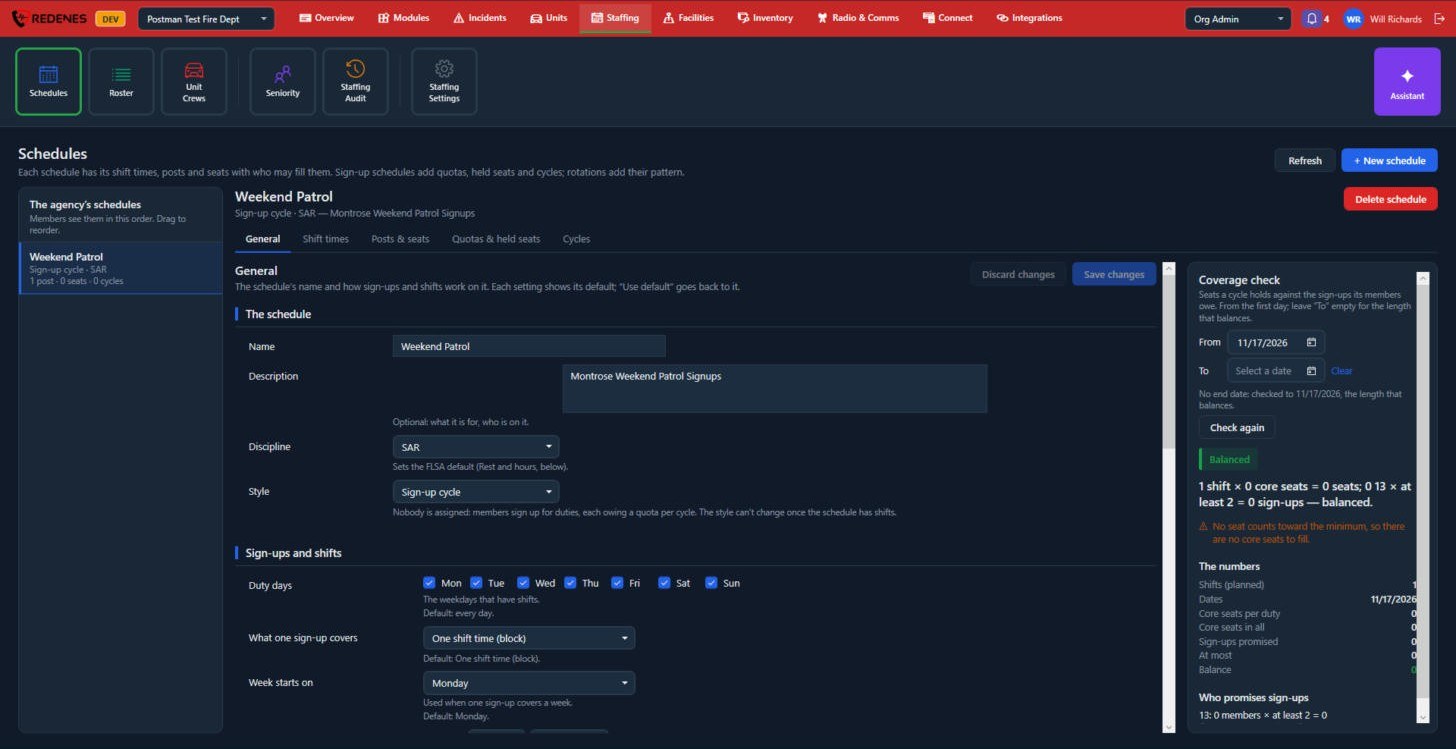
The list 1
Your agency's schedules, in the order members see them. Drag to reorder. Click + New schedule 5 to add one.
The tabs of a schedule 2
| Tab | What it sets |
|---|---|
| General | Name, description, discipline and style, the duty days, what one sign-up covers and when the week starts. |
| Shift times | When shifts start and end. |
| Posts & seats | The positions to fill on each shift, and what a member needs to fill one. |
| Quotas & held seats | How many sign-ups each member owes, and seats held back for certain people. |
| Cycles | The sign-up periods. |
Style 3
The Style decides how shifts are filled, and cannot be changed once the schedule has shifts:
- Sign-up cycle: nobody is assigned. Members sign up for duties, each owing a quota per cycle.
- Rotation: platoons on a repeating pattern such as 24/48, 48/96, Kelly, Pitman or 4-on/4-off.
- Open board: shifts are posted and anyone qualified takes them.
- Pool: a list of people with no fixed shifts.
Each setting shows its default. Use default goes back to it.
Coverage check 4
The coverage check compares the seats a cycle holds with the sign-ups its members owe, and tells you in words whether the two balance. Fix a warning here before you open a cycle, or you will end up with seats nobody is required to fill.
Click Save changes when you are done, or Discard changes to undo.
New schedule
 1234
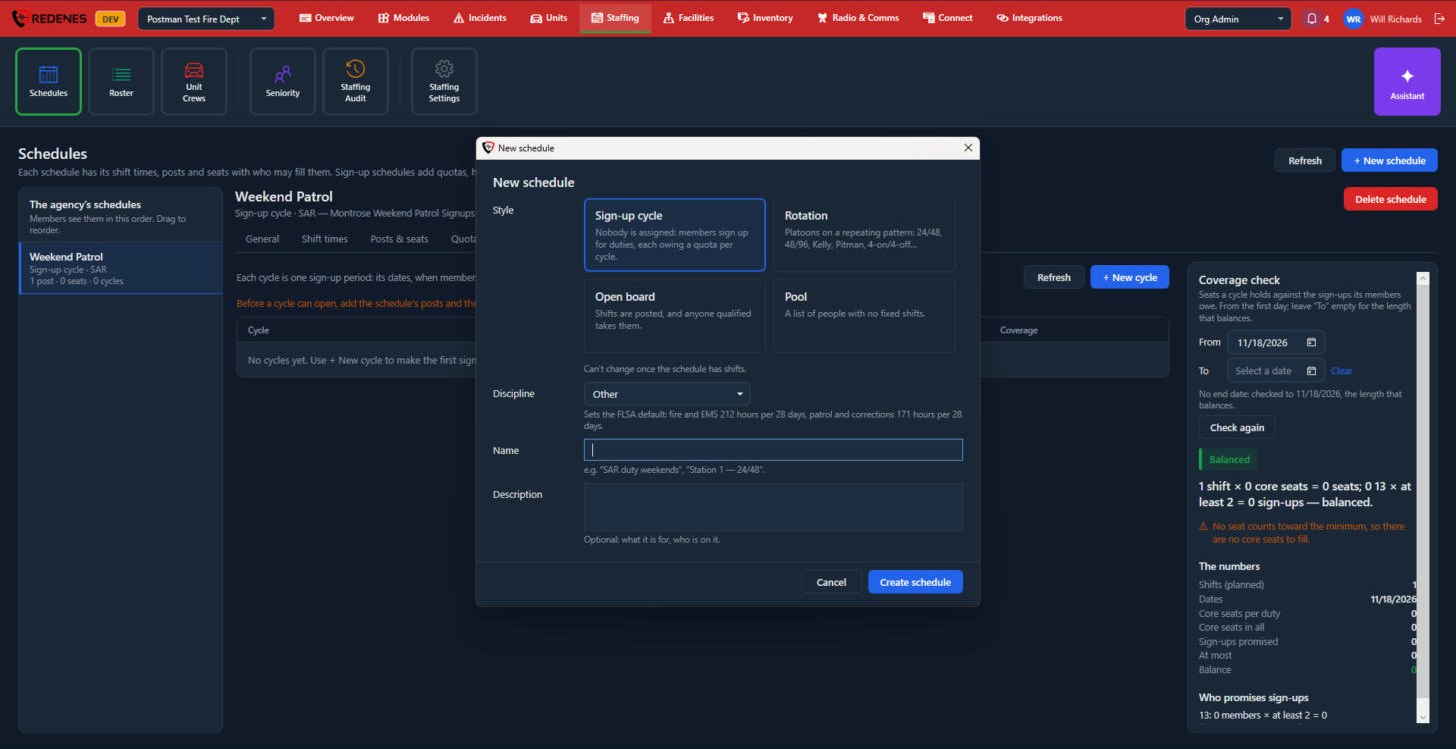
- Pick the Style 1. It cannot be changed once the schedule has shifts.
- Pick the Discipline 2. It sets the default limit on hours: fire and EMS 212 hours per 28 days, patrol and corrections 171 hours per 28 days.
- Give it a Name and, if you like, a Description 3.
- Click Create schedule 4. The new schedule opens on its General tab.
The General tab, lower part
Scroll down on General for the rest of the settings.
 12
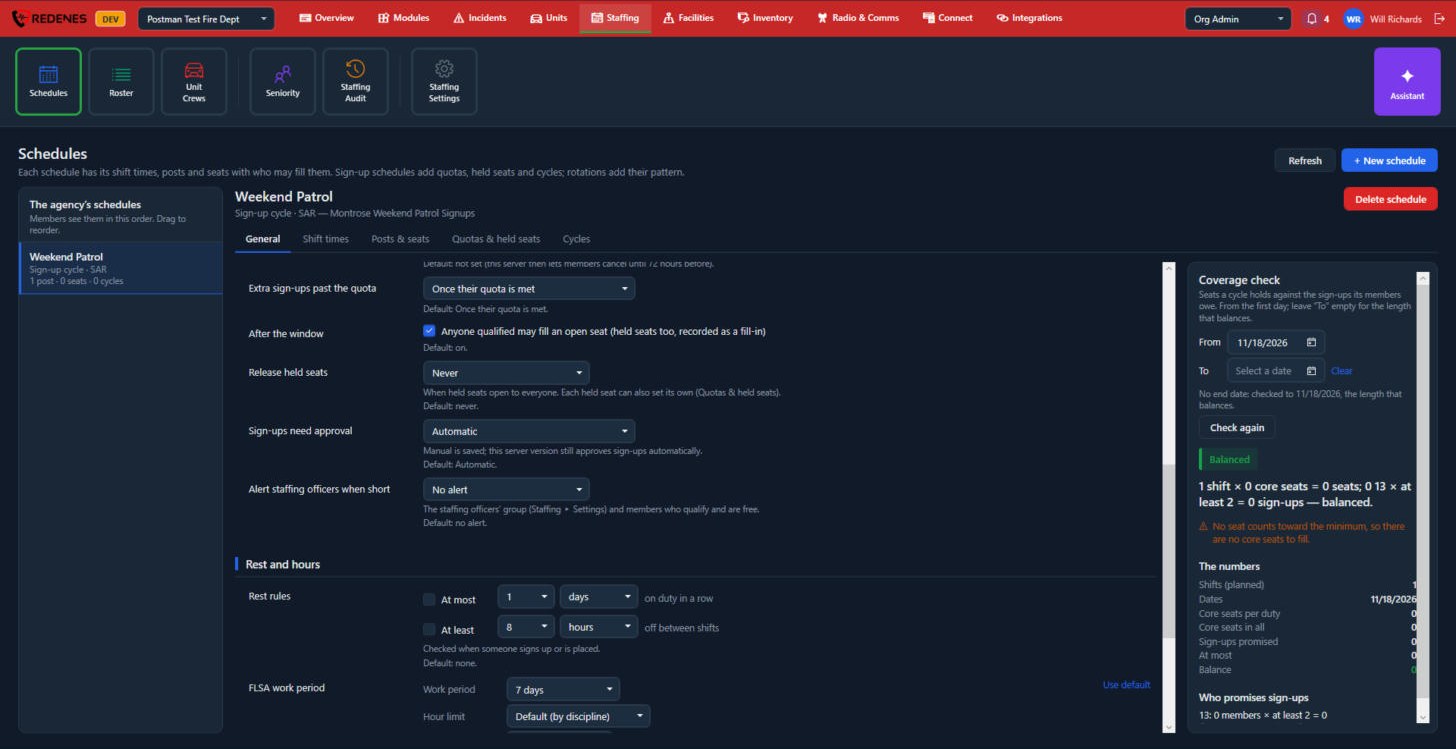
Sign-ups and shifts 1:
| Setting | What it does |
|---|---|
| Duty days | The weekdays that have shifts. |
| What one sign-up covers | One shift time, one whole day, or one week such as a duty weekend. |
| Week starts on | Used when one sign-up covers a week. |
| Members may cancel | How long before a shift a member can still take their name off. After that they ask for cover instead. |
| Extra sign-ups past the quota | Never, once their own quota is met, or once the sign-up window closes. |
| After the window | Lets anyone qualified fill a seat that is still open. It is recorded as a fill-in. |
| Release held seats | When seats held for a group open to everyone. |
| Sign-ups need approval | Automatic, or an admin approves each one. |
| Alert staffing officers when short | How many days before a shift the staffing officers hear that it is short. |
Rest and hours 2:
- Rest rules: at most so many days on duty in a row, and at least so many hours off between shifts. They are checked when someone signs up or is placed.
- FLSA work period: the work period, the hour limit and the date it starts on. Mostly for rotations.
Who may work on this schedule is at the very bottom. Edit the rule opens the rule window.
The rule window
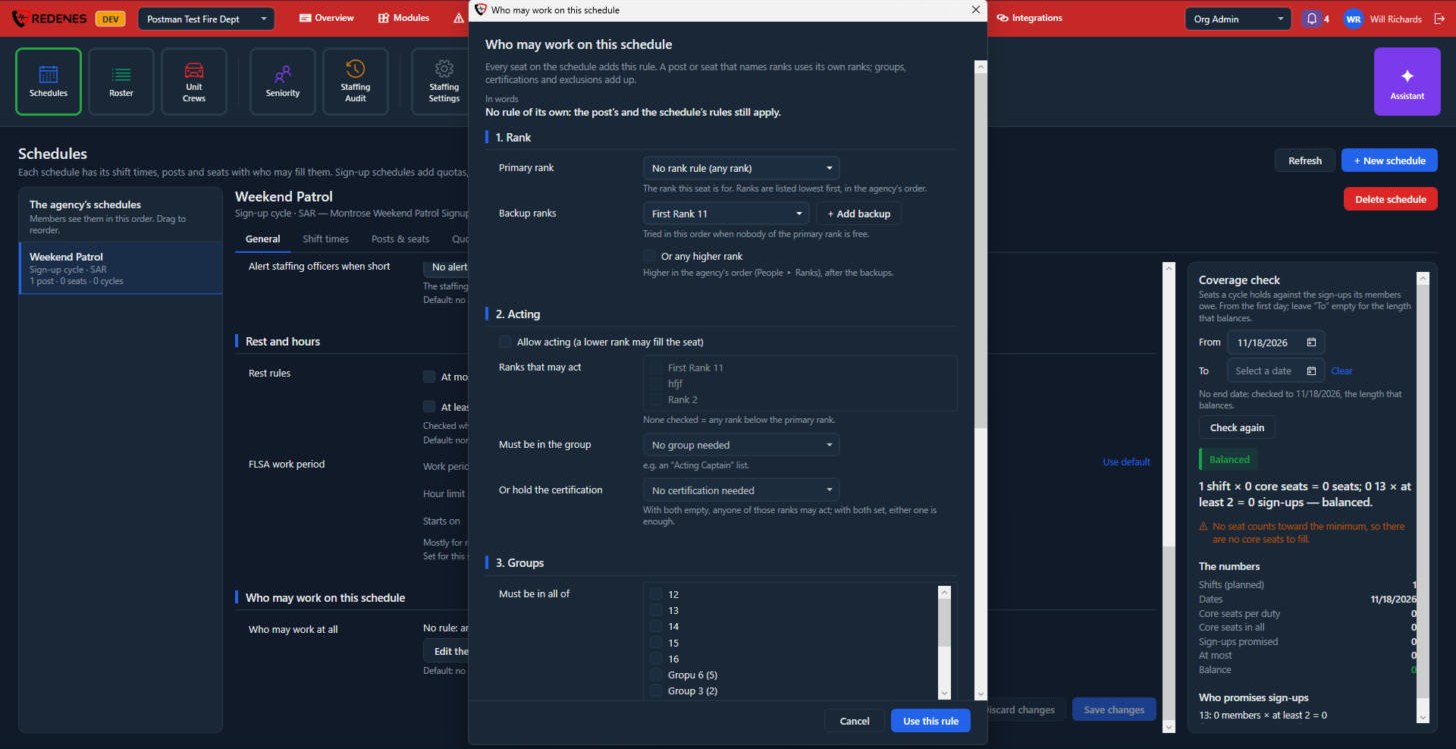
The same window sets who may work on a schedule, on a post and in a seat. Each level adds to the one above it.
 12345
- In words 1 reads the rule back to you as a sentence. Check it before you save.
- 1. Rank 2: the primary rank the seat is for, backup ranks tried in order, and Or any higher rank.
- 2. Acting 3: let a lower rank fill the seat, optionally only members of a group such as an Acting Captain list or holders of a certification.
- 3. Groups 4: groups the person must be in all of, must be in at least one of, and must never be a member of, for example Probationary.
- 4. Certifications, further down: certifications the person must hold all of or must hold one of, valid on the day of the duty. Tick Verified certifications only to count only those an admin has verified.
- Use this rule 5 puts the rule on the page. It is saved when you save the schedule, post or seat.
Shift times
 12
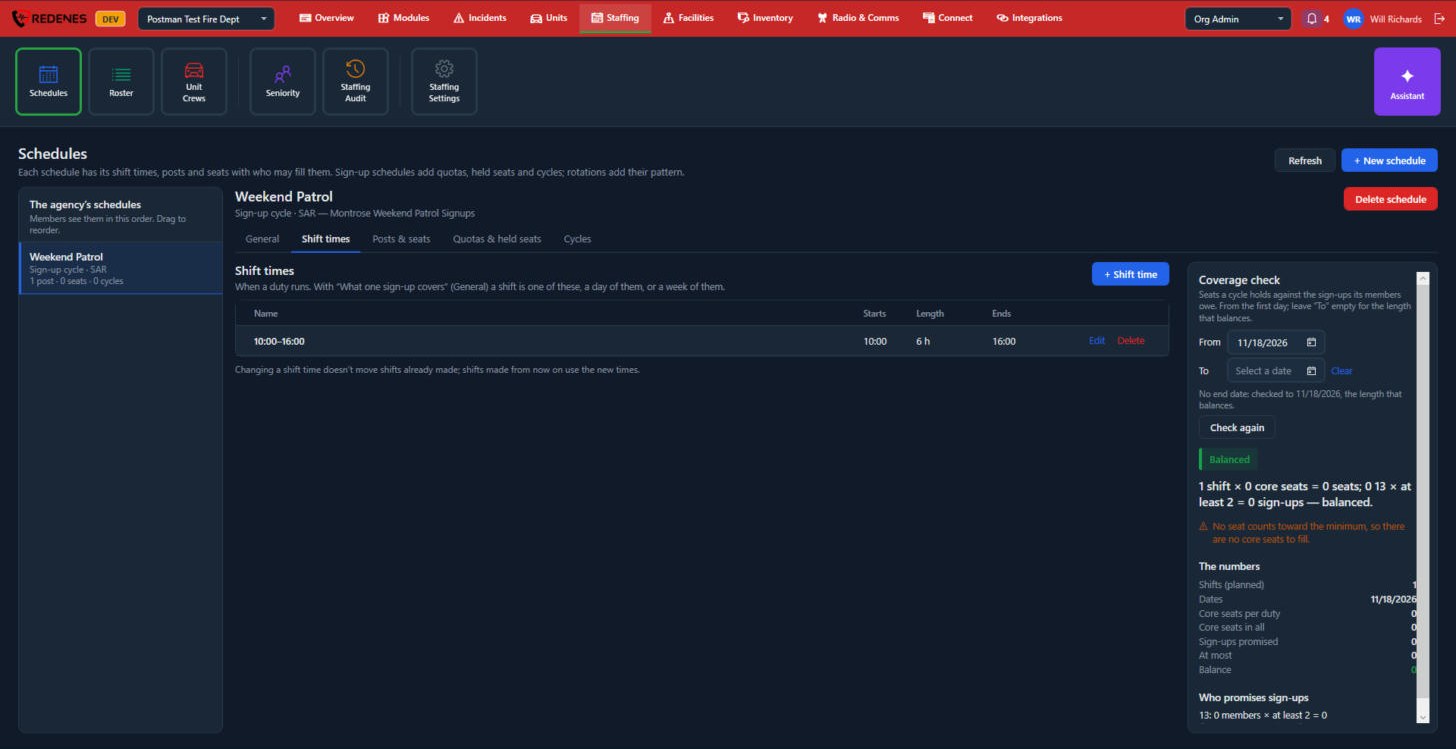
Click + Shift time 1 to add one. Each row 2 is a time a duty runs, with Edit and Delete on the right. Changing a shift time does not move shifts that are already made.
 12
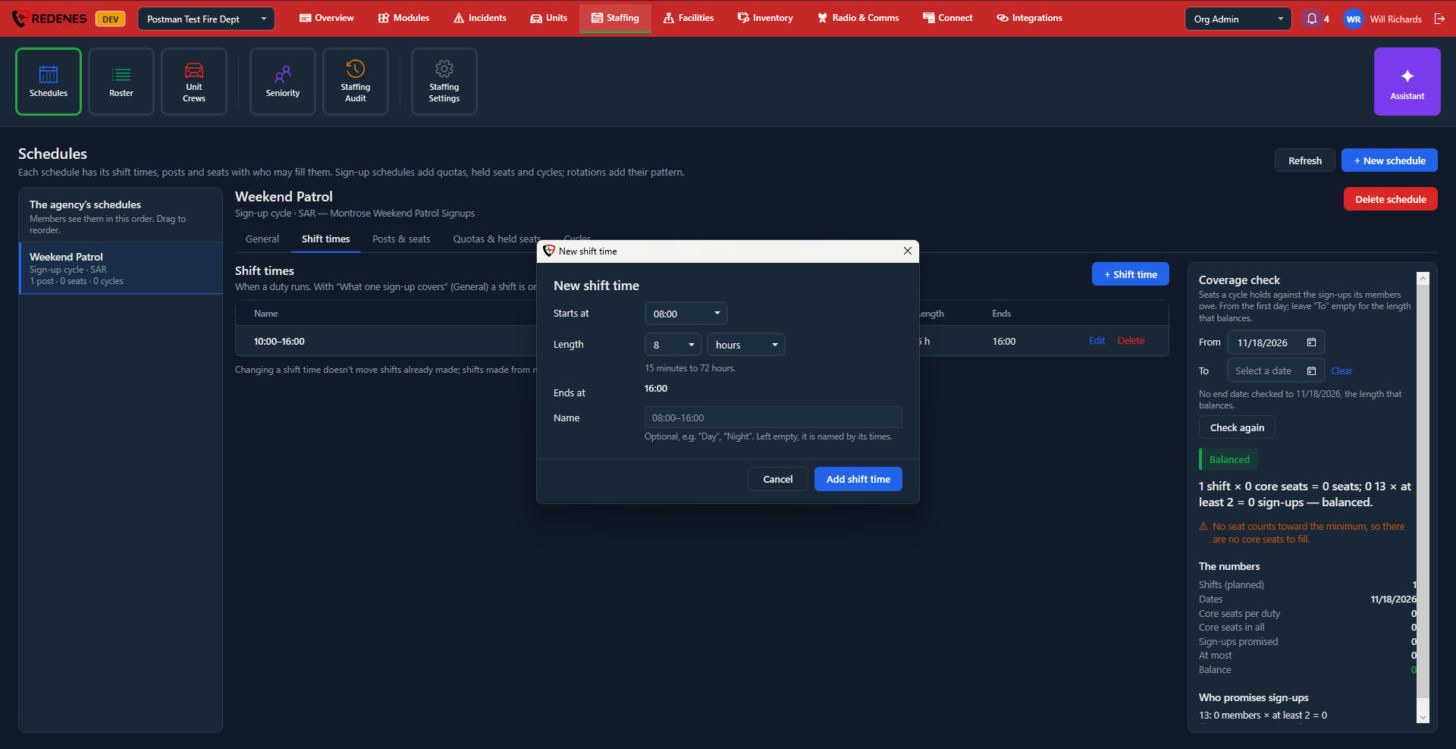
Set when it starts and its length (15 minutes to 72 hours) 1, and name it if you like, for example Day or Night 2. Left empty, it is named by its times.
Posts & seats
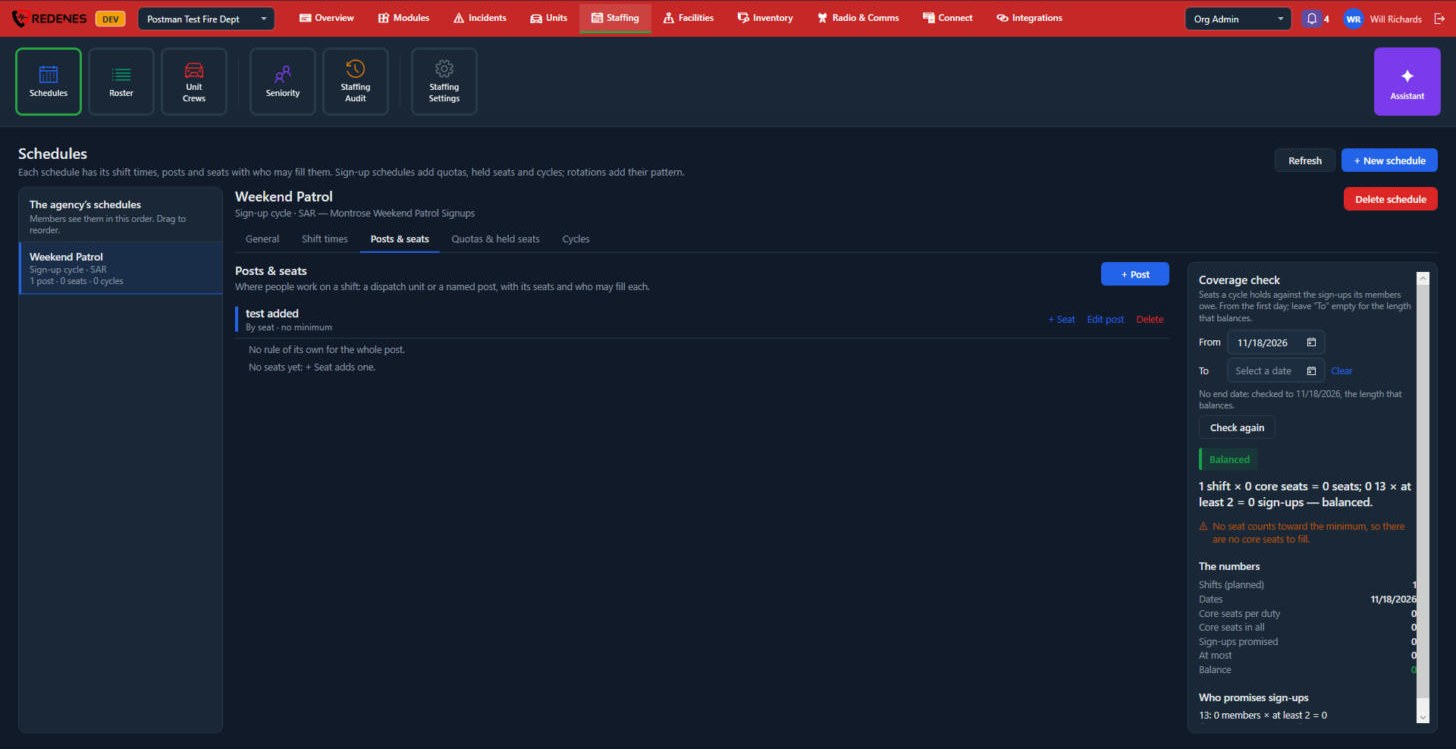
A post is where people work on a shift: a dispatch unit or a named post. A seat is one position on it.
 123
- + Post 1 adds a post.
- + Seat, Edit post and Delete 2 are on each post's row.
- The post's rule and its seats 3 are listed under it.
 1234
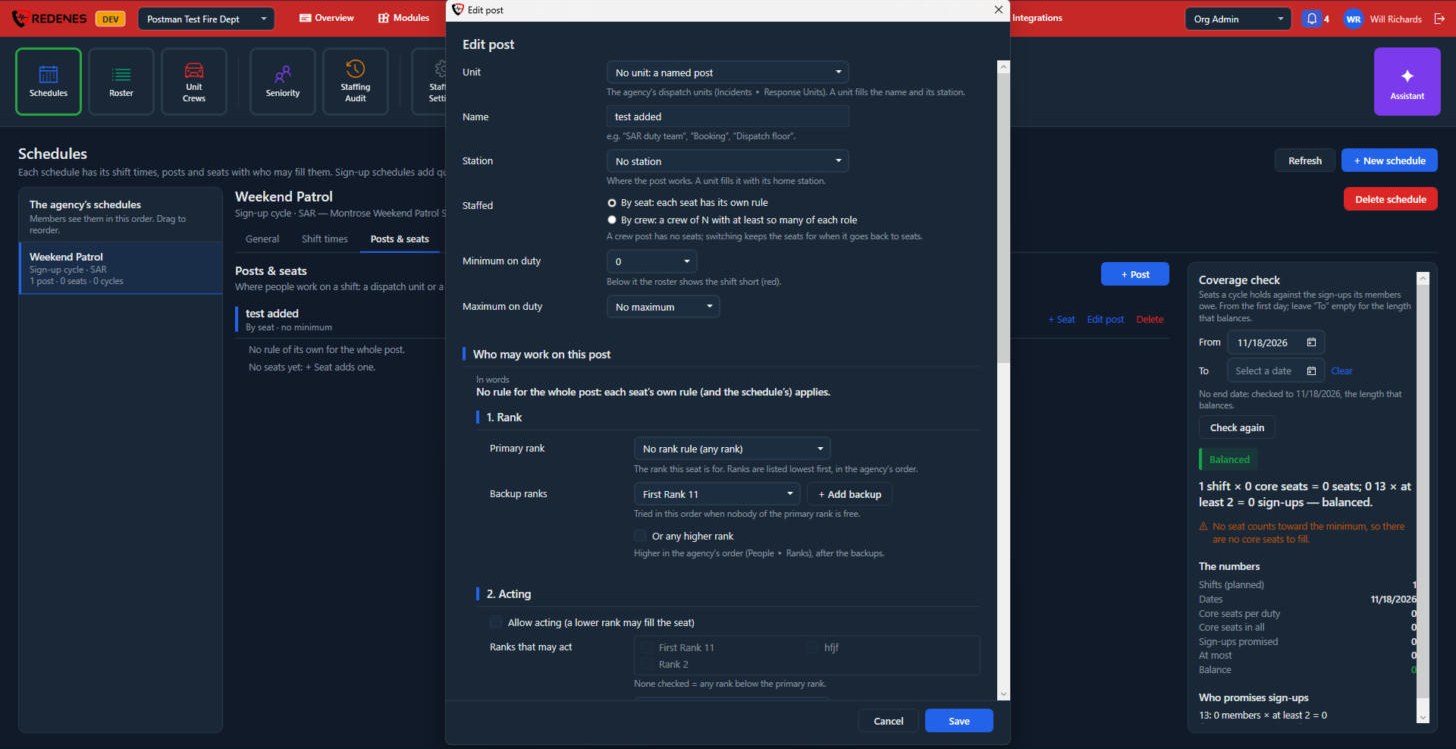
- Unit, Name and Station 1: pick one of the agency's dispatch units, which fills in the name and station, or leave it as a named post such as Dispatch floor.
- Staffed 2: By seat, where each seat has its own rule, or By crew, a crew of a set size with at least so many of each role.
- Minimum on duty and Maximum on duty 3: below the minimum the roster shows the shift short, in red.
- Who may work on this post 4: the same rule sections as above, for everyone on the post.
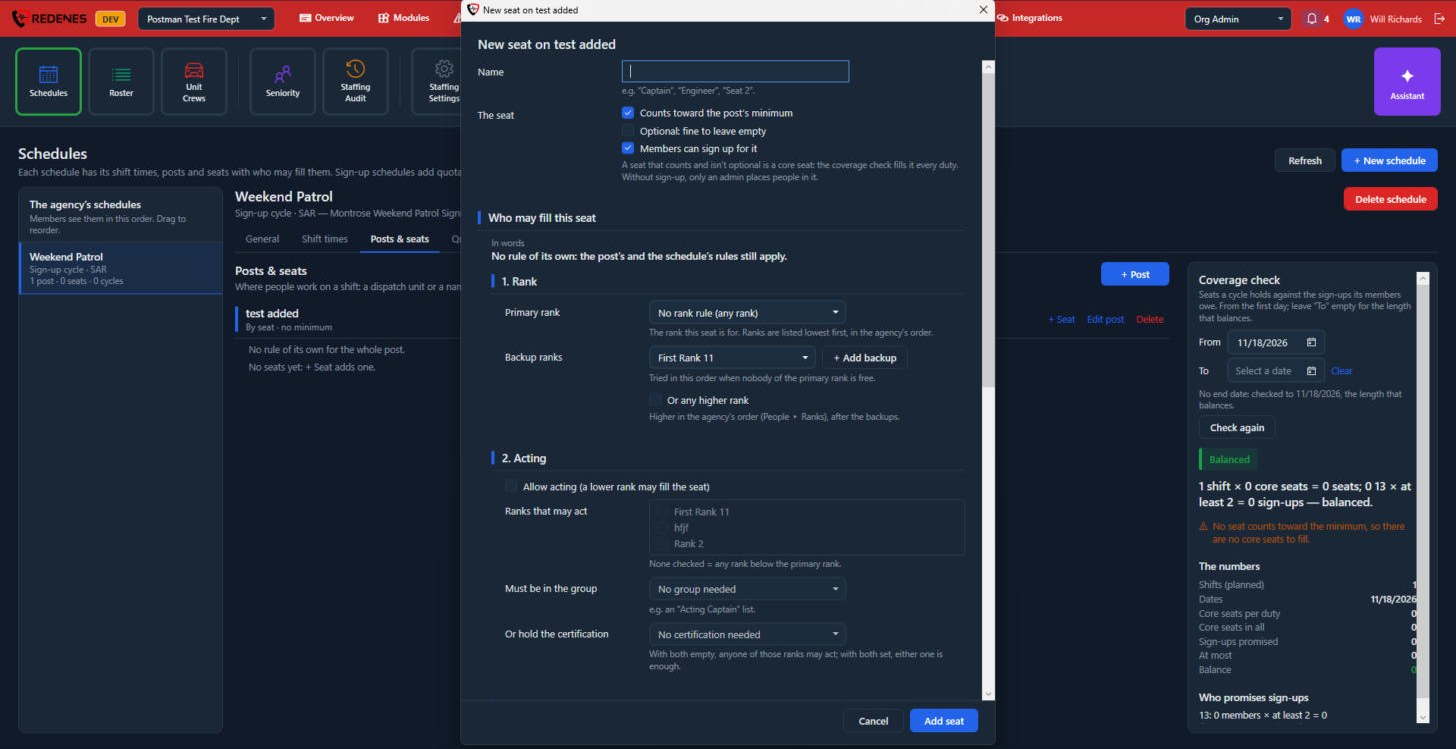 123
- Name 1, such as Captain, Engineer or Seat 2.
- The seat 2: whether it counts toward the post's minimum, whether it is optional, and whether members can sign up for it. A seat that counts and is not optional is a core seat, which the coverage check expects to be filled on every duty. Without sign-up, only an admin places people in it.
- Who may fill this seat 3: the seat's own rule.
Quotas & held seats
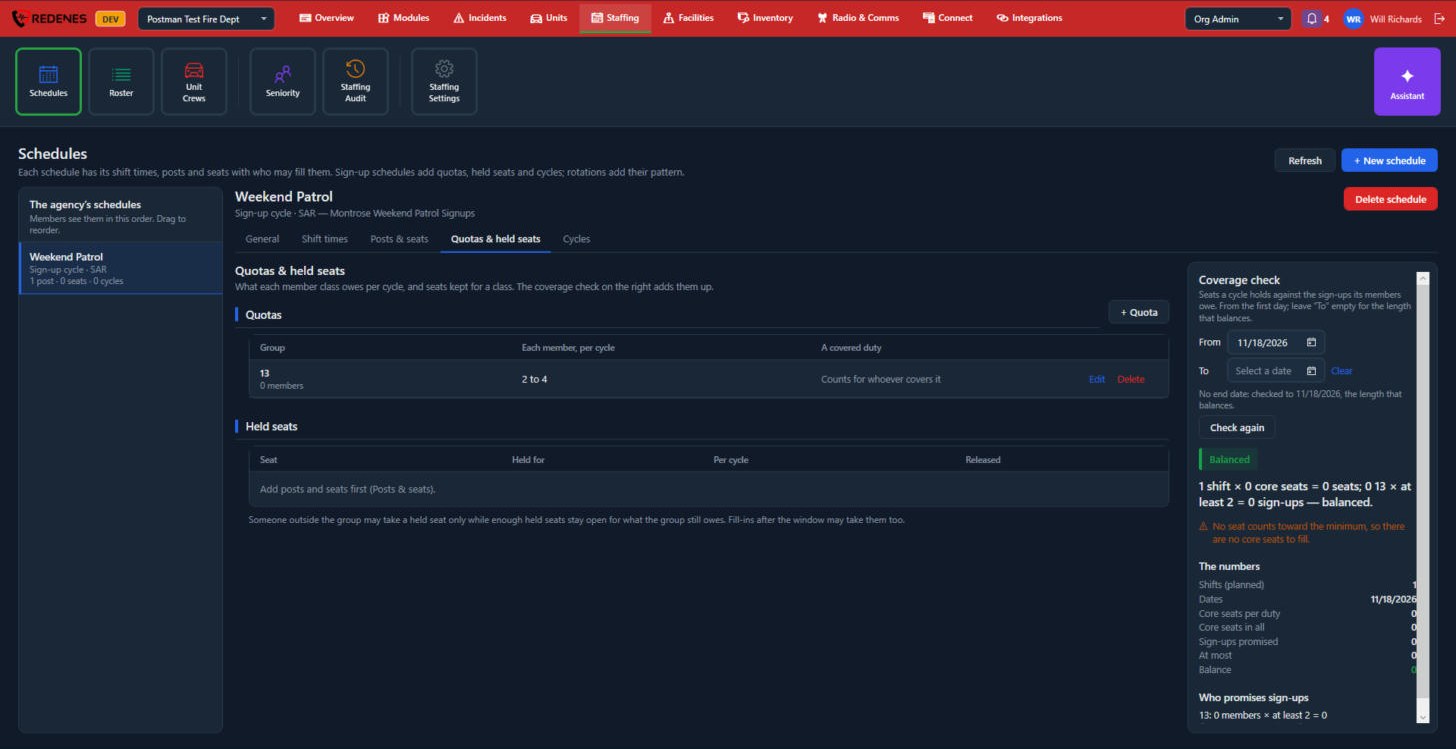 123
- + Quota 1 says what the members of a group owe per cycle.
- Each quota row 2 shows the group, the number each member owes and how a covered duty counts.
- Held seats 3 keeps seats for one group, for example two seats per duty for full members. Someone outside the group can take a held seat only while enough stay open for what the group still owes.
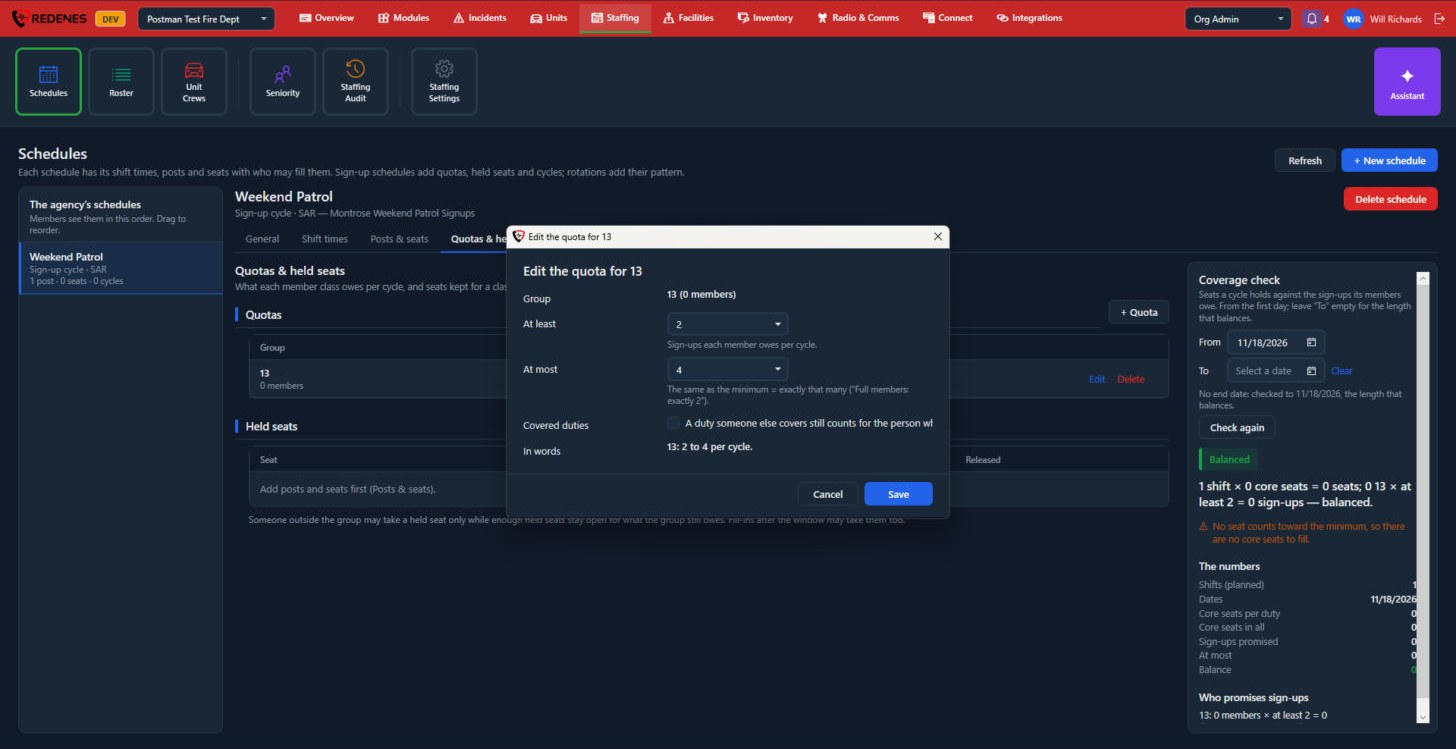 123
Set At least and At most 1. The same number in both means exactly that many. Tick Covered duties 2 if a duty that someone else covers should still count for the person who signed up. In words 3 reads the quota back.
Cycles
A cycle is one sign-up period.
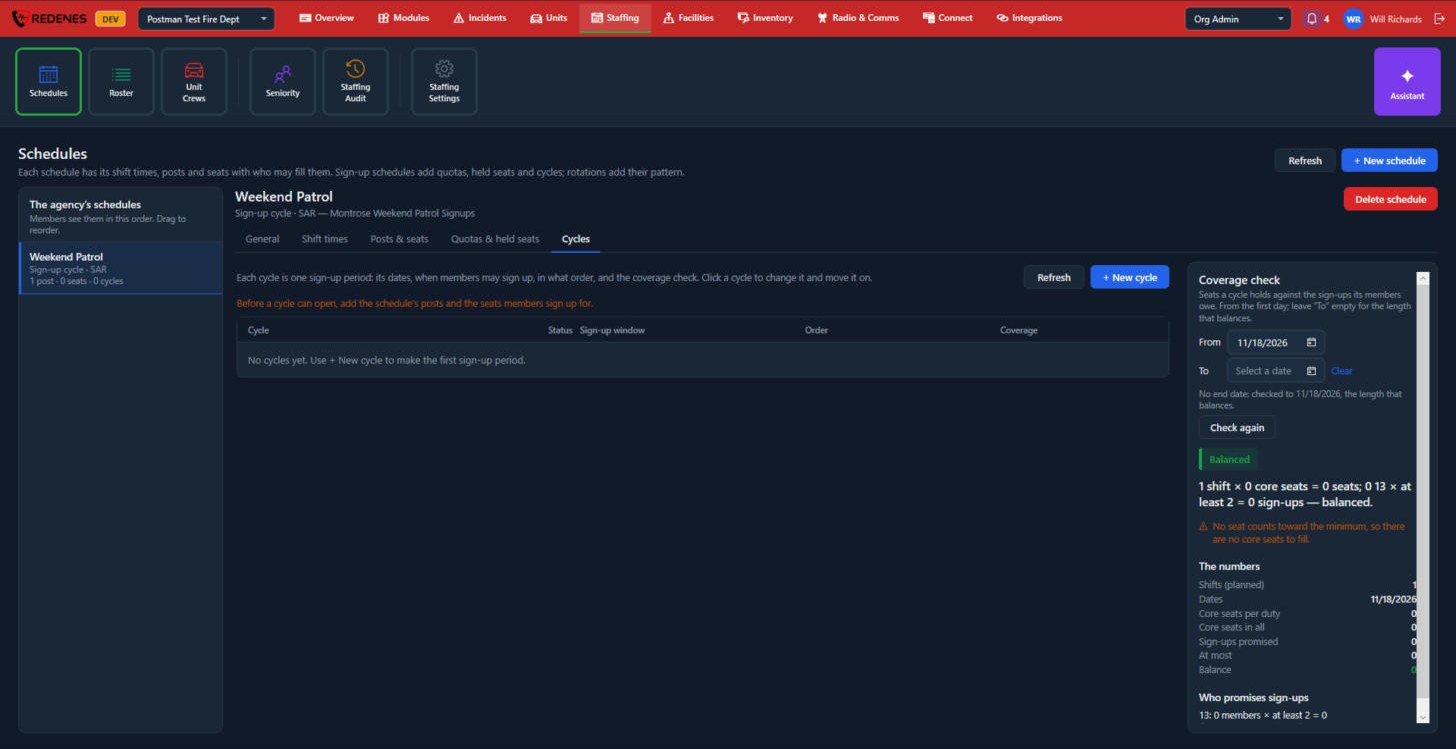 12
Click + New cycle 1. Each cycle in the list 2 shows its status, sign-up window, order and coverage. Click a cycle to change it and move it on.
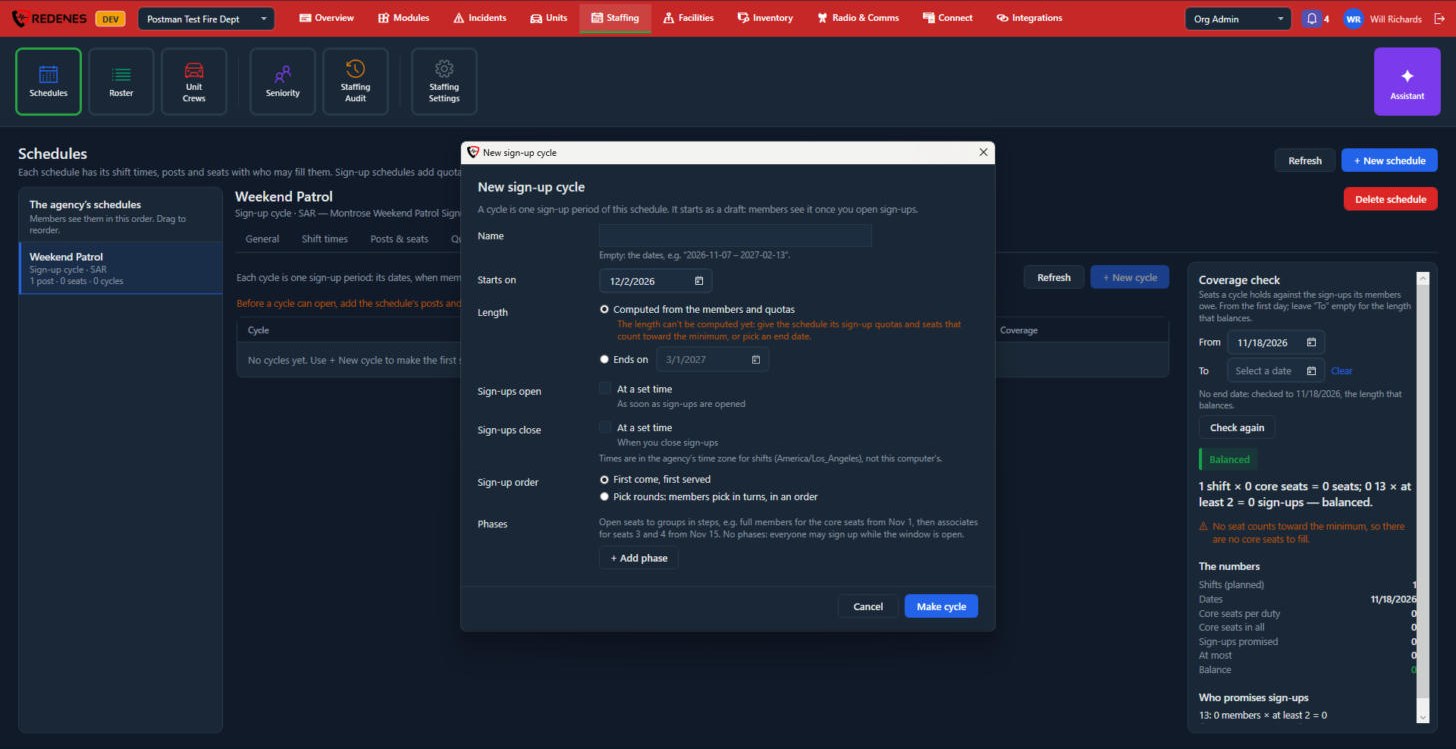 12345
- Name and Starts on 1. Left empty, the cycle is named by its dates.
- Length 2: worked out from the members and their quotas so that seats and sign-ups balance, or a fixed end date.
- Sign-ups open and Sign-ups close 3: at a set time, or when you open and close them yourself. Times are in the agency's time zone.
- Sign-up order 4: first come, first served, or pick rounds where members pick in turns.
- Phases 5 open seats to groups in steps, for example full members first and associates two weeks later.
A cycle starts as a Draft. From there you move it on with the buttons on the cycle:
| Button | What happens |
|---|---|
| Open sign-ups | Makes the cycle's shifts and tells the members they can sign up. |
| Close sign-ups | Members can no longer sign up. Fill-ins may still take open seats if the schedule allows. |
| Publish | Makes the schedule final and tells everyone who has a duty in it. |
| Reopen sign-ups | On a closed cycle, lets members sign up again and tells them. |
Archive a published cycle once it is over.
Rotation schedules
A schedule with the Rotation style has a Rotation tab in place of quotas and cycles. On it you start from a preset pattern or build your own, name the platoons, put people on them, preview the calendar and then make the shifts.