Module Config
Modules are the tiles your members see in the apps. Module Config decides which tiles exist, which screen each is on, what it is called and what opens when it is tapped.
Where: ModulesModule Config
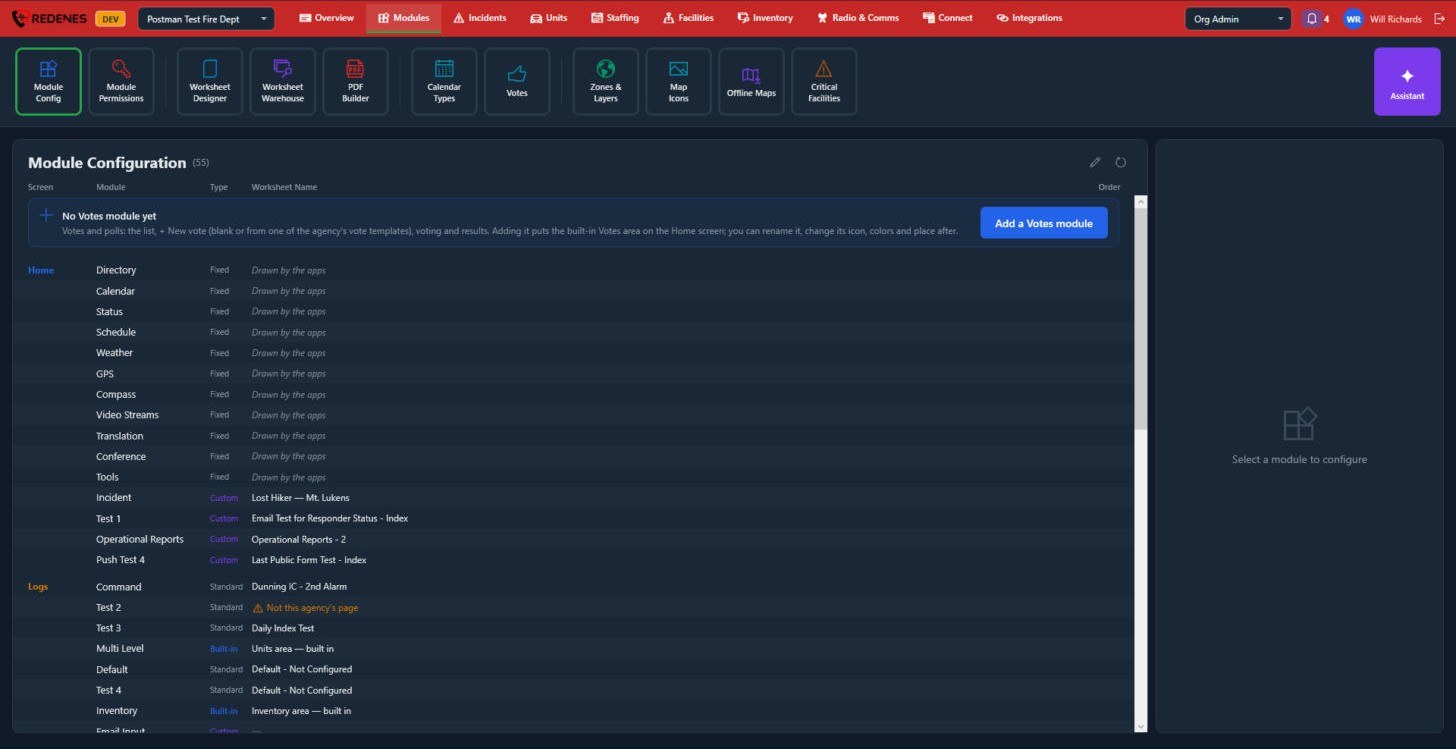 1234
Reading the list
- Screen 1: the app tab the tile is on: Home, Logs, Alerts, References or Account.
- Type 2:
- Fixed: built into the apps, such as Directory, Calendar or Weather. You can rename, recolor, move or hide it.
- Built-in: a whole REDENES area such as Units or Inventory.
- Standard and Custom: tiles that open one of your agency's worksheets.
- Worksheet Name 3: what opens when a member taps the tile. Drawn by the apps means the app has its own screen for it.
Look at a module
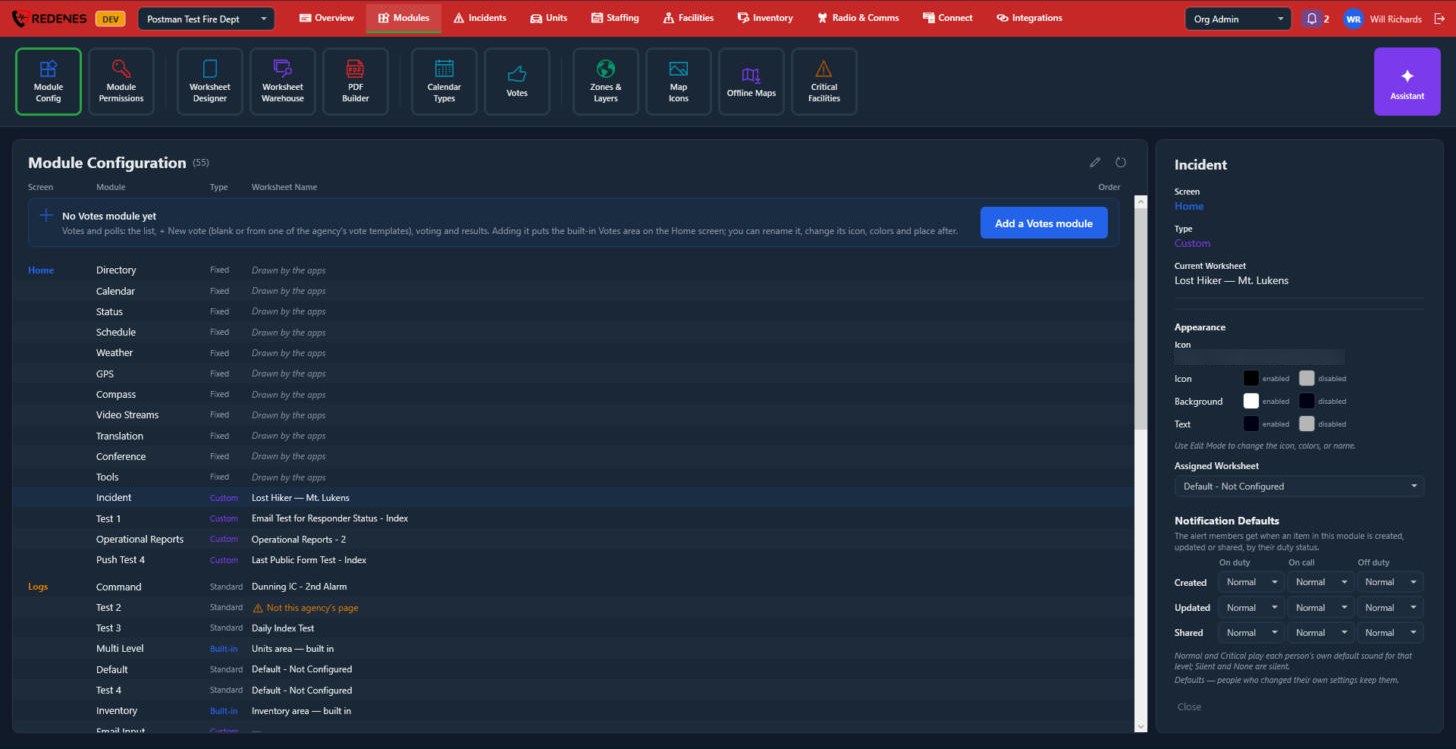
Click a module. Its details open on the right. Until you switch on Edit Mode they are read-only.
 12345
- The module you clicked 1 is highlighted in the list.
- Screen, Type and Current Worksheet 2: where the tile is, what kind it is and what it opens now.
- Appearance 3: the icon and the colors of the icon, background and text, each for the tile when it is enabled and when it is disabled.
- Assigned Worksheet 4: the worksheet this module opens.
- Notification Defaults 5: the alert a member gets when something in this module is Created, Updated or Shared, for each duty status: On duty, On call and Off duty. These are starting values. Members who changed their own settings keep them.
Fixed modules have no worksheet and no notification rows, because the apps draw them.
Change a module
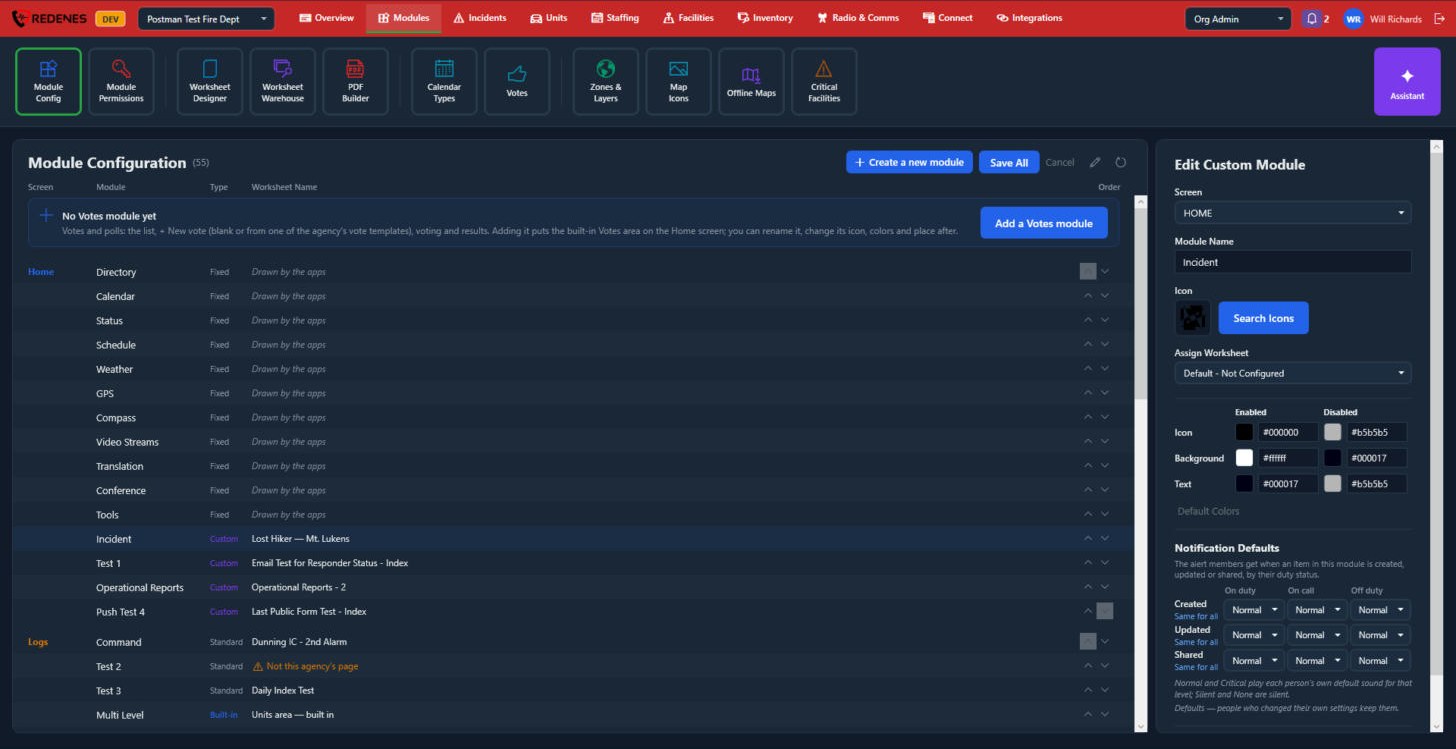
Click the pencil 4 at the top of the list to switch on Edit Mode.
 1234567
- Create a new module, Save All and Cancel 1 appear at the top. Nothing is saved until you click Save All.
- The arrows 2 on each row move the tile up or down on its screen.
- Screen and Module Name 3: move the tile to another tab of the app, or rename it.
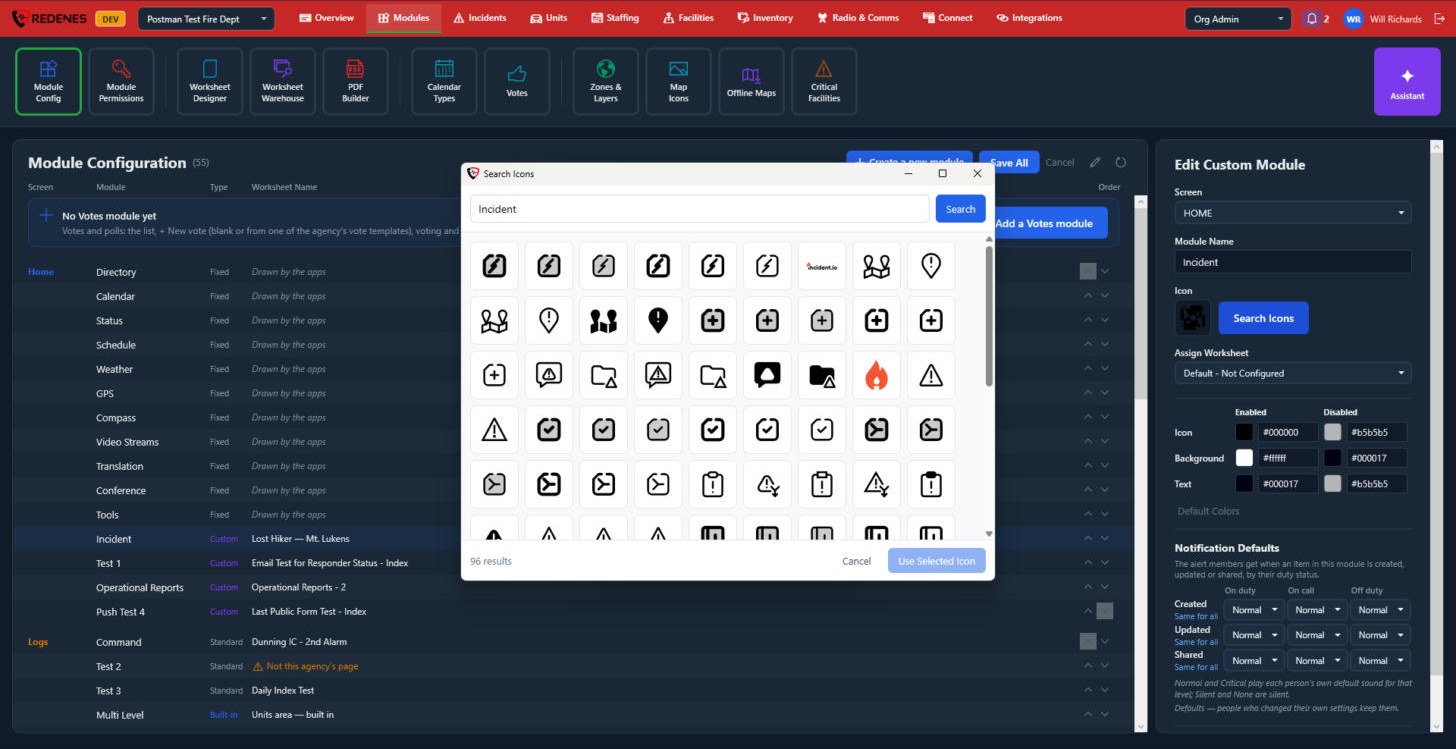
- Icon 4: click Search Icons to pick a new one. See below.
- Assign Worksheet 5: for Standard and Custom modules, the worksheet the tile opens.
- The colors 6: type a color code or click the square beside it. Default Colors puts the standard colors back.
- Notification Defaults 7: pick None, Silent, Normal or Critical for each box. Same for all under Created, Updated or Shared copies the first box across the row.
 123
In Search Icons, type a word and click Search 1, click the icon you want 2, then Use Selected Icon 3.
To add a tile, click Create a new module, fill in the same panel and click Add Module. Then click Save All. Phones pick up the changes on their next refresh.
The banner at the top of the list offers Add a Votes module while your agency has none. See Votes.
A module only shows for a member if they have permission to view it. Set that under Module Permissions.