Channel types and channels
This is where you describe your agency's radio channels so that REDENES can show them to members, pick them for incidents, and track which ones are in use.
The pieces fit together like this:
- A channel type says what a channel is for: Command, Tactical, RIC, Air-to-Ground.
- Inside a type, sub-groups are areas. Each one has its own channels, listed in the order they should be tried.
- A comm plan asks for "one Command channel, one Tactical channel" and REDENES fills each slot with a free channel of that type for the area the incident is in.
Channel Types
Where: Radio & CommsChannel Types
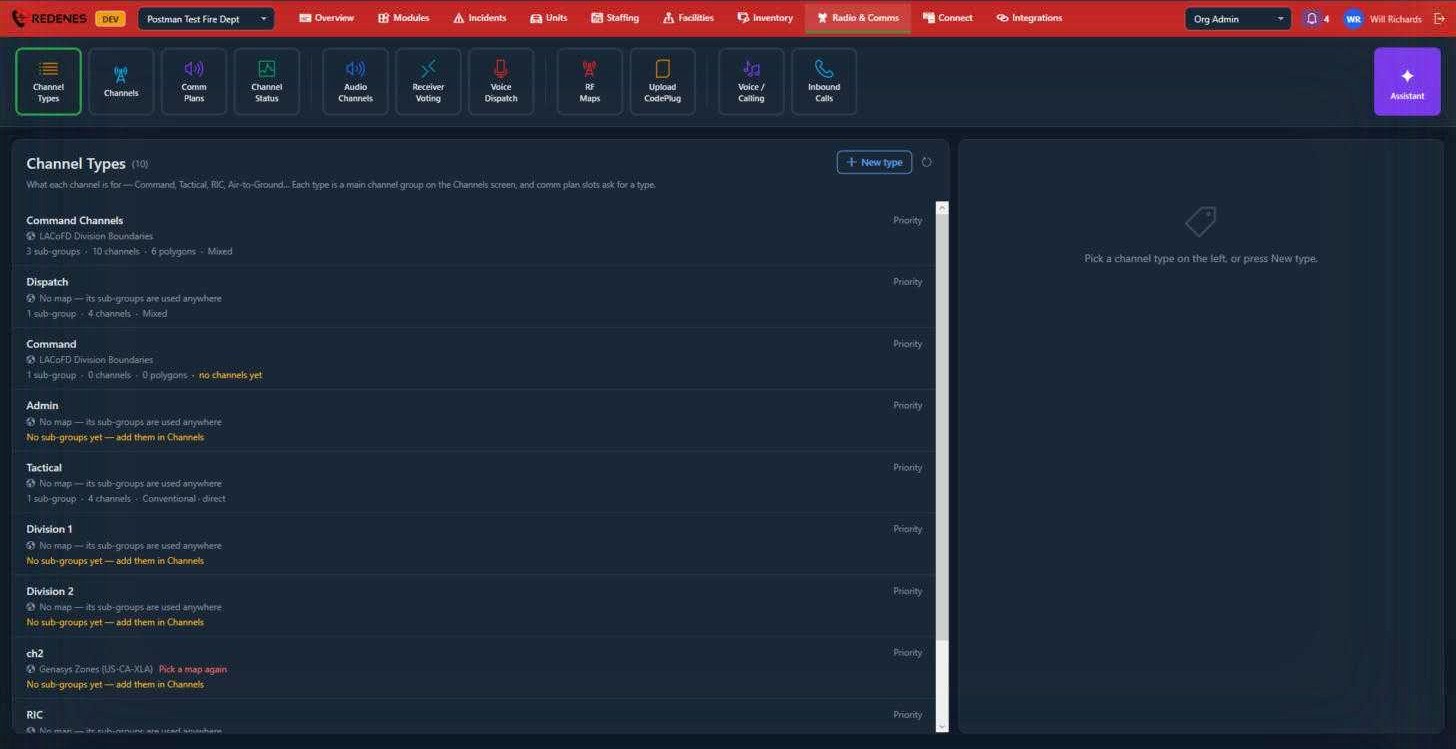 123
- New type 1 adds a channel type. Give it a name, choose how a channel is picked (for example the first free channel in order), and optionally a map, which is a layer whose shapes divide your area.
- Each row 2 shows the type's map and how many sub-groups, channels and polygons it has.
- Yellow text 3 tells you what is still missing, such as "No sub-groups yet". A type with no channels cannot fill a comm plan slot.
A type with no map uses its sub-groups anywhere. A type with a map uses the sub-group whose polygons contain the incident.
A channel type opened
Click a type and it opens on the right.
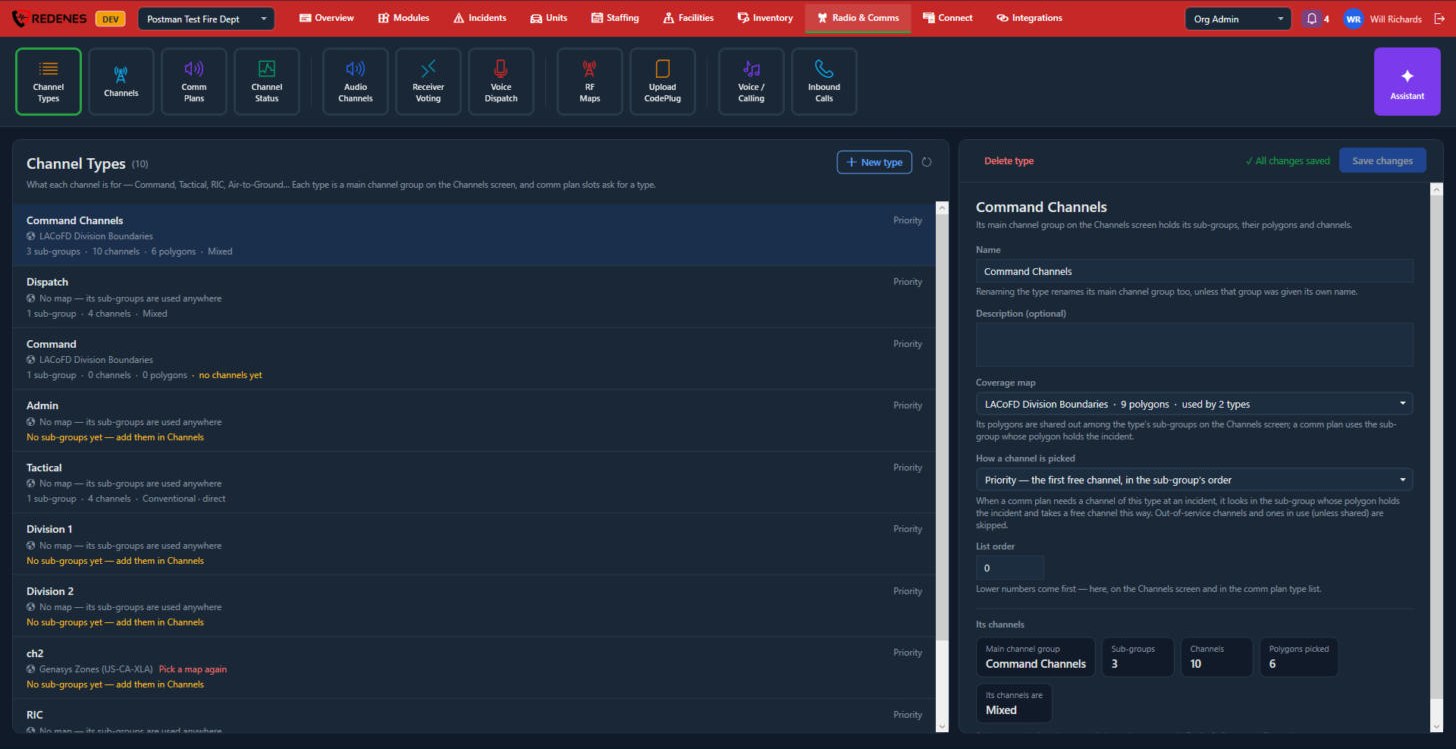 123456
- Name and Description 1.
- Coverage map 2: the map layer whose shapes divide your area, or none.
- How a channel is picked 3 when a comm plan asks for this type.
- List order 4: where the type sits in lists.
- Its channels 5: the sub-groups and channels it has now. They are edited on the Channels tile.
- Save changes 6. Delete type is at the top left of the panel.
Channels
Where: Radio & CommsChannels
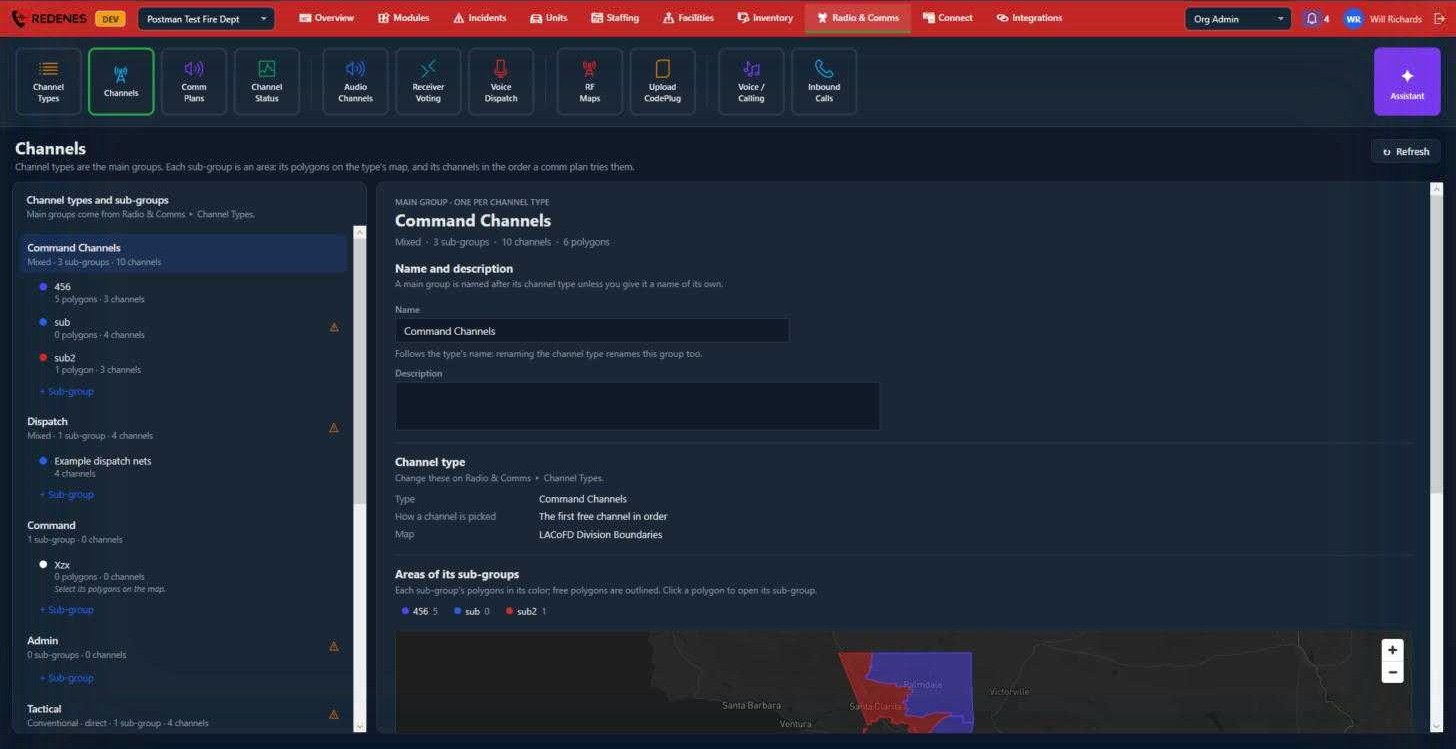 12345
- The left side 1 lists each channel type as a main group, with its sub-groups under it. Click either to open it on the right.
- + Sub-group 2 adds an area under a type.
- An orange triangle 3 marks something to fix, usually a sub-group with no channels or no polygons.
- For a main group you can set a display name and description 4. Left alone, it follows the channel type's name.
- Areas of its sub-groups 5 shows the type's map. Each sub-group's polygons are filled in its colour, and polygons nobody has claimed are only outlined. Click a polygon to open its sub-group.
Inside a sub-group
Click a sub-group on the left and it opens on the right. The panel is long, so scroll down inside it.
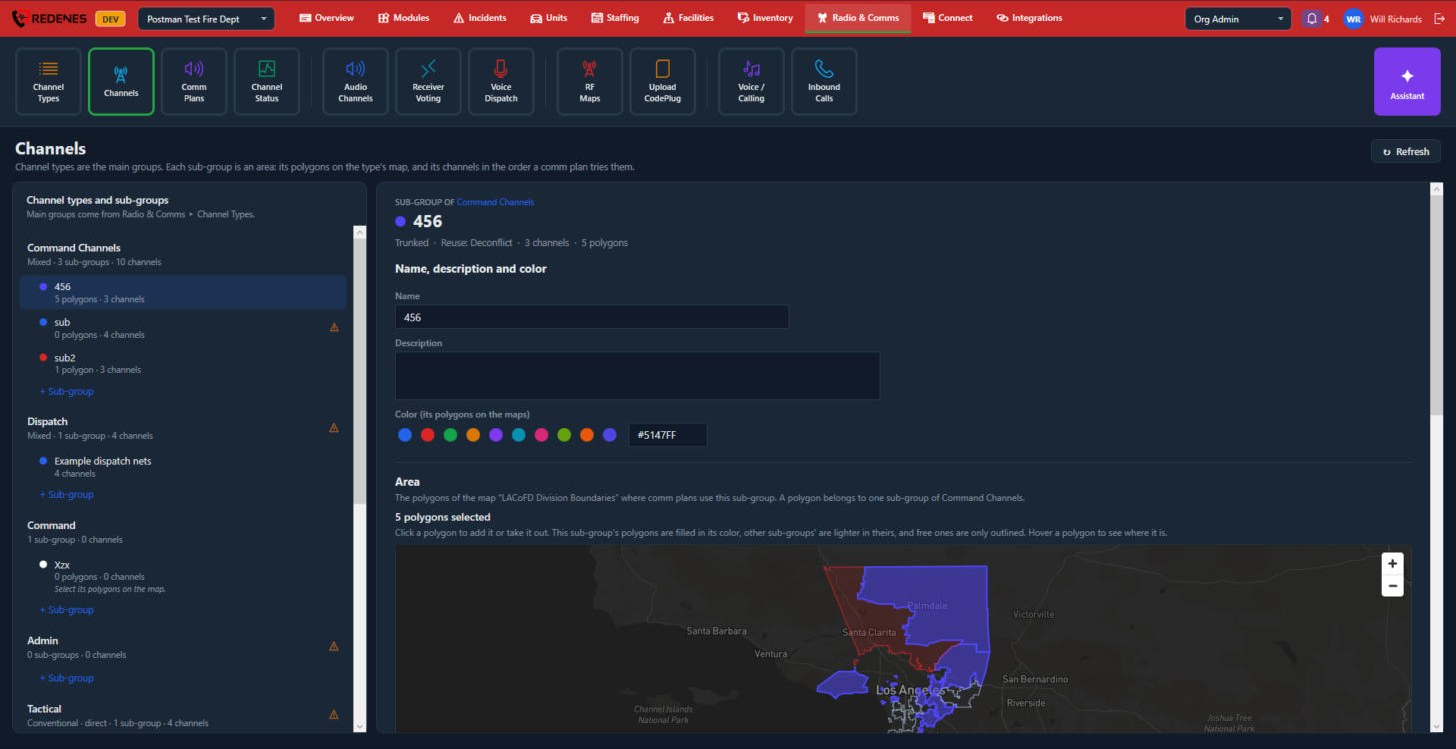 123
- The sub-group you clicked 1, with its number of polygons and channels.
- Name, Description and Color 2. The colour fills its polygons on the maps.
- Area 3: click a polygon on the map to add it to this sub-group or take it out. A polygon belongs to one sub-group of the type. Other sub-groups' polygons are lighter, and free ones are only outlined.
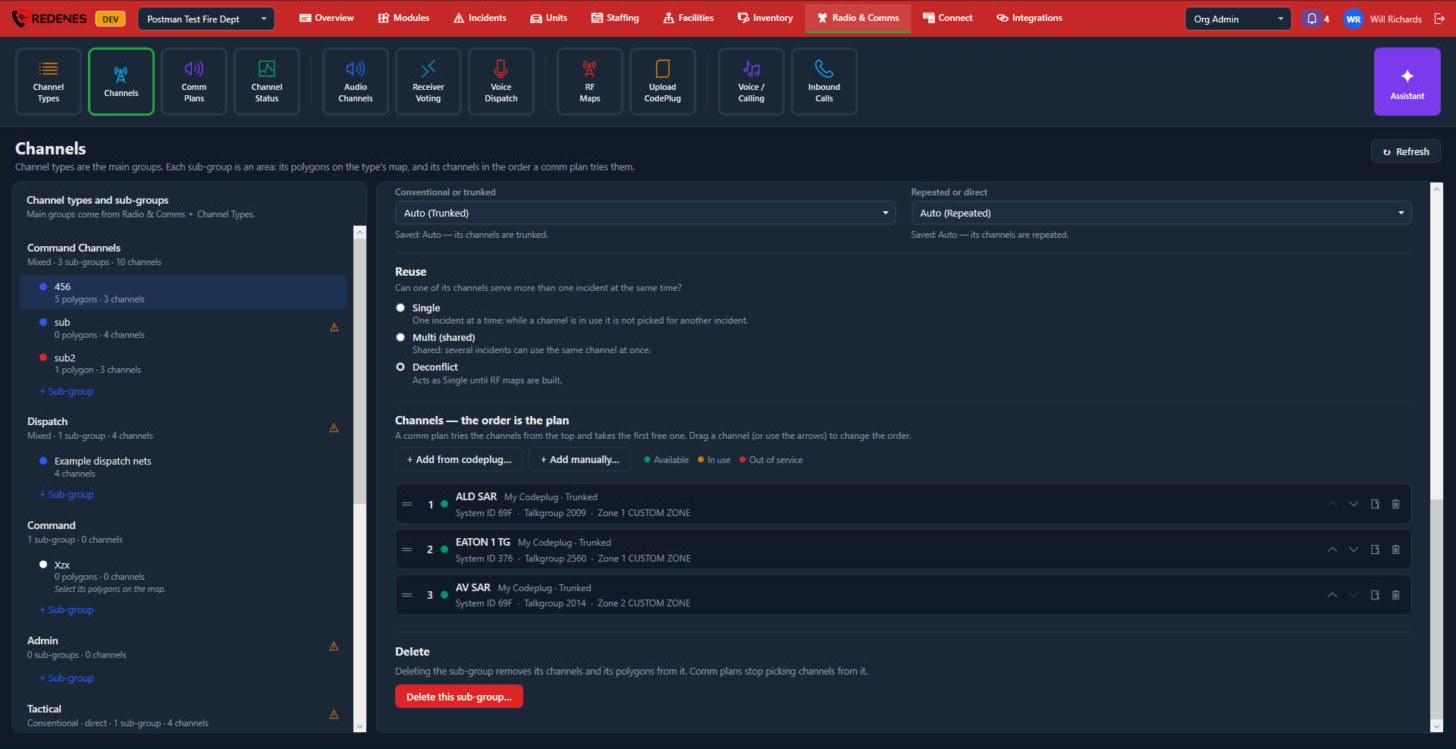 1234
- Conventional or trunked and Repeated or direct 1. Left on Auto, they follow the channels in the sub-group.
- Reuse 2: Single gives a channel to one incident at a time. Multi (shared) lets several incidents use the same channel. Deconflict acts as Single until RF maps are built.
- Channels, the order is the plan 3: a comm plan tries the channels from the top and takes the first free one. Drag a channel or use the arrows to change the order. The dot shows whether it is available, in use or out of service. The bin takes the channel out of this sub-group.
- Delete this sub-group 4 removes its channels and polygons from it. Comm plans stop picking channels from it.
Add from codeplug
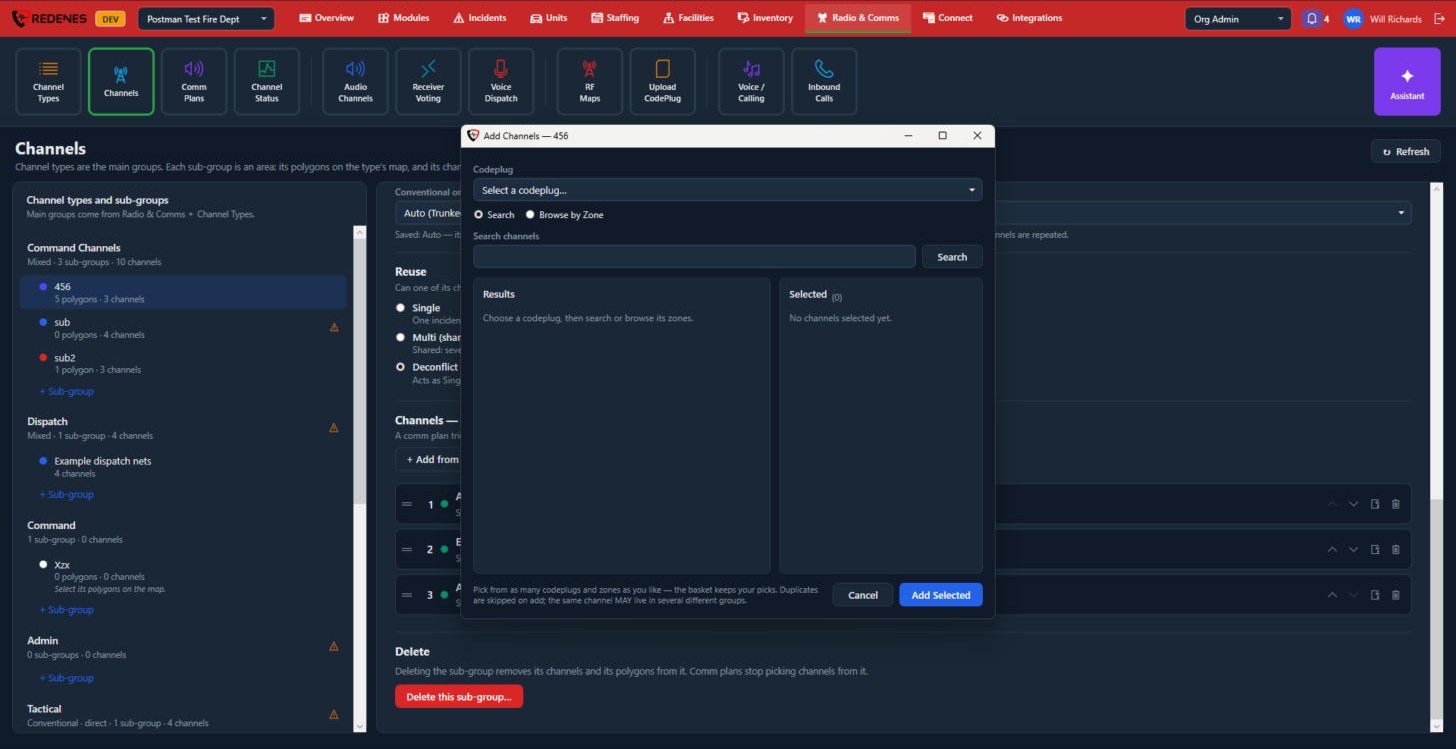 12345
- Pick the Codeplug 1. Codeplugs come from Upload CodePlug.
- Search by name, or Browse by Zone 2.
- Click channels in Results 3 to put them in Selected 4. You can pick from several codeplugs and zones before you add.
- Click Add Selected 5. Channels already in the sub-group are skipped.
Add manually
Use this for channels that are in none of your codeplugs, such as mutual aid, aircraft or a neighbouring agency's system.
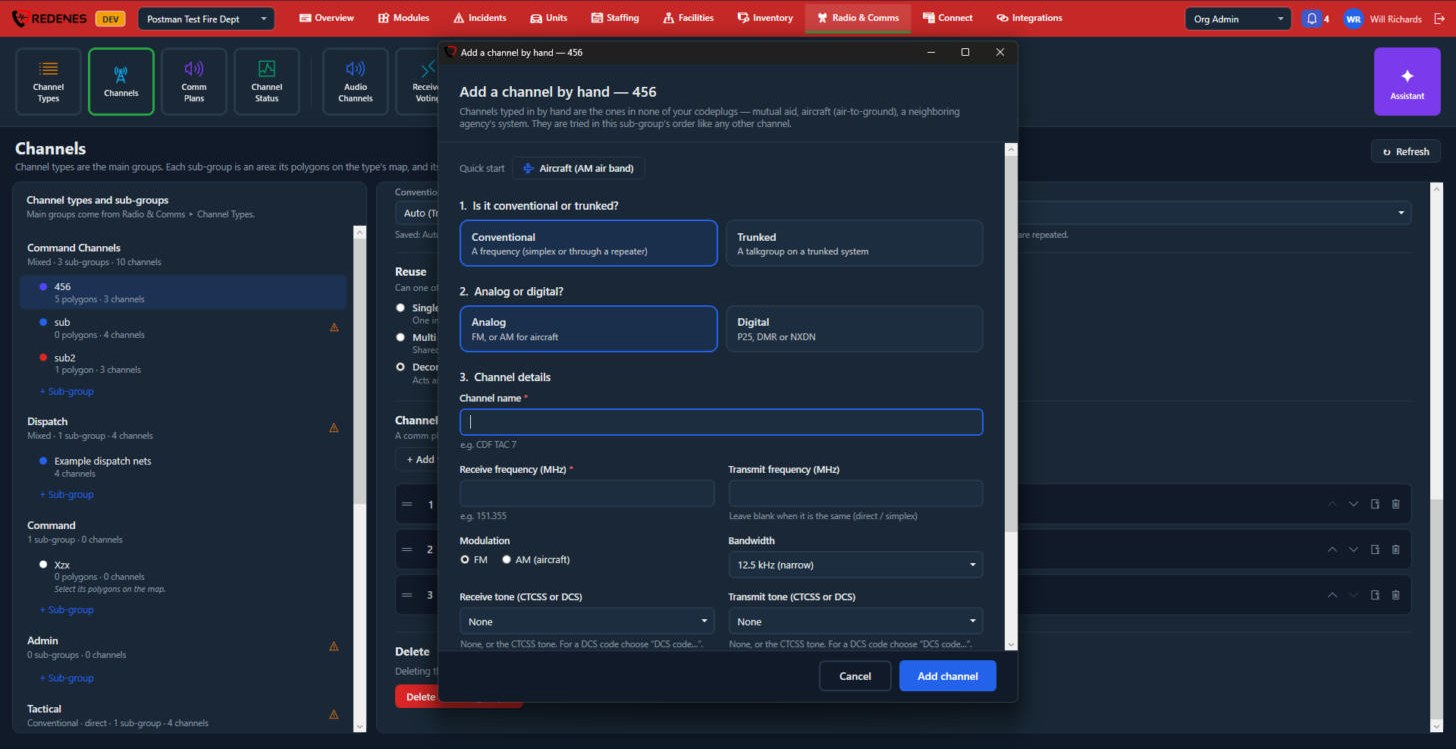 12345
- Quick start 1 fills in the answers for an aircraft (AM air band) channel.
- Conventional or trunked 2: a frequency, or a talkgroup on a trunked system.
- Analog or digital 3.
- Channel details 4: the name, receive and transmit frequency, modulation, bandwidth and tones for a conventional channel, or the system and talkgroup for a trunked one. Leave the transmit frequency blank when it is the same as receive.
- Click Add channel 5.
One radio channel can be in several sub-groups. It is still one channel, so when it is in use in one place it is in use everywhere.