Connect hardware and Wi-Fi
Connect is the family of REDENES devices that sit in a station, a vehicle or a pack: radio gateways, announcement speakers, TV displays and search nodes. This tab is where you add them to your agency and set up what each one does.
| Product | What it does | Set up on |
|---|---|---|
| EchoStream | Puts a radio channel into the app. | Radio inputs and EchoStream |
| VoiceRelay | Speaks dispatches in a station or onto a radio. | VoiceRelay |
| IntelliScreen | Shows live boards on a TV. | IntelliScreen |
| RadioSync | Watches Motorola Radio Management. | RadioSync |
| RF Sweep | Search nodes that listen for nearby phones. | RF Sweep Nodes |
| AudioHub, ResponseHub | Coming soon. The tiles are placeholders for now. |
Connect Hardware
Every physical device is listed here first, whatever it does.
Where: ConnectConnect Hardware
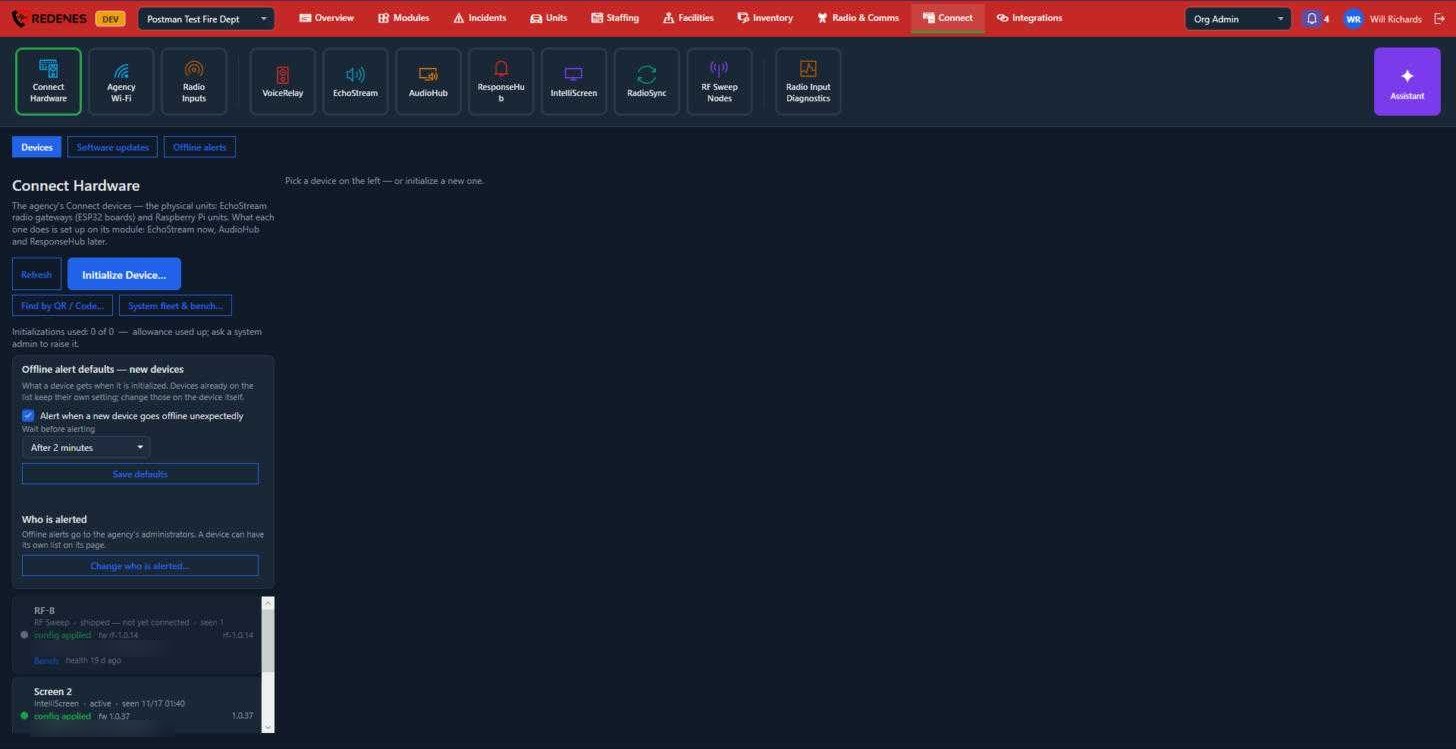 12345
- Tabs 1: Devices, Software updates (which version each device runs and what is available) and Offline alerts (a log of devices that dropped off).
- Initialize Device 2 adds a new device to your agency. Follow the steps on screen, which normally means plugging the device into this PC or entering the code printed on it. The line underneath shows how many initializations your agency has used out of its allowance.
- Find by QR / Code 3 looks a device up from its label.
- Offline alert defaults 4 apply to devices you add from now on: whether to alert when one goes offline unexpectedly, and how long to wait first. Change who is alerted picks the people. By default it is the agency's administrators.
- The device list 5 shows each device with its type, whether it is online, when it was last seen and its software version. Click one to open its page on the right.
A device's page
Click a device in the list and its page opens on the right. The page is long, so scroll down inside it.
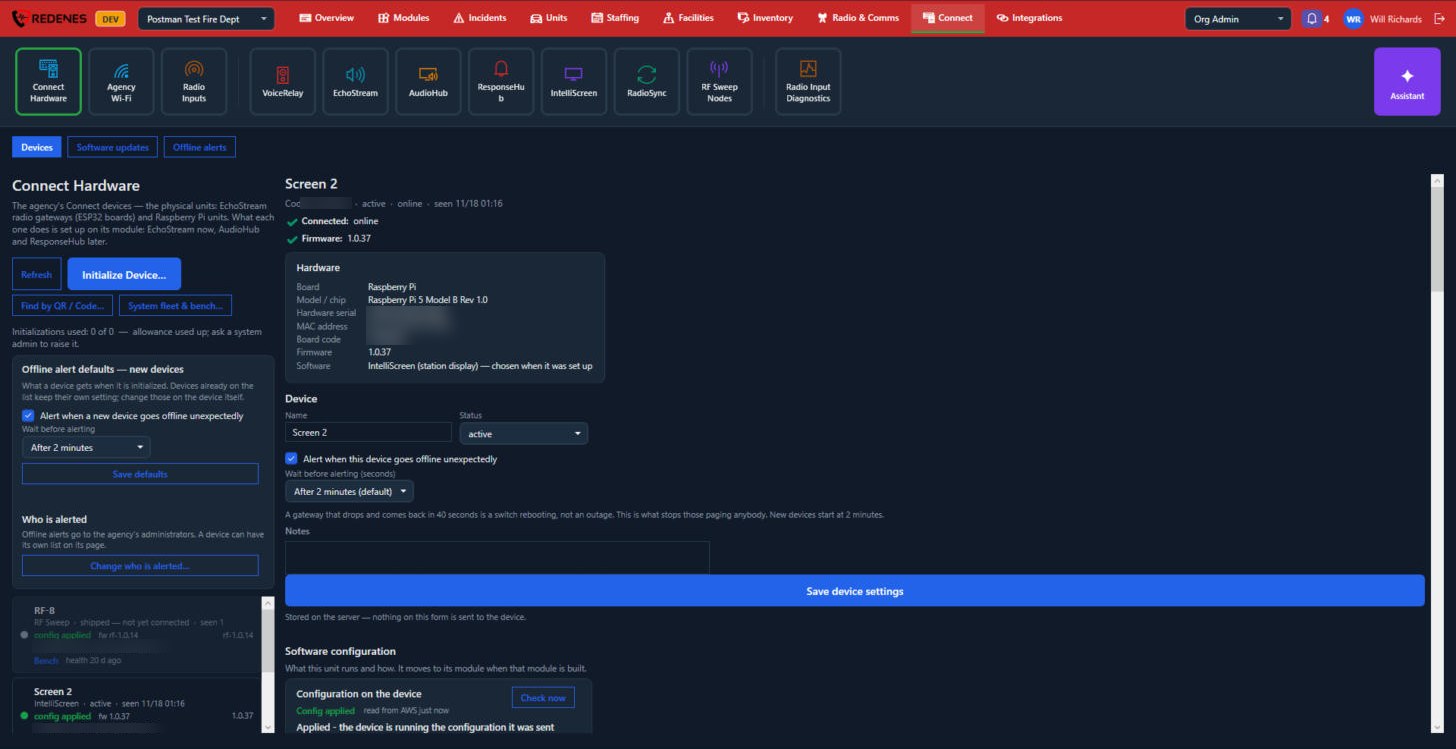 12345
- The status 1: online or offline, when it was last seen and its software version.
- Hardware 2: the board, its serial number and what it runs.
- Device 3: its name, description and where it is.
- Save device settings 4 saves what you changed on this page.
- Software configuration 5: the settings REDENES holds for this device.
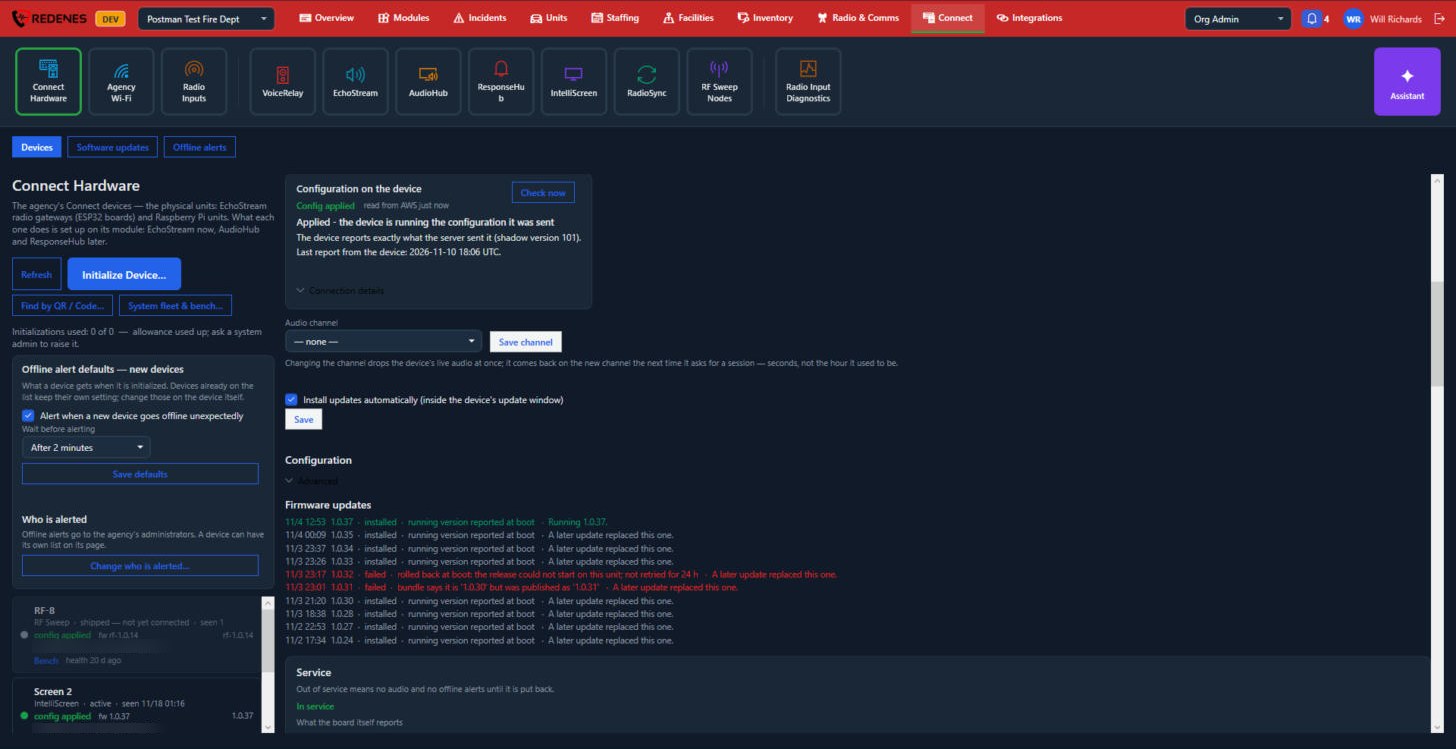 12345
- Configuration on the device 1: what the device itself reports, so you can see whether it has taken your settings.
- Audio channel 2: the channel the device carries.
- Install updates automatically 3.
- Firmware updates 4: the version it runs and the newest one available.
- Service 5 starts here and carries on below.
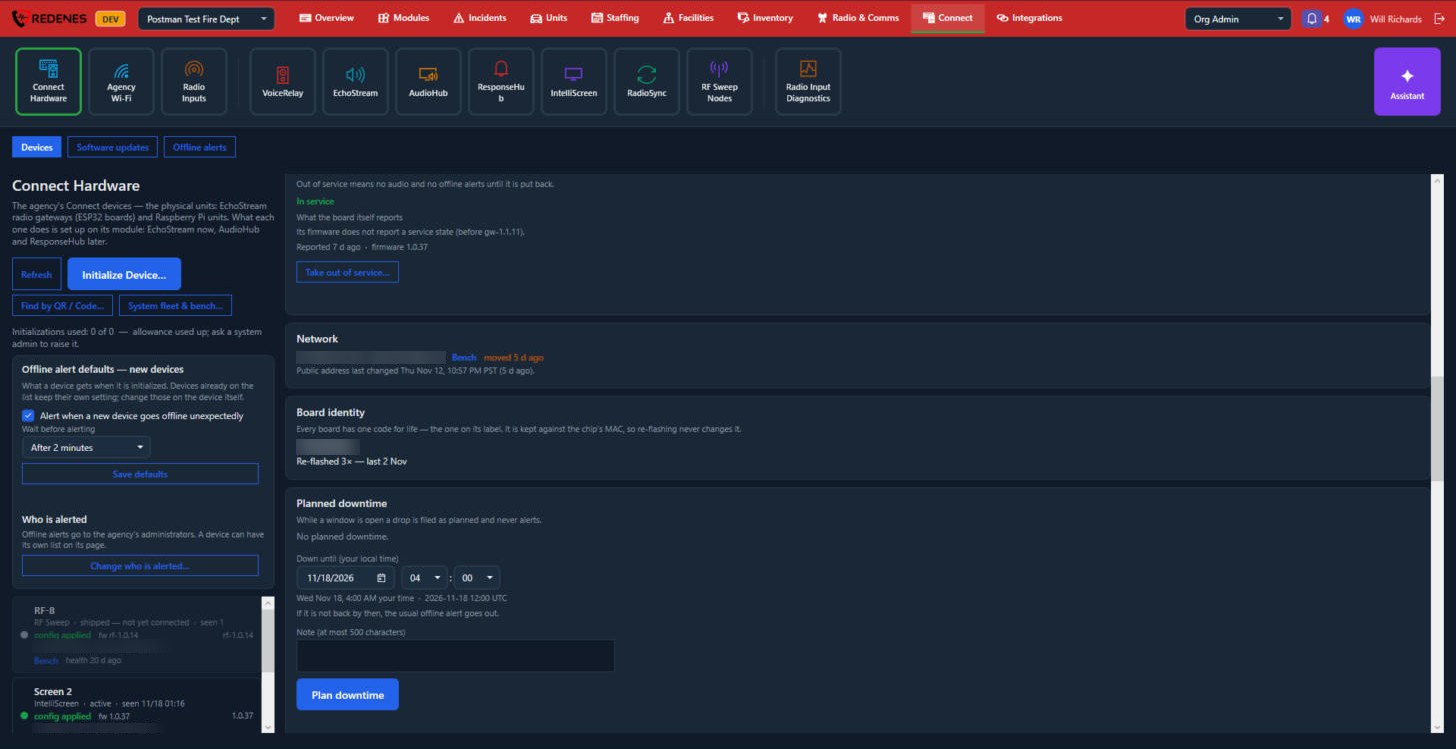 1234
- Service 1: take the device out of service, for example while it is on a bench, and put it back.
- Network 2: how it is connected.
- Board identity 3: the ids REDENES support may ask you for.
- Planned downtime 4: tell REDENES when the device will be off on purpose, so nobody is alerted.
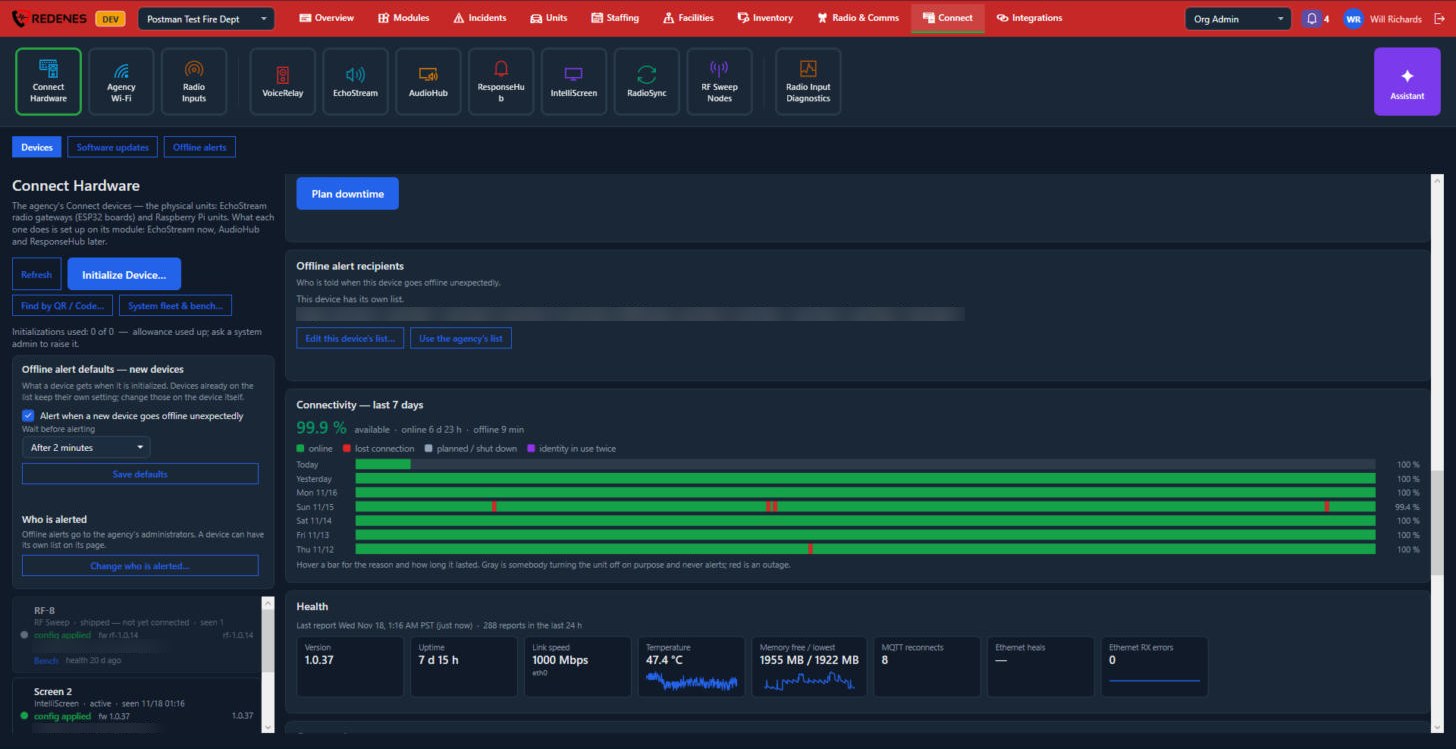 123
- Offline alert recipients 1: who hears when this device drops off.
- Connectivity, last 7 days 2: when it was online and offline.
- Health 3: readings the device reports, such as its temperature and signal.
At the very bottom is the History of events for the device. Show all lists every event.
Initialize a device
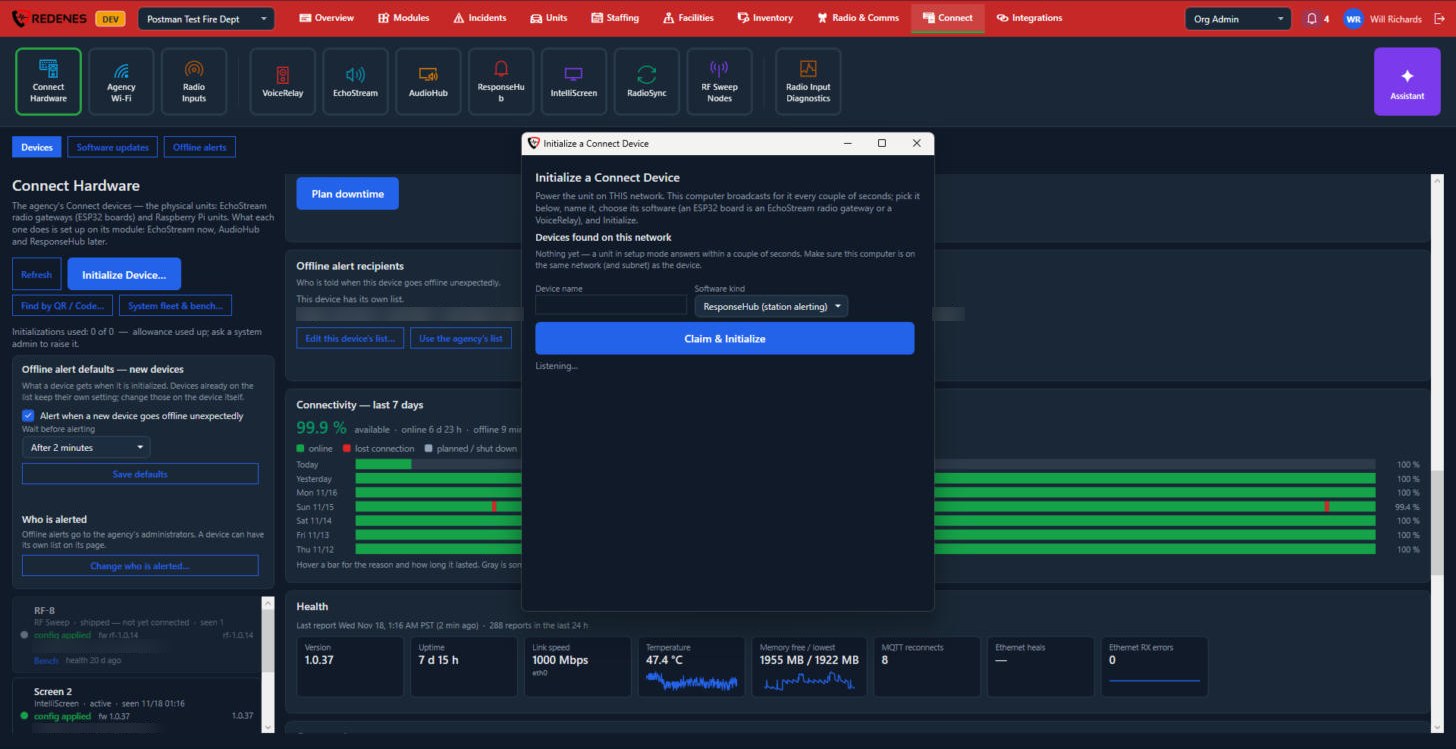 123
- Devices found on this network 1 lists new boards this PC can see.
- Give the board a Device name and pick its Software kind 2, which is what it will run.
- Click Claim & Initialize 3.
Find by QR / Code asks for the text of the QR code on the label, or the 8-character code printed on it, and opens that device.
Software updates
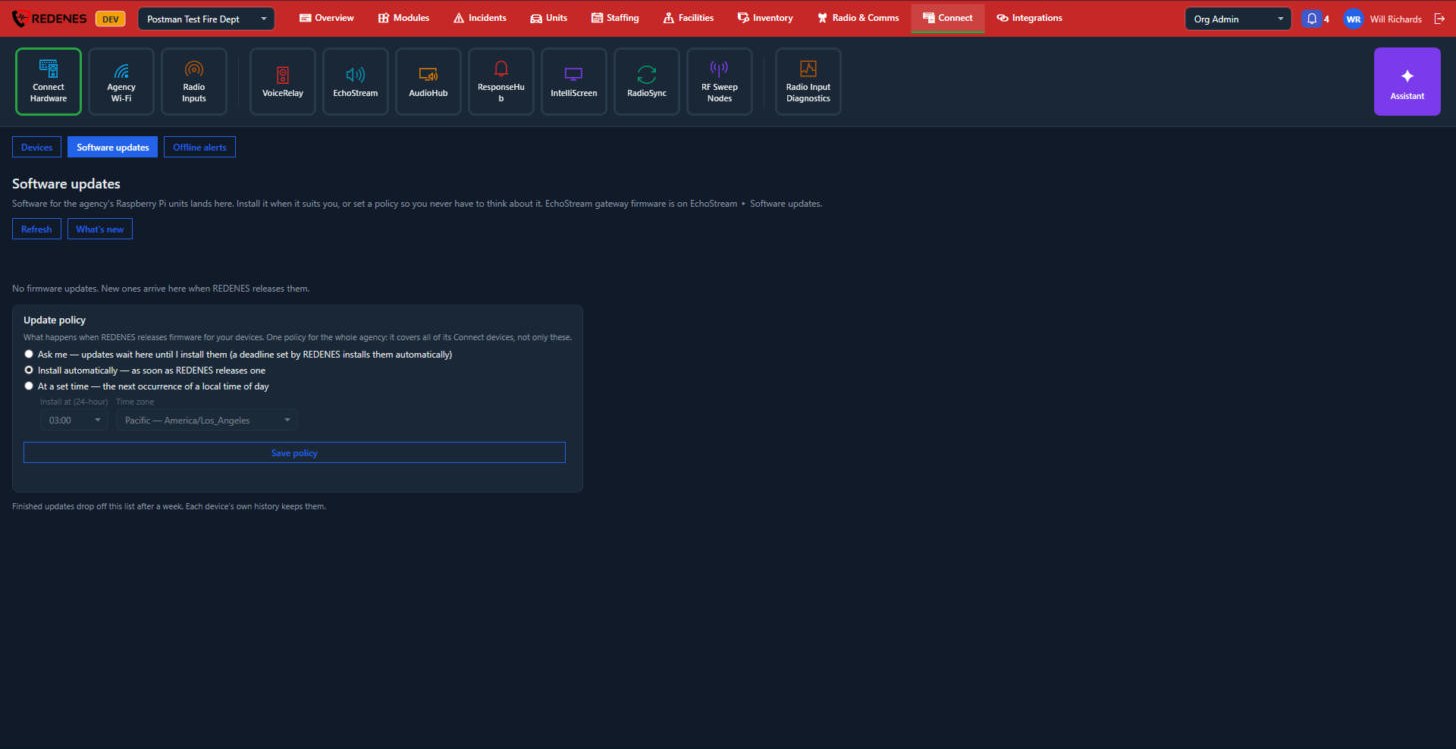 12
- Refresh and What's new 1.
- Update policy 2: Ask me before each update, Install automatically, or install At a set time, then click Save policy.
The Software updates tab under EchoStream works the same way.
Offline alerts
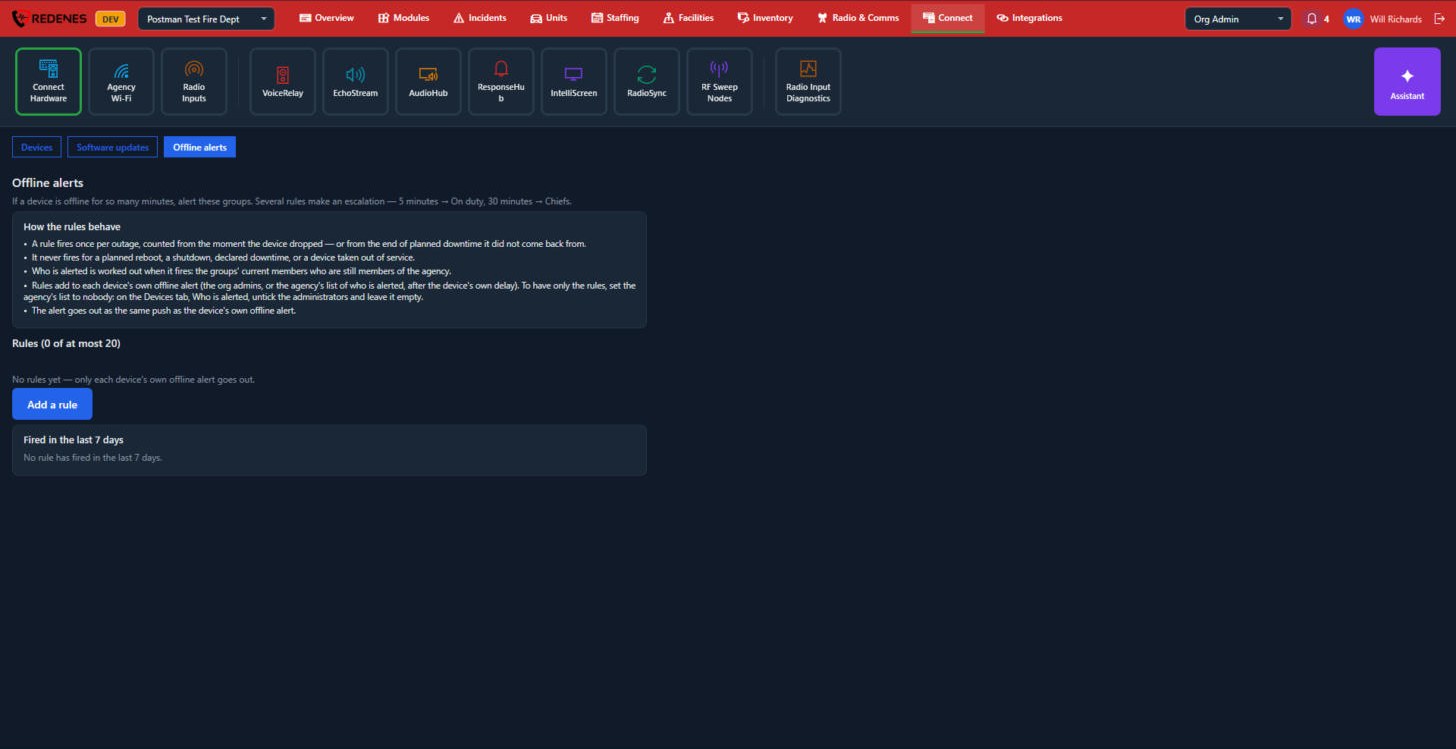 123
- How the rules behave 1 explains when an alert is sent.
- Add a rule 2.
- Fired in the last 7 days 3 lists the alerts that went out.
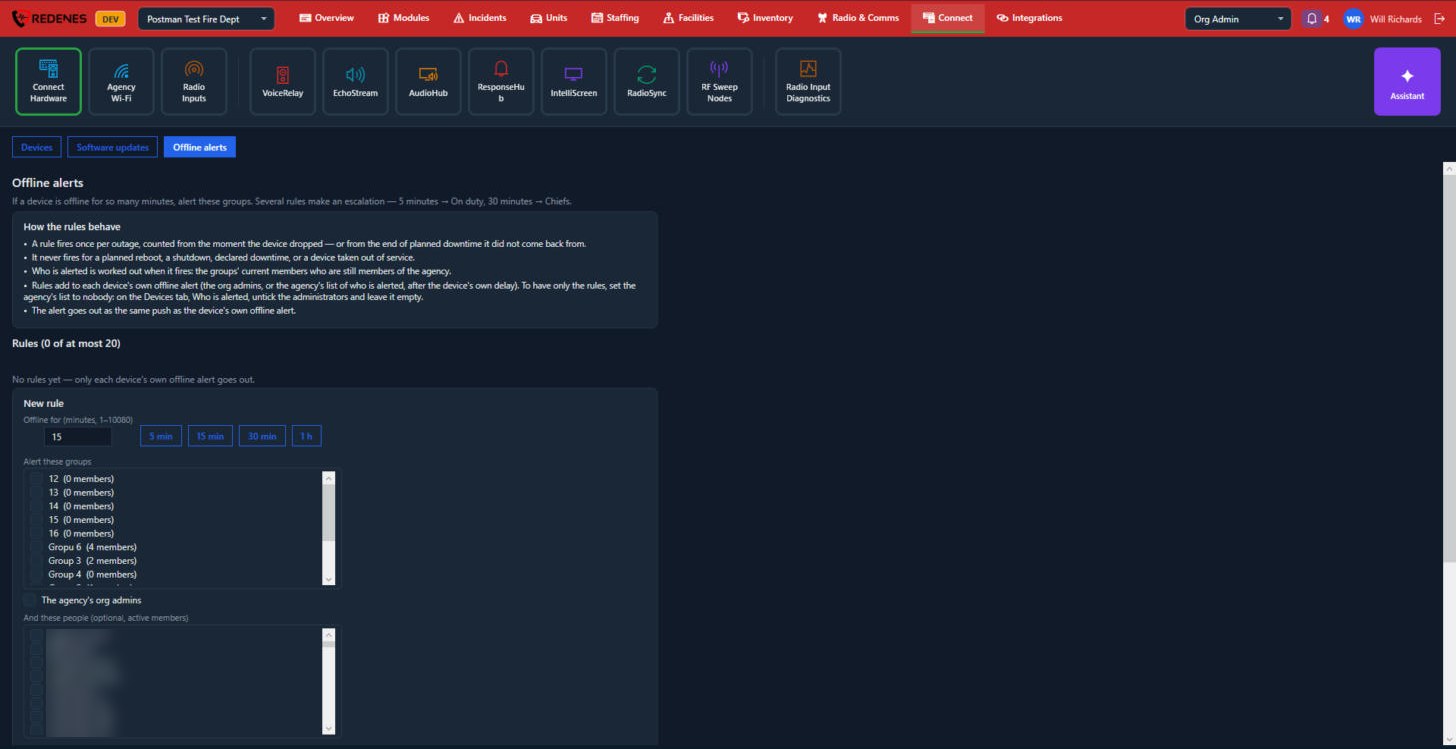 1234
- Offline for 1: how many minutes a device must be offline before the alert. The buttons set 5 minutes, 15 minutes, 30 minutes or 1 hour.
- Alert these groups 2.
- The agency's org admins 3.
- And these people 4.
What the status words mean
| You see | Meaning |
|---|---|
| Green dot, active | Online and working. |
| Grey dot, not yet connected | Added to the agency but it has never come online. |
| config applied | The device has your latest settings. |
| config pending | Settings are waiting for the device to come online and collect them. |
Agency Wi-Fi
The Wi-Fi networks your Connect boards may join to check in, upload and update: a station network, a command post hotspot, a vehicle router.
Where: ConnectAgency Wi-Fi
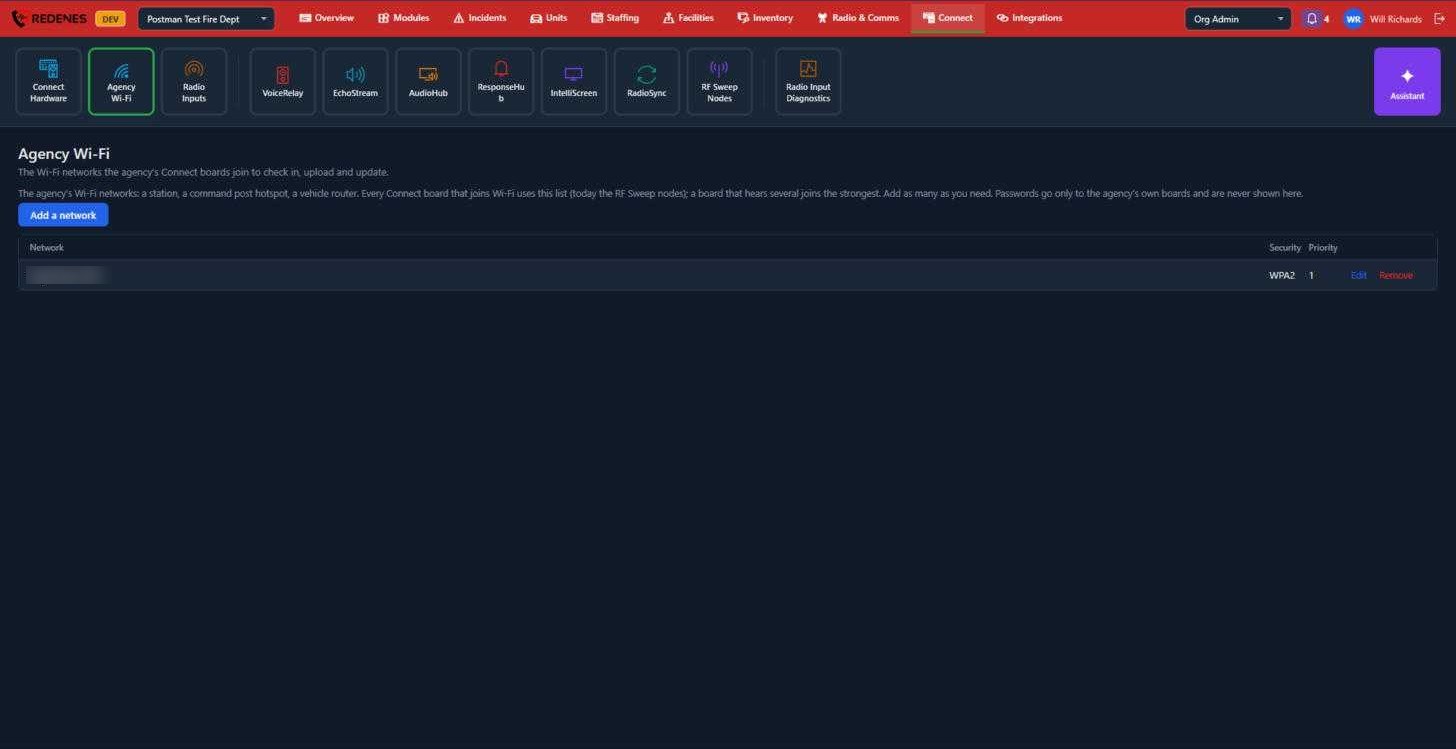 123
- Add a network 1: type the network name and password exactly as they are set on the router.
- Security and Priority 2 show how the network is protected and its place in the list.
- Edit or Remove 3 a network.
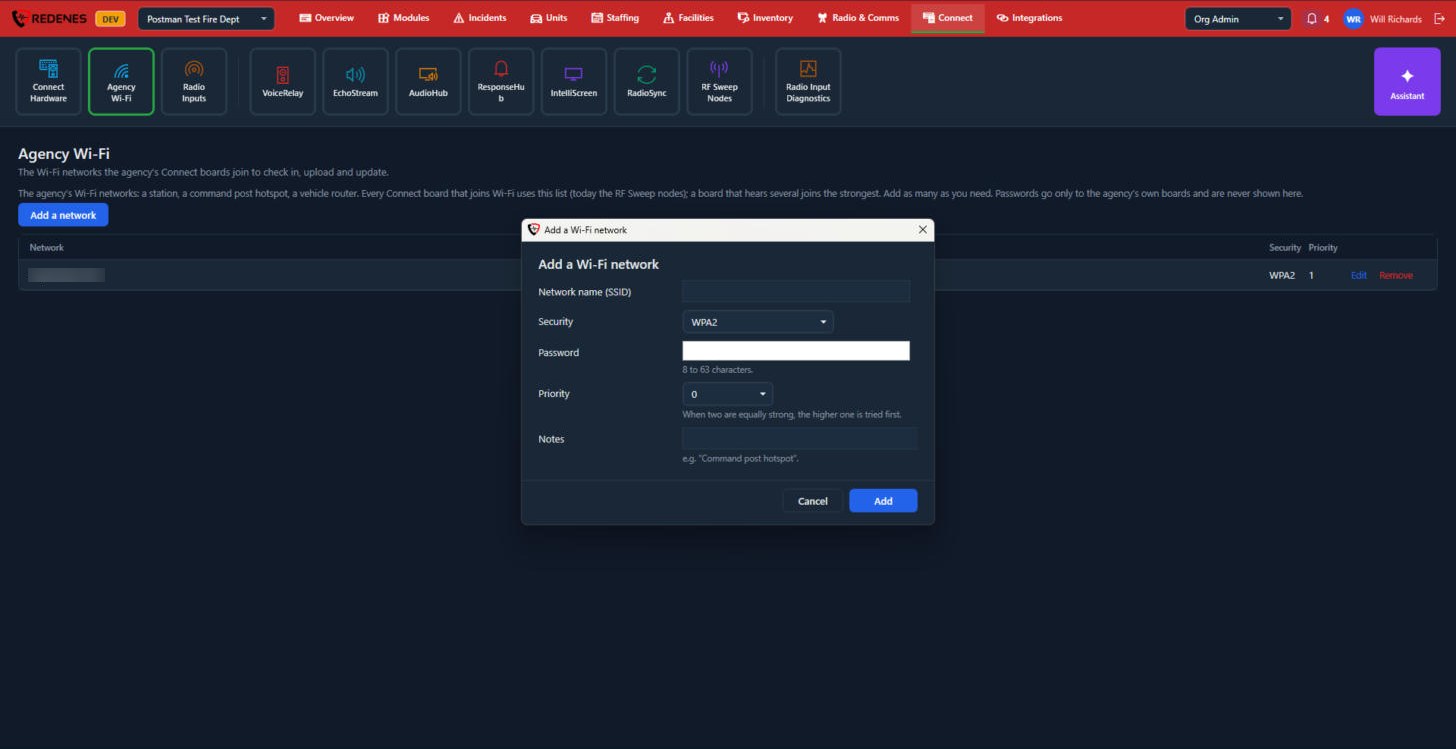 123456
- Network name (SSID) 1.
- Security 2.
- Password 3: 8 to 63 characters.
- Priority 4: networks with a lower number are tried first.
- Notes 5, for example where the router is.
- Click Add 6.
Passwords are sent only to your agency's own boards and are never shown again on this screen. If you change a router's password, edit the network here so the boards get the new one.