Connections
A connection links REDENES to another system: a dispatch feed, a mapping tool, an email address, a webhook. Once connected, calls and updates from that system can appear in REDENES, and for some systems REDENES can send information back.
Where: IntegrationsConnections
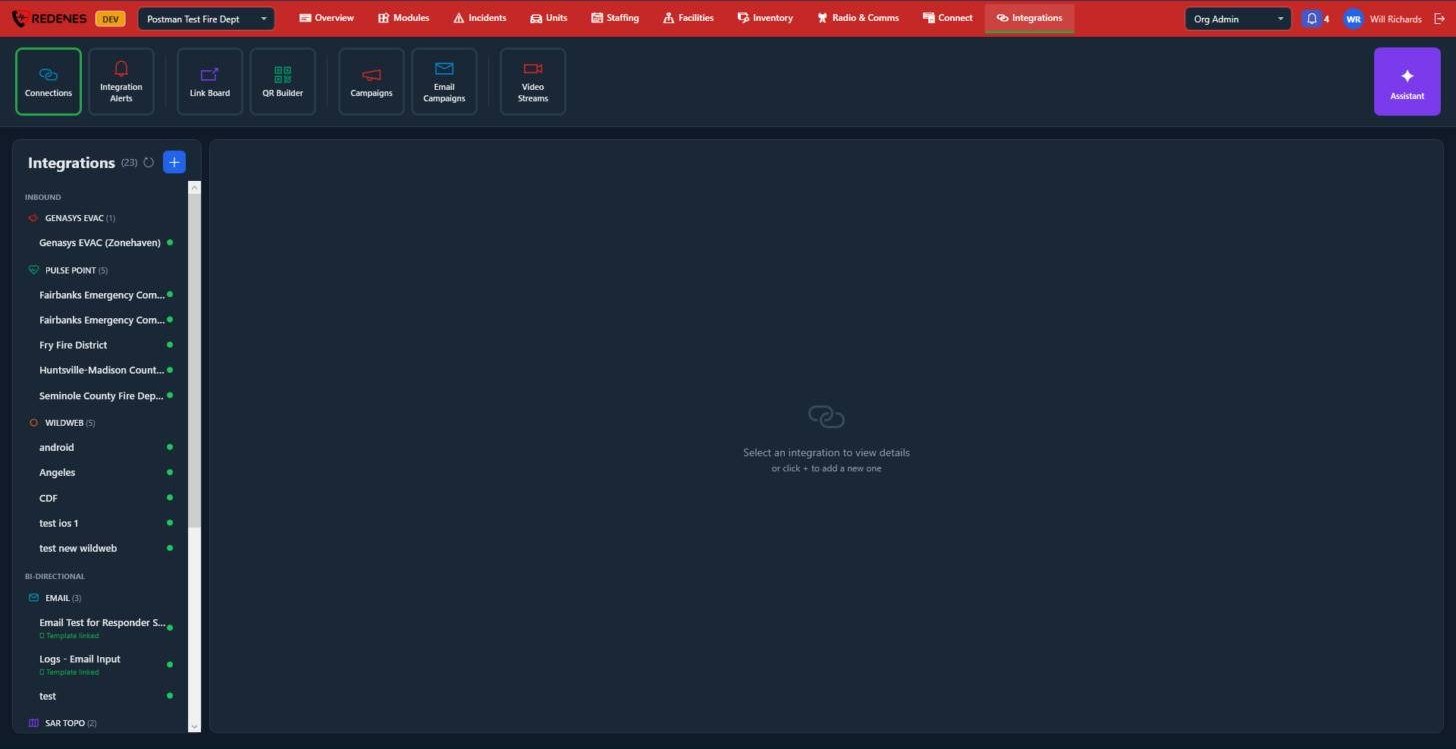 1234
- Click + 1 to add a connection. Pick the system, then fill in what it asks for. Each system needs different details, such as an agency code, an API key or an email address.
- Inbound 2 connections bring information in. Examples in the list: Genasys EVAC (evacuation zones), PulsePoint and WildWeb (dispatch feeds).
- Bi-directional 3 connections work both ways. Examples: Email (an address that turns incoming email into a log or incident, and can send), SARTopo (shared maps).
- A green dot 4 means the connection is switched on.
Add a connection
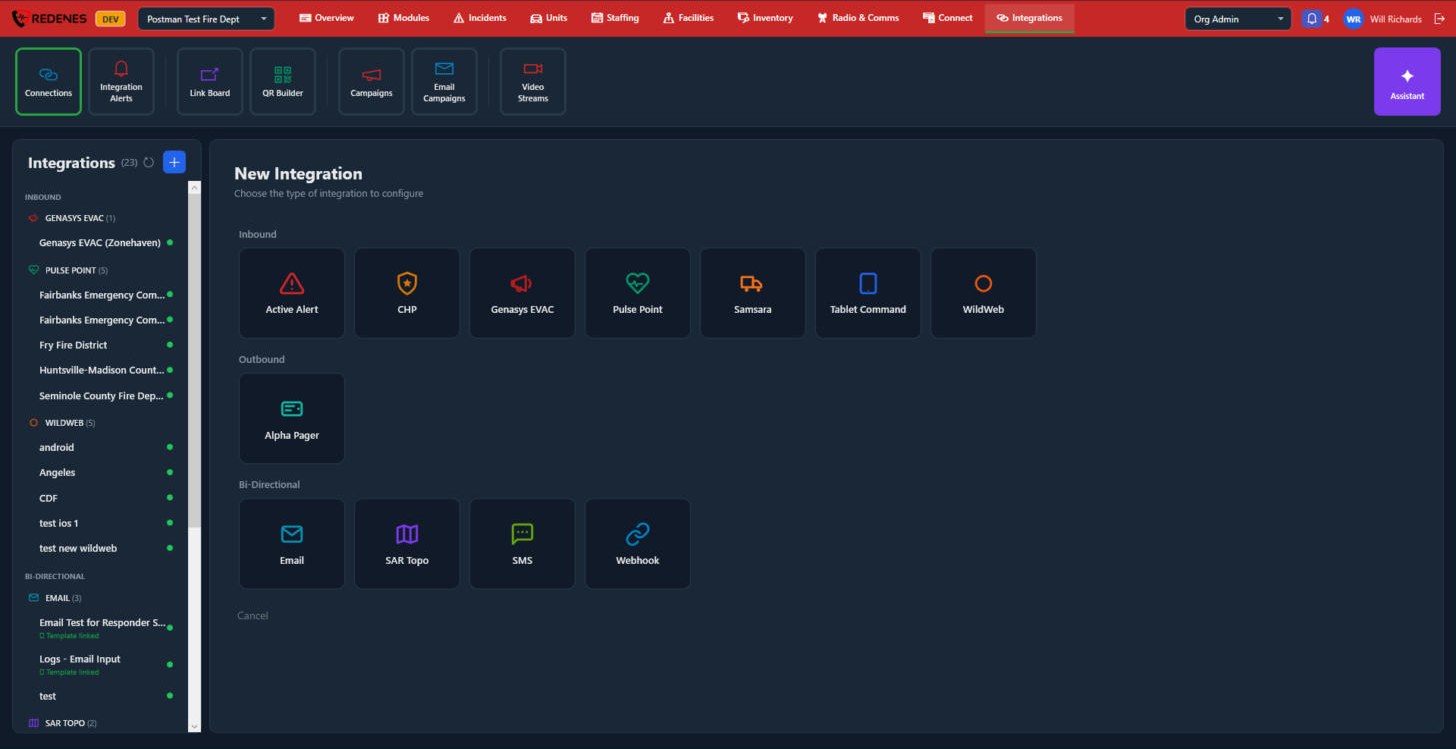 1234
- Inbound 1: Active Alert, CHP, Genasys EVAC, Pulse Point, Samsara, Tablet Command and WildWeb.
- Outbound 2: Alpha Pager.
- Bi-Directional 3: Email, SAR Topo, SMS and Webhook.
- Cancel 4.
Click a system and its form opens. Fill it in and click Create Integration. A webhook, for example, asks for a Name and a Data Type, and whether it takes Active Calls, Closed Calls or both.
A connection's details
Click a connection to see its details on the right.
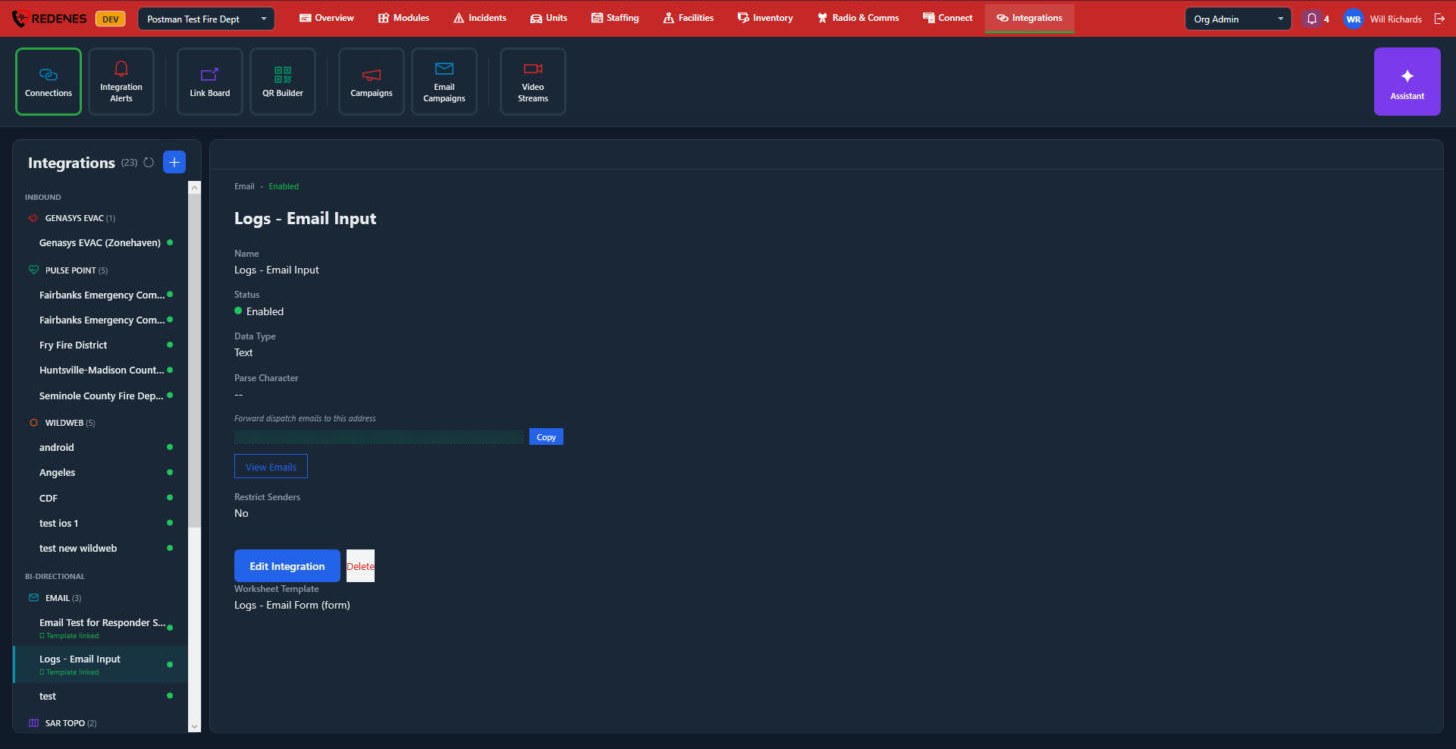 123456
- Name, Status, Data Type and Parse Character 1. Other systems show their own details here, such as an agency ID and whether active and closed calls are taken.
- The address 2: forward your dispatch emails to it. Copy copies it.
- View Emails 3 lists the emails that have arrived.
- Restrict Senders 4: whether only listed senders are accepted.
- Edit Integration and Delete 5.
- Worksheet Template 6: the form an incoming email fills in.
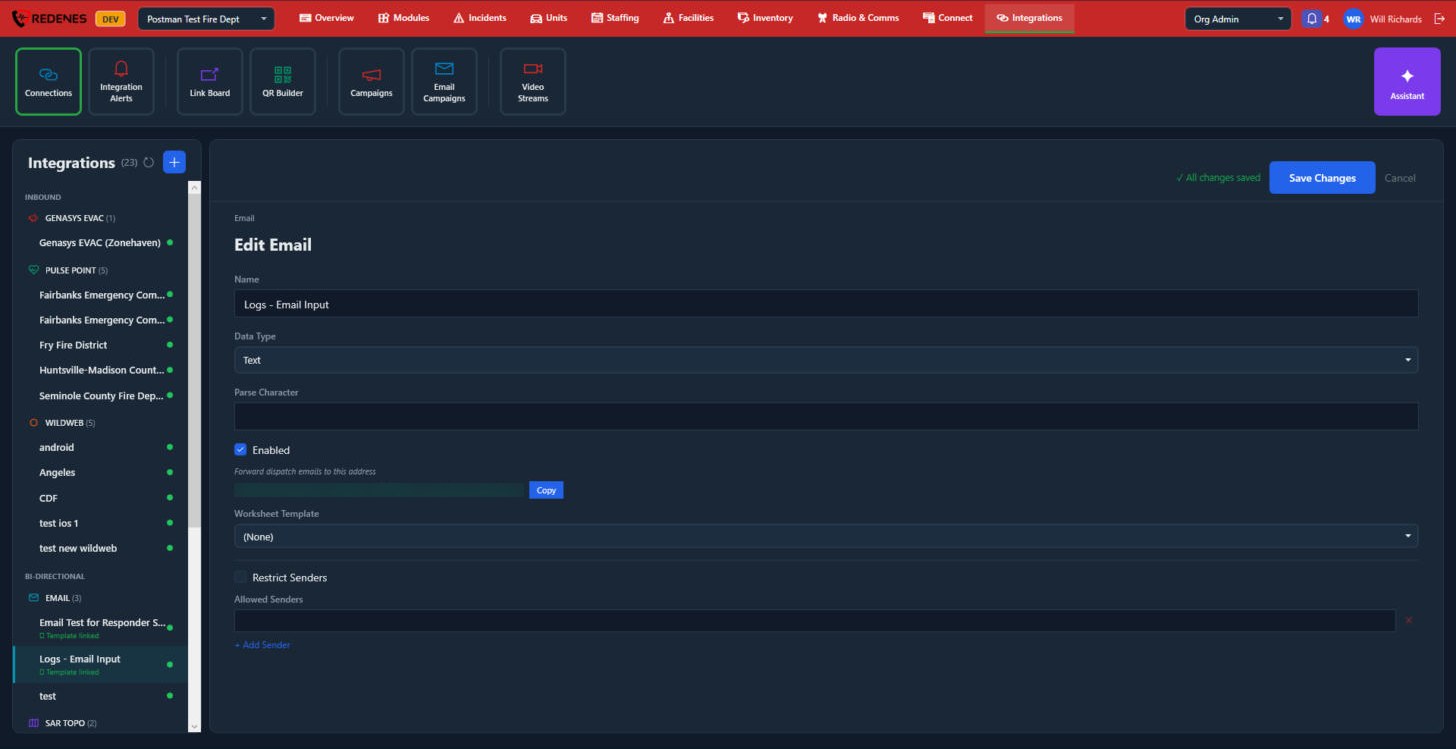 123456
- Name 1.
- Data Type and Parse Character 2: how the email is read. The parse character is the mark that separates the fields in the email.
- Enabled 3: untick to pause the connection without deleting it.
- Worksheet Template 4.
- Restrict Senders and Allowed Senders 5: tick it and list the addresses that may send. + Add Sender adds a line.
- Save Changes or Cancel 6.
Before you connect
- Most outside systems must give your agency permission first. Ask the provider for the code or key they issue to partners.
- Decide which module the calls should land in, and who should be able to open it. Only those people can be alerted about its calls.
- After saving, wait for the next call on the feed and check that it arrives. Then set up who is notified under Integration Alerts.
Connections to other REDENES agencies are different. They are under Connected Agencies and Shared Integrations.