Districts and divisions
A district is an area on the map that your stations sit in (a first-due area, a battalion, a beat). Divisions are an optional level above, each grouping several districts. You can rename both words in Facilities Settings.
Districts
Where: FacilitiesDistricts
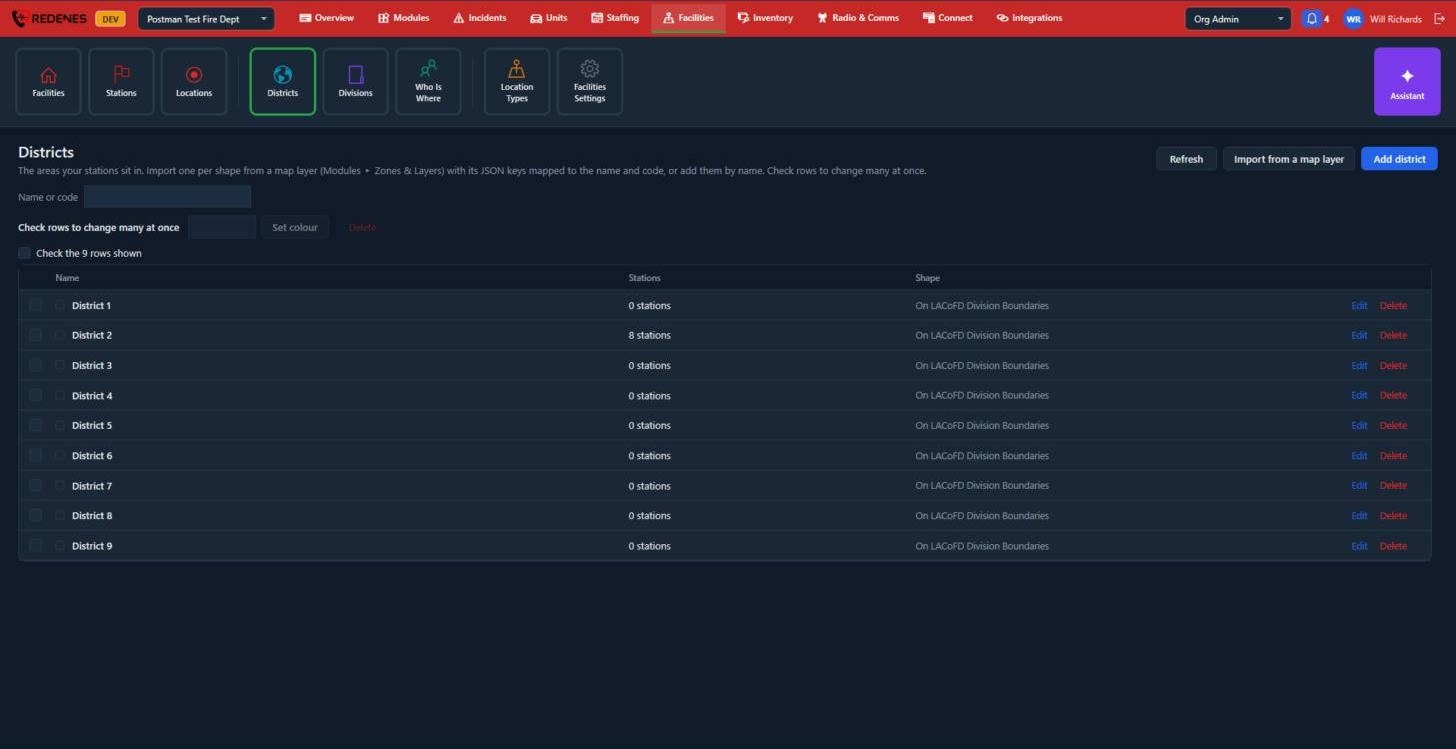 12345
- Import from a map layer 1 makes one district per shape of a map layer. You pick the layer and say which of its data keys hold the district name and code. Upload the layer first under Zones & Layers.
- Add district 2 adds one by name, without a shape.
- Check rows and click Set colour 3 to colour several at once, or Delete to remove them.
- Stations 4 counts the facilities assigned to the district.
- Edit and Delete 5 work on one district.
The Shape column tells you which map layer the district's outline is on.
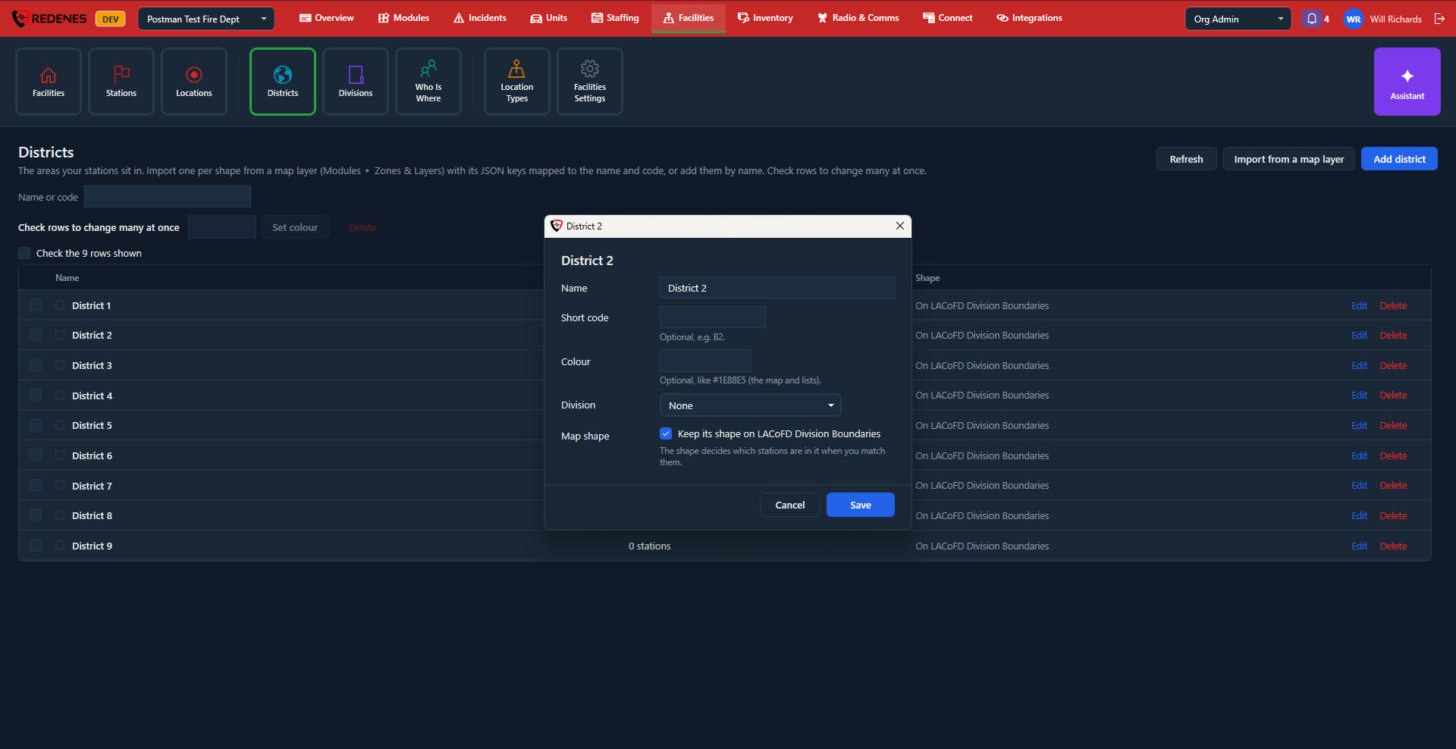 1234
- Name 1.
- Short code and Colour 2, both optional. The colour is used on the map and in lists.
- Division 3: the division this district belongs to, when divisions are on.
- Map shape 4: keep the district's outline on its map layer. The shape decides which stations are in the district when you match them.
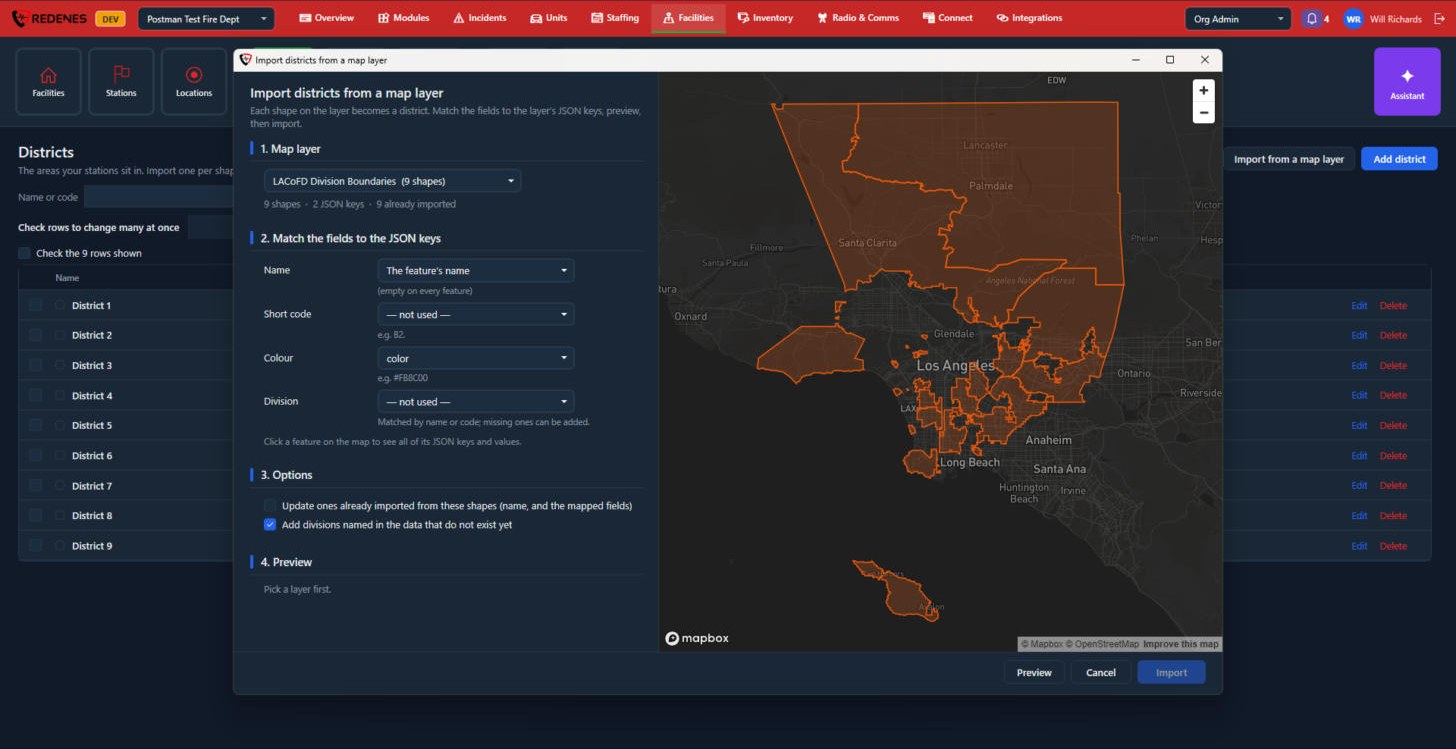 1234
- Pick the Map layer 1. Each shape on it becomes a district.
- Match the fields 2: say which key in the layer holds the Name, Short code, Colour and Division.
- Options 3: update districts already imported from these shapes, and add divisions named in the data that do not exist yet.
- Preview, then Import 4.
Deleting a district does not delete its stations. They just end up with no district.
Divisions
Where: FacilitiesDivisions
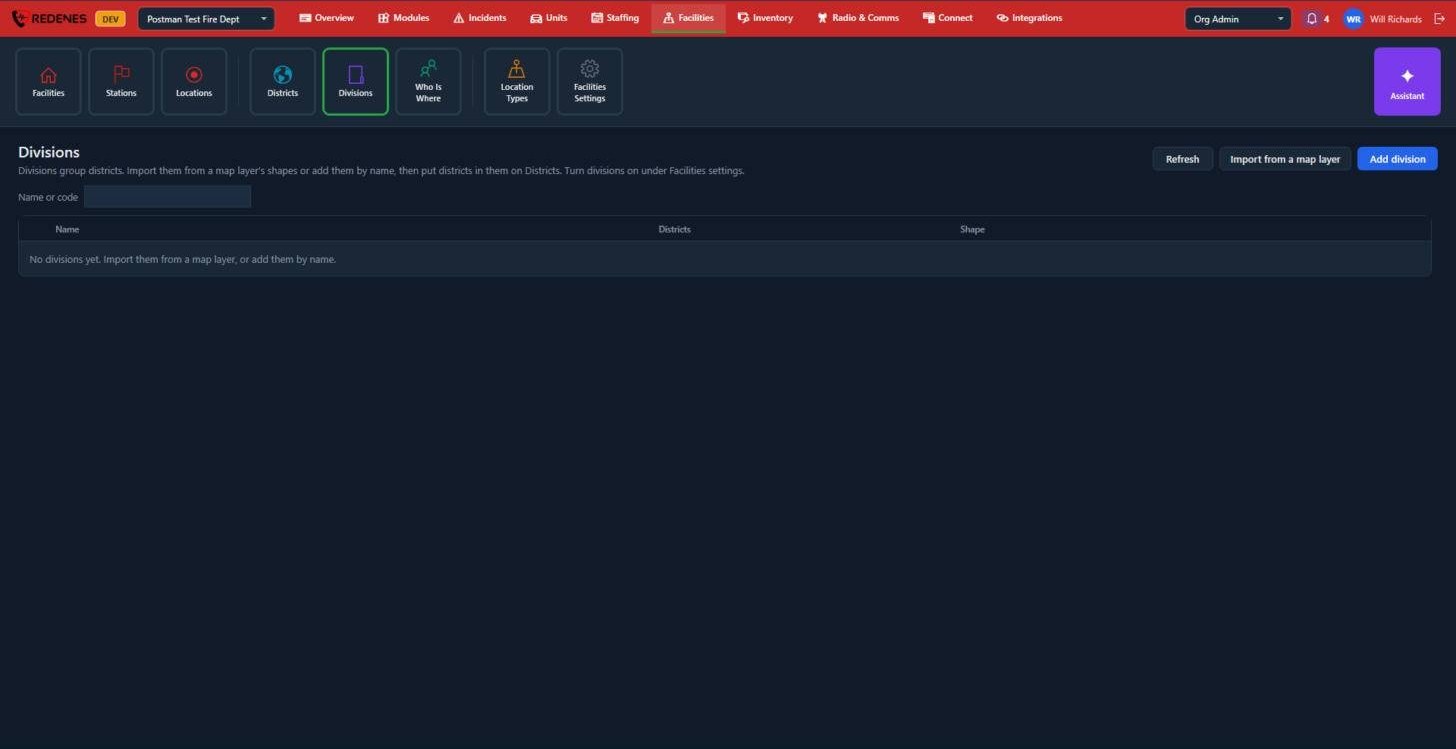
The Divisions tile works the same way as Districts: Import from a map layer or Add division. To put a district in a division, edit the district on the Districts tile and pick its Division.
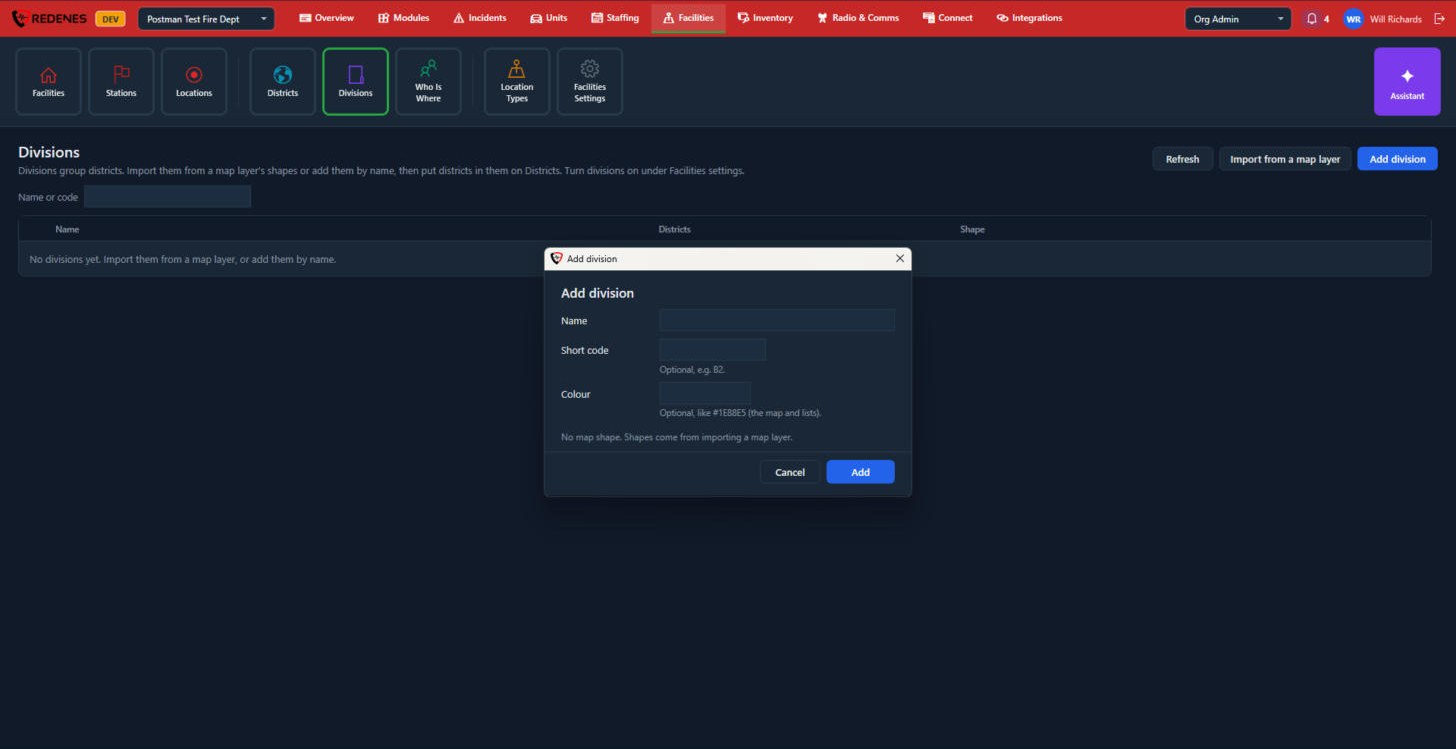 1
A division has a Name, an optional Short code and an optional Colour 1. A division added by name has no shape on the map. Shapes come from importing a map layer.
Divisions are used only when Group districts into divisions is checked in Facilities Settings. If your agency has one level, leave it off and ignore this tile.