Categories, statuses and other lists
These five tiles hold the lists you choose from when you edit an item. Set them up once, before you add many items.
Categories
Where: InventoryCategories
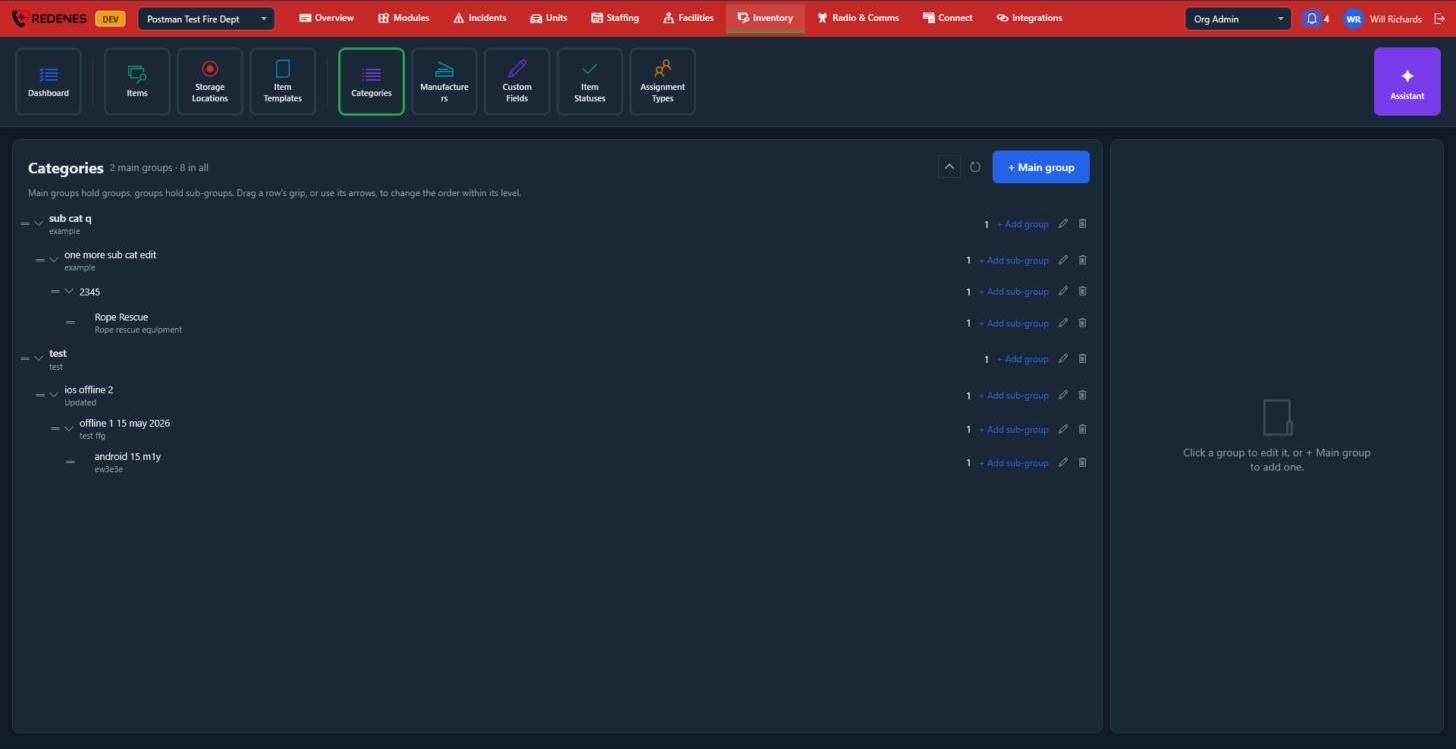 123
Categories form a tree. Main groups hold groups, and groups hold sub-groups.
- + Main group 1 adds a top-level group.
- Drag a row by its grip 2 to change the order inside its level. The small arrow opens or closes a branch.
- On each row 3: the number of items in it, + Add group or + Add sub-group, the pencil to edit, and the bin to delete.
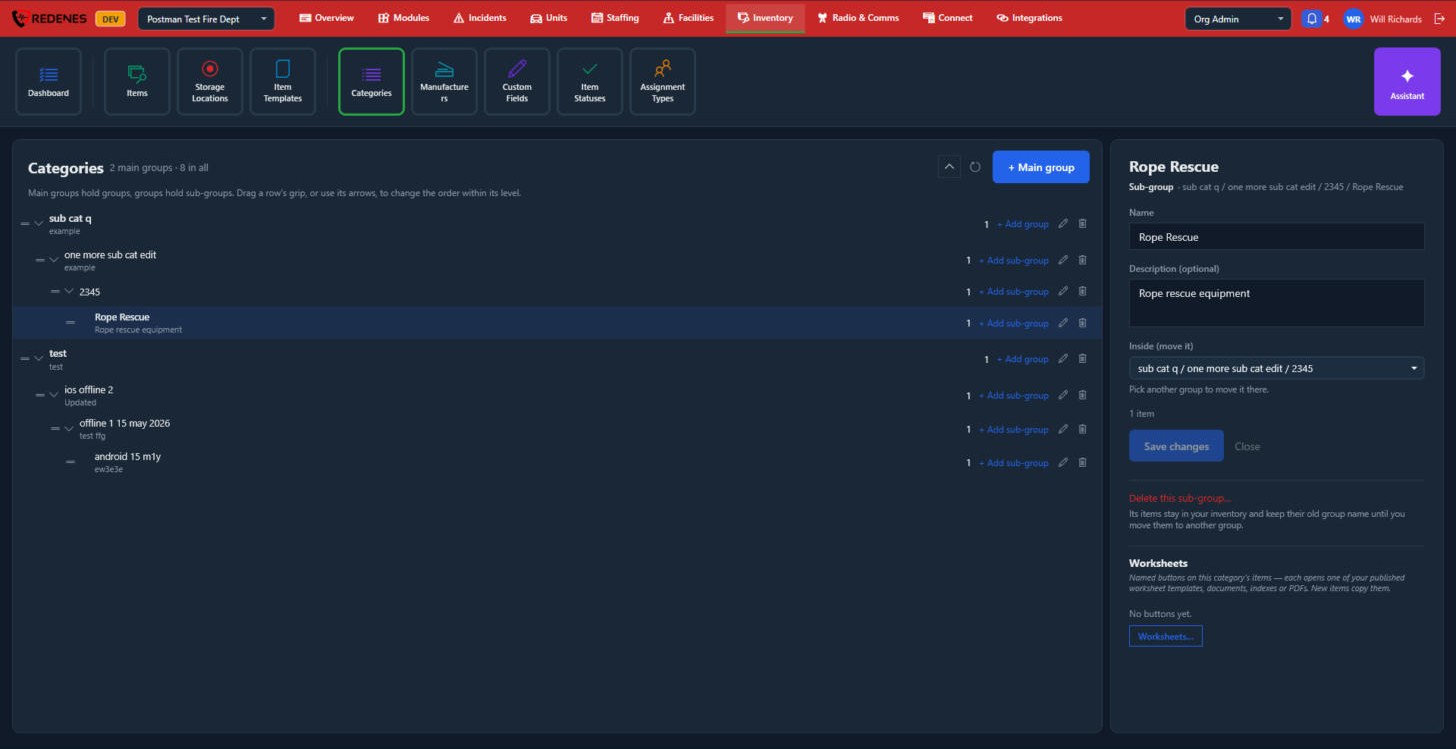 1234
- Name and Description 1.
- Inside (move it) 2: pick another group to move this one there.
- Delete 3: its items stay in your inventory and keep their old group name until you move them to another group.
- Worksheets 4: named buttons on this category's items, such as an inspection form or a user manual. New items copy them.
Manufacturers
Where: InventoryManufacturers
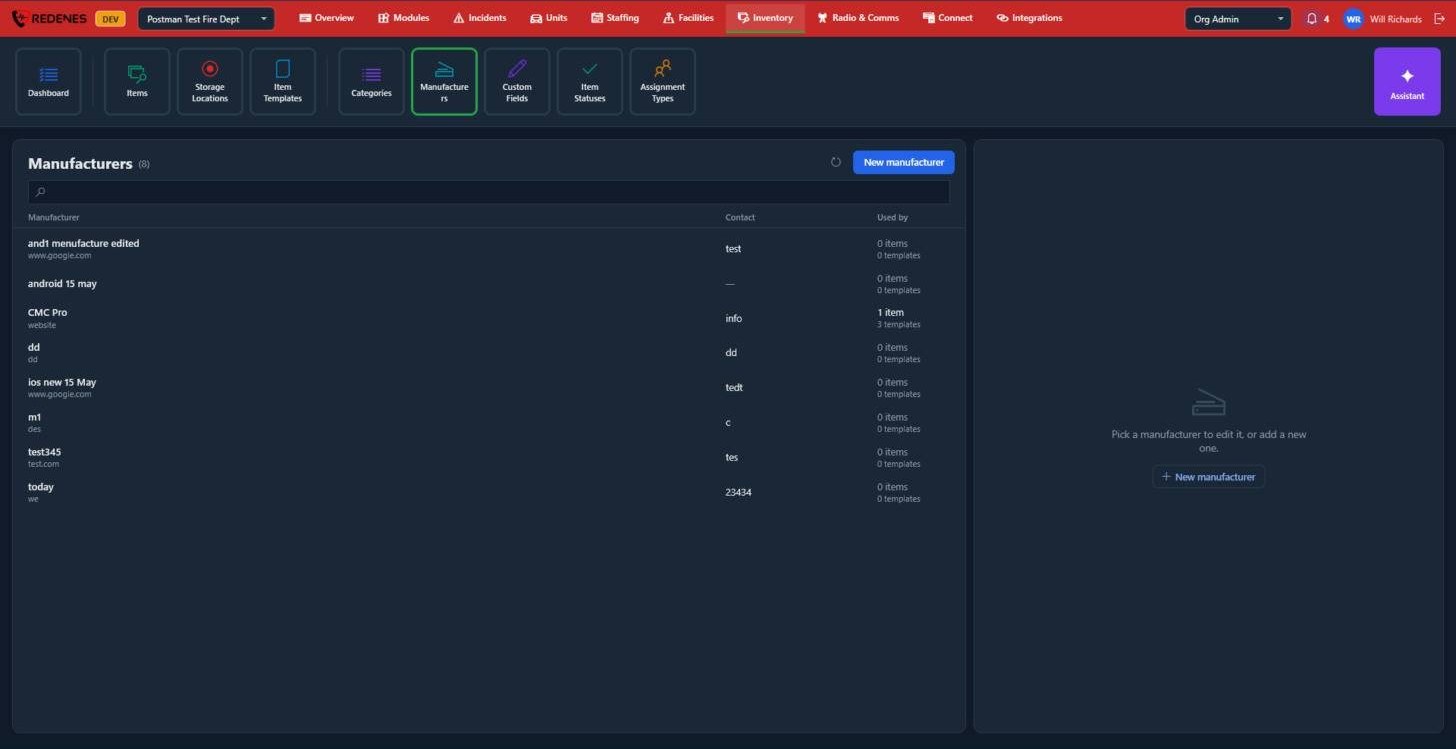
The list of makers. Click New manufacturer to add one, or click a row to edit it.
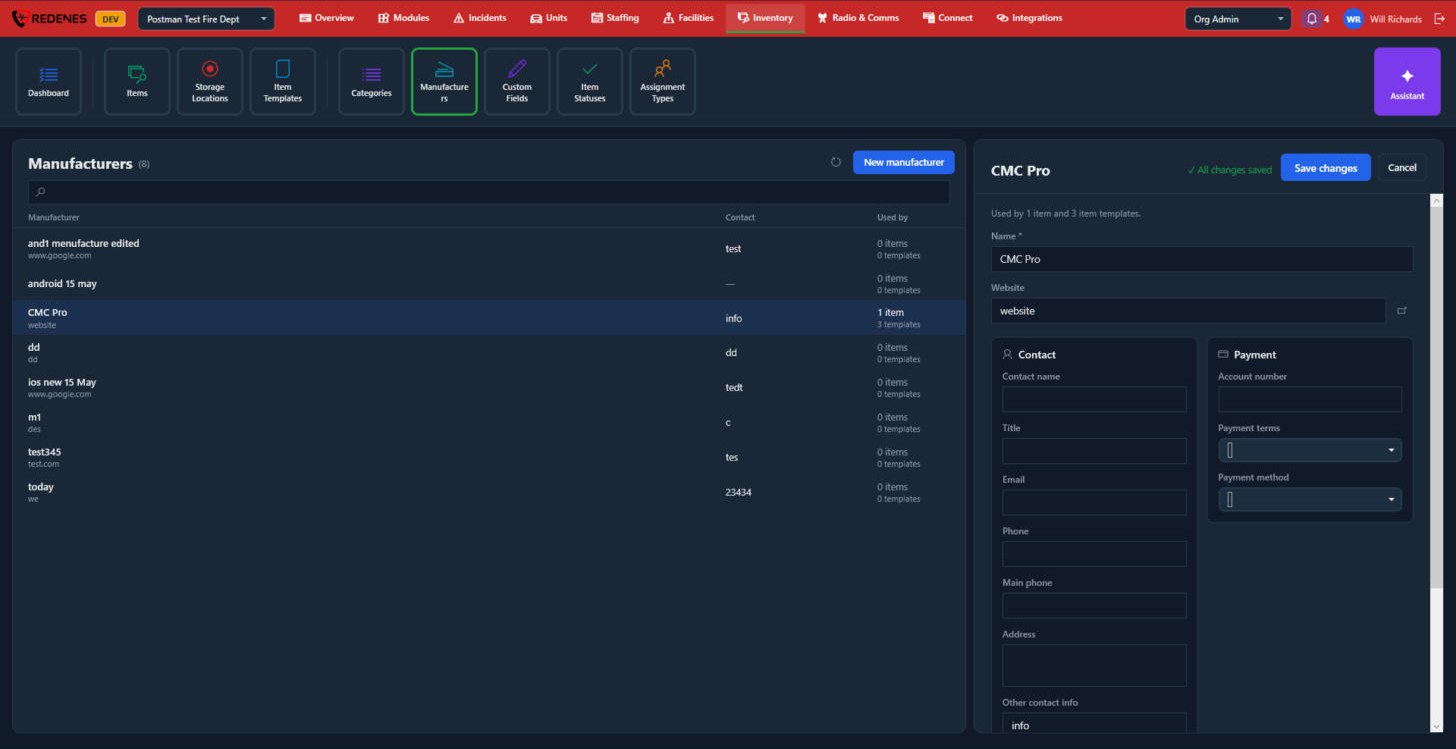 123
- Name and Website 1. The line above says how many items and templates use it.
- Contact 2: contact name, title, email, phone, main phone, address and other contact info.
- Payment 3: account number, payment terms and payment method.
Custom Fields
Where: InventoryCustom Fields
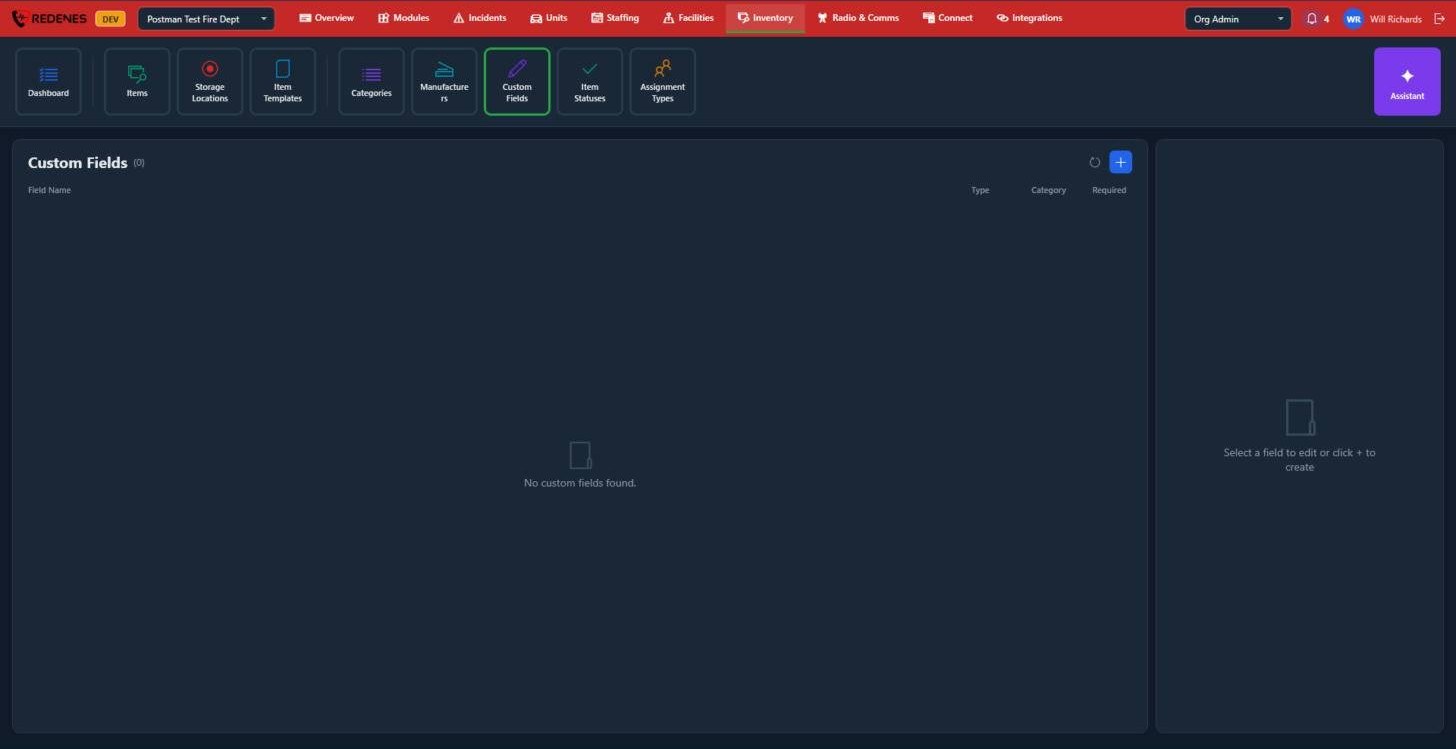
Add your own fields to items, for example Last inspection or Purchase order. New fields appear on items in the app as well.
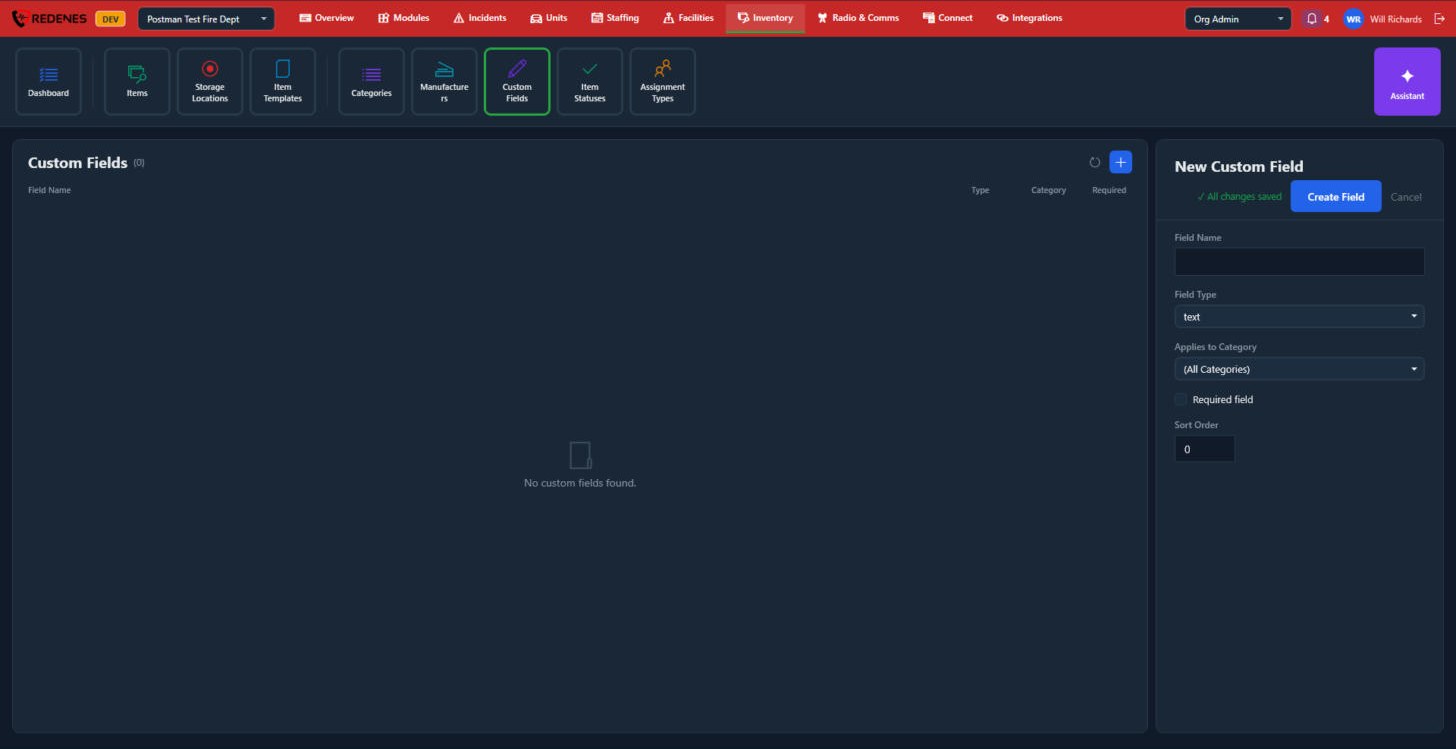 12345
- Field Name 1.
- Field Type 2: text, number, date, yes or no (boolean), or pick from a list (select).
- Applies to Category 3: every category, or one.
- Required field and Sort Order 4.
- Create Field 5.
Item Statuses
Where: InventoryItem Statuses
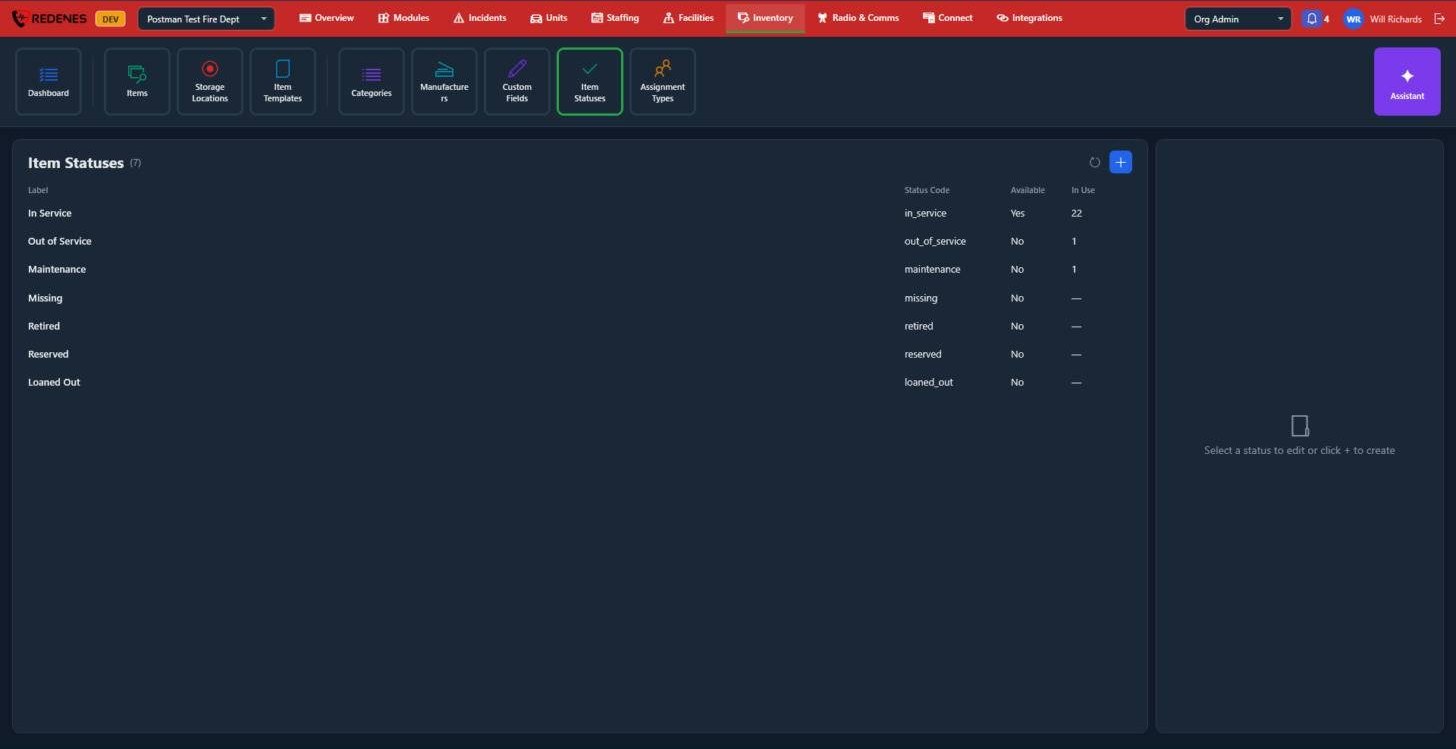 12
A status is the condition of an item. REDENES starts you with In Service, Out of Service, Maintenance, Missing, Retired, Reserved and Loaned Out.
- Available 1 says whether an item in this status counts as ready to use.
- In Use 2 is how many items have the status now. Before you delete a status, move its items to another one.
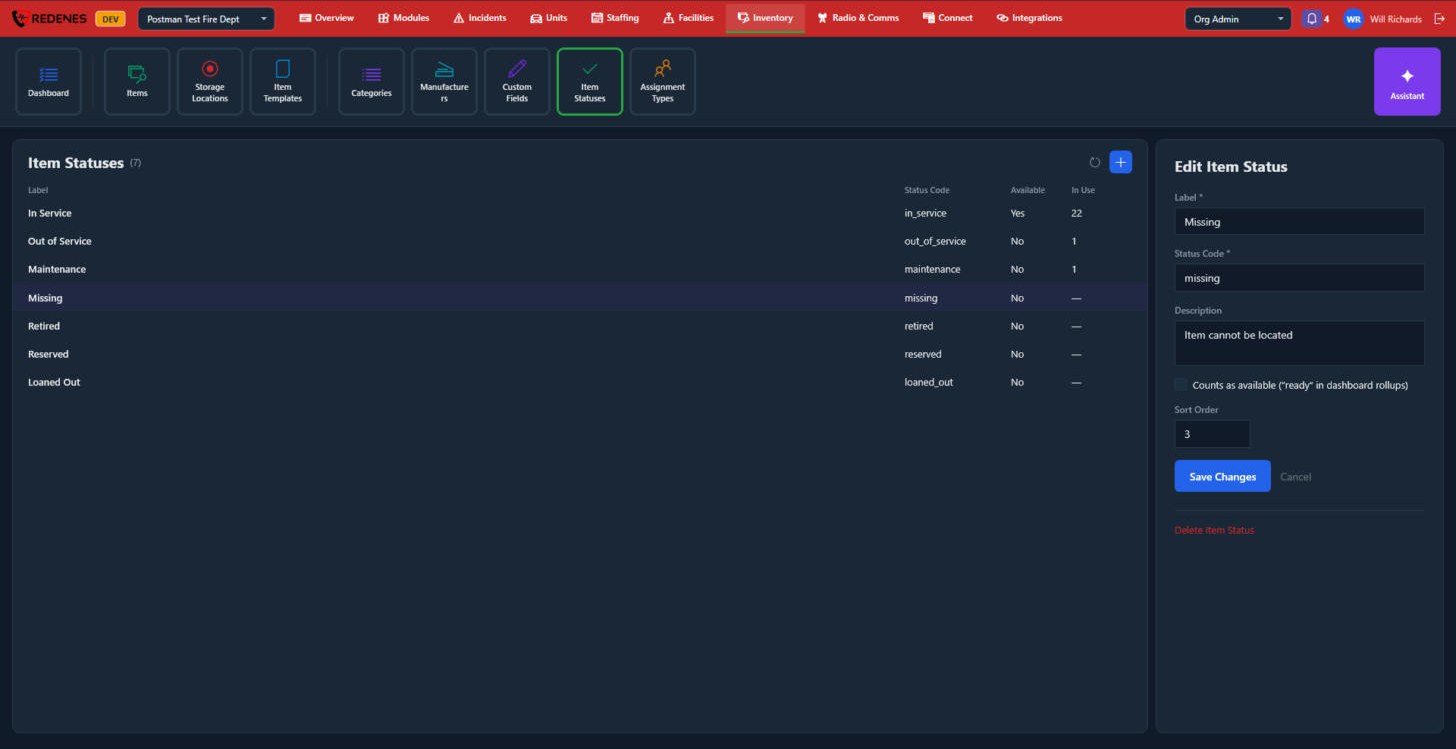 1234
- Label, Status Code and Description 1.
- Counts as available 2: whether items with this status count as ready on the dashboard.
- Sort Order 3.
- Save Changes or Cancel 4. Delete Item Status is below them.
Assignment Types
Where: InventoryAssignment Types
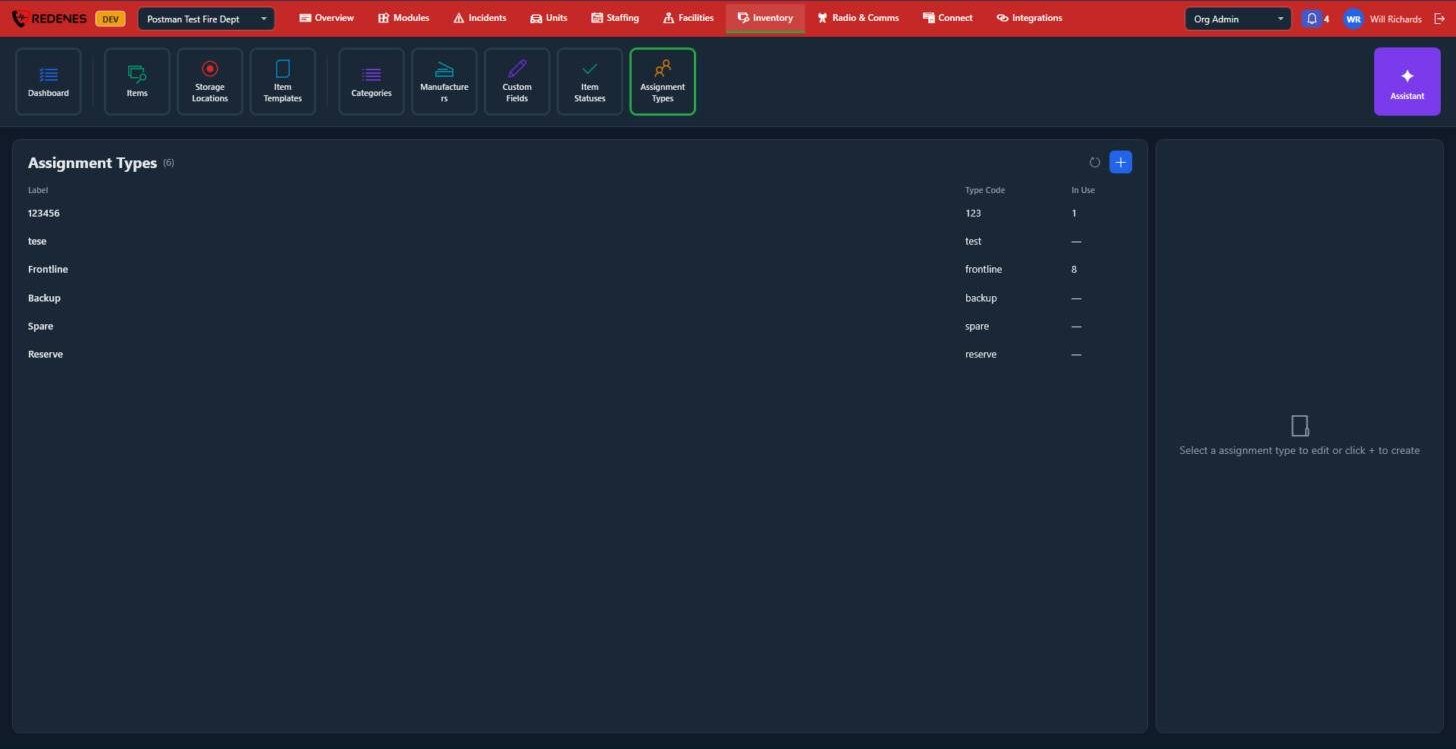 1
An assignment type 1 is the role of an item, separate from its condition: Frontline equipment is in daily use, Backup and Spare stand by, Reserve is held back. The dashboard counts items by these types. Add your own with +, or click a type to change its label, code, description and sort order on the right, the same way as an item status.