Storage locations and item templates
Storage Locations
A storage location is a place an item can be kept: a station, a bay, a room, a cabinet, a shelf, a compartment. Locations can sit inside one another, so "Station 1 - Bay 2 / Cabinet A" is a cabinet inside a bay.
Where: InventoryStorage Locations
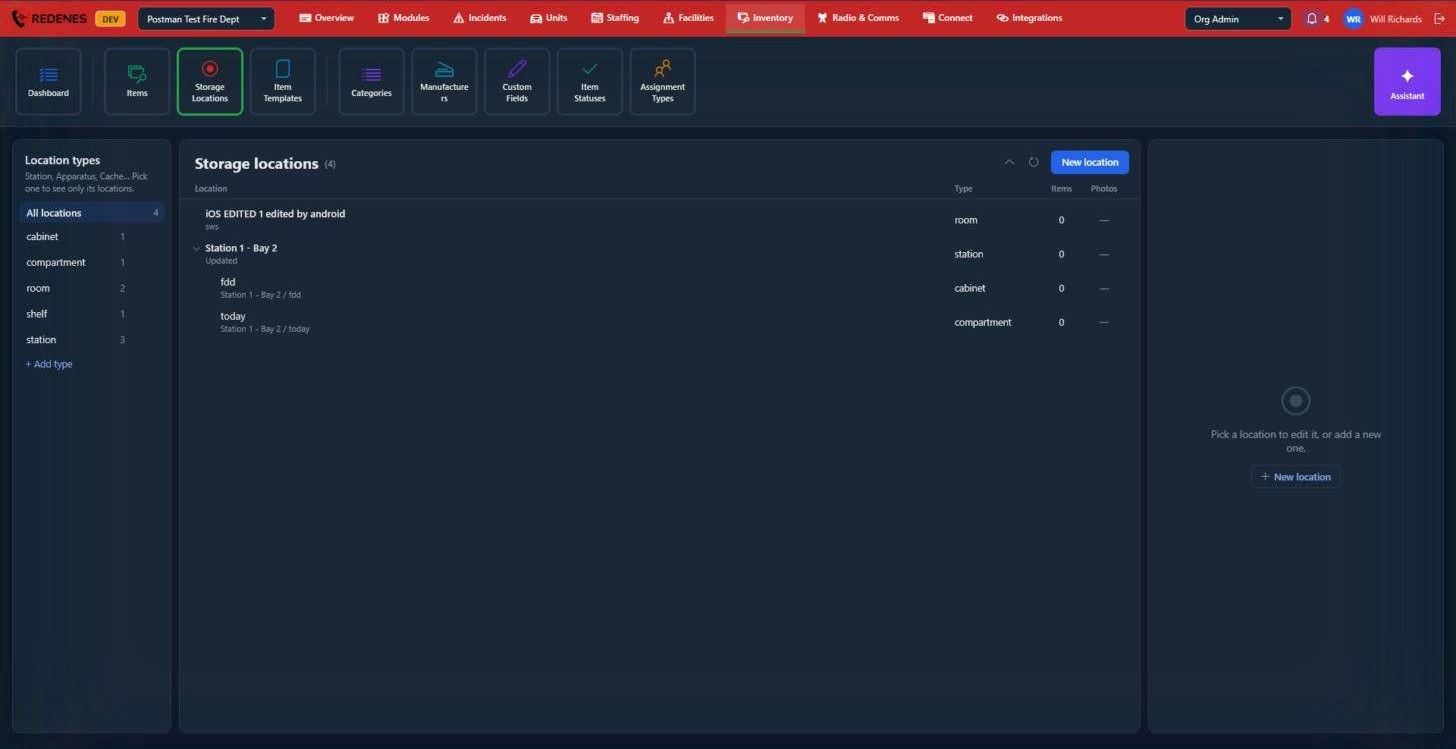 1234
- Location types 1 filter the tree. Click a type to see only its locations, All locations to see everything, or + Add type to make your own type.
- New location 2 adds a location. Choose its type and, if it sits inside another location, its parent.
- The tree 3 shows locations inside their parents. Click the small arrow to open or close a branch.
- Items and Photos 4 count what is stored in the location and how many photos it has.
Click a location to edit it on the right.
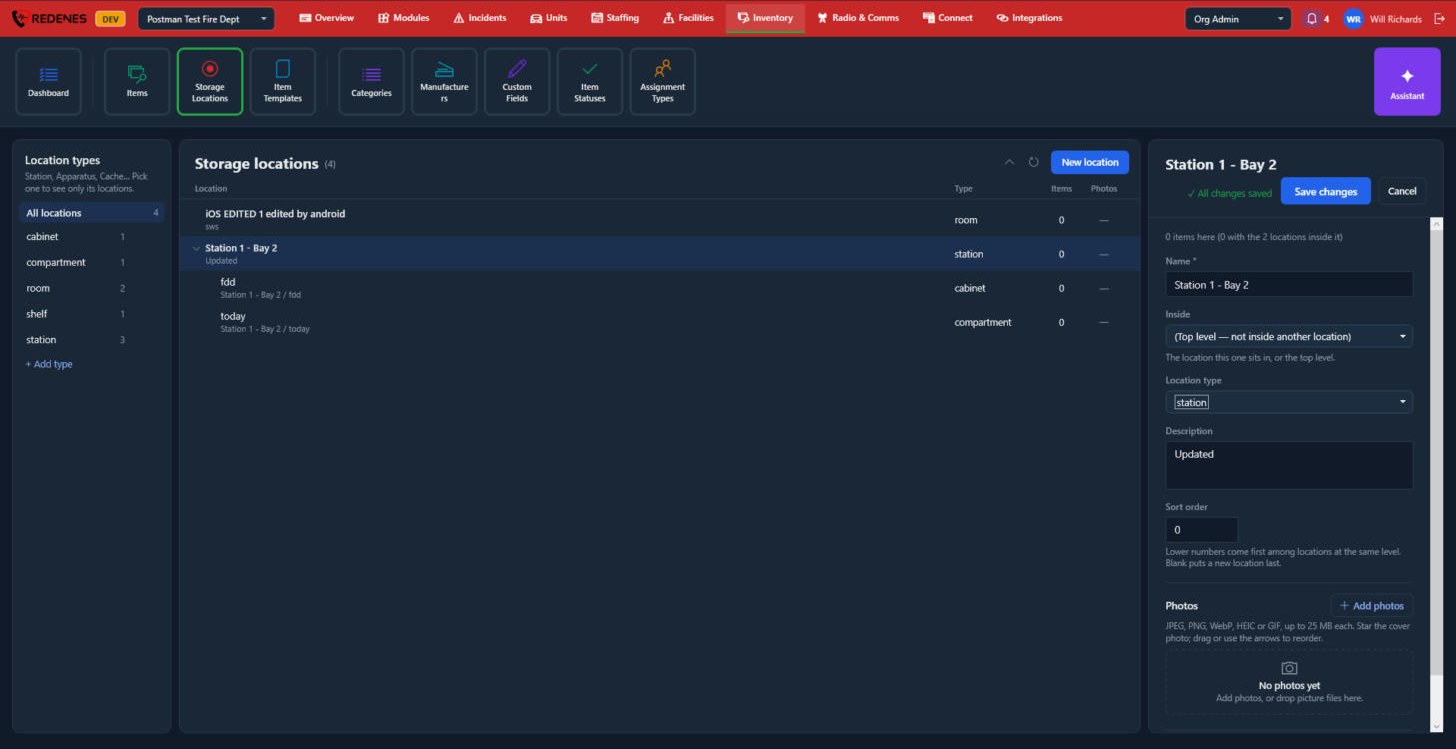 12345
- Name 1. The line above it counts the items stored here and in the locations inside it.
- Inside 2: the location this one sits in, or the top level.
- Location type 3.
- Description and Sort order 4. Lower numbers come first among locations at the same level.
- Photos 5.
Add a photo of each cabinet or compartment. Members see it in the app, which helps when they are looking for something in a rig they do not know.
Item Templates
A template is a ready-made description of an item you own many of. Creating an item from a template fills in its category, manufacturer and model, so the list stays consistent.
Where: InventoryItem Templates
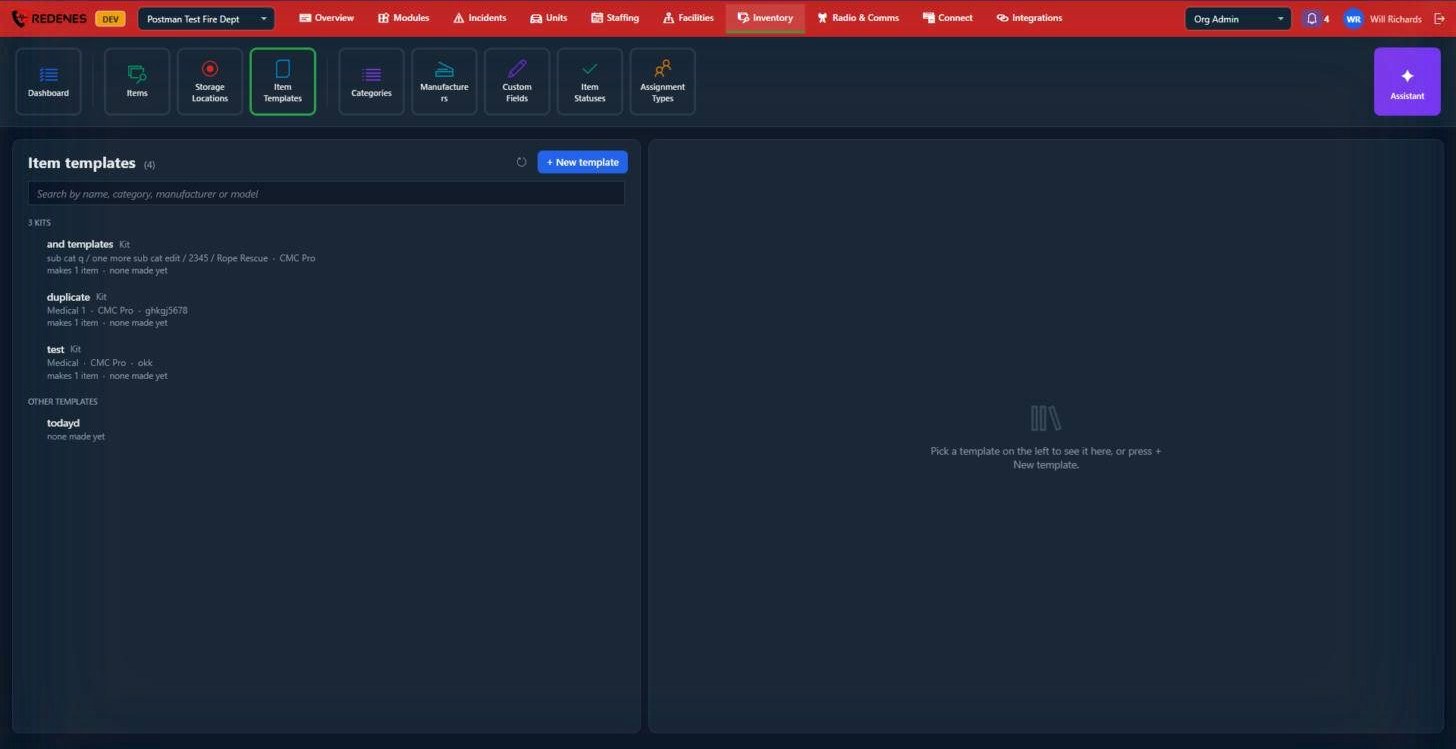 1234
- + New template 1 starts a template.
- Search 2 by name, category, manufacturer or model.
- Kits 3 are templates that make several items at once, such as a bag and everything in it. The line under each one tells you how many items it makes and how many have been made so far.
- Other templates 4 make a single item.
Click a template to open it on the right, where you can edit it or make items from it.
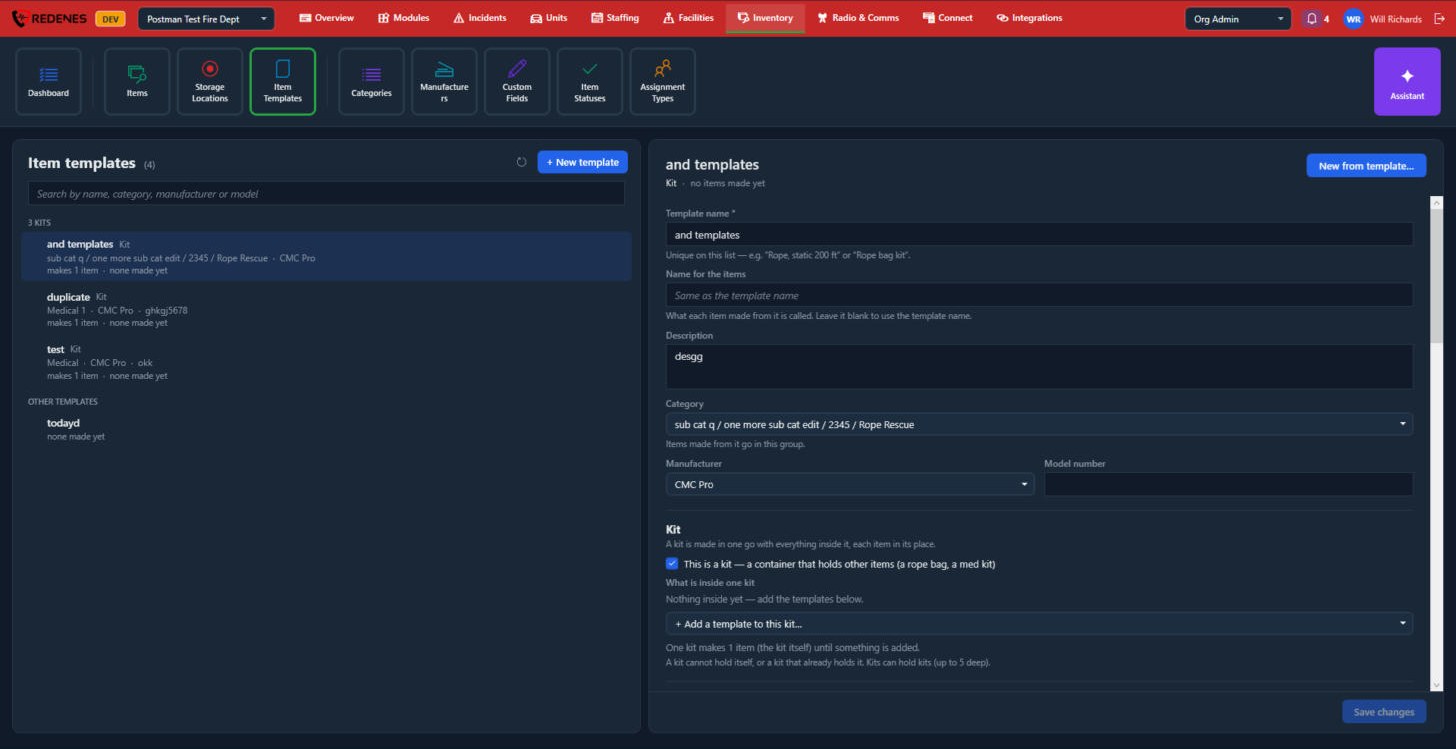 1234
- Template name and Name for the items 1. Leave the second blank to call each item by the template's name.
- Description, Category, Manufacturer and Model number 2.
- Kit 3: tick it for a container that holds other items, such as a rope bag or a med kit, then add the templates that go inside. A kit can hold other kits.
- New from template 4 makes items from it.
Scroll down for the lifespan, warranty, cost and inspection schedule, the custom field defaults, the Photos every item made from it gets, the Worksheet buttons on every item made from it, and Delete template. Items already made from a template stay when it is deleted.
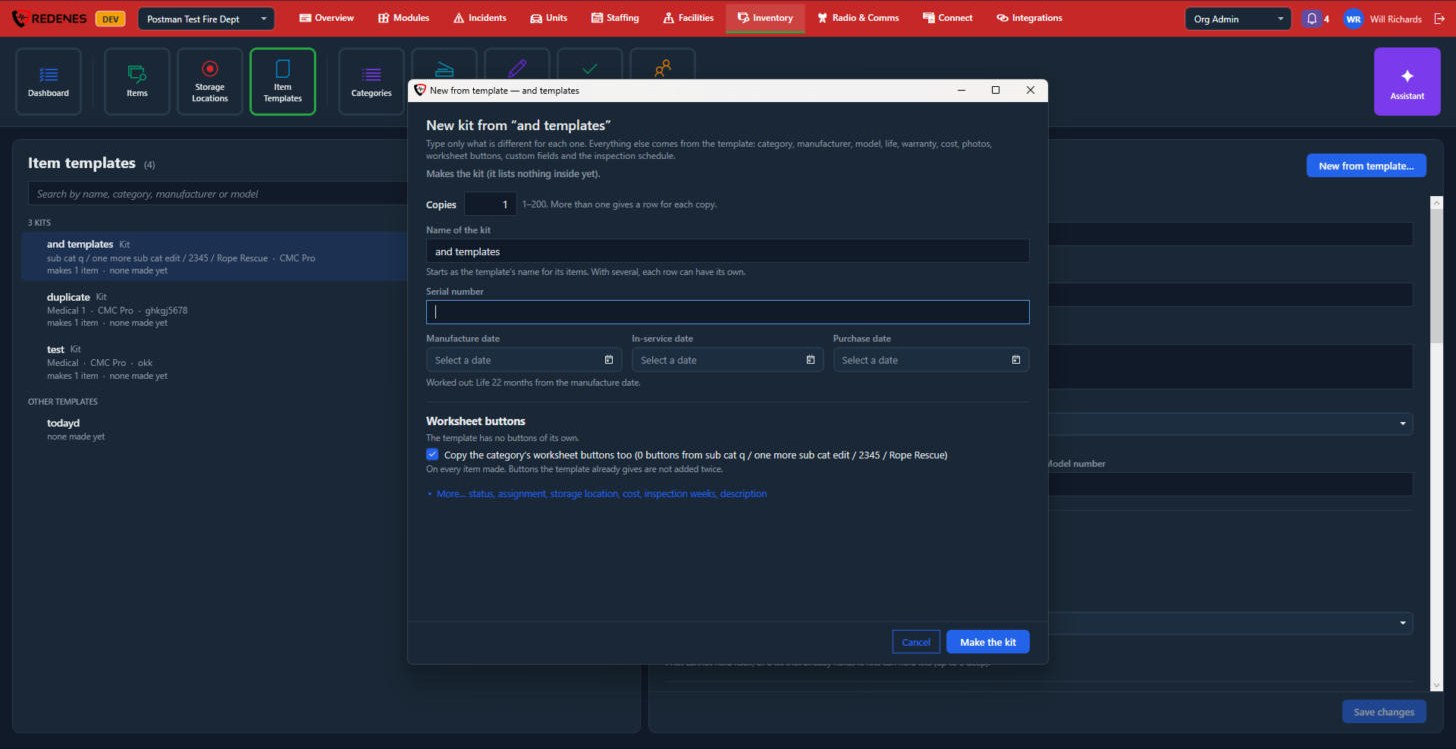 12345
- Copies 1: 1 to 200. With more than one you get a row for each copy.
- The name and serial number 2 of each one.
- The manufacture, in-service and purchase dates 3. The life and expiry are worked out from them.
- Worksheet buttons 4: whether to copy the category's buttons too. More opens status, assignment, storage location, cost, inspection weeks and description.
- Click Make the kit or Make the item 5. You type only what is different for each one. Everything else comes from the template.