Seniority, Staffing Audit and Staffing Settings
Seniority
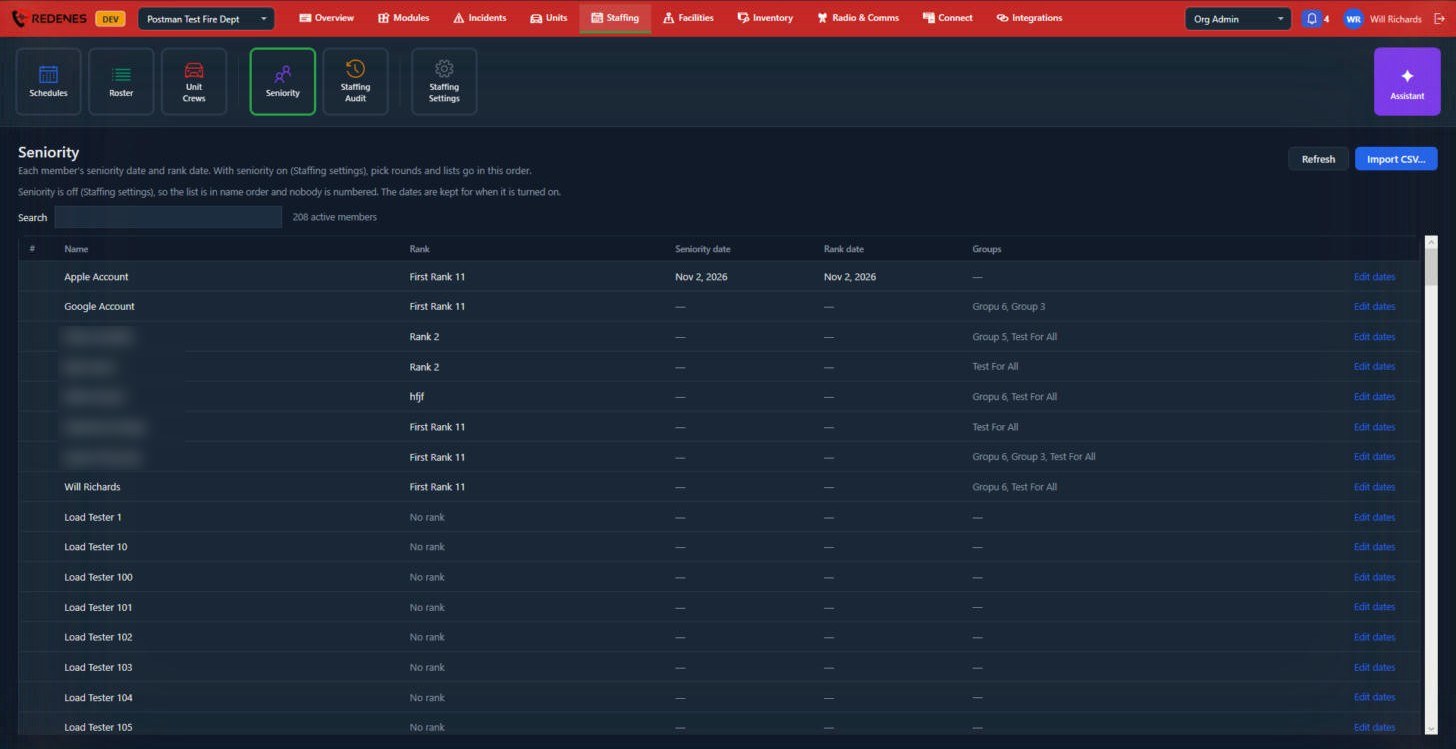
Where: StaffingSeniority
 123
Each member has a seniority date and a rank date 1. With seniority turned on in Staffing Settings, pick rounds and lists go in this order.
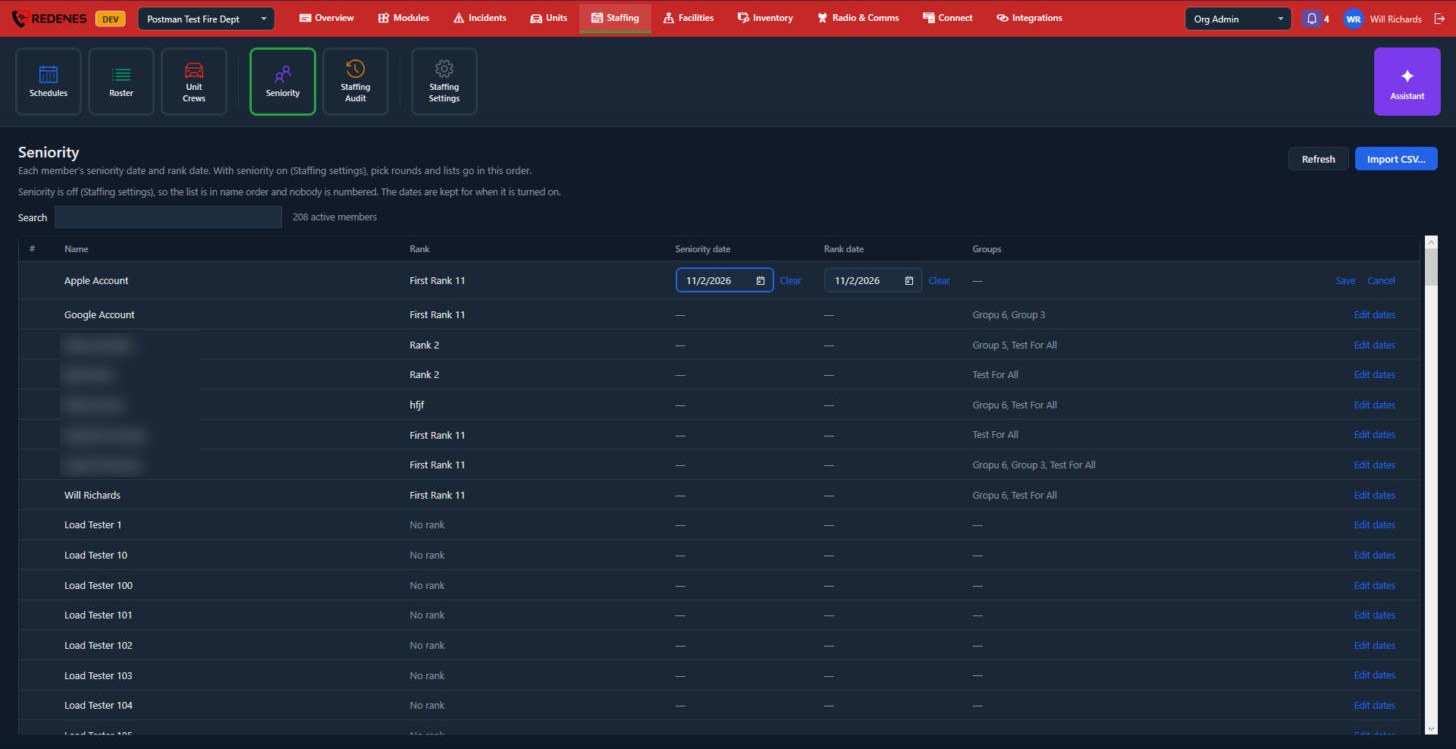
- Edit dates 2 changes one member.
- Import CSV 3 sets many at once.
 12
Click Edit dates on a row, pick the Seniority date and Rank date 1 or Clear them, then click Save or Cancel 2 at the end of the row.
Import CSV asks for a file. Its first line names the columns: email (or name, or first_name and last_name), seniority_date and rank_date. Dates can be written as 2019-07-01 or 7/1/2019. Before anything is saved you see each line with the member it matched and any problem with it.
While seniority is off, the list is in name order and nobody is numbered. The dates are kept for when you turn it on.
Staffing Audit
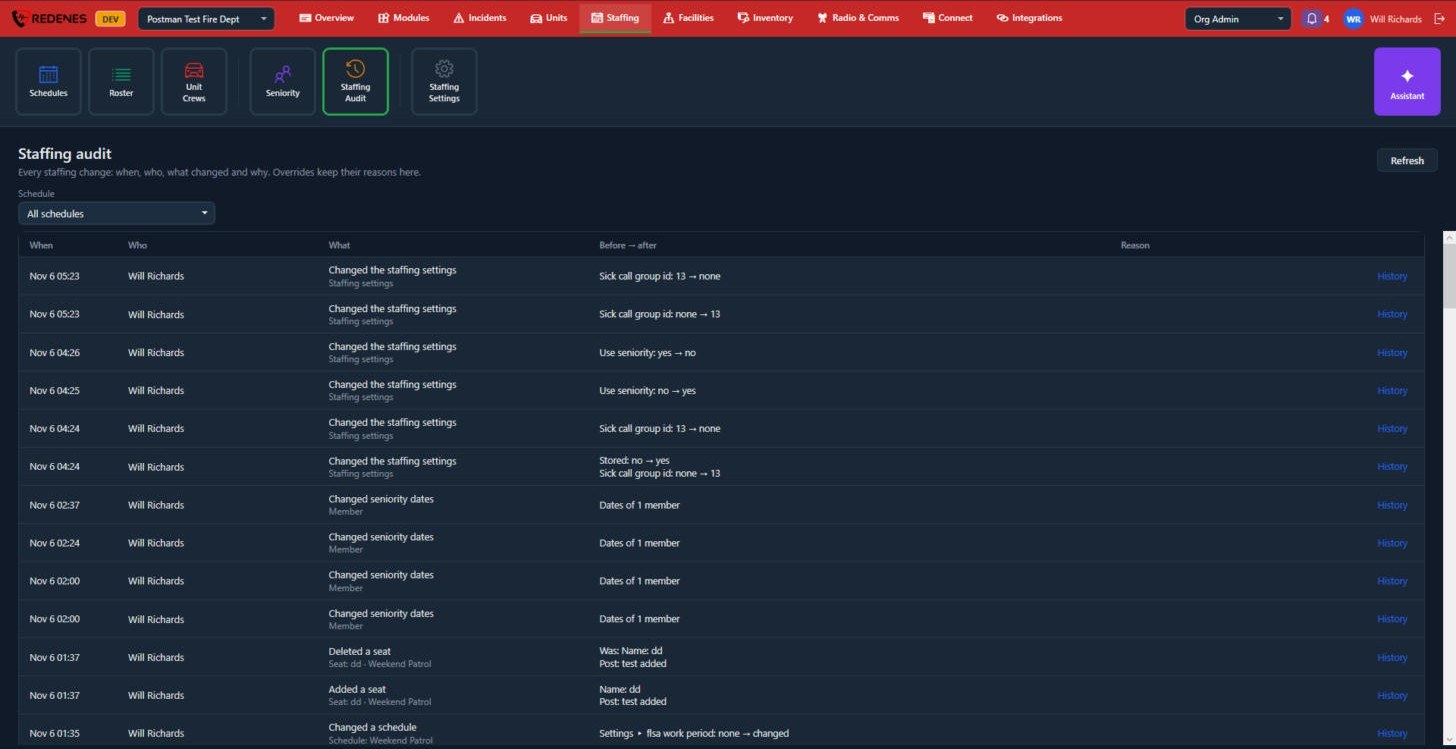
Where: StaffingStaffing Audit
 12
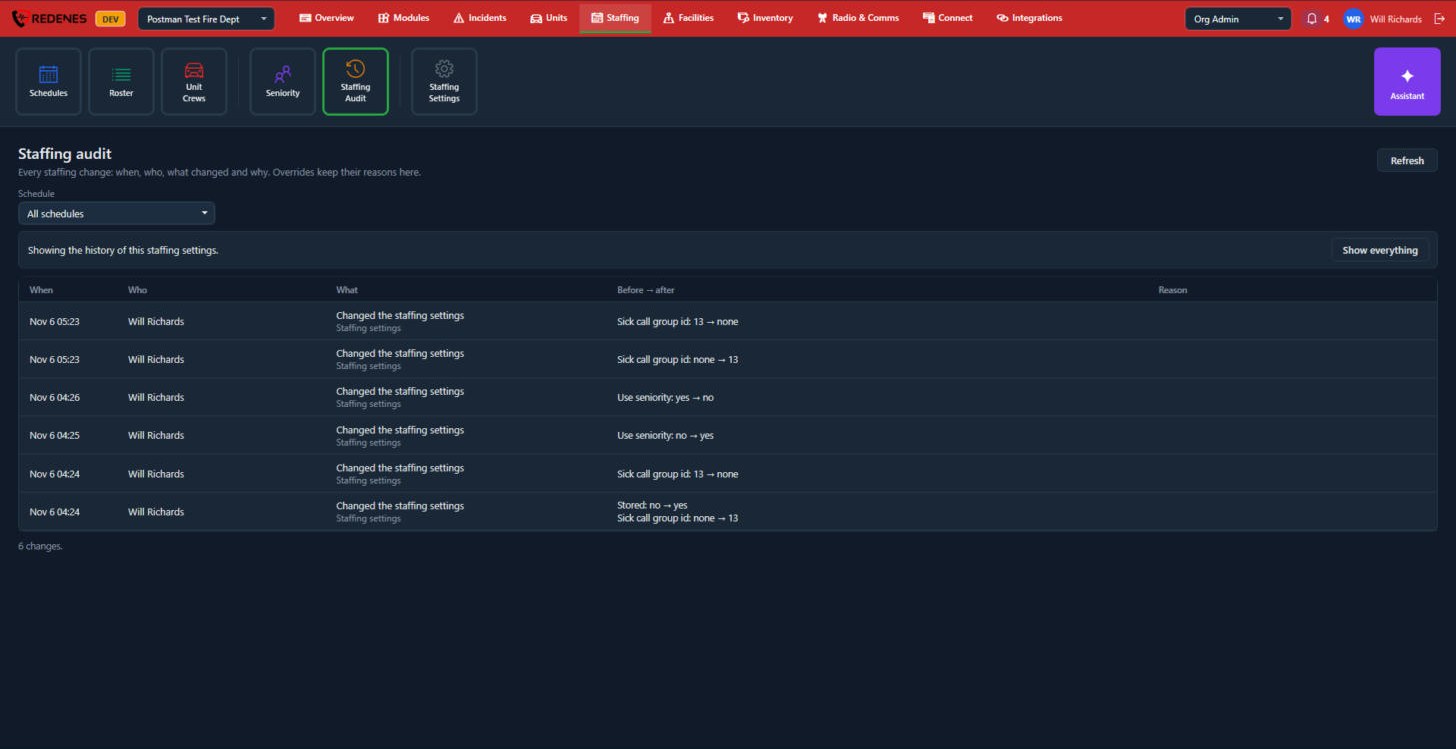
Every staffing change is recorded: when, who, what changed 1, the value before and after 2, and the reason. Overrides keep their reasons here. Filter by schedule, and click History on a row to see everything that happened to that item.
 12
The line at the top 1 says which item you are looking at. Show everything 2 goes back to the full list.
Staffing Settings
Where: StaffingStaffing Settings
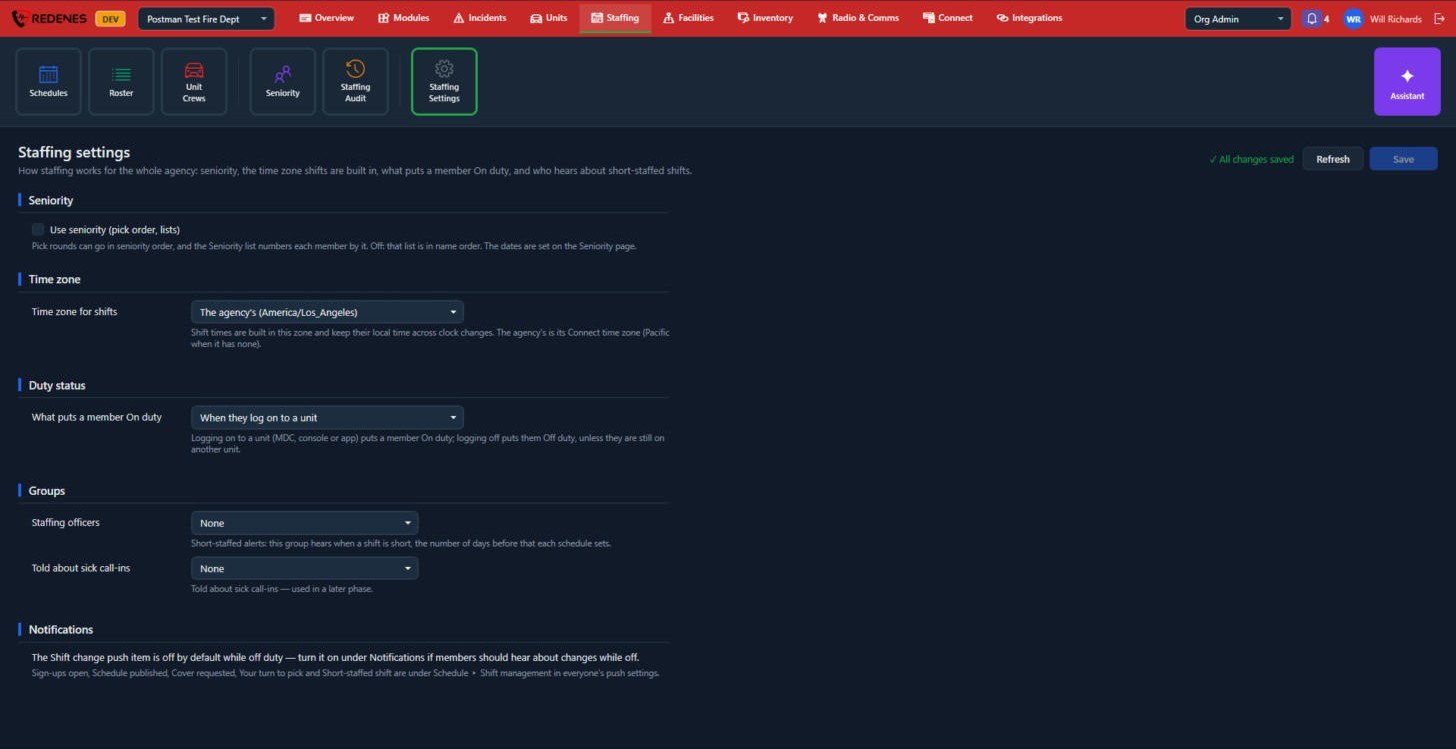 1234
| Section | What it sets |
|---|---|
| Seniority 1 | Whether pick rounds and lists use seniority order. |
| Time zone 2 | The zone shifts are built in. Shift times keep their local time across clock changes. |
| Duty status 3 | What puts a member On duty, for example logging on to a unit. |
| Groups 4 | The staffing officers who hear when a shift is short, and who is told about sick call-ins. |
The Notifications note at the bottom explains which shift alerts are on by default. Members control theirs in their push settings.