Custom Fields, Service Statuses and Unit Settings
Custom Fields
Where: UnitsCustom Fields
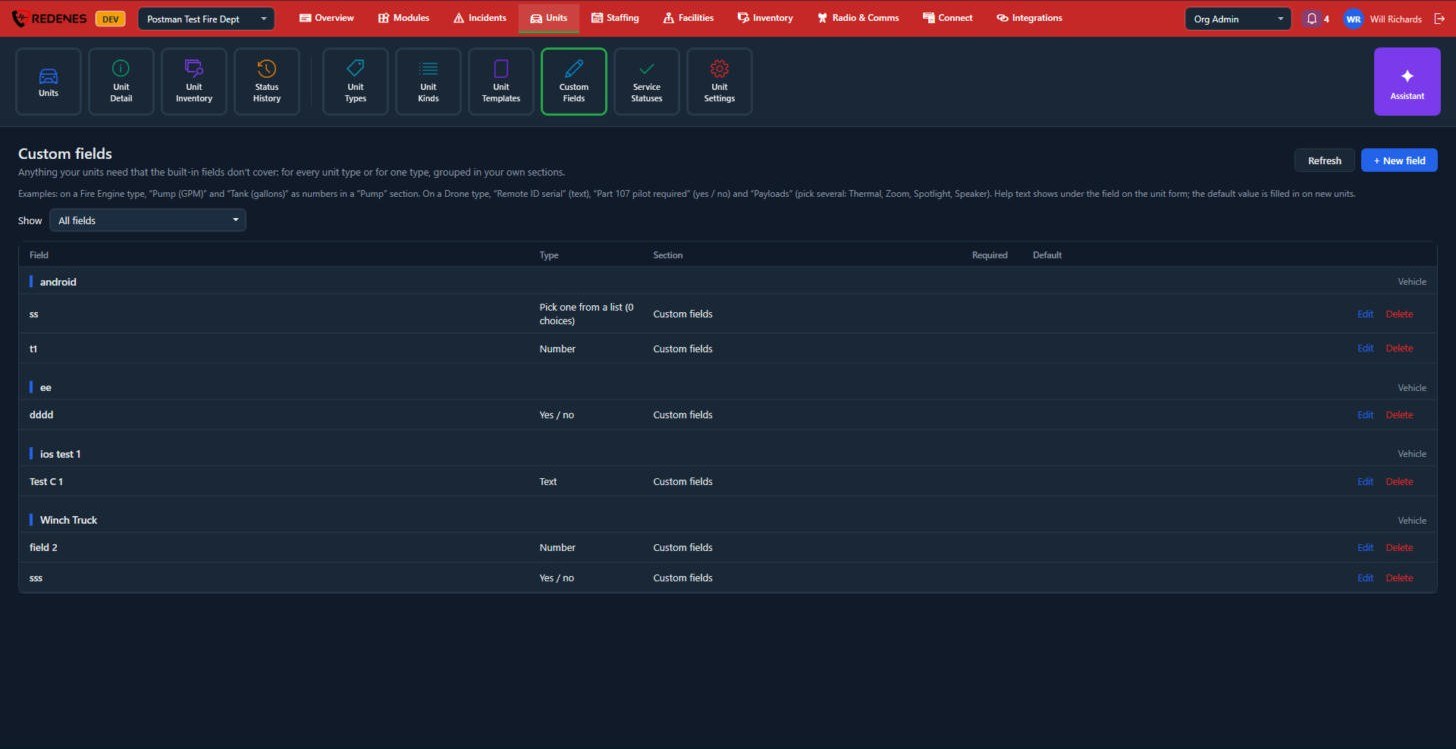 123
Custom fields hold anything your units need that the built-in fields do not cover. For example, on a fire engine type: Pump (GPM) and Tank (gallons) as numbers. On a drone type: Remote ID serial as text and Part 107 pilot required as yes or no.
- Click + New field 3.
- Choose whether it applies to every unit type or to one type.
- Pick its type 2: text, number, yes / no, or pick from a list.
- Optionally give it a section, help text, a default value, and mark it required.
Use Show 1 to filter the list.
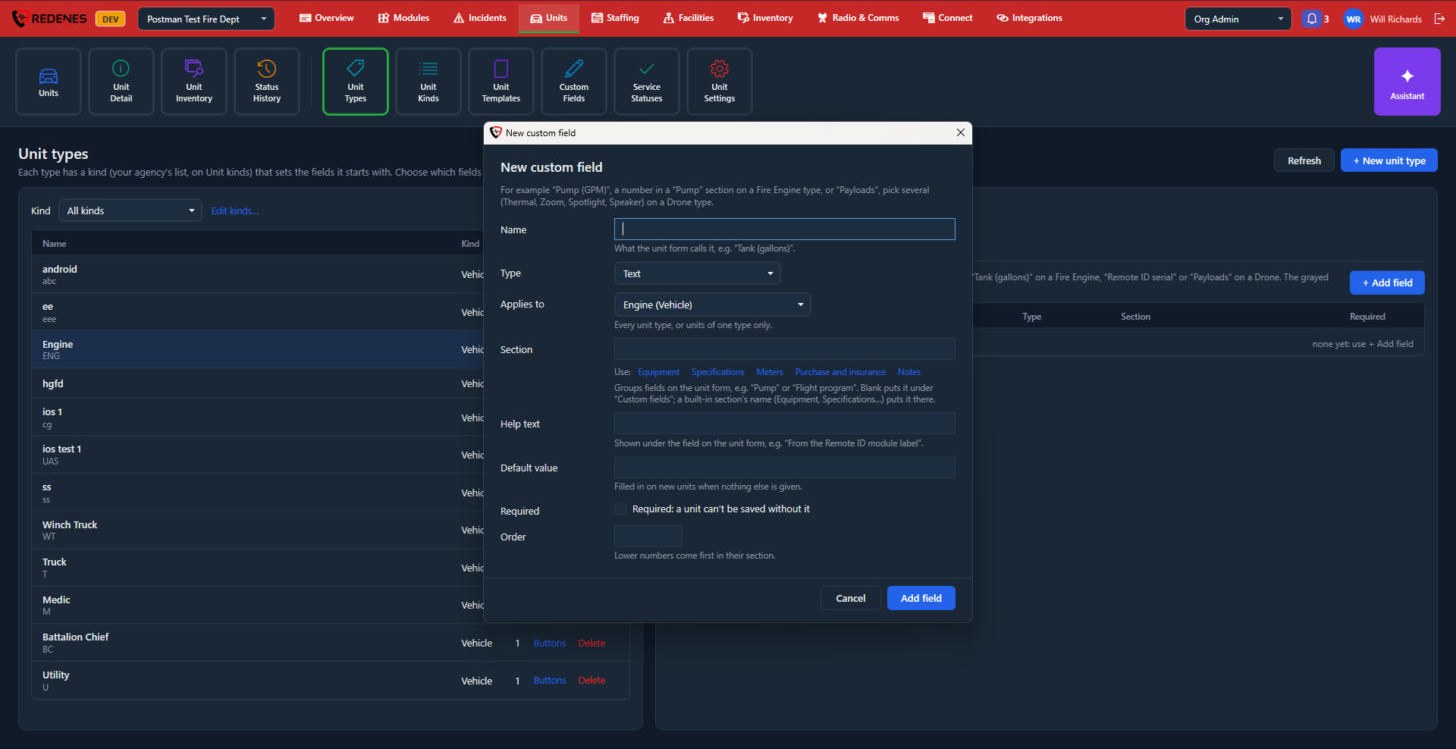 12345
- Name and Type 1: what the unit page calls it, and whether it is text, a number, yes / no, a date, pick one from a list or pick several.
- Applies to 2: every unit type, or one type only.
- Section 3 groups fields on the unit page, for example Pump or Flight program. Leave it blank to put the field under Custom fields, or click one of the blue names to put it in a built-in section.
- Help text and Default value 4: a line shown under the field, and what new units start with.
- Required and Order 5: a required field must be filled in before a unit can be saved. Lower order numbers come first in their section.
Service Statuses
Where: UnitsService Statuses
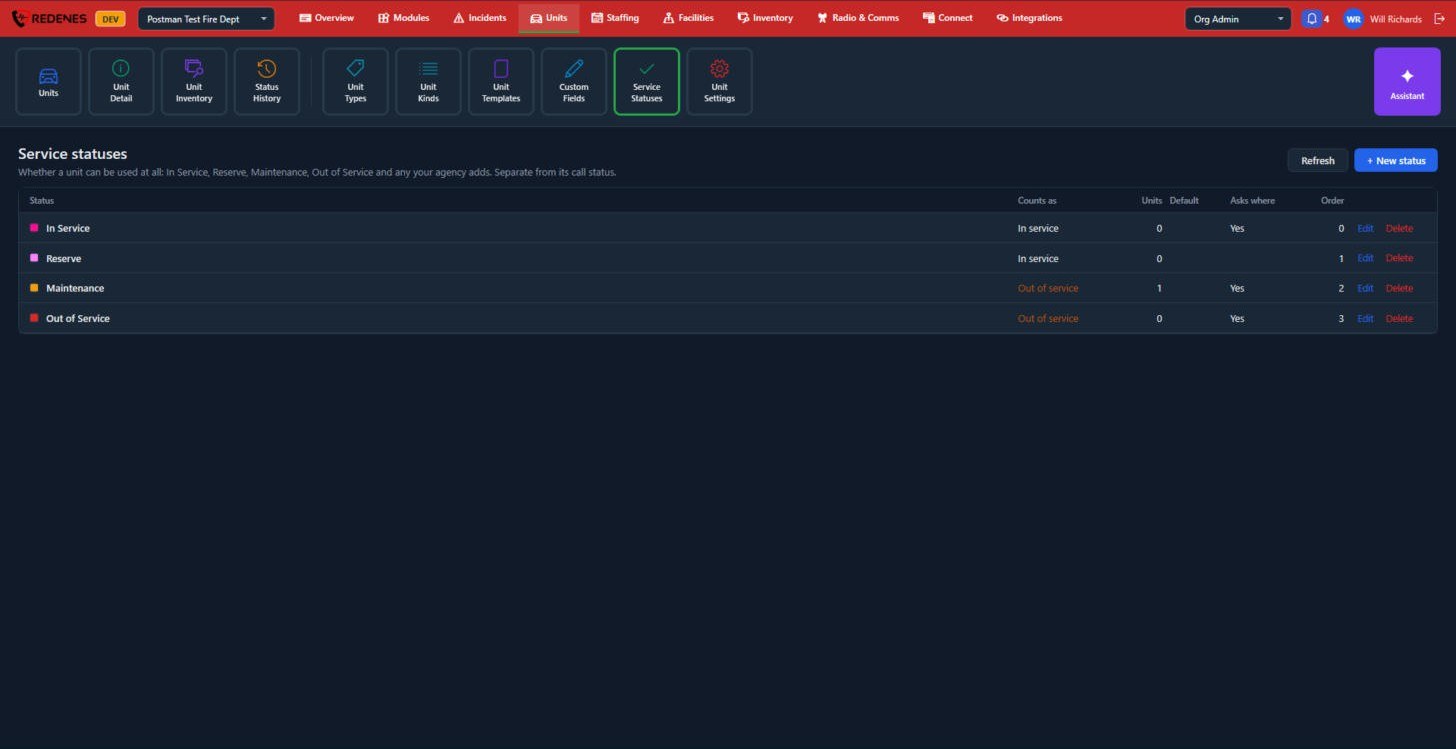 123
A service status says whether a unit can be used at all: In Service, Reserve, Maintenance, Out of Service, and any your agency adds with + New status 3.
- Counts as 1 tells REDENES whether a unit with this status is available (in service) or not (out of service).
- Asks where 2 makes the app ask for a location when the status is set, for example which shop the unit went to.
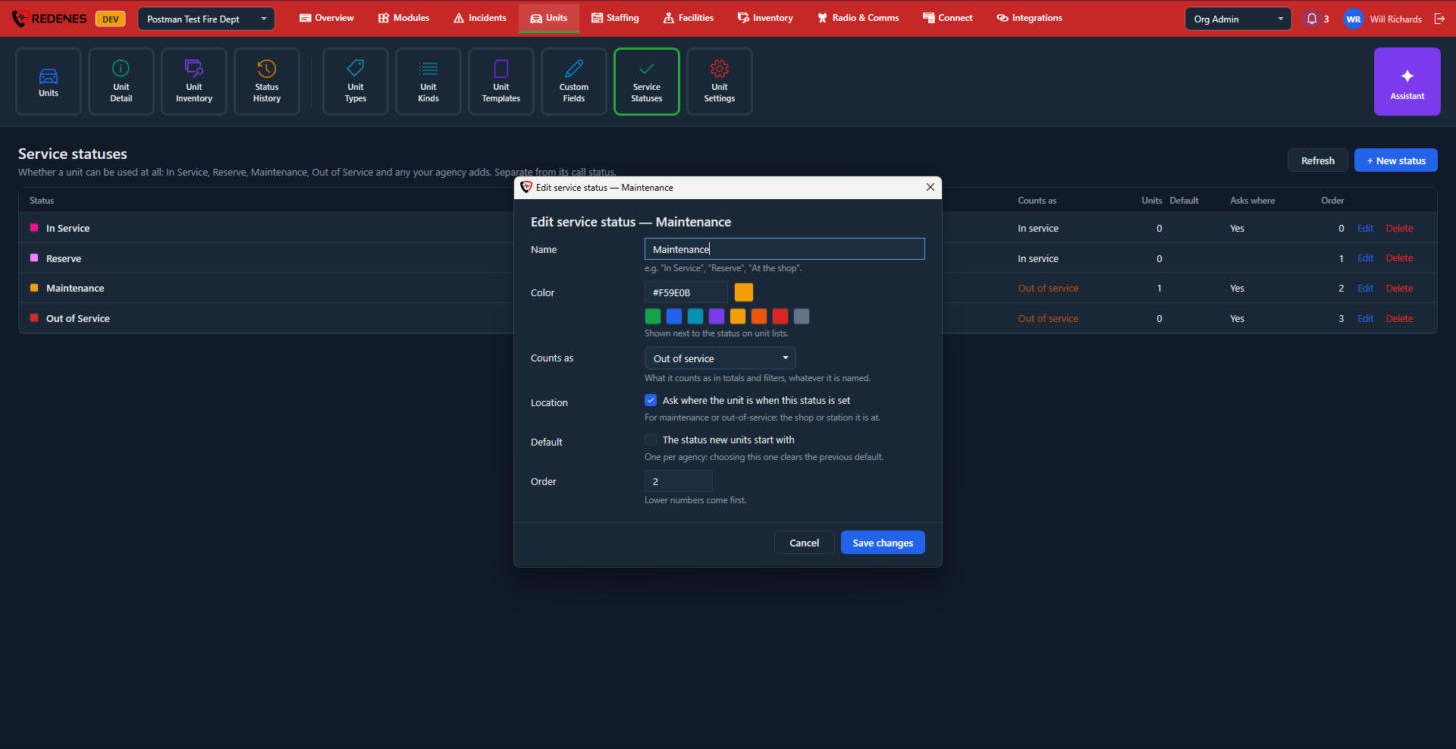 123456
| Box | What it does |
|---|---|
| Name 1 | What the status is called, such as At the shop. |
| Color 2 | The colour shown next to the status in unit lists. Click a square or type a colour code. |
| Counts as 3 | In service or out of service, for totals and filters, whatever the status is named. |
| Location 4 | Ask where the unit is when this status is set. |
| Default 5 | The status new units start with. Only one status can be the default. |
| Order 6 | Lower numbers come first. |
Unit Settings
Where: UnitsUnit Settings
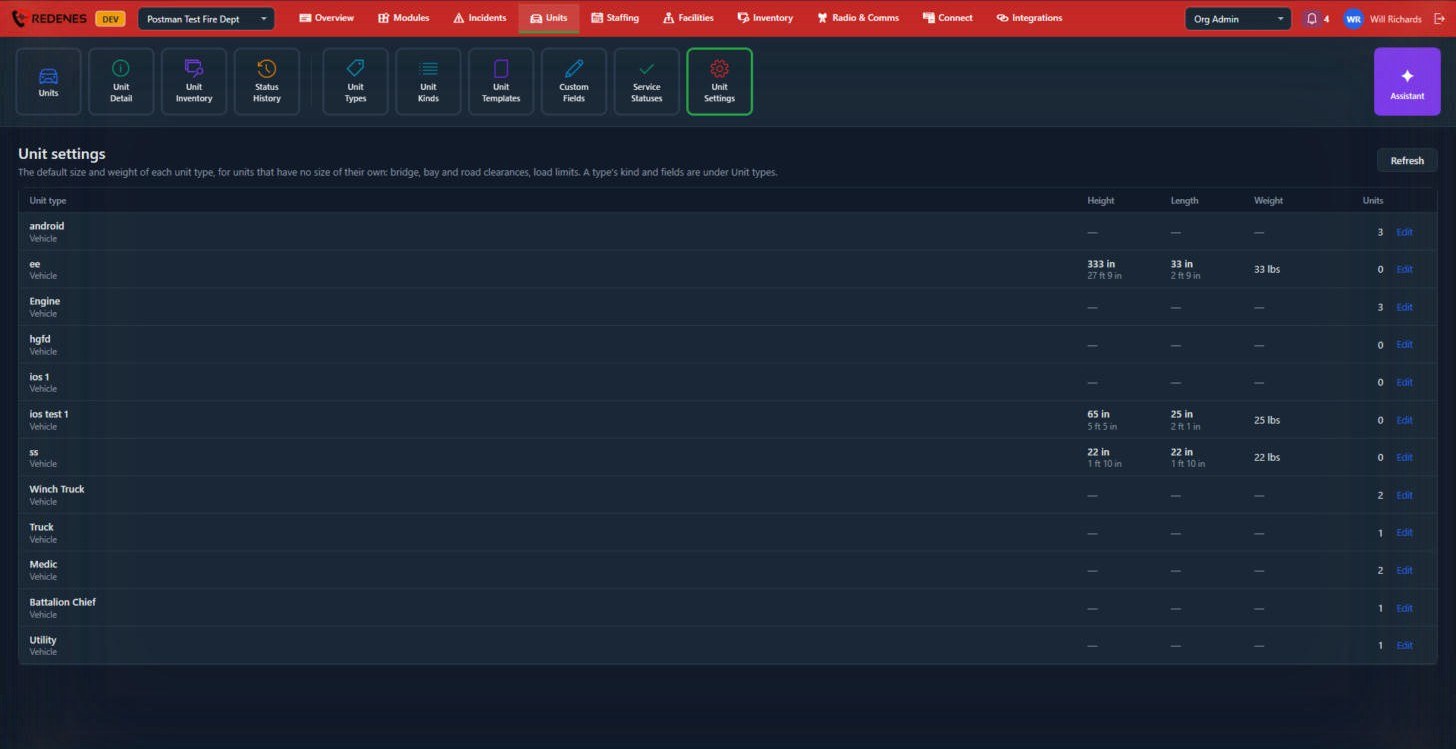
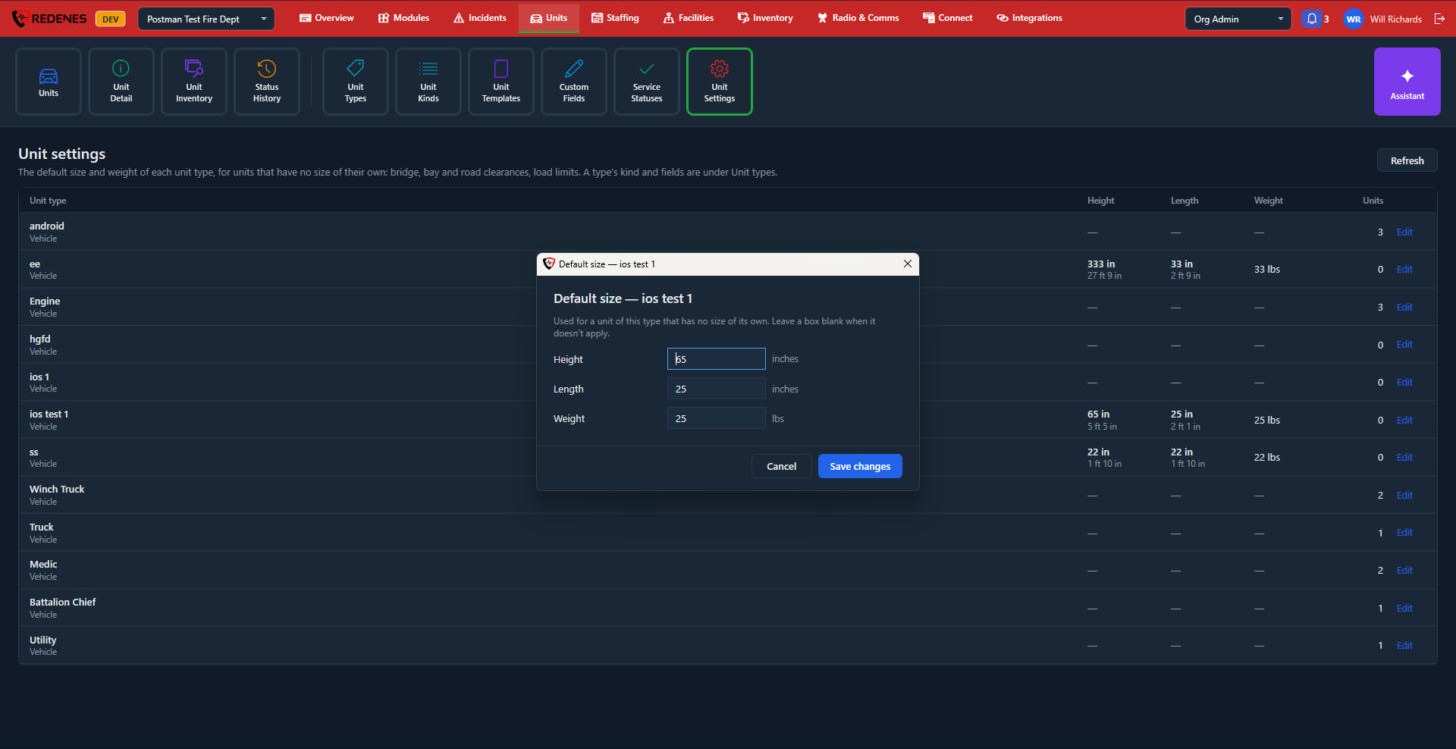
The default height, length and weight of each unit type, for units that have no size of their own. These are used for bridge, bay and road clearances and load limits. Click Edit on a type's row to set them.
 1
Type the Height and Length in inches and the Weight in pounds 1, and leave a box blank when it does not apply. The list also shows height and length in feet and inches.