Unit Kinds, Types and Templates
Three levels describe your units. Set them up once and adding a unit becomes quick.
| Level | Example | What it decides |
|---|---|---|
| Kind | Vehicle, Boat, Drone / UAS | Which built-in fields make sense and what they are called. |
| Type | Engine, Medic, Winch Truck | The fields its units show, plus its own custom fields. |
| Template | Front Winch Truck, Ford F550 | Pre-filled values for units you have several of. |
Unit Kinds
Where: UnitsUnit Kinds
 123
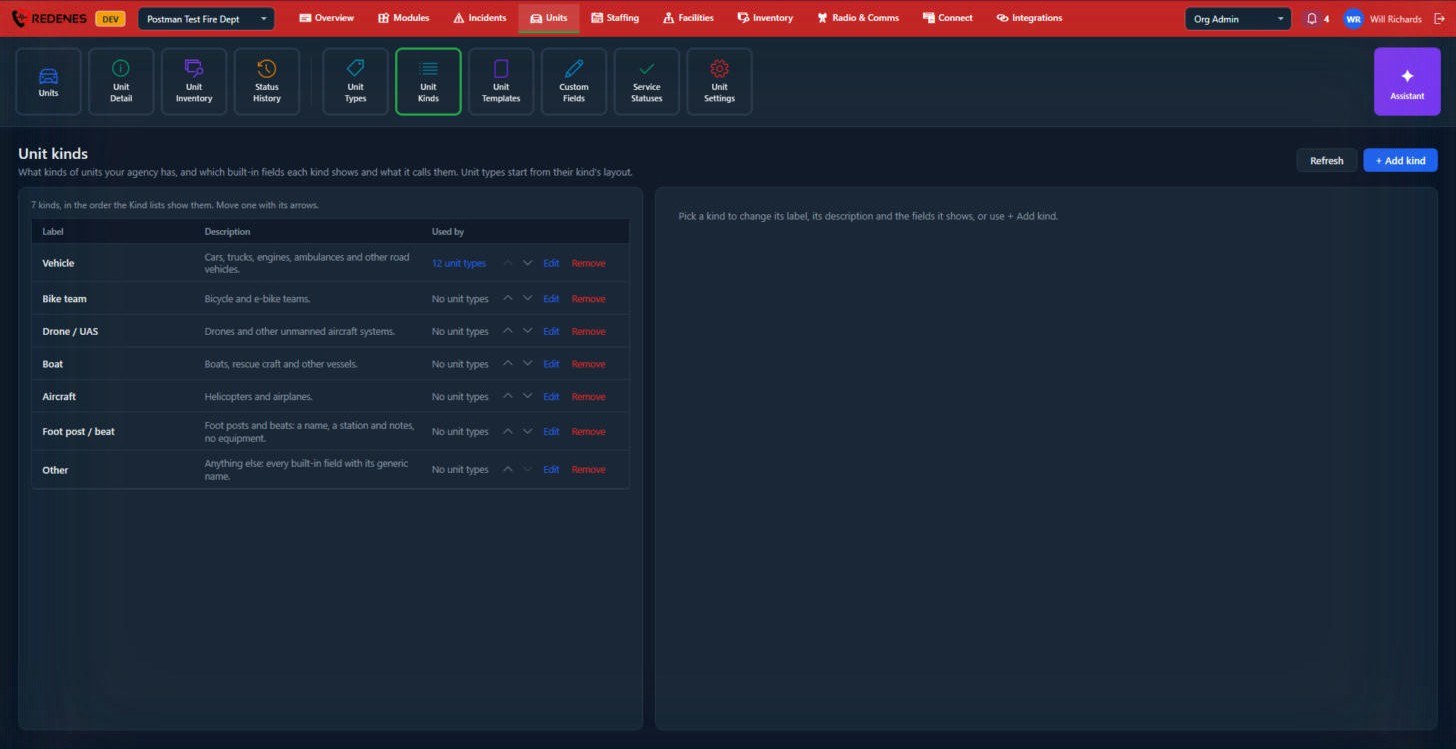
REDENES starts you with Vehicle, Bike team, Drone / UAS, Boat, Aircraft, Foot post / beat and Other 1. Use the arrows 2 to change the order the Kind lists show them, Edit a kind to change its label and the fields it shows, or + Add kind 3.
Edit a kind
 1234
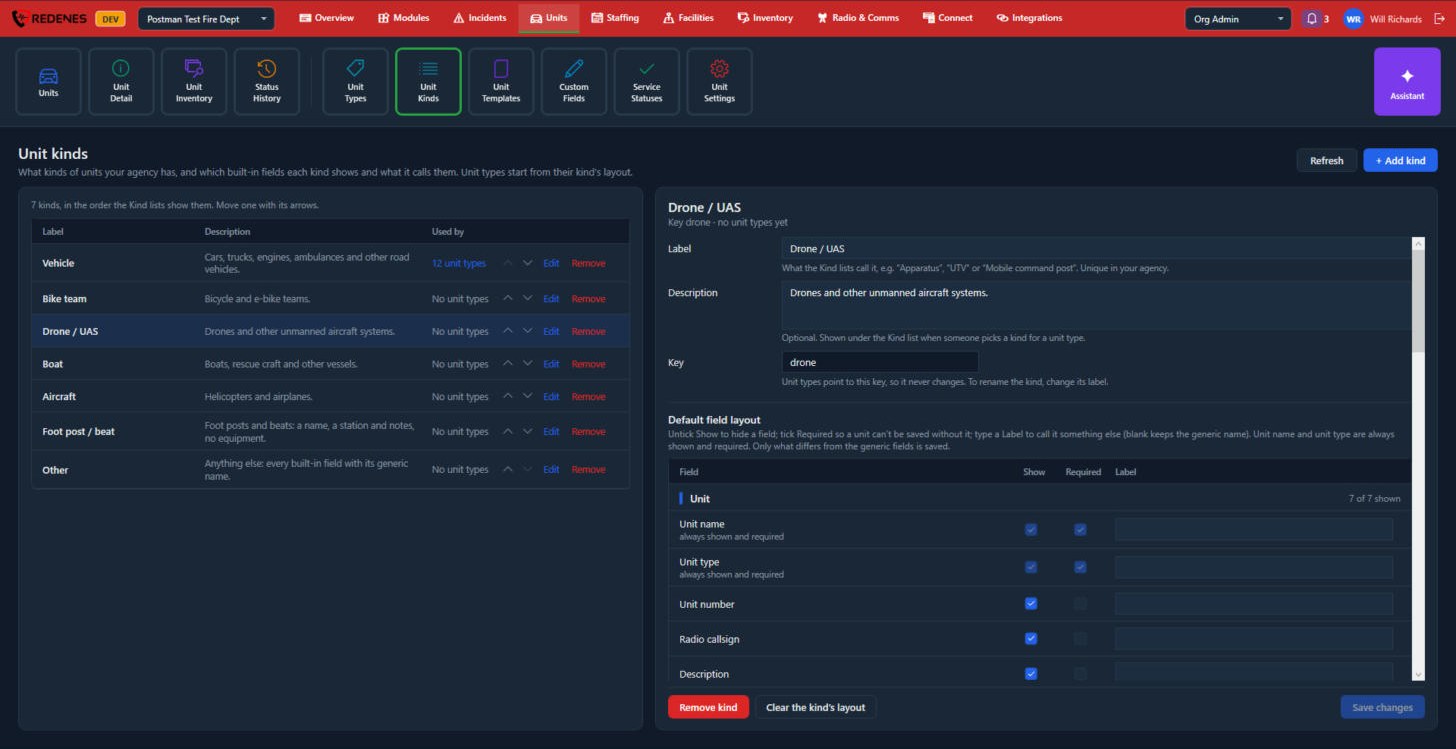
- Label and Description 1 are what people see when they pick a kind. The Key never changes.
- Default field layout 2 lists every built-in field, section by section. Untick Show to hide a field for this kind, tick Required so a unit cannot be saved without it, and type a Label to call it something else. For example a boat can call License plate its Hull number.
- Remove kind and Clear the kind's layout 3. Clearing puts every field back to its general name and shows them all.
- Save changes 4.
A kind that unit types still use cannot be removed until those types are moved to another kind.
Unit Types
Where: UnitsUnit Types
 123
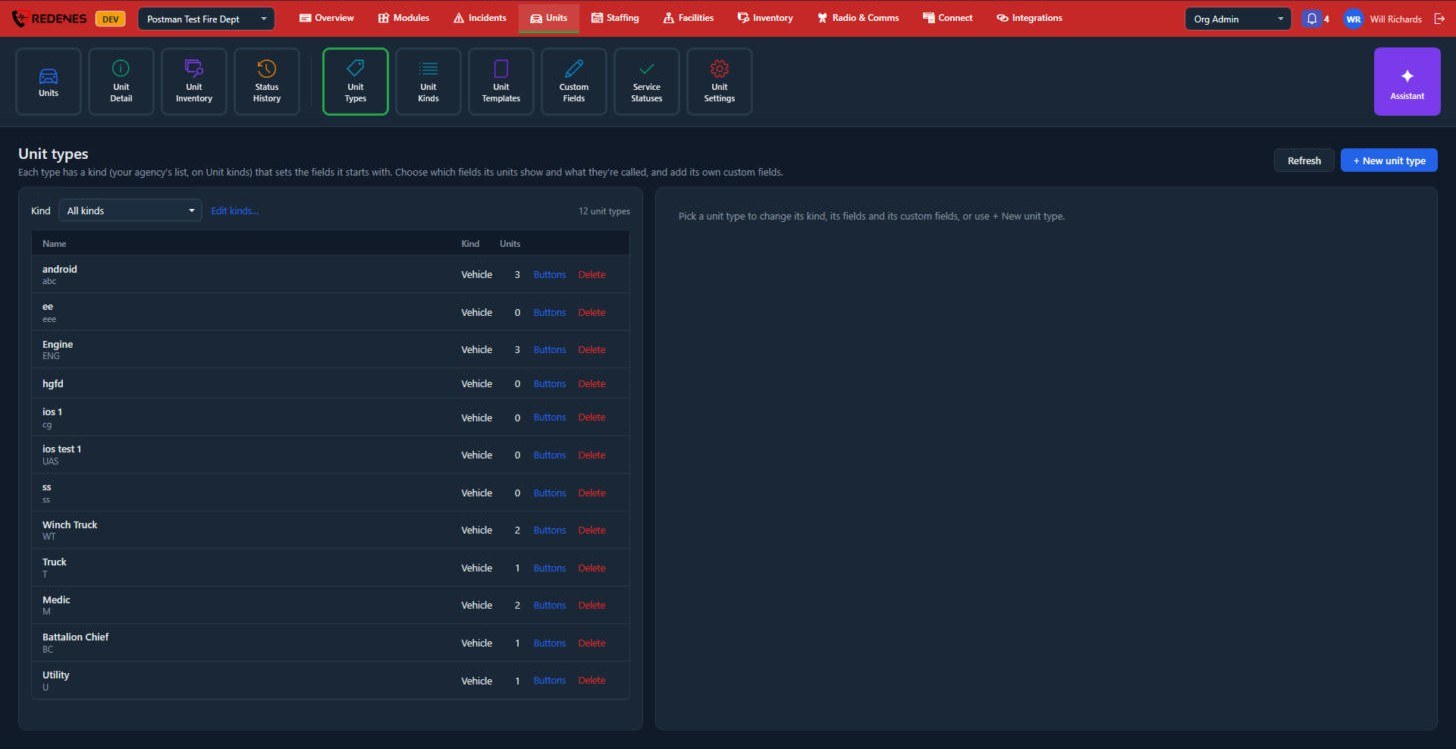
Click + New unit type 3, or click a type 1 to change its kind, the fields its units show and what they are called, and its custom fields. Buttons 2 sets the worksheet buttons shown on that type's units, for example Daily check.
A unit type's page
Click a type and it opens on the right with three tabs.
 12345
General:
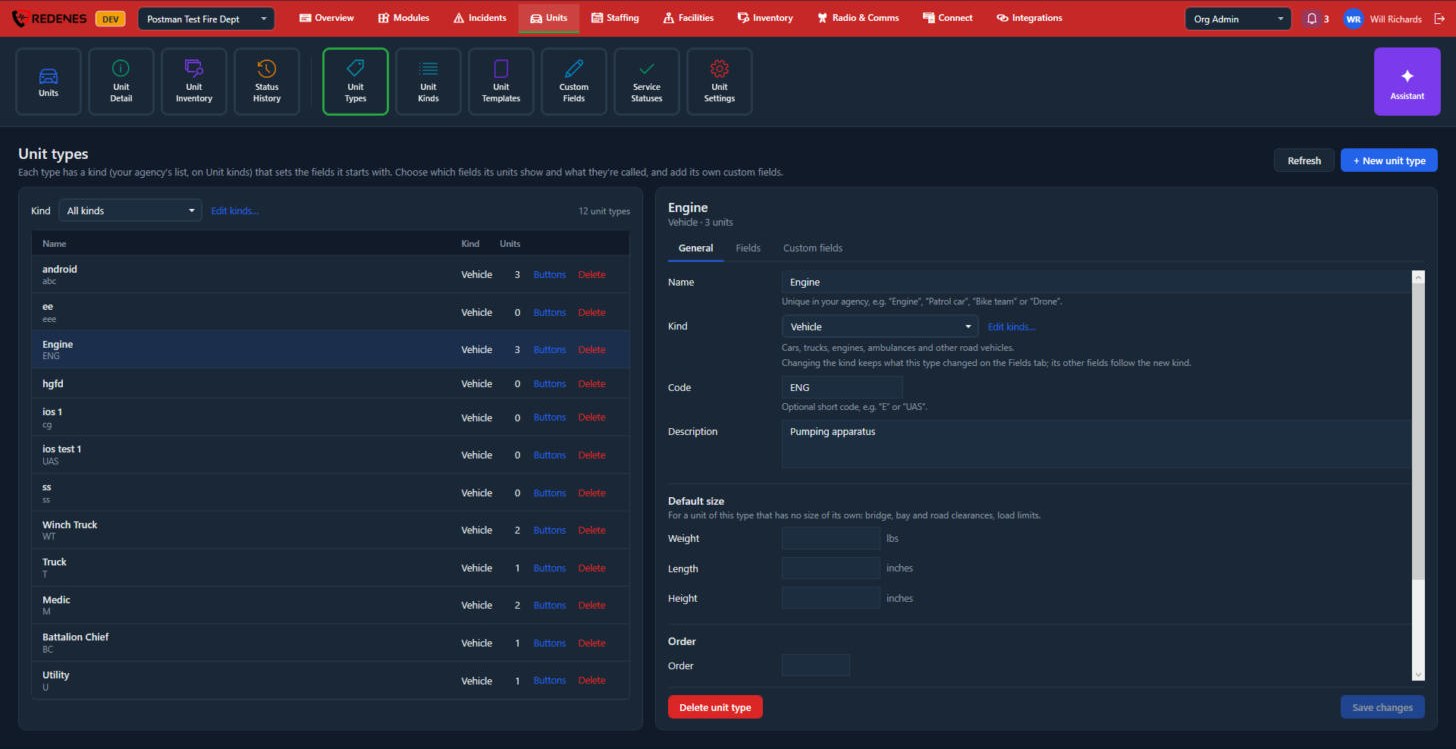
- The tabs 1: General, Fields and Custom fields.
- Name, Kind, Code and Description 2. The code is a short form such as E or UAS.
- Default size 3: weight, length and height used for a unit of this type that has no size of its own.
- Order 4: lower numbers come first in lists.
- Delete unit type and Save changes 5.
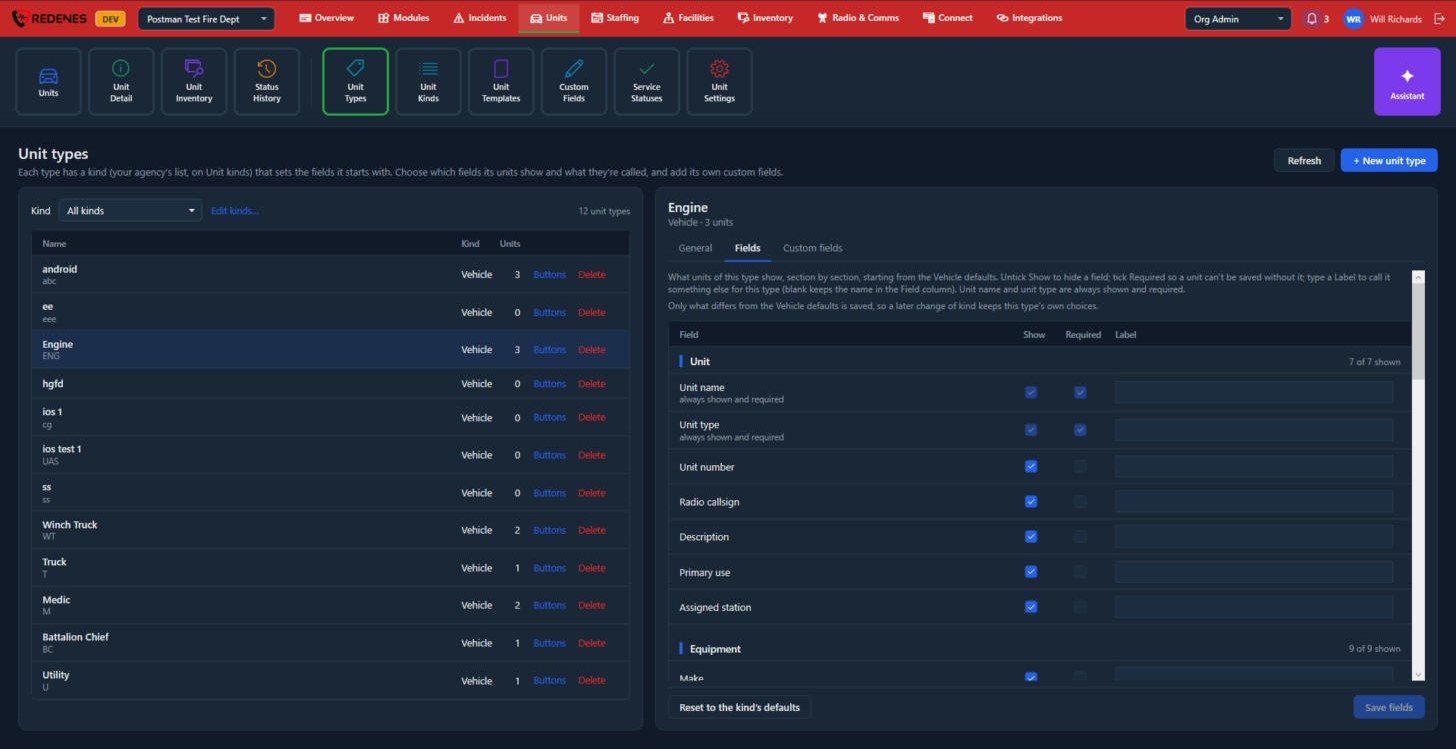 123
Fields starts from the kind's layout. For each field 1 untick Show to hide it on this type's units, tick Required, or type a Label to rename it. Reset to the kind's defaults 2 throws away this type's own choices. Click Save fields 3 when you are done.
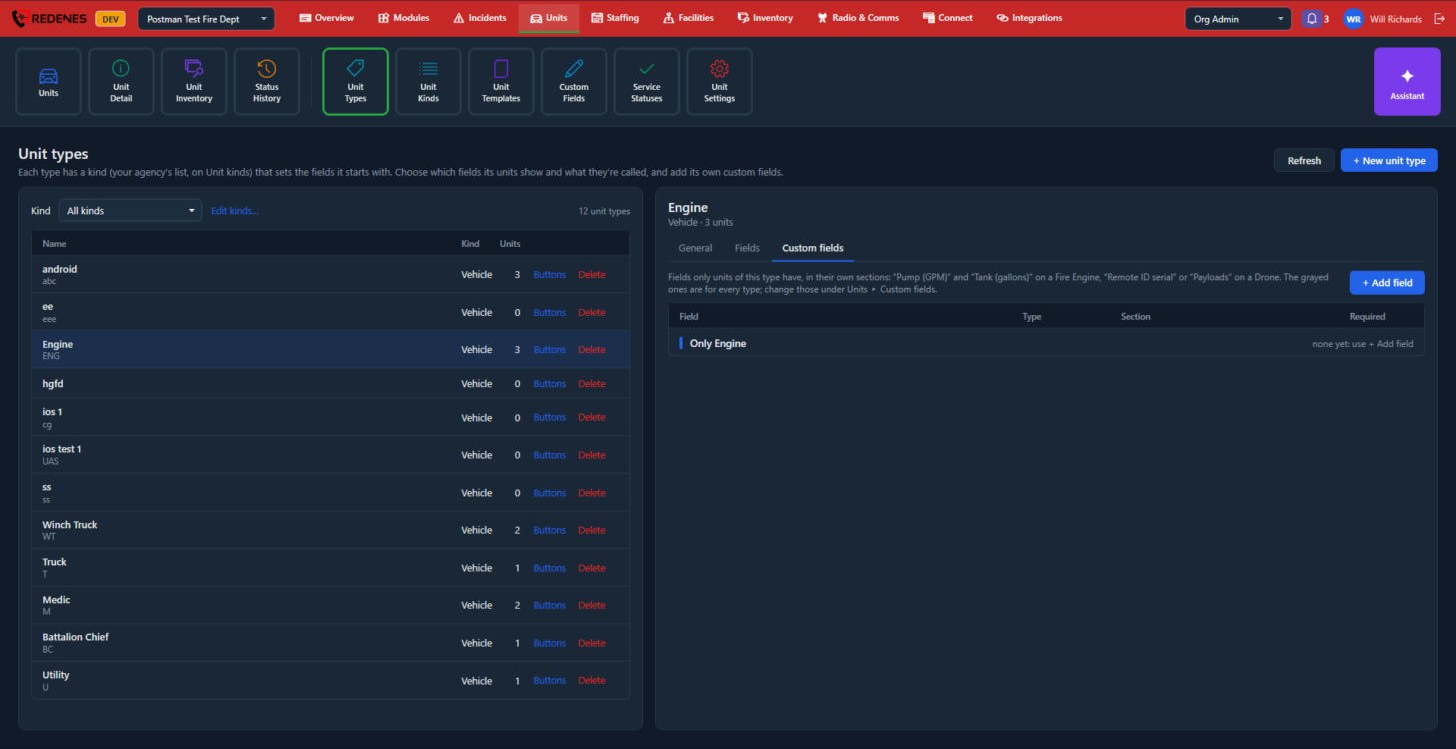 12
Custom fields lists the fields only this type has 2, such as Pump (GPM) on an engine. + Add field 1 opens the same window as Custom Fields. Greyed fields belong to every type and are changed there.
Buttons on a type
Click Buttons on a type's row. The window lists the worksheet buttons every unit of that type gets, top to bottom. New units copy them. Units you already have keep their own copies, so changing a button here does not change them.
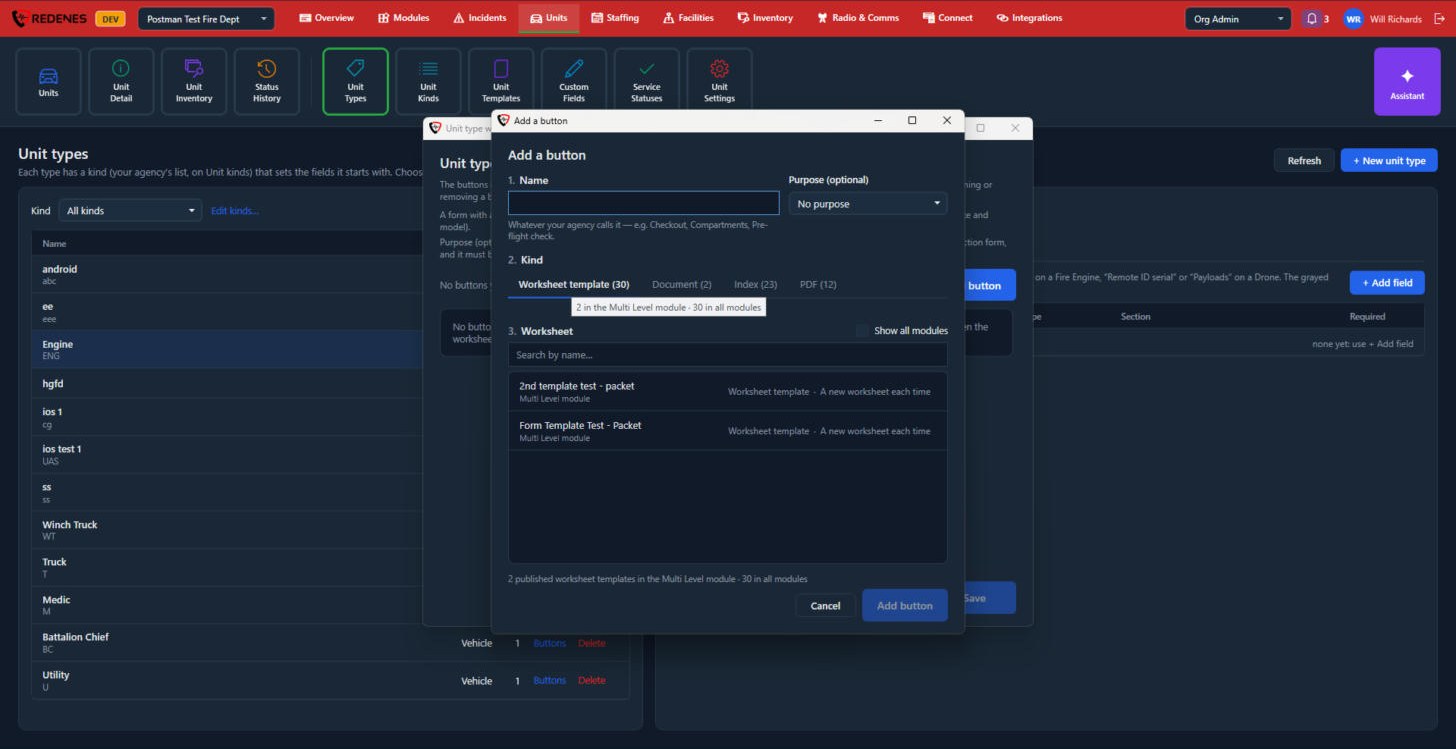 1234
- Give the button a Name 1, such as Checkout or Pre-flight check.
- Optionally pick a Purpose 2: Inspection form, User manual, Safety data sheet and so on. Only one button can be the inspection form.
- Pick the Kind 3: Worksheet template, Document, Index or PDF.
- Pick the Worksheet 4 it opens. Tick Show all modules to look outside the current module.
- Click Add button, then Save in the Buttons window.
A form that has a QR slot for a unit fills itself in from the unit it is opened on: name, type, kind, serial and registration numbers, meters, make and model.
Unit Templates
Where: UnitsUnit Templates
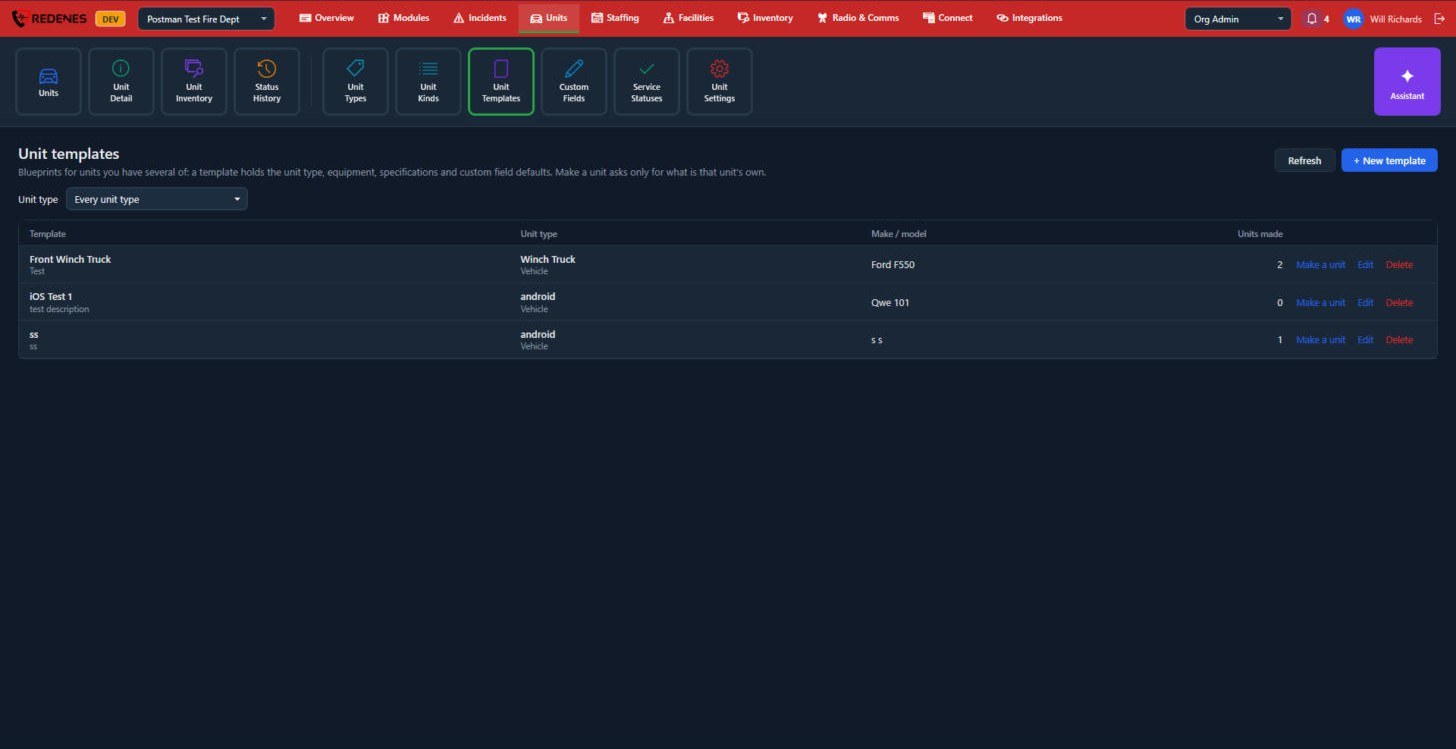 12
A template holds the unit type, make and model, equipment, specifications and custom field defaults. Click + New template 2 to create one. Make a unit 1 then asks only for what is unique to that unit, such as its number and plate.
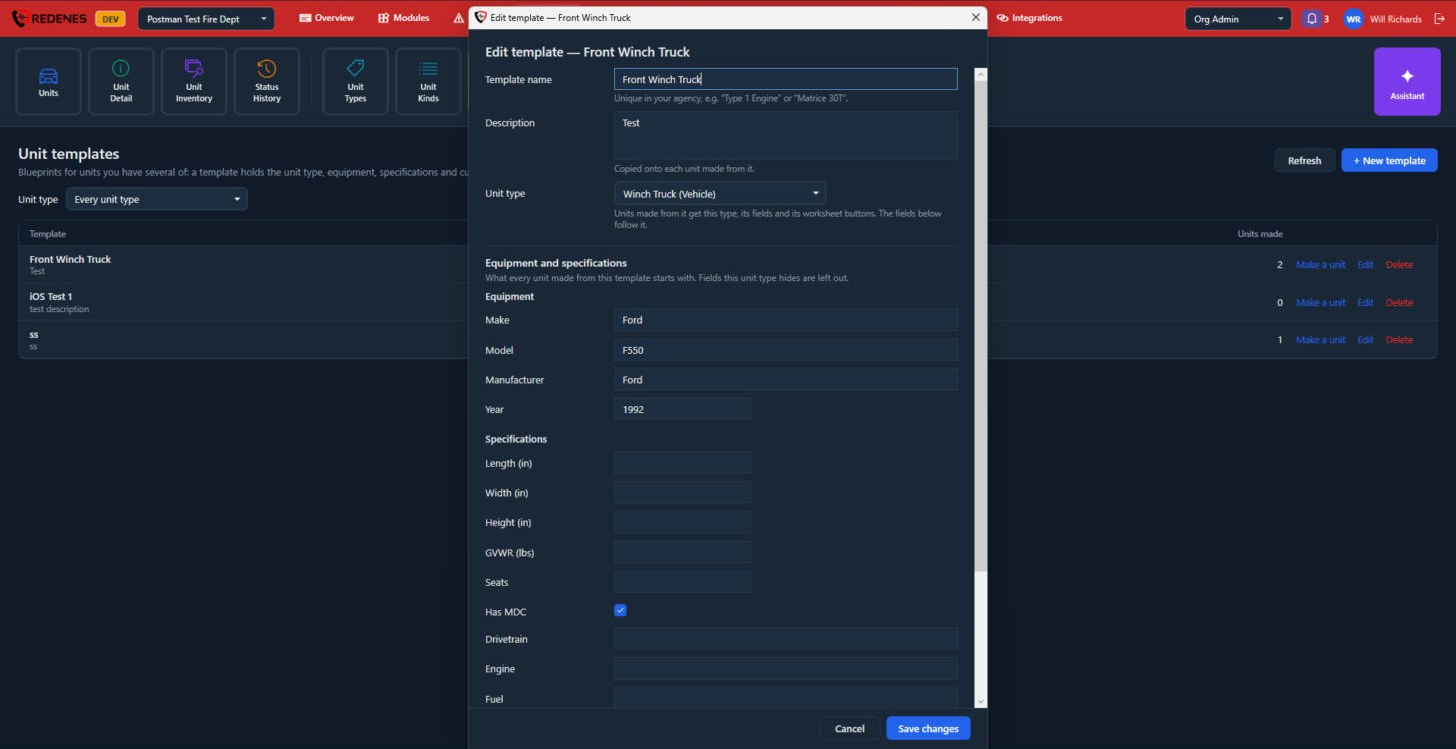 123
- Template name, Description and Unit type 1. Units made from it get that type, its fields and its worksheet buttons.
- Equipment 2: make, model, manufacturer and year.
- Specifications 3: sizes, weight, seats, Has MDC, drivetrain, engine, fuel and more. Scroll down for the custom field defaults. Fields the unit type hides are left out.
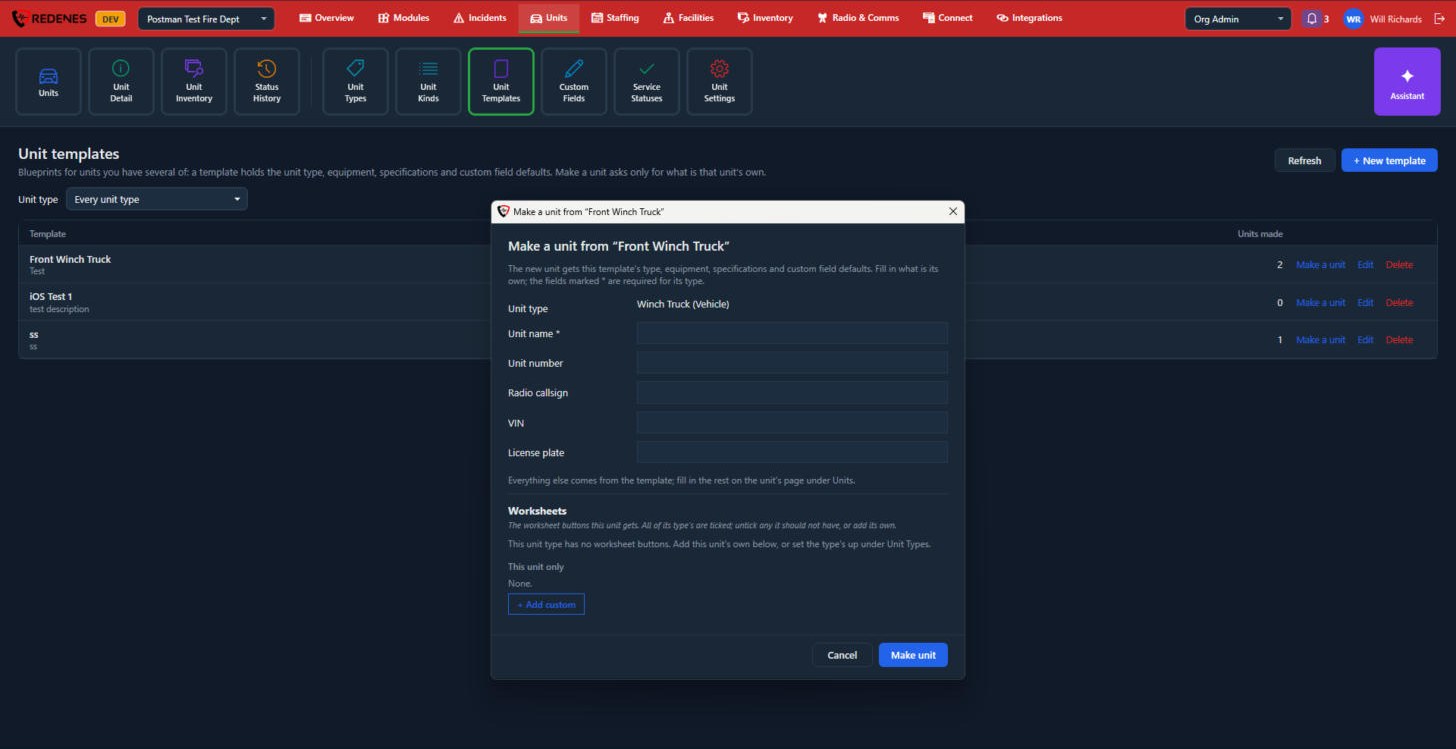 123
In Make a unit, fill in the name, unit number, radio callsign, VIN and license plate 1, choose its worksheet buttons 2 and click Make unit 3. Everything else comes from the template, and you can finish the rest on the unit's page under Units.