Link Board and QR Builder
Link Board
A link board is a small page of links with its own short web address. Use one for the things people keep asking for: the map portal, the training calendar, a sign-up form.
Where: IntegrationsLink Board
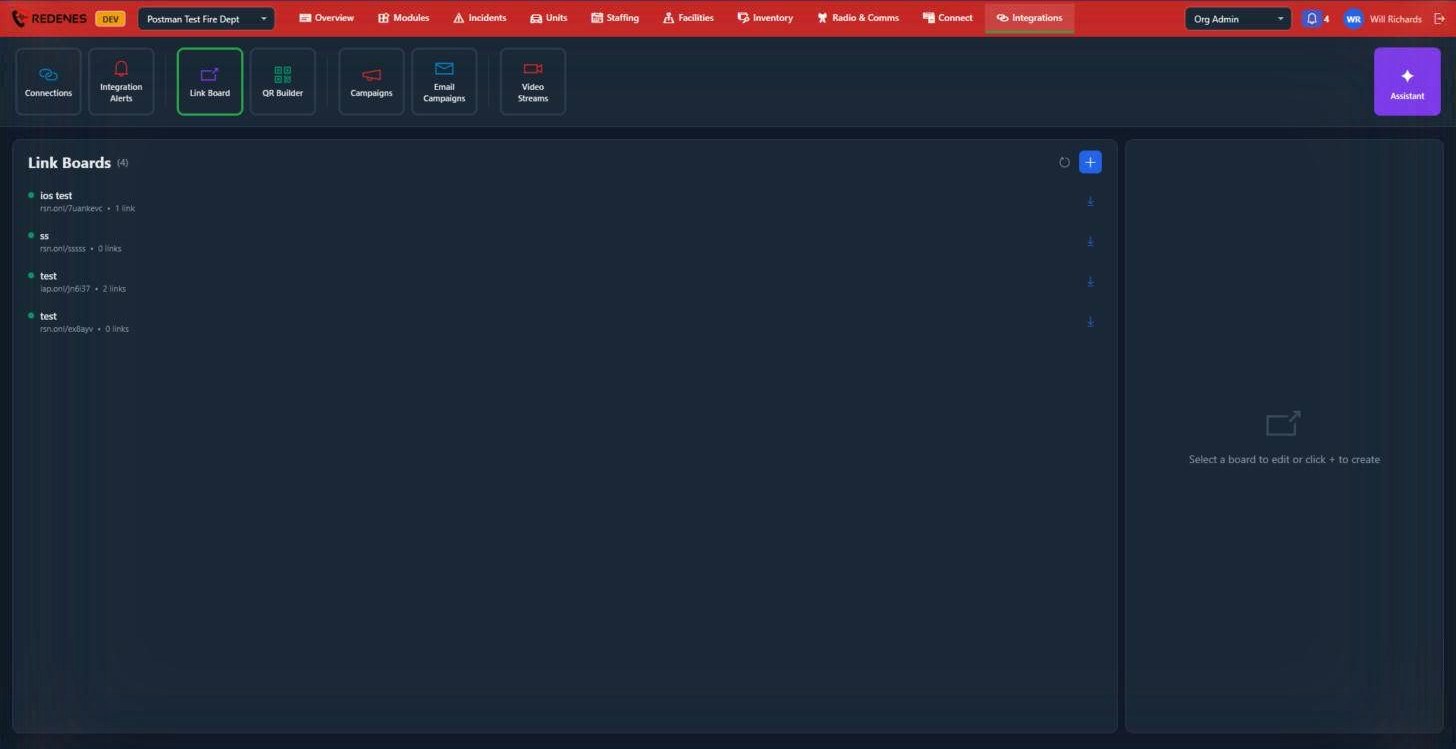 123
- Click + 1 to make a board. Name it and add its links, each with a title and an address.
- Each board 2 shows its short address and how many links it has. A green dot means it is live.
- The download arrow 3 saves the board's QR code as a picture you can print.
Click a board to edit it on the right.
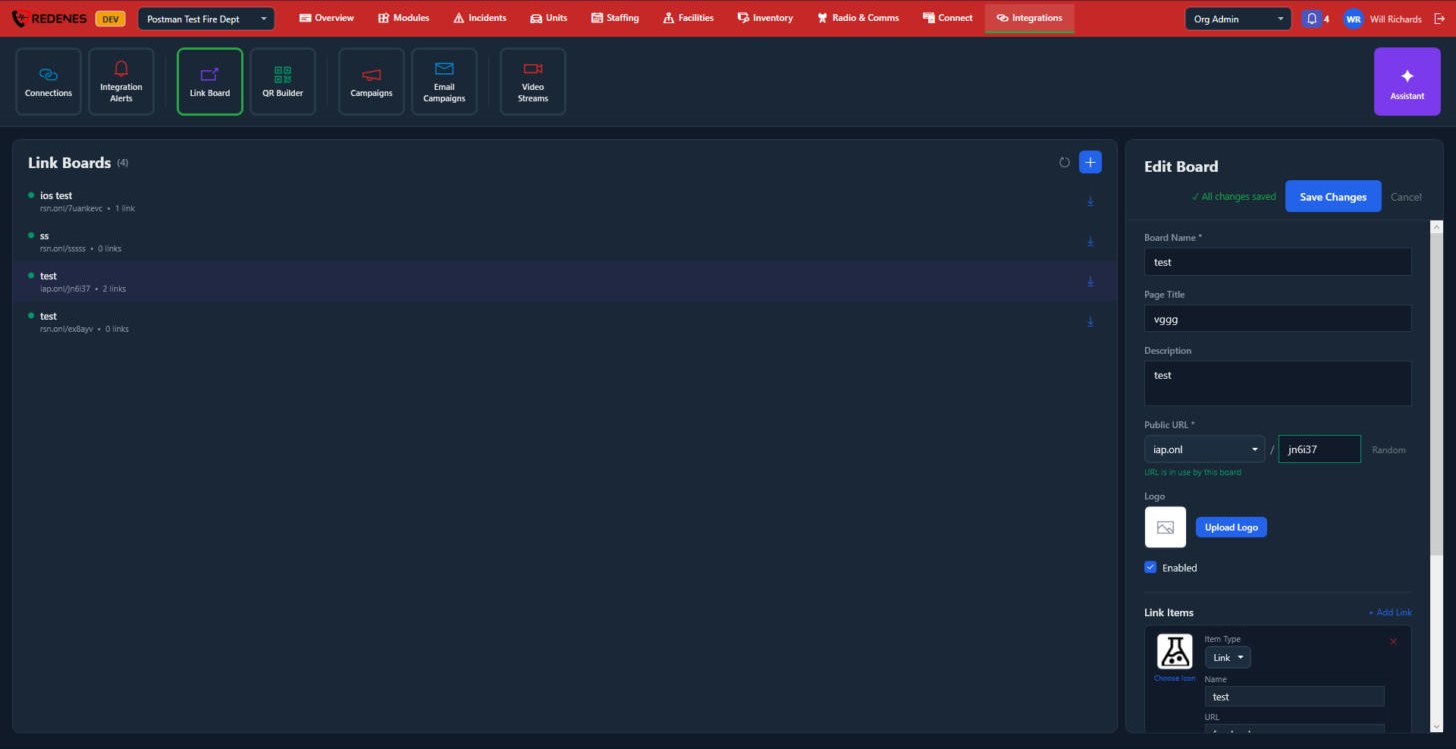 123456
- Board Name, Page Title and Description 1.
- Public URL 2: the short address of the board. Pick the domain and type the ending, or click Random.
- Logo 3.
- Enabled 4: untick to take the board offline.
- Link Items 5: the links on the board.
- Save Changes or Cancel 6.
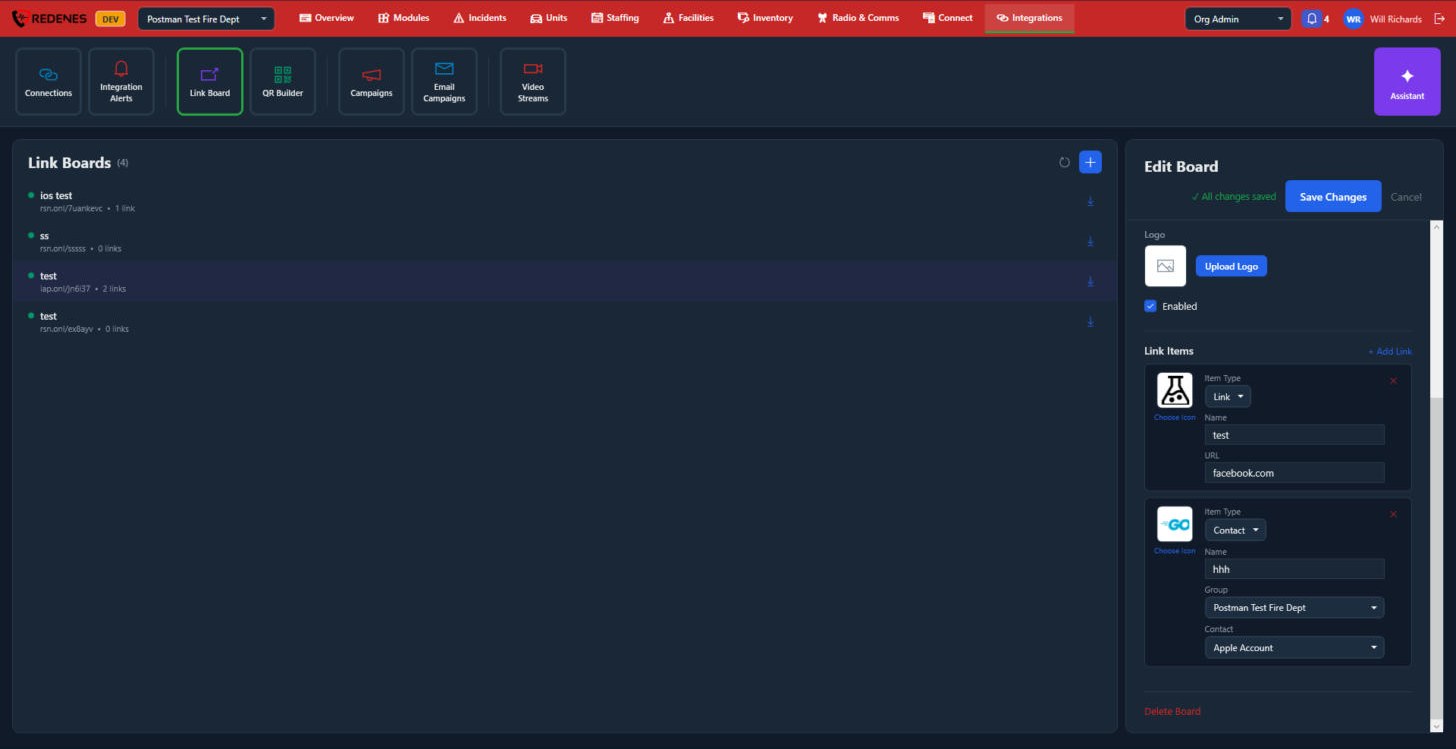 1234
- + Add Link 1.
- A Link item 2 has an icon, a name and a web address. The red X removes it.
- A Contact item 3 shows one of the contacts in a directory group.
- Delete Board 4.
QR Builder
The QR Builder makes QR codes that open something specific when scanned with the REDENES app or a phone camera.
Where: IntegrationsQR Builder
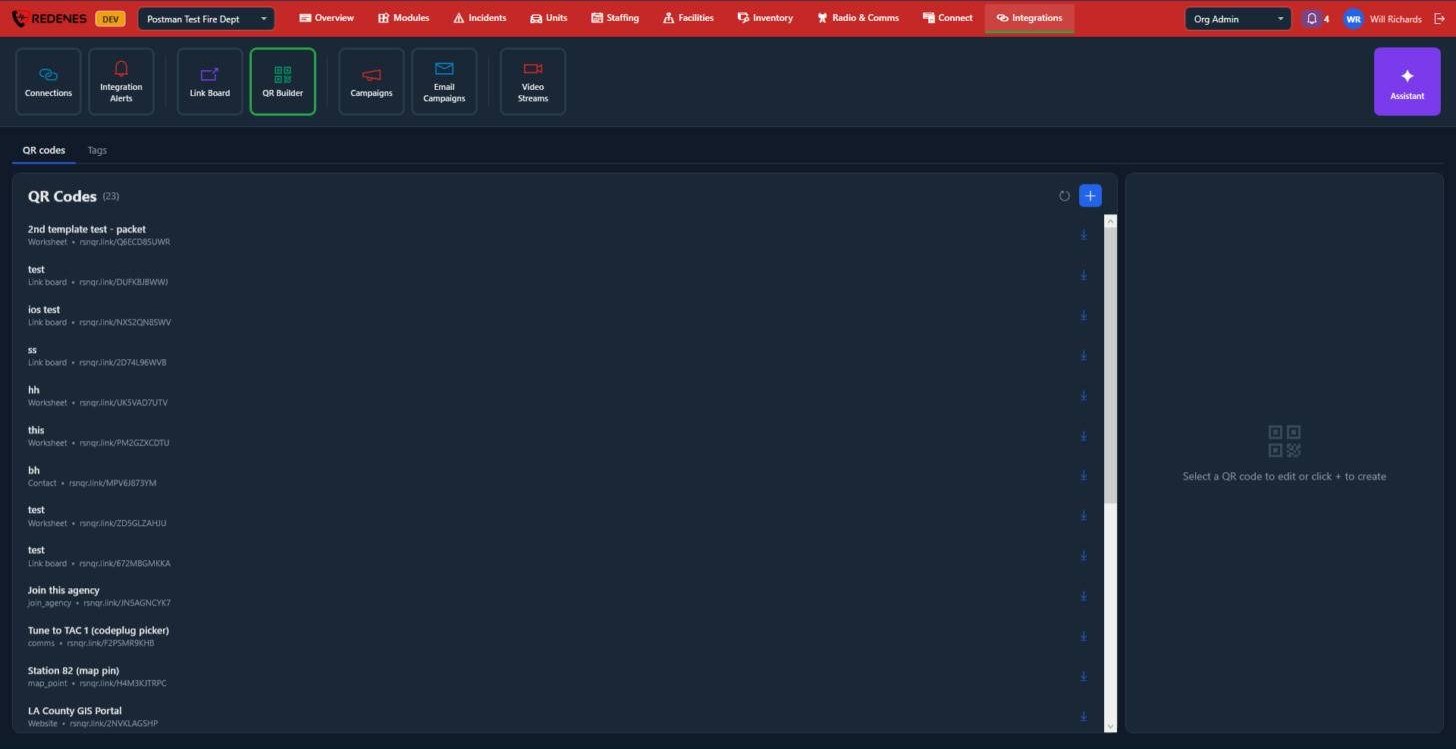 1234
- Tabs 1: QR codes made one at a time, and Tags, the labels printed in bulk for locations, units and inventory items.
- Click + 2 and choose what the code should open.
- Each row 3 shows the code's name, its kind and its link.
- The download arrow 4 saves the code as a picture.
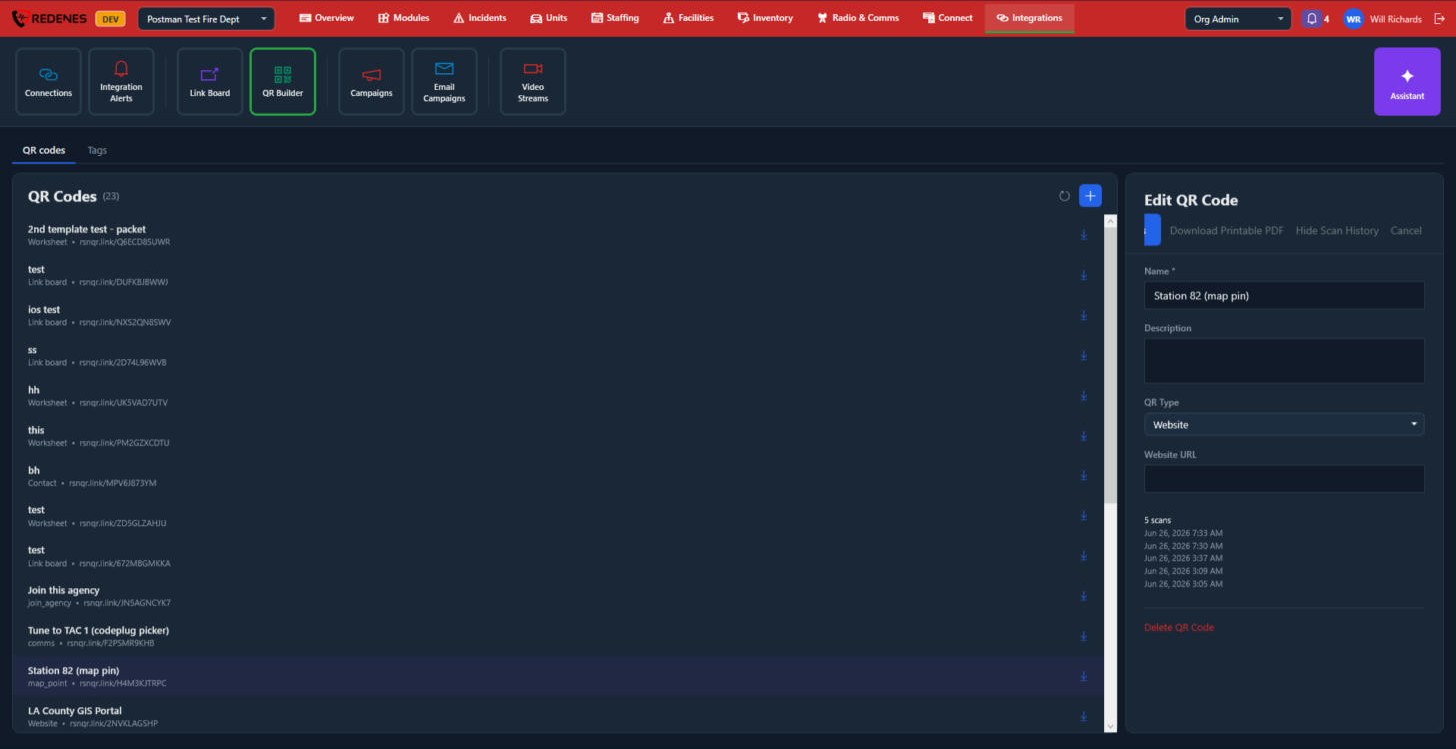 12345
- The buttons 1: Save Changes, Download Printable PDF, Scan History and Cancel.
- Name and Description 2.
- QR Type 3 and what it opens. The box under it changes with the type.
- The scans 4: Scan History shows when the code was scanned.
- Delete QR Code 5.
Tags
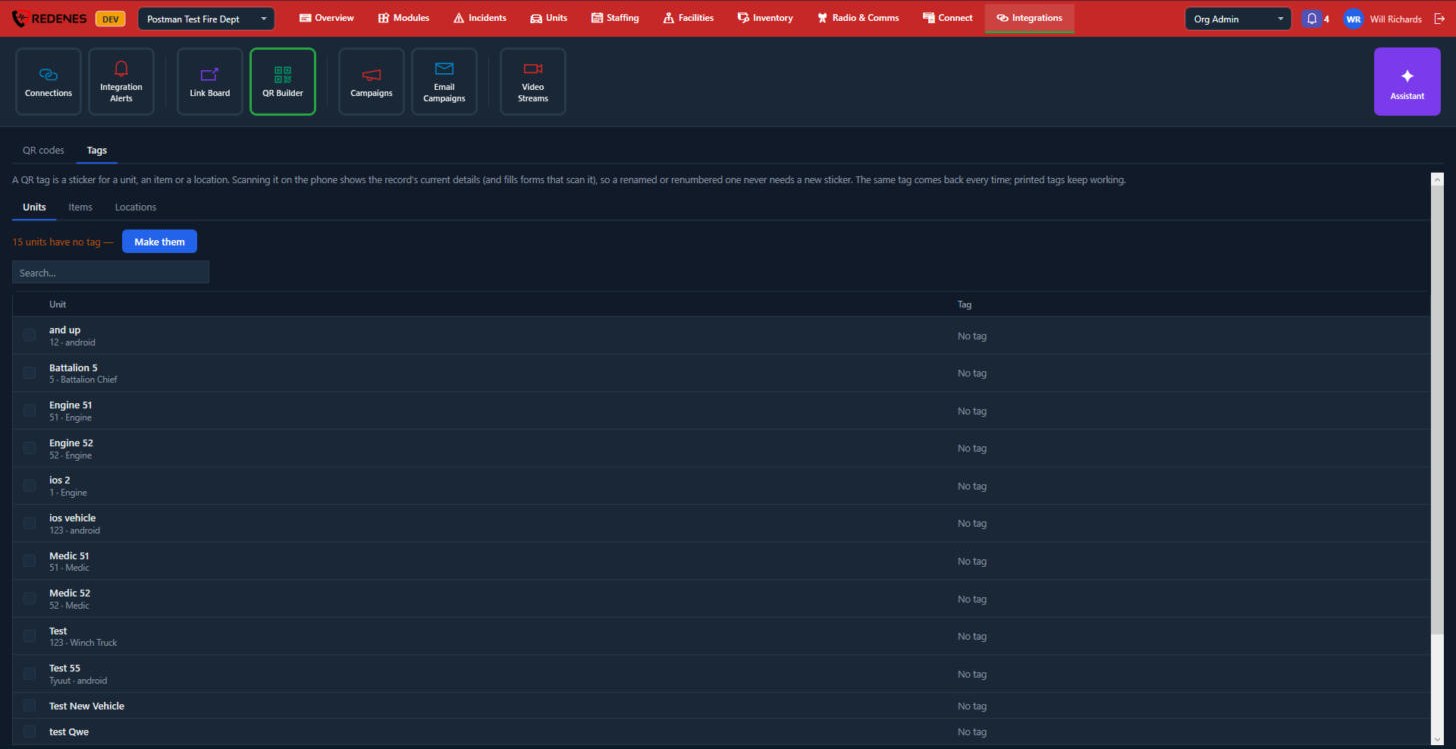 1234
A tag is a sticker for a unit, an item or a location. Scanning it shows that record as it is now, so a renamed unit never needs a new sticker.
- Units, Items and Locations 1.
- The line 2 says how many have no tag yet. Make them makes a tag for each.
- Search 3.
- Each row 4 shows the record and its tag. Tick rows to print their tags.
What a code can open
| Kind | Scanning it |
|---|---|
| Worksheet | Opens a form or worksheet to fill in. |
| Link board | Opens one of your link boards. |
| Contact | Shows a contact to save. |
| Website | Opens a web address. |
| Join agency | Starts a request to join your agency. See Join an agency. |
| Comms | Shows a radio channel to tune to. |
| Map point | Opens a place on the map. |
You can change what a code opens after it is printed. The printed code stays the same.