Campaigns and Email Campaigns
Campaigns
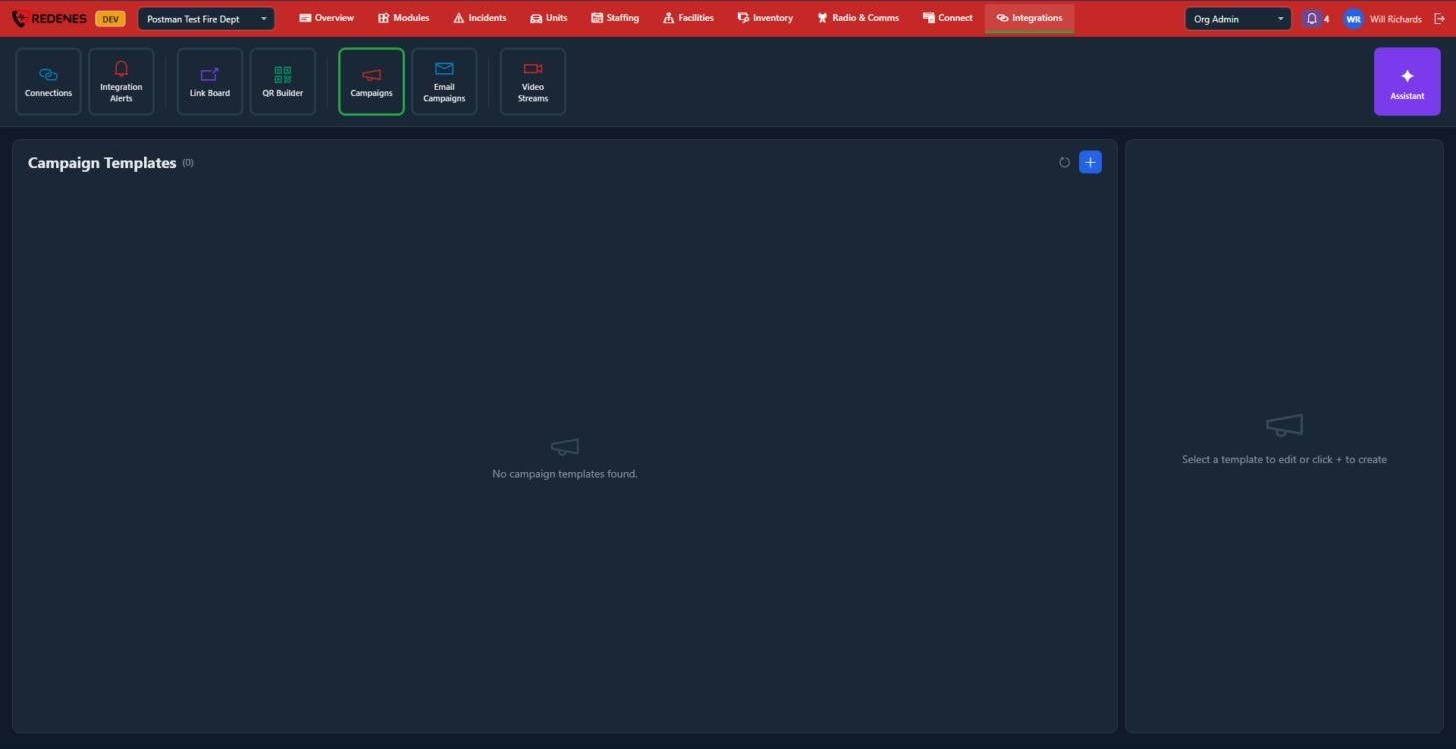
A campaign template is a ready-made message you send again and again, such as a recruitment notice or a seasonal reminder.
Where: IntegrationsCampaigns
 1
Click + 1 to add a template, or click one in the list to edit it on the right.
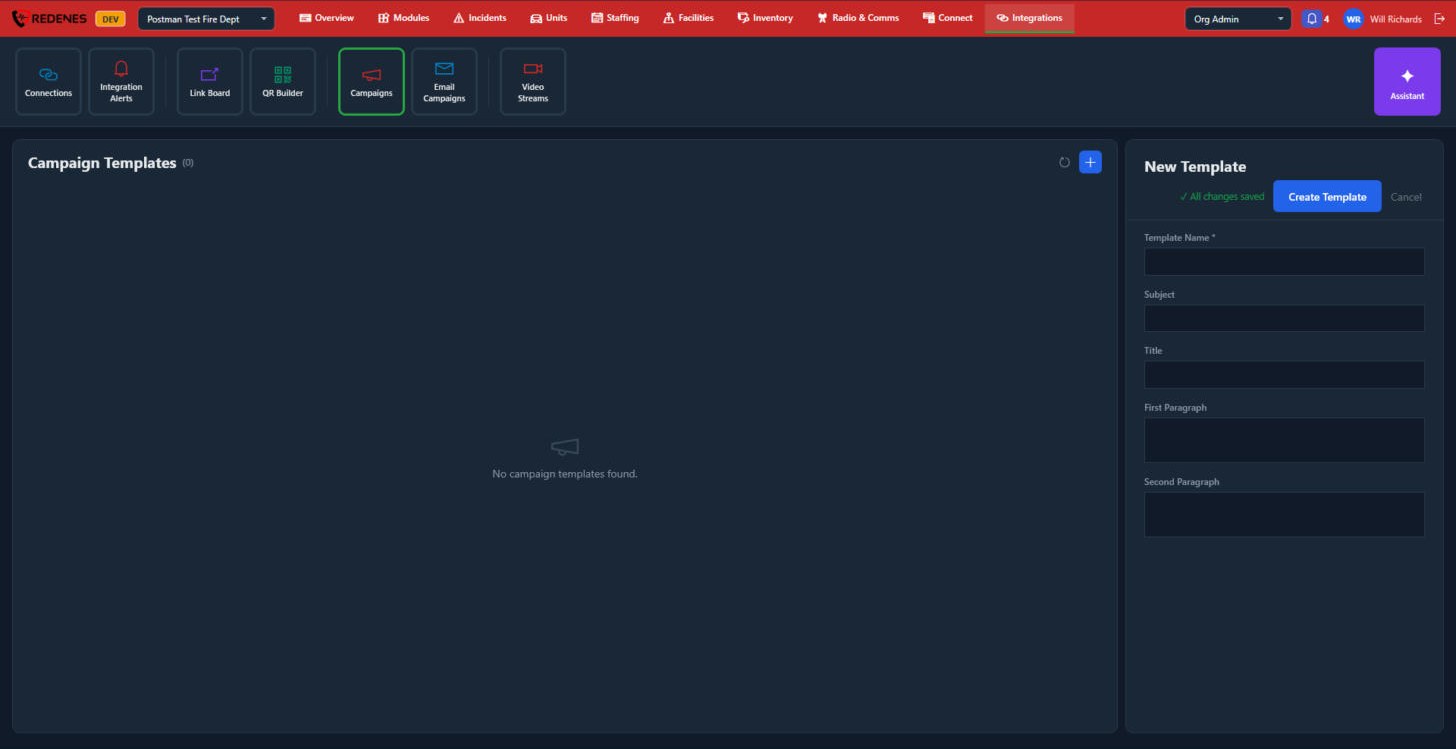 1234
- Template Name 1.
- Subject and Title 2.
- First Paragraph and Second Paragraph 3.
- Create Template or Cancel 4.
Email Campaigns
An email campaign is an email address tied to a group chat. Whatever is written in the chat is emailed to a mailing list, and replies come back into the chat. It lets you keep outside people in the loop without them having the app.
Where: IntegrationsEmail Campaigns
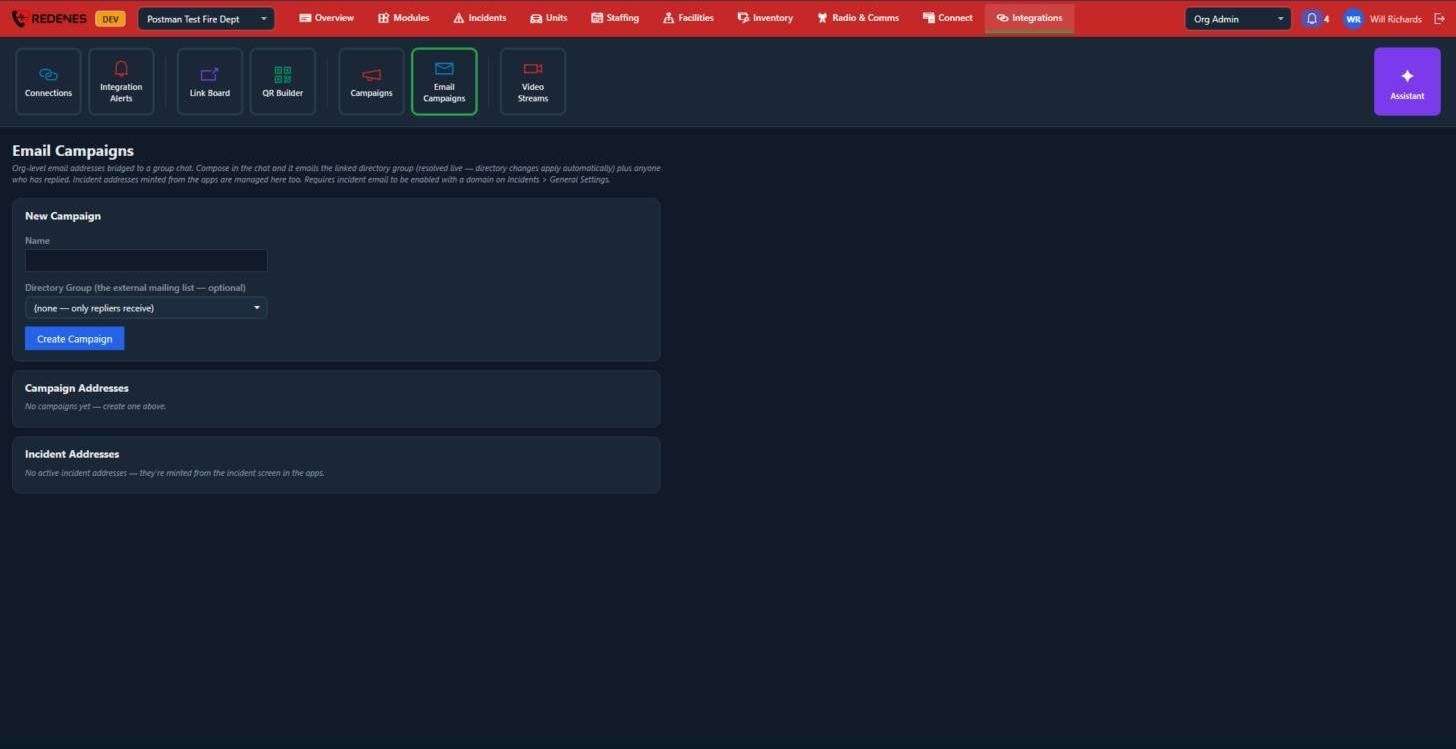 123
- New Campaign 1: type a name and, optionally, pick a Directory Group as the mailing list. With no group, only people who have replied receive the messages. Click Create Campaign.
- Campaign Addresses 2 lists your campaigns and the address of each.
- Incident Addresses 3 lists the email addresses created for incidents from the incident screen in the apps.
The mailing list follows the directory group. Add or remove someone in the group and the campaign follows without any change here.
note
Email Campaigns need incident email switched on, with a domain, under Incidents > General Settings.