Radio inputs and EchoStream
A radio input is a feed from a real radio into one of your audio channels. Everyone with access to the channel hears it in the app.
There are two kinds of box that can provide a feed:
- An EchoStream gateway, the REDENES board. It appears here by itself once it is bound to a channel.
- A Barix box (or a Raspberry Pi wired to a radio), which you add here by hand.
Radio Inputs
Where: ConnectRadio Inputs
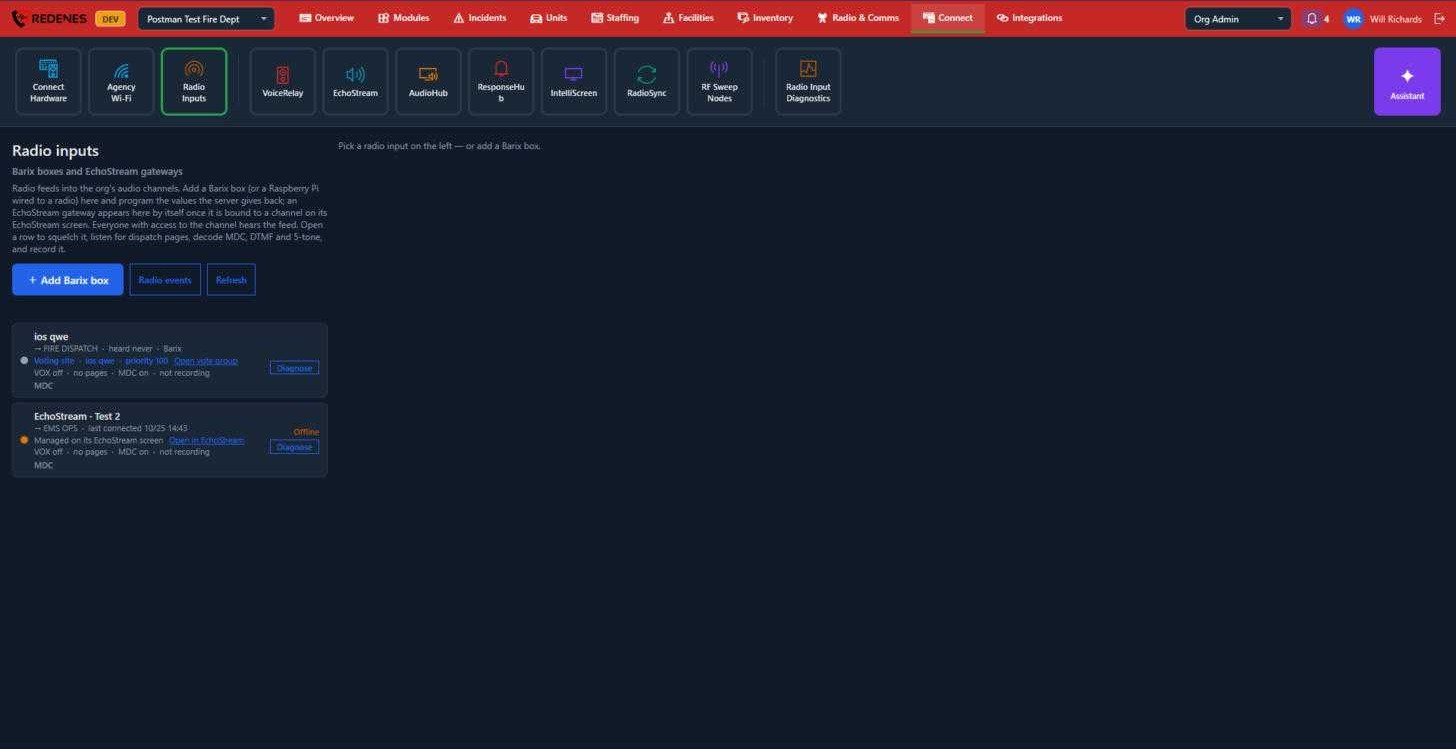 1234
- Add Barix box 1 creates an input and gives you the values to program into the box.
- Radio events 2 lists what the inputs have decoded recently.
- Each input 3 shows the channel it feeds, when it was last heard, and its options. Click it to change them.
- Diagnose 4 runs checks on a feed that is silent or offline and tells you what it finds.
An input's page
Click an input and it opens on the right.
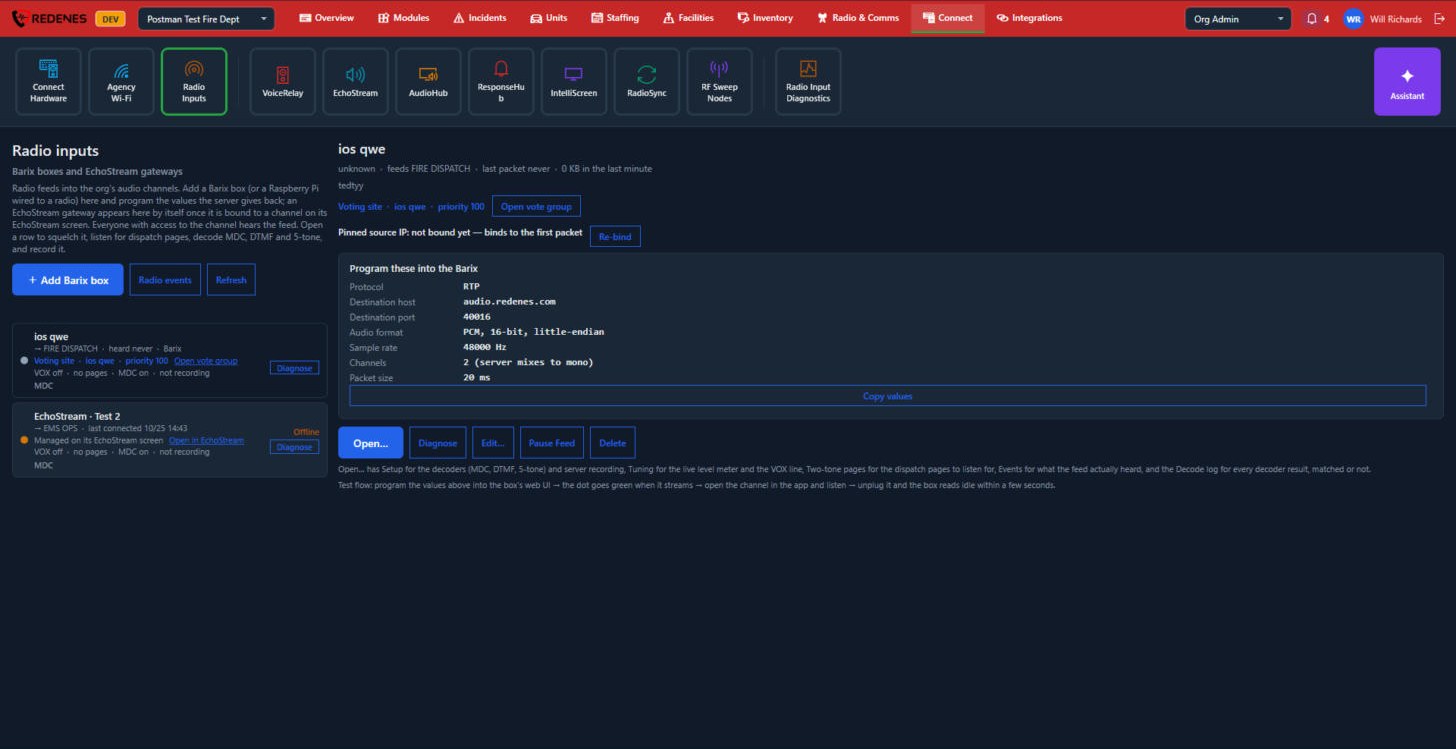 12345
- The status 1: whether audio is arriving and when it was last heard.
- Voting site 2: shown when the input is one receiver of a vote group. Open vote group goes to it.
- Pinned source IP 3: the address the feed is accepted from. Re-bind accepts the next address that sends, for use after the box's internet address changes.
- Program these into the Barix 4: the values to type into the box. Copy values copies them all.
- Open, Diagnose, Edit, Pause Feed and Delete 5.
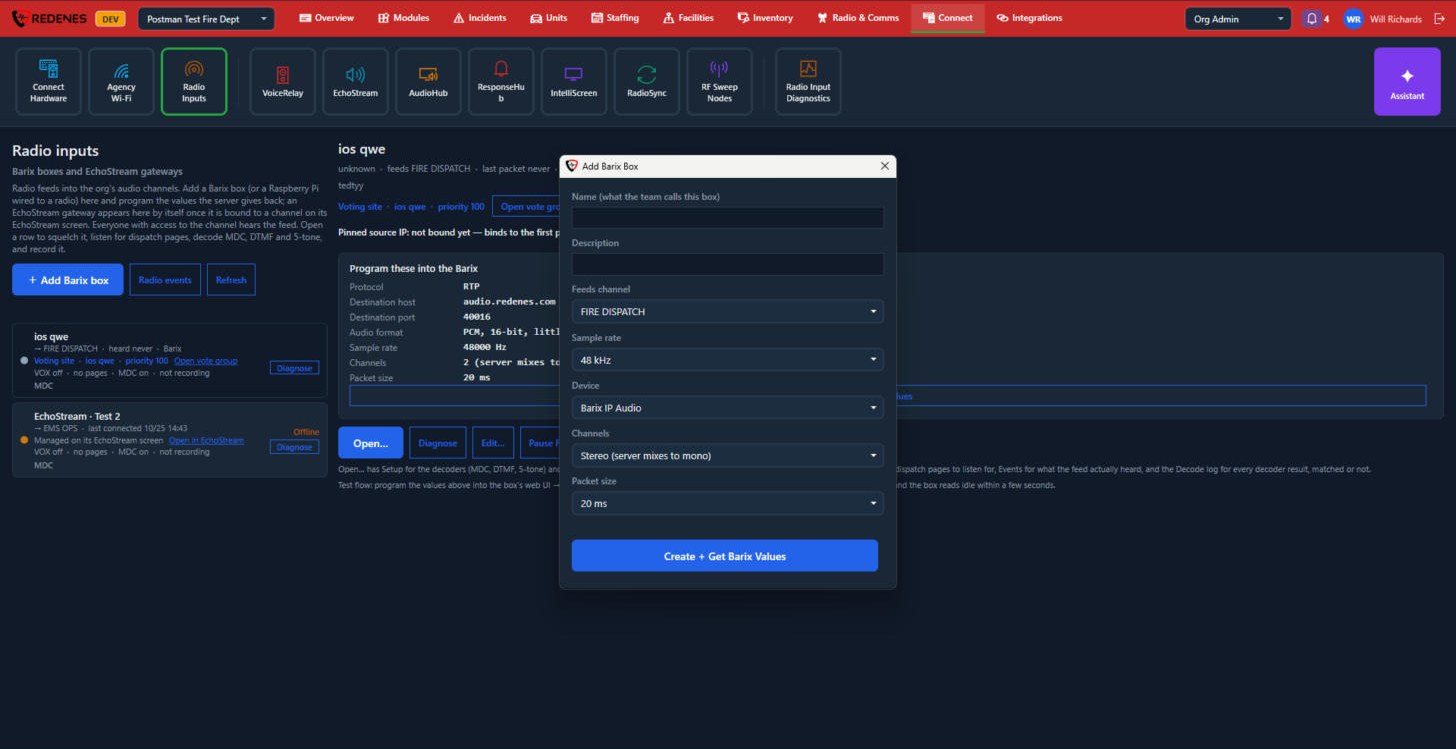 1234
- Name and Description 1.
- Feeds channel 2: the audio channel the feed goes to.
- Sample rate, Device, Channels and Packet size 3. Leave these as they are unless REDENES support tells you otherwise.
- Click Create + Get Barix Values 4.
Open an input
Open shows the input's settings in a window with five tabs.
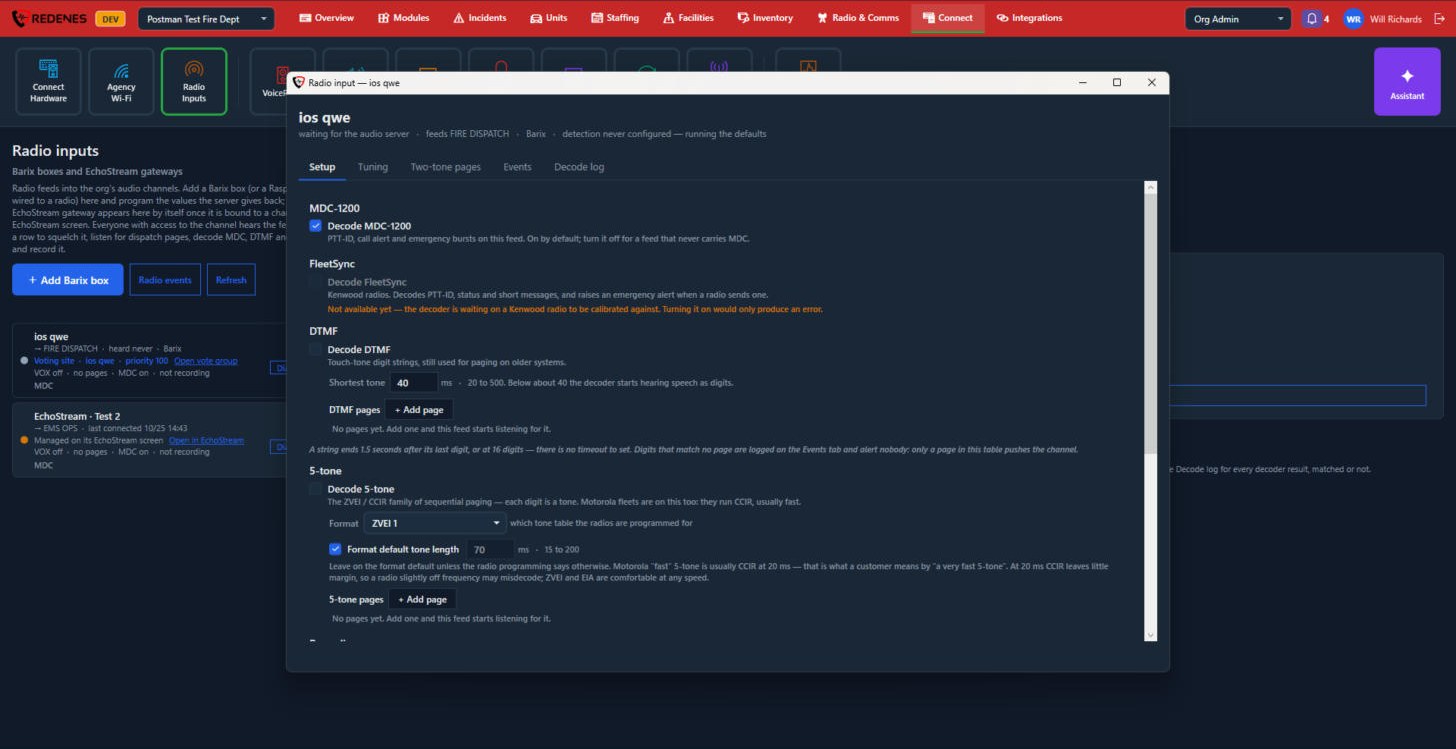 12345
- The tabs 1: Setup, Tuning, Two-tone pages, Events and Decode log.
- MDC-1200 2: read the unit ID a radio sends when it keys up.
- FleetSync 3.
- DTMF 4: read touch-tone digits.
- 5-tone 5: read 5-tone calls. Recording is further down.
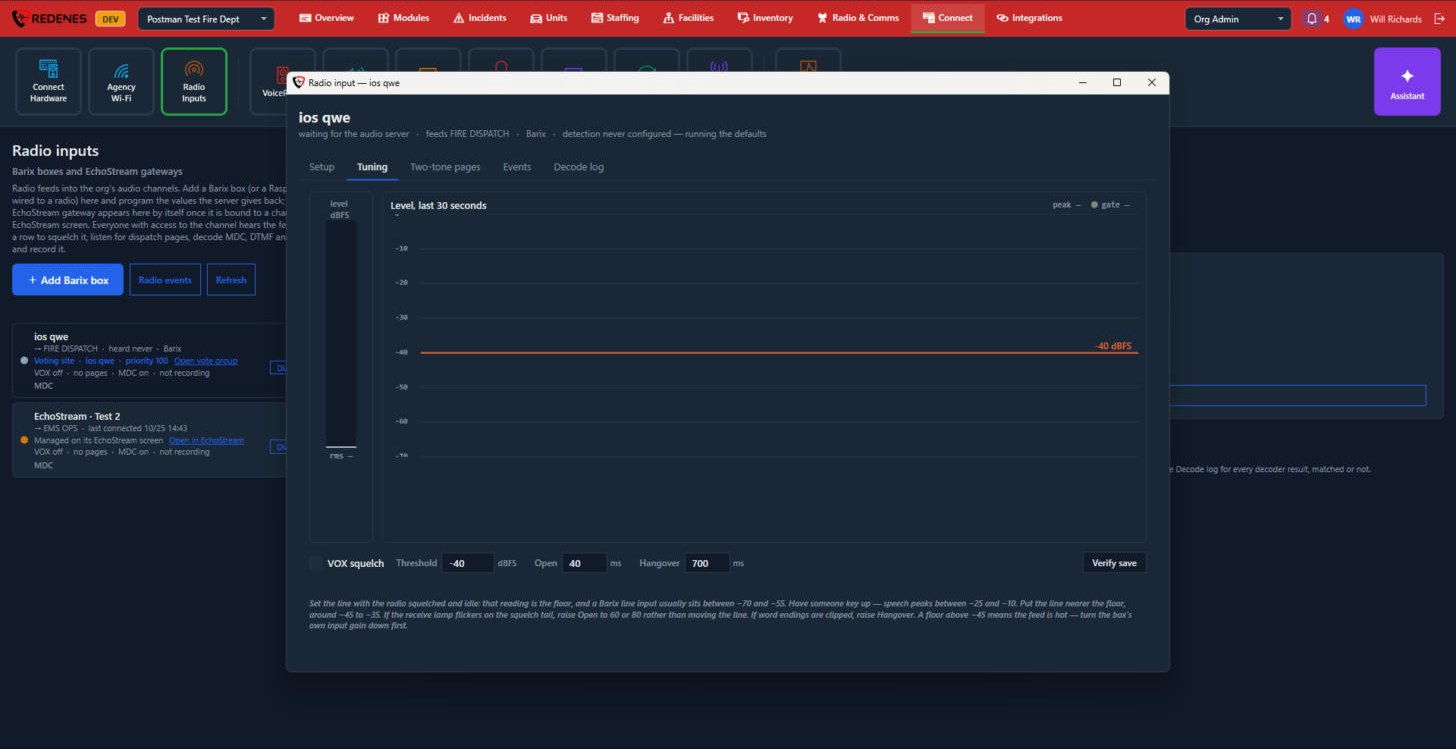 1234
- The level meter 1 shows the audio arriving now.
- The graph 2 shows the level over the last 30 seconds.
- VOX squelch, Threshold, Open and Hangover 3: audio passes only when it is louder than the threshold, and keeps passing for the hangover time after it drops.
- Verify save 4.
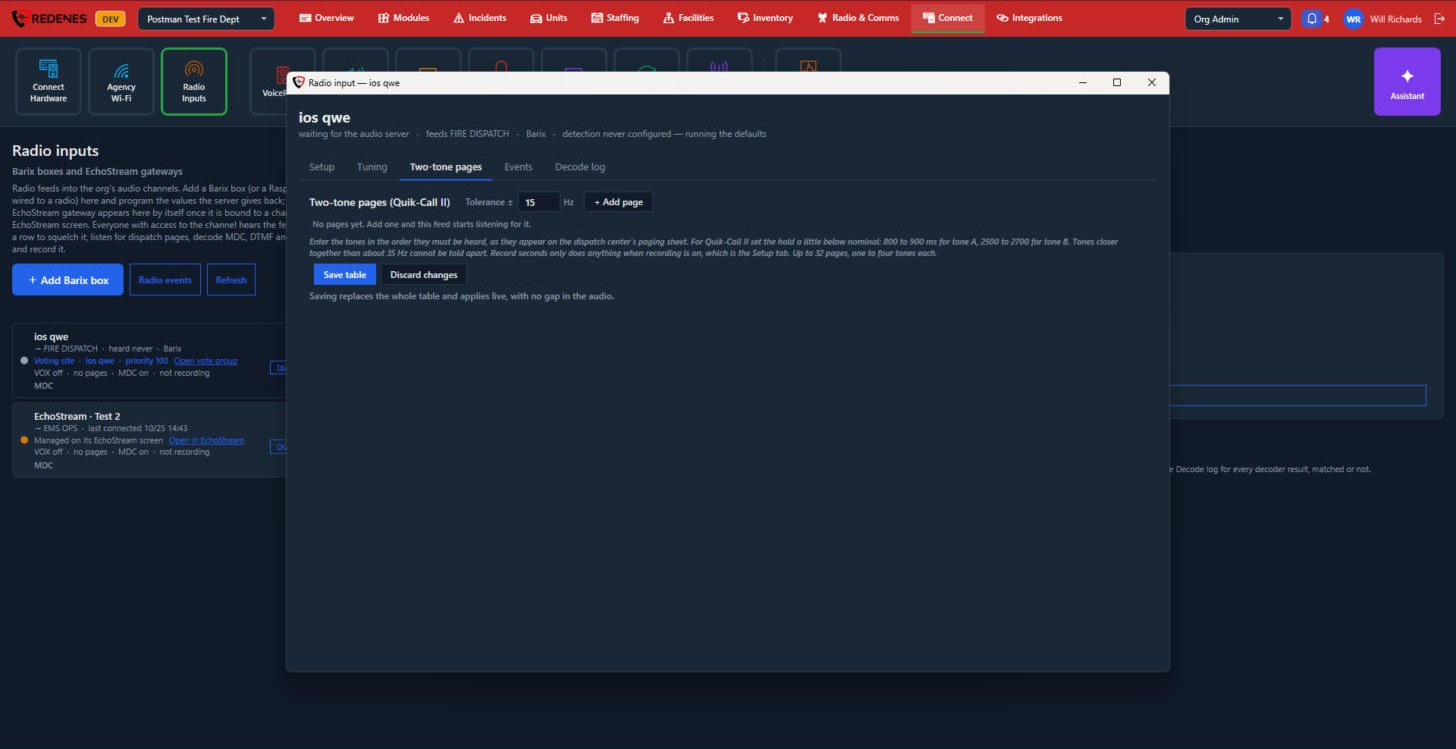 12
- Tolerance and + Add page 1: each page is the pair of tones that means a dispatch for you, and the tolerance is how far off a tone may be and still count.
- Save table or Discard changes 2.
Events lists what this input has decoded, with a filter, and Org-wide log shows every input. Decode log is the raw list of what was heard, for troubleshooting.
Diagnose
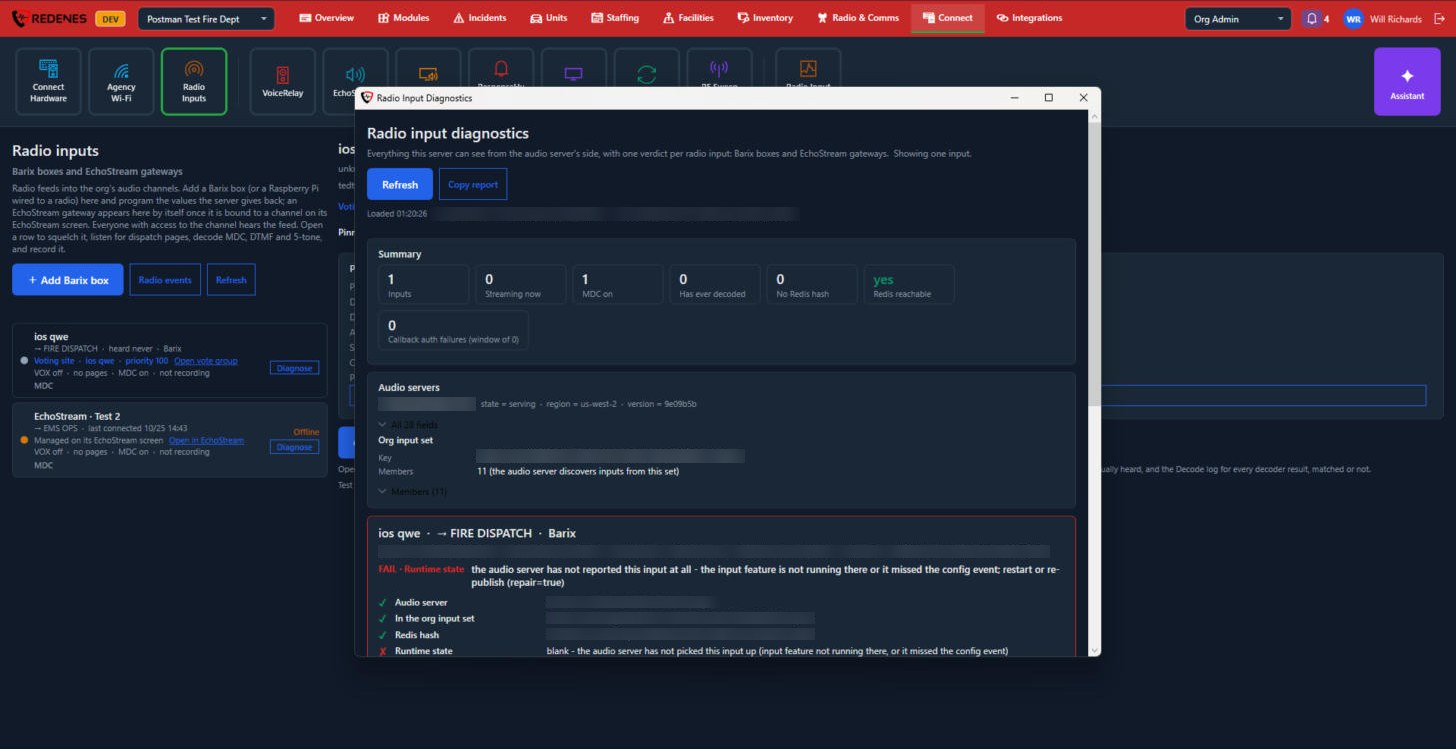 123
- Refresh and Copy report 1. Copy the report when REDENES support asks for it.
- The summary 2: each check and whether it passed.
- The verdict 3 says in words what is wrong with the input and what to do.
What an input can do
Open an input to set:
- Squelch (VOX): pass audio only when someone is talking, so the channel is quiet in between.
- Dispatch pages: listen for your paging tones and treat what follows as a dispatch.
- Decoding: read MDC unit IDs, DTMF digits and 5-tone calls from the audio.
- Recording: keep a recording of the channel.
An input that says Voting site is one of several receivers for the same channel. See Receiver Voting.
The Radio Input Diagnostics tile at the end of the ribbon shows the same checks for all inputs at once. It is meant for troubleshooting with REDENES support.
EchoStream
Where: ConnectEchoStream
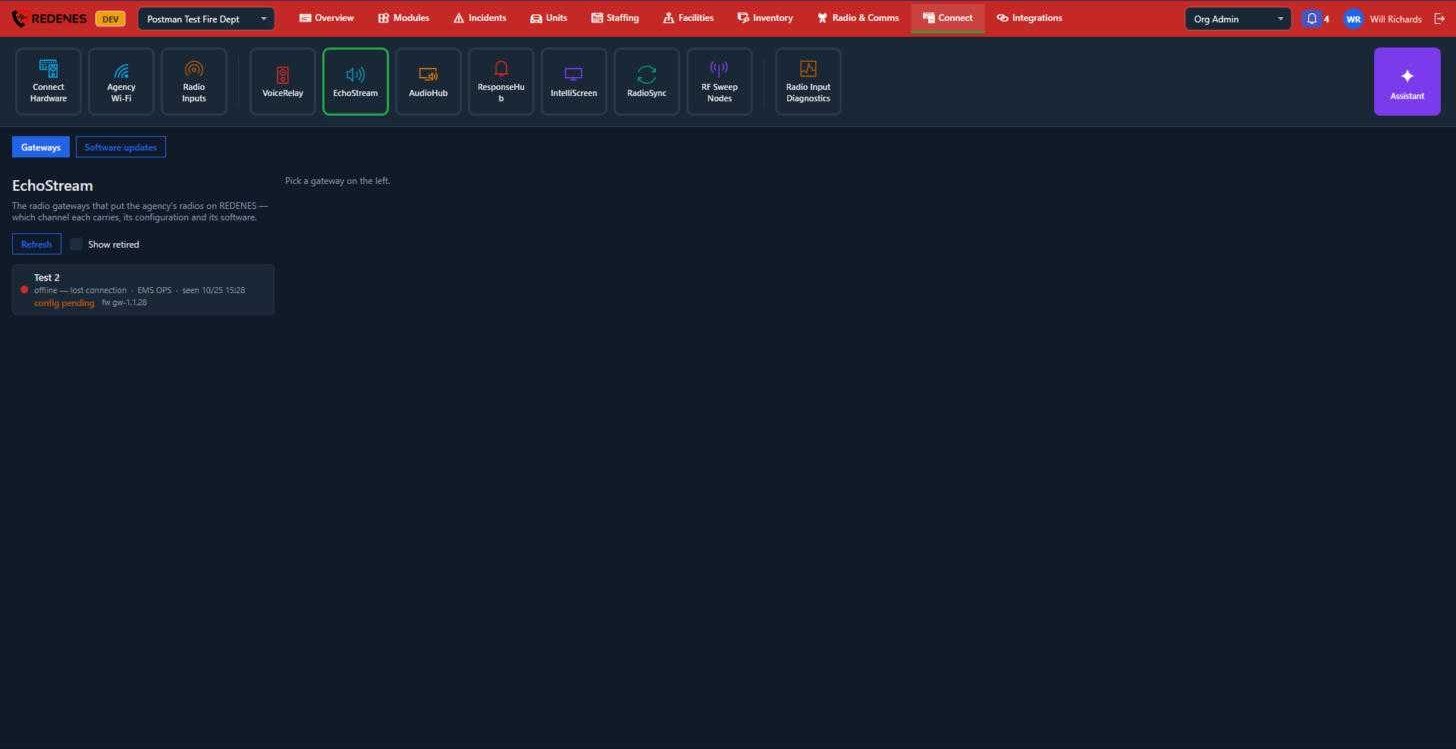 123
- Tabs 1: Gateways and Software updates.
- Each gateway 2 shows whether it is online, the channel it carries, when it was last seen and its software version. Click it to choose its channel and change its settings.
- Show retired 3 includes gateways you have taken out of service.
A red dot with offline means the gateway has lost its connection. Check its power and network first. Changes you make while it is offline are kept as config pending and applied when it returns.
A gateway's page
Click a gateway and its page opens on the right.
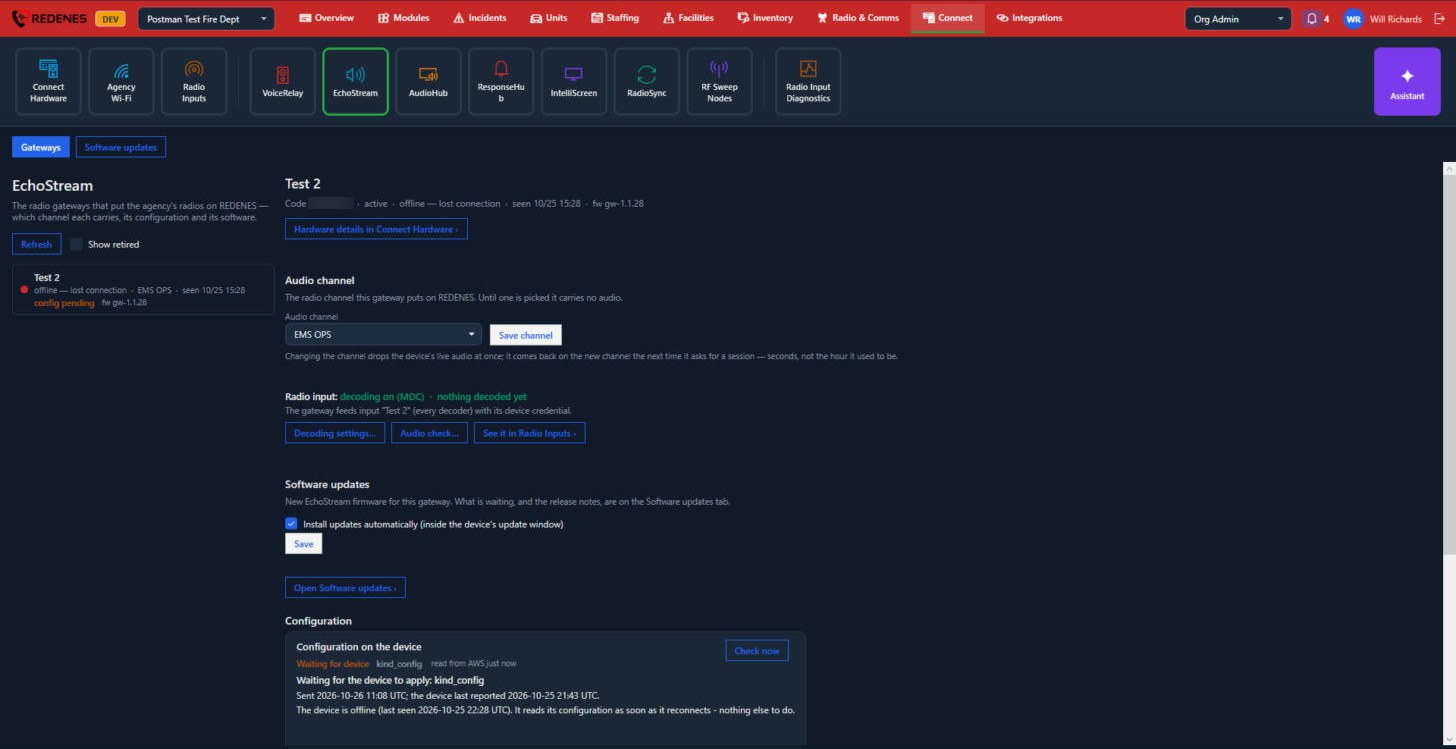 12345
- The status 1, with a Hardware details link to the device's page under Connect Hardware.
- Audio channel 2: pick the channel the gateway carries and click Save channel.
- Radio input 3: Decoding settings, Audio check and See it in Radio Inputs.
- Software updates 4.
- Configuration 5: the settings REDENES holds for the gateway.
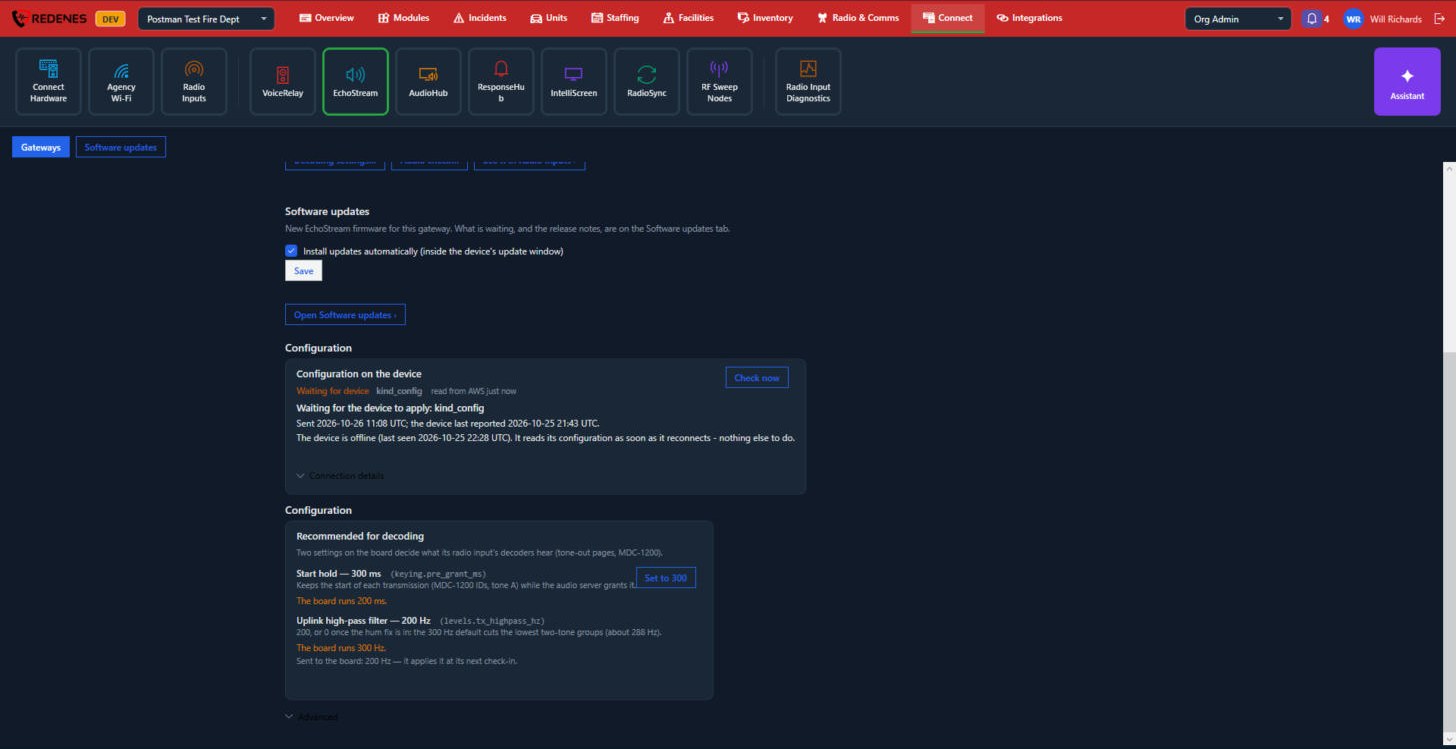 123
- Configuration on the device 1: what the gateway itself reports.
- Recommended for decoding 2: Start hold and the Uplink high-pass filter, which help tones and unit IDs decode cleanly.
- Advanced 3 opens the rest of the settings. Change them only with REDENES support.