VoiceRelay
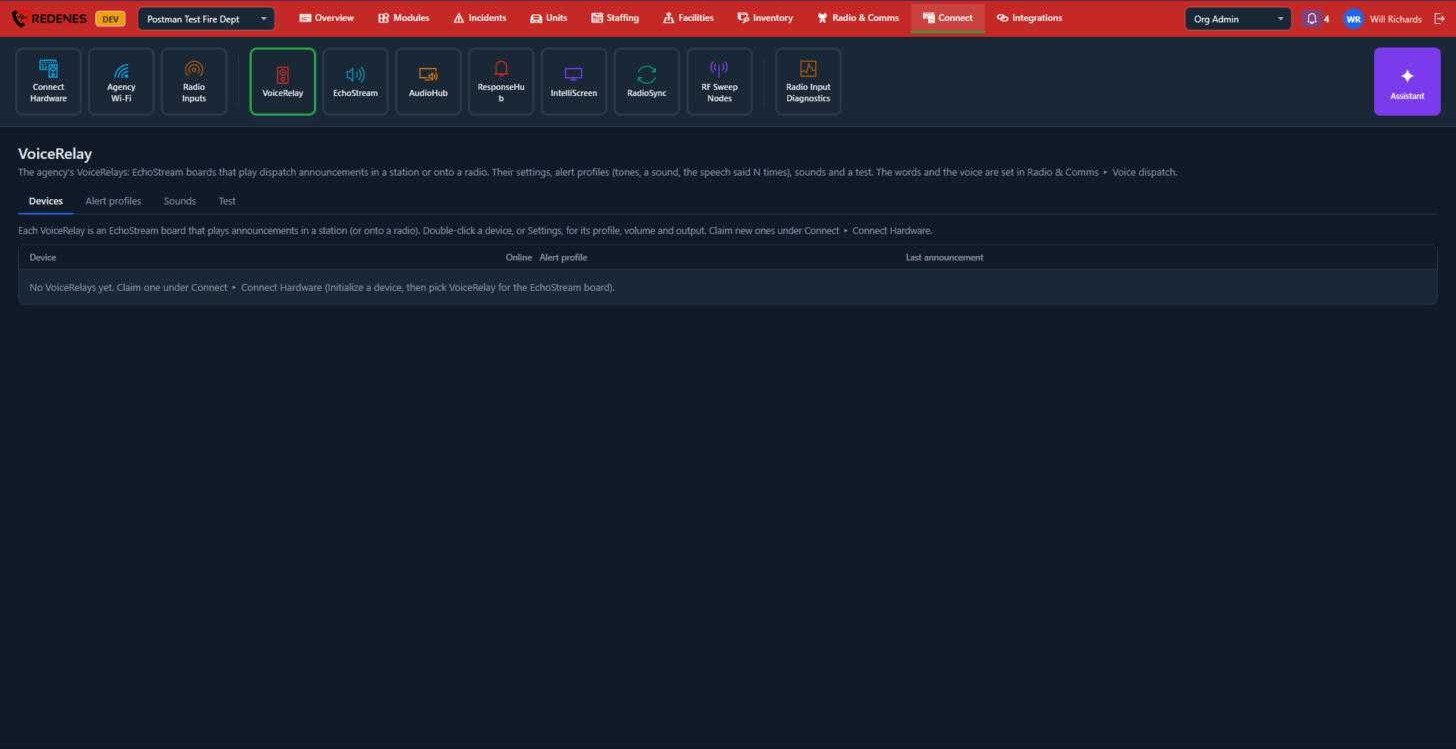
A VoiceRelay is a REDENES board that plays dispatch announcements out loud in a station, or onto a radio. What is said, and in which voice, is set under Voice Dispatch. This screen is about the devices and the sounds around the speech.
Where: ConnectVoiceRelay
 12
Tabs 1
| Tab | What it holds |
|---|---|
| Devices | Your VoiceRelays, whether each is online, its alert profile and its last announcement. |
| Alert profiles | What plays around the speech: tones, a sound, and how many times the announcement is repeated. |
| Sounds | The tone and sound files your profiles can use. |
| Test | Send a test announcement to a device. |
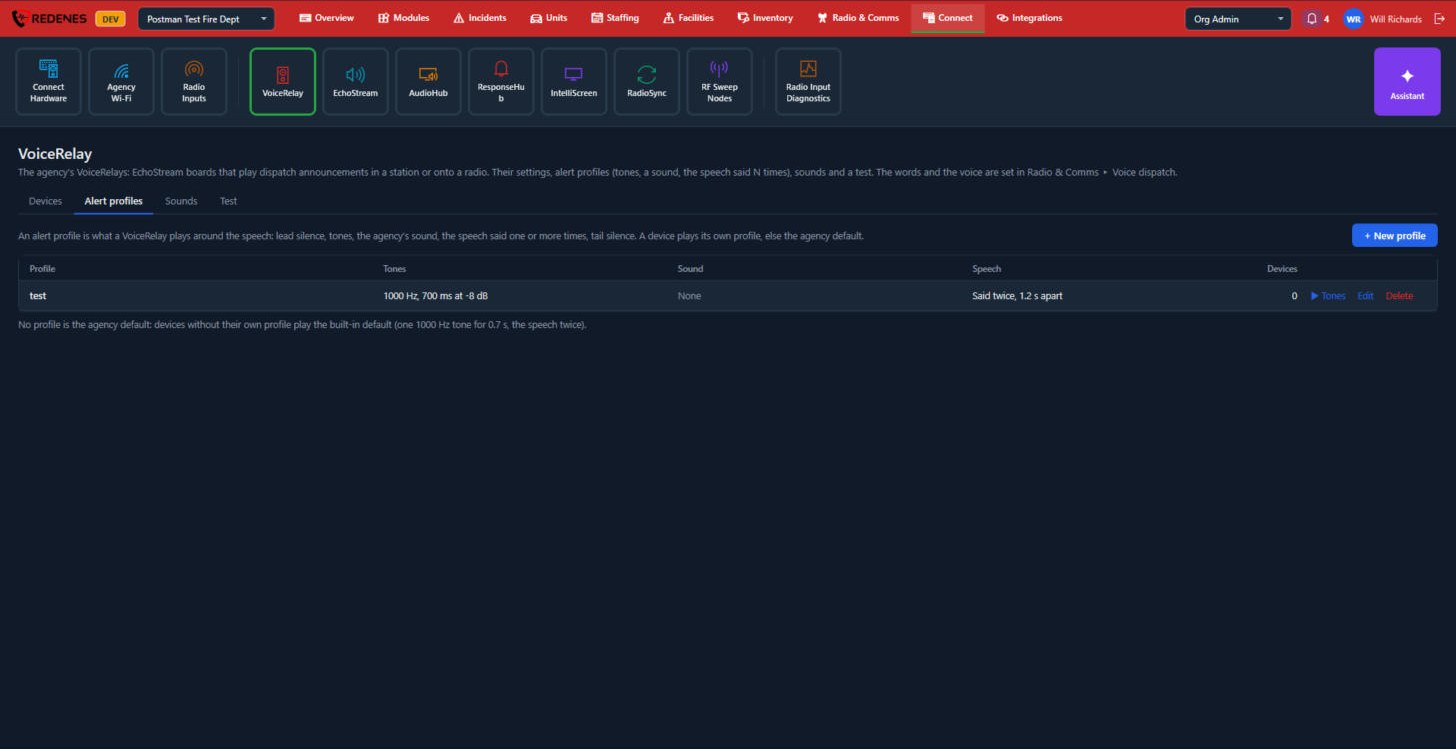
Alert profiles
 123
- + New profile 1.
- Each profile 2 shows what it plays.
- Tones, Edit and Delete 3.
 123456
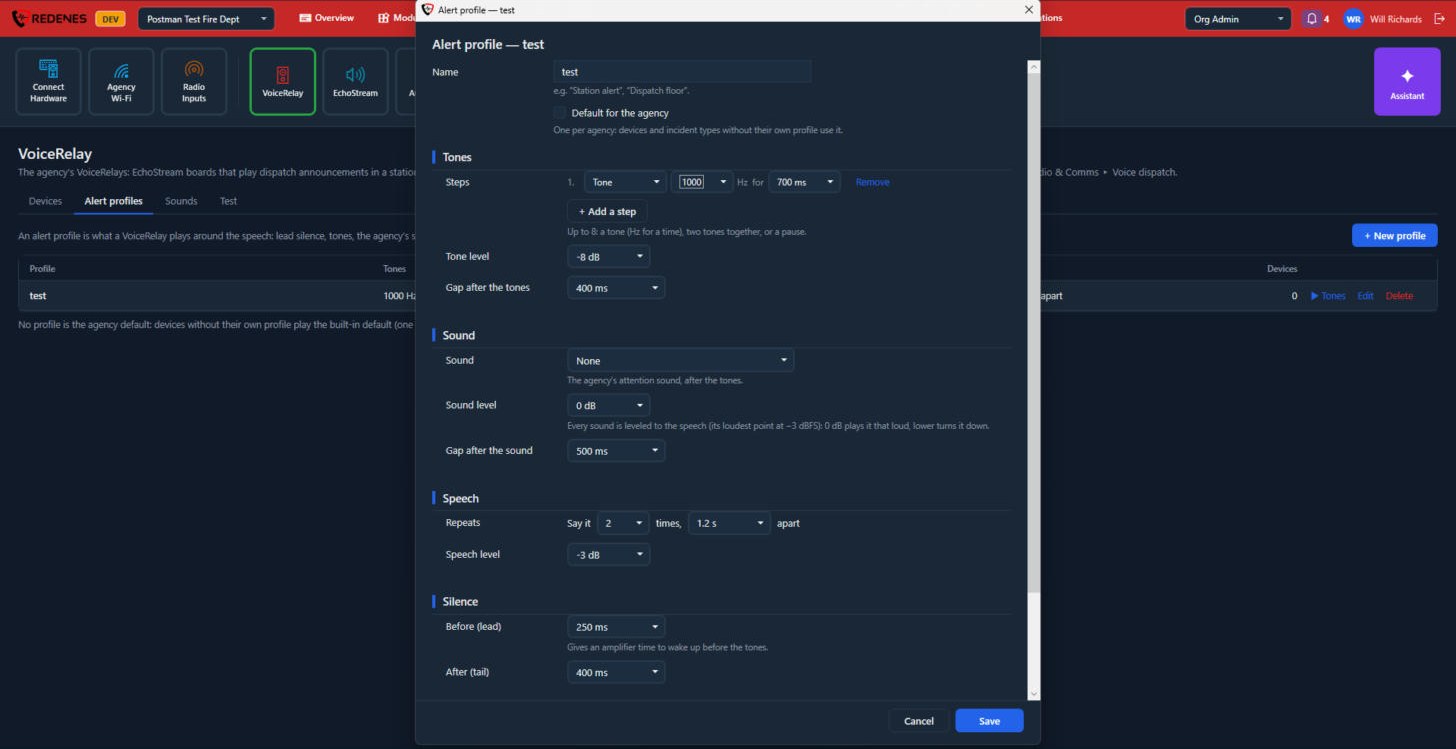
- Name and Default for the agency 1.
- Tones 2: the tones played first.
- Sound 3: a sound file played after the tones.
- Speech 4: how the announcement is spoken and how many times.
- Silence 5: the pauses between the parts.
- Save 6.
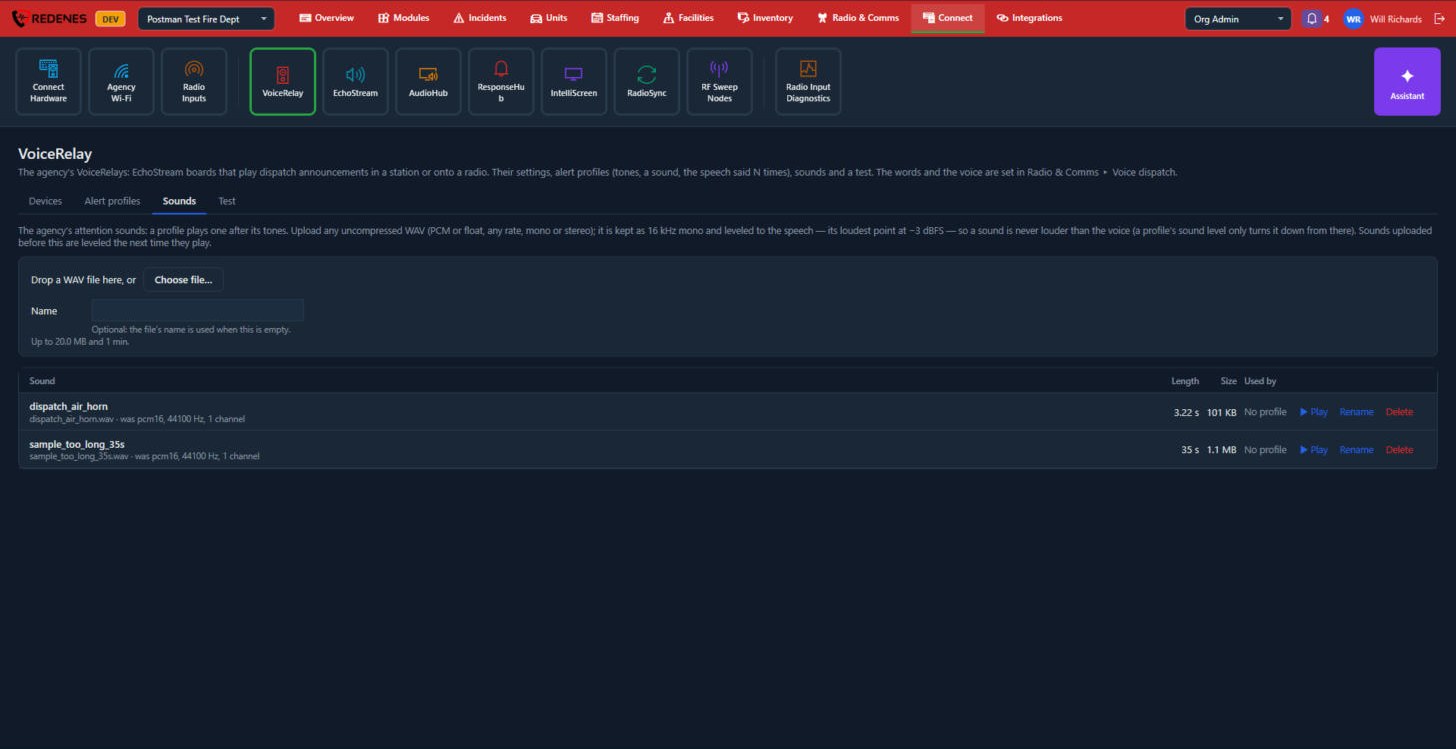
Sounds
 123
- The upload box 1 adds a sound file.
- The list 2 shows your sounds.
- Play, Rename and Delete 3.
Test
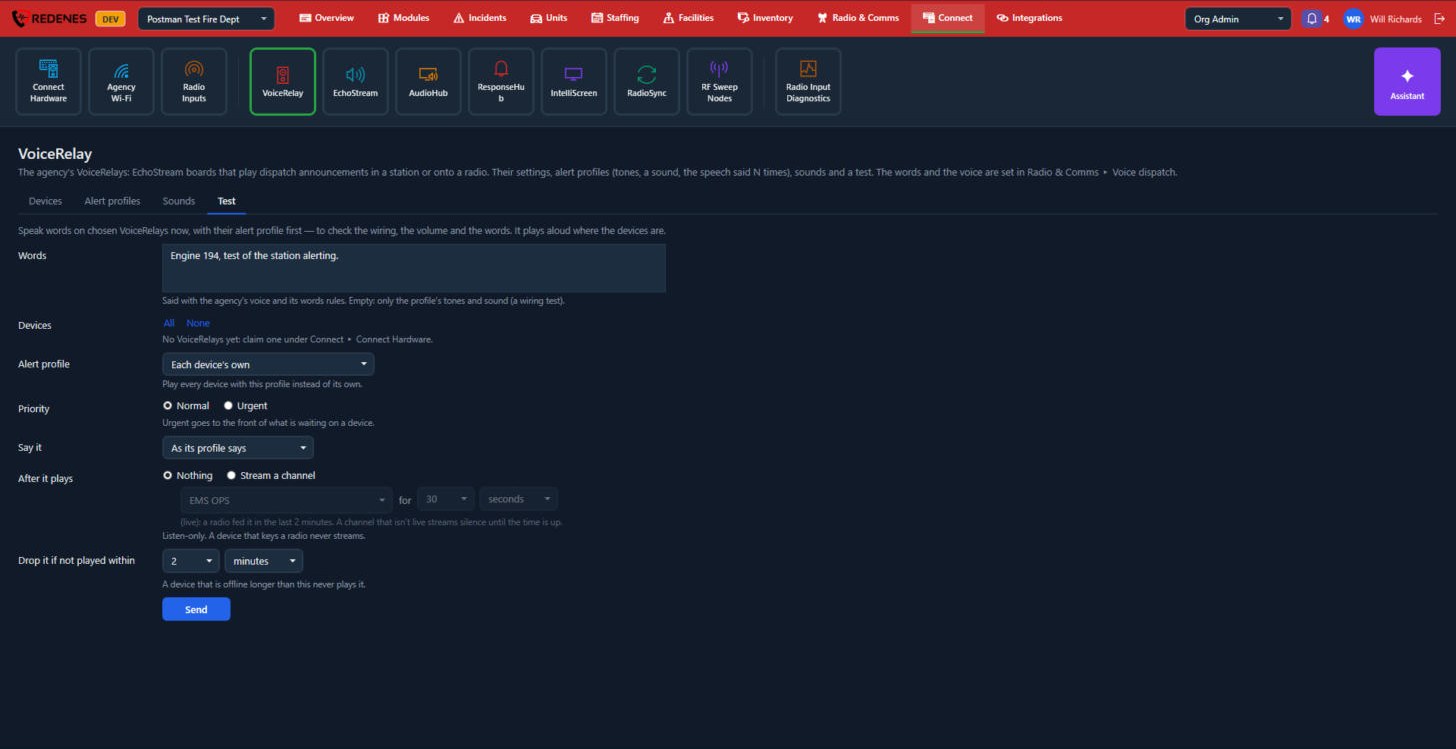 123456
- Type the words to say 1.
- Pick the devices 2.
- Pick the Alert profile and Priority, and how to say it 3.
- After it plays 4: what the device does next.
- Drop it if not played within 5: a late announcement is thrown away after this long.
- Click Send 6. The announcement plays out loud on the devices you picked.
Add a VoiceRelay
- Go to Connect Hardware and click Initialize Device.
- When asked what the board should run, pick VoiceRelay.
- Come back here. The device is now in the list 2.
- Double-click it, or click Settings, to choose its alert profile, its volume and its output (speaker or radio).
Good practice
- Make one alert profile for daytime and a quieter one for night if your station needs it.
- After any change, use the Test tab and listen in the room. Volume that sounds right at a desk is often too quiet in an apparatus bay.