Audio channels and receiver voting
Audio Channels
An audio channel is something members can listen to and talk on in the app. This is different from the channel list on the previous pages, which describes the radios themselves.
Where: Radio & CommsAudio Channels
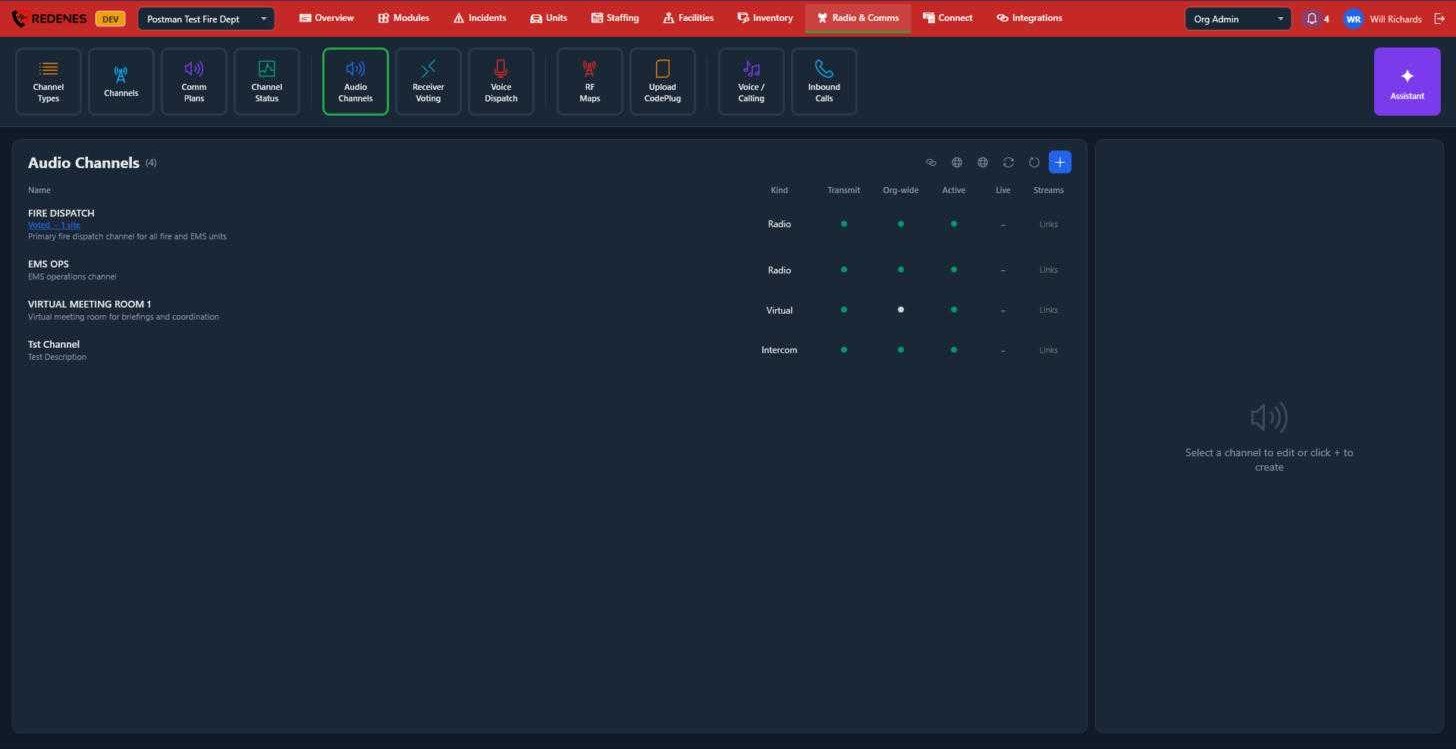 1234
- Click + 1 to add a channel, or click a row to edit it on the right.
- Kind 2 is where the audio comes from:
- Radio: a real radio channel brought in by a Connect device such as EchoStream.
- Virtual: a talk room that exists only in REDENES, for briefings and coordination.
- Intercom: a talk group for people at one place.
- The dots 3 show whether members may Transmit, whether the channel is Org-wide (everyone has it) or limited to chosen groups, and whether it is Active.
- A Voted link 4 under a name means the channel is fed by receiver voting.
Live shows whether audio is arriving right now, and Links shows the stream addresses for the channel.
Editing an audio channel
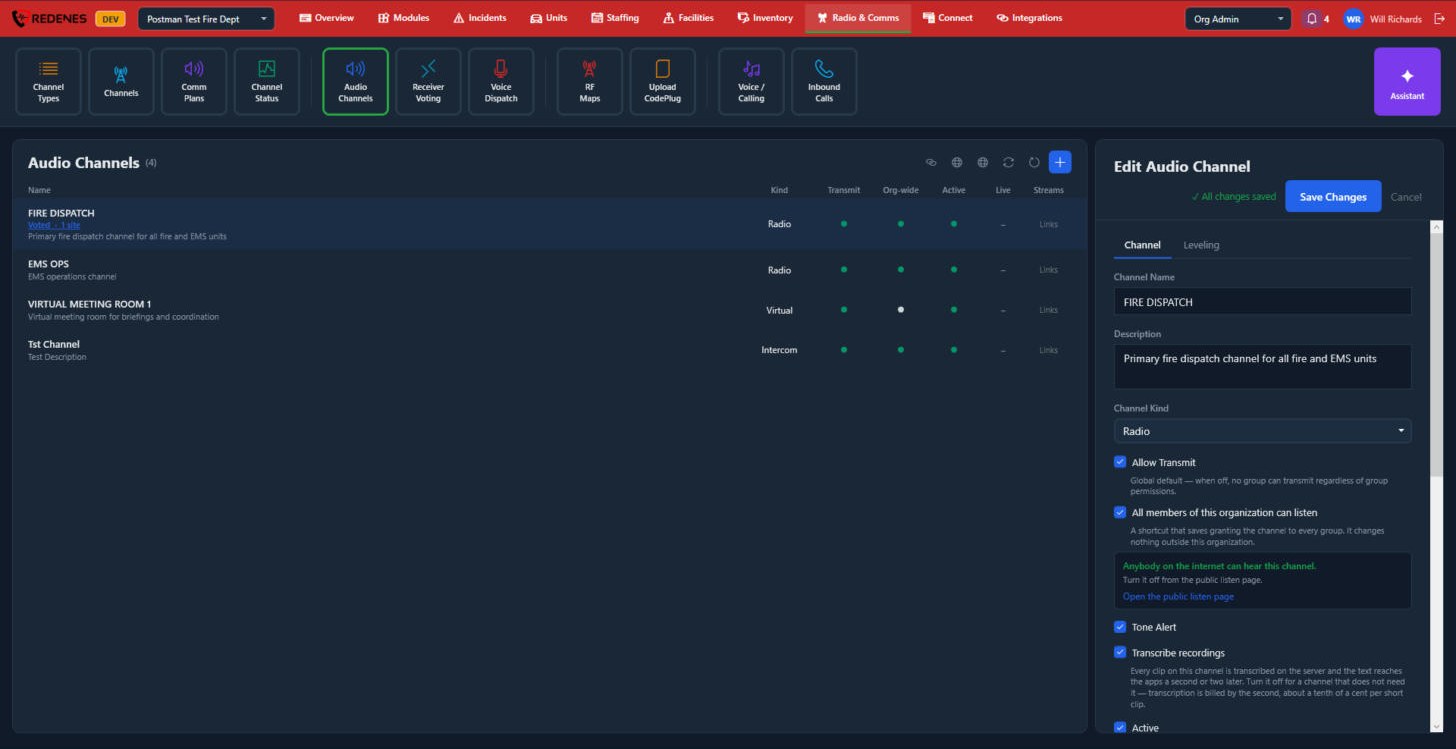
Click a row and it opens on the right, with two tabs: Channel and Leveling.
 1234
- The tabs 1.
- Channel Name, Description and Channel Kind 2.
- The switches 3:
- Allow Transmit: when off, no group can transmit, whatever its permissions.
- All members of this organization can listen: saves giving the channel to every group.
- A note in green says when anybody on the internet can hear the channel through the public listen page.
- Tone Alert.
- Transcribe recordings: every clip is turned into text for the apps. Turn it off on a channel that does not need it, because transcription is billed.
- Active.
- Save Changes 4.
 123
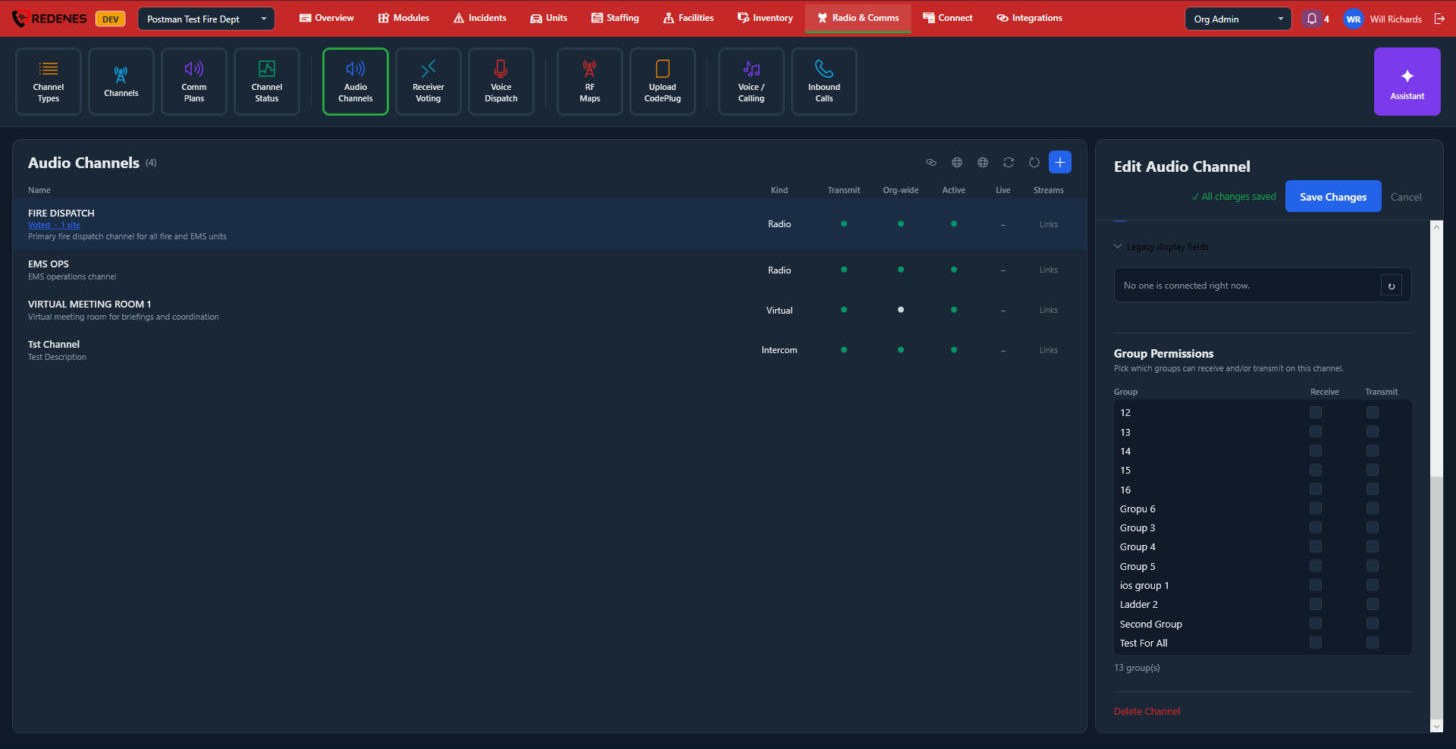
- Who is connected to the channel right now 1.
- Group Permissions 2: tick Receive and Transmit for each group that may listen or talk on the channel.
- Delete Channel 3.
Leveling
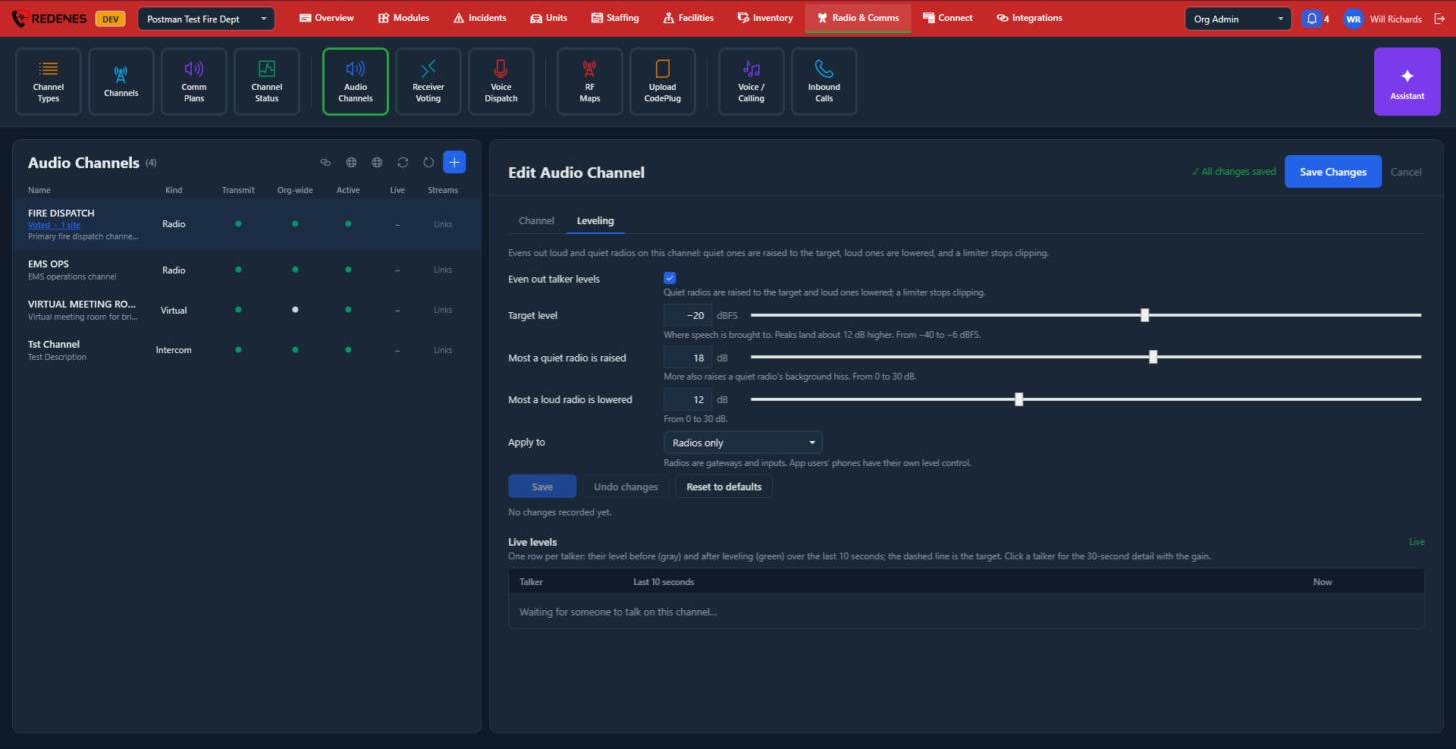
Leveling evens out loud and quiet radios on the channel.
 12345
- Even out talker levels 1 turns it on.
- Target level, Most a quiet radio is raised and Most a loud radio is lowered 2. Raising a quiet radio more also raises its background hiss.
- Apply to 3: radios only, or app users as well. Phones have their own level control.
- Save, Undo changes and Reset to defaults 4.
- Live levels 5: one row per talker, with the level before and after leveling over the last 10 seconds. Click a talker for more detail.
Links
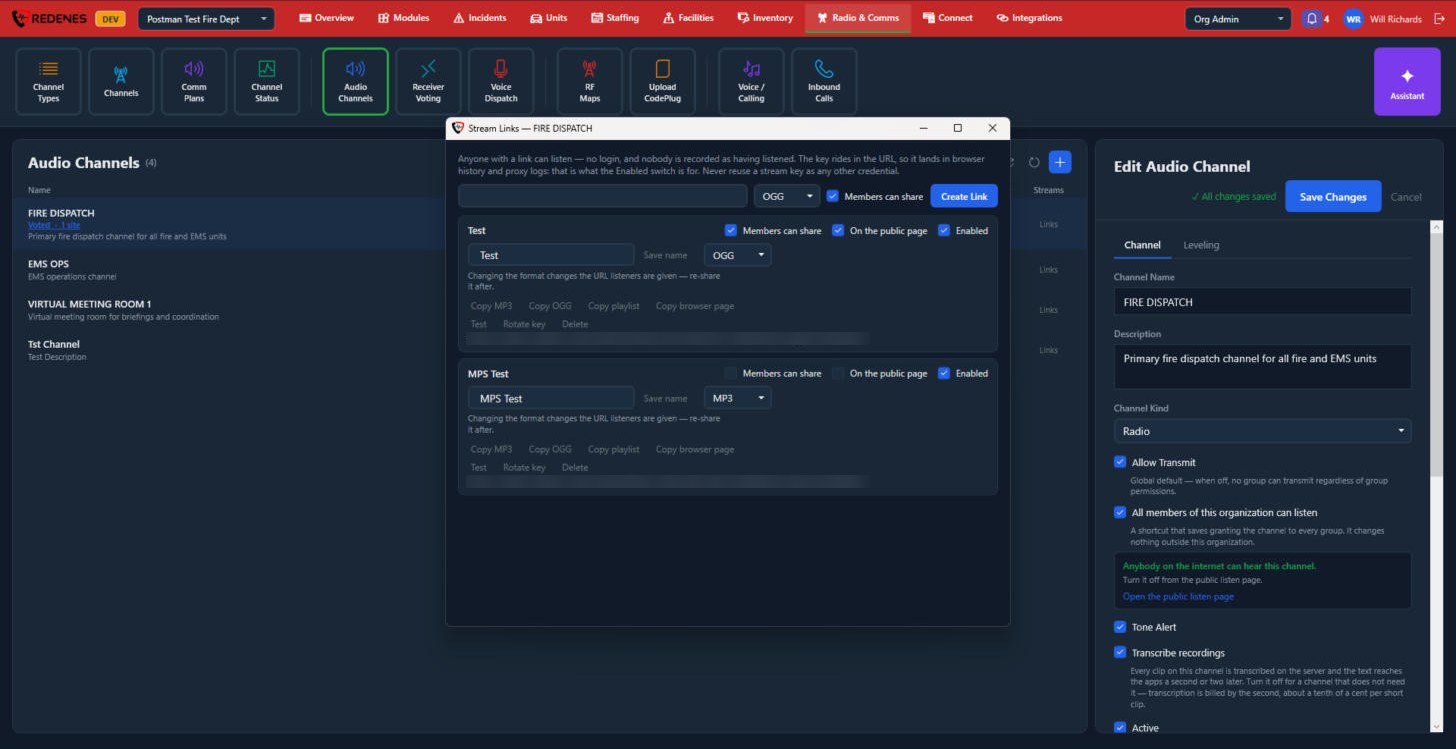 1234
A stream link lets someone listen to the channel in a browser or a player, with no login. Anyone who has the link can listen, so share it with care.
- Type a name, pick OGG or MP3 and click Create Link 1.
- On each link 2: Members can share, On the public page and Enabled. Untick Enabled to turn a link off without deleting it.
- The link's name and format 3. Changing the format changes the address, so share it again.
- Copy MP3, Copy OGG, Copy playlist and Copy browser page 4 copy the address in each form. Test plays it, Rotate key makes a new address so the old one stops working, and Delete removes the link.
Receiver Voting
With receiver voting, one channel has several receive sites. Whichever site hears the field unit best is what everyone hears, and it switches as the unit moves.
Where: Radio & CommsReceiver Voting
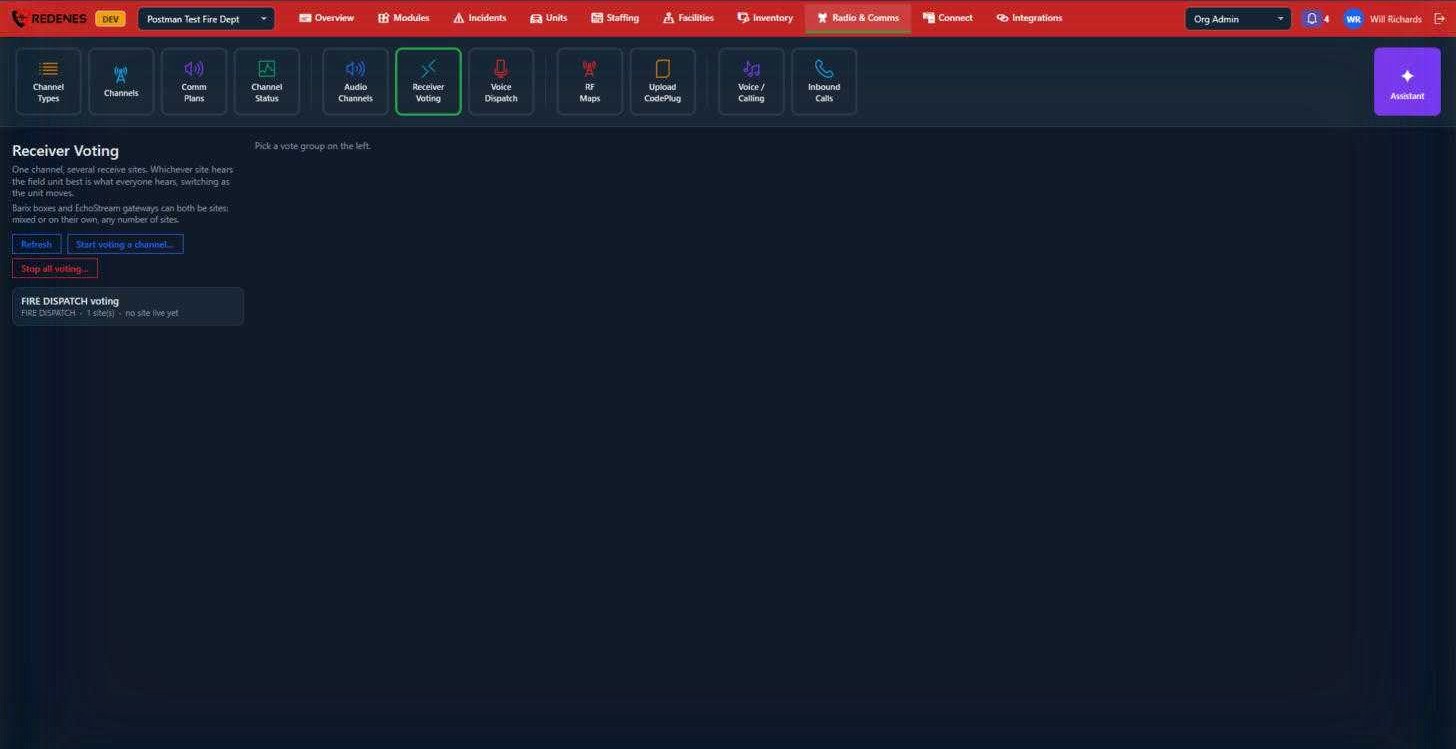 123
- Start voting a channel 1 makes a vote group for one audio channel. Then add its sites. A site can be an EchoStream gateway or a Barix box, mixed in any number.
- Click a vote group 2 to see its sites, which one is winning now, and to add or remove sites.
- Stop all voting 3 turns voting off for every channel. Use it only if voting is causing a problem, because each channel then goes back to a single source.
A vote group opened
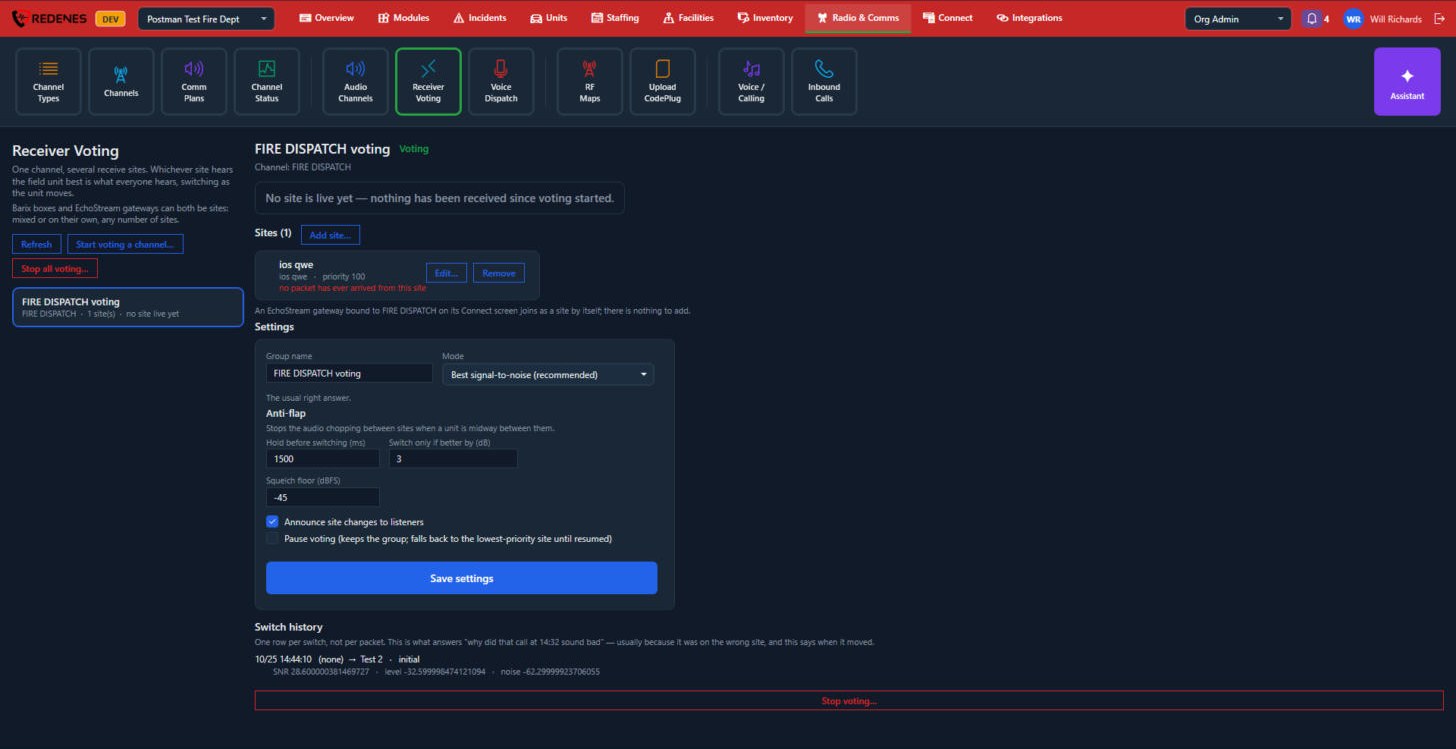 12345
- The line at the top 1 says which site is live now.
- Sites 2: each receive site with its priority and whether audio has arrived from it. Add site adds an input that is already on the channel. Edit changes a site's name and priority, and Remove takes it out.
- Settings 3:
- Group name and Mode. Best signal-to-noise is the usual right answer.
- Anti-flap stops the audio chopping between sites when a unit is midway between them: Hold before switching, Switch only if better by and Squelch floor.
- Announce site changes to listeners.
- Pause voting keeps the group but falls back to the lowest-priority site until resumed.
- Save settings.
- Switch history 4: one row each time the live site changed, with the signal figures. Look here when a call sounded bad.
- Stop voting 5 ends voting on this channel.
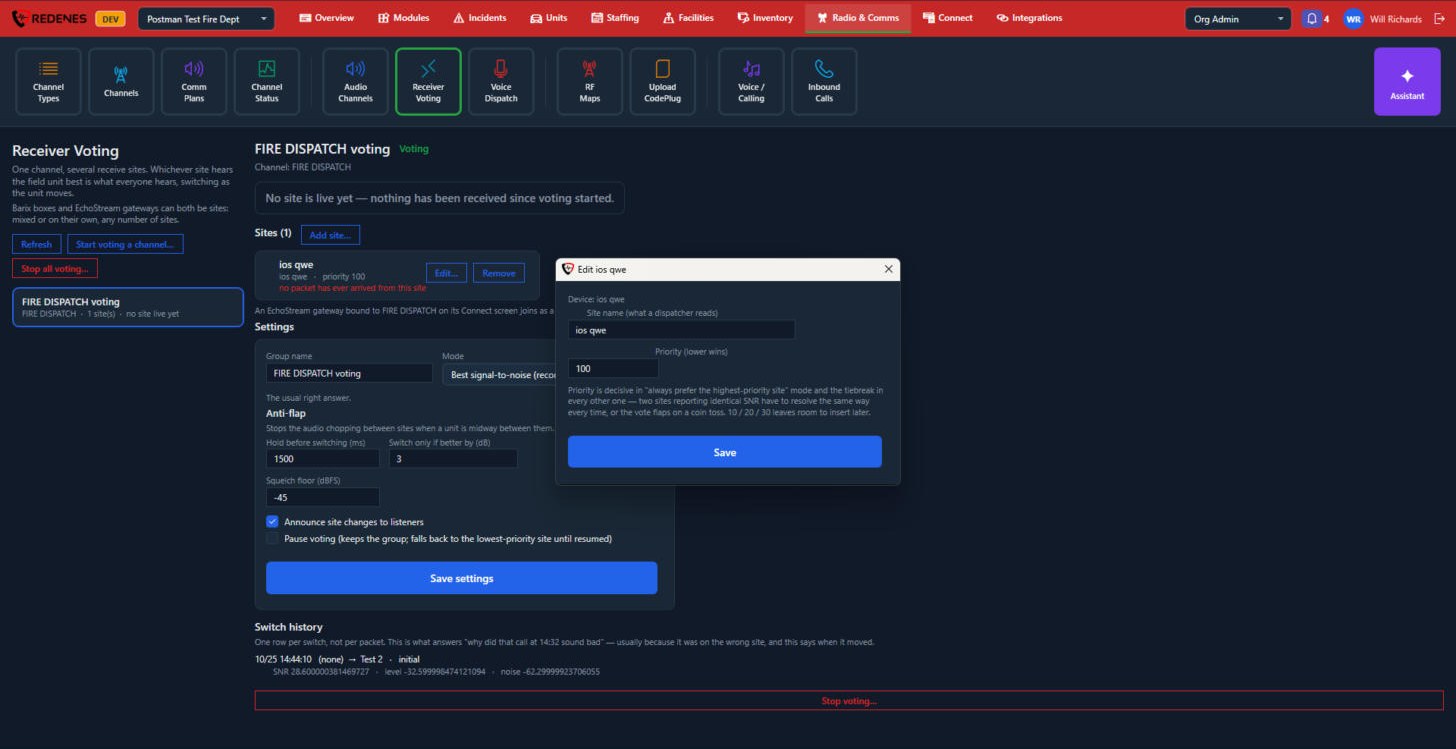 12
A site has a Site name 1, which is what a dispatcher reads, and a Priority 2. The lower number wins a tie. Numbering sites 10, 20, 30 leaves room to put one in between later.
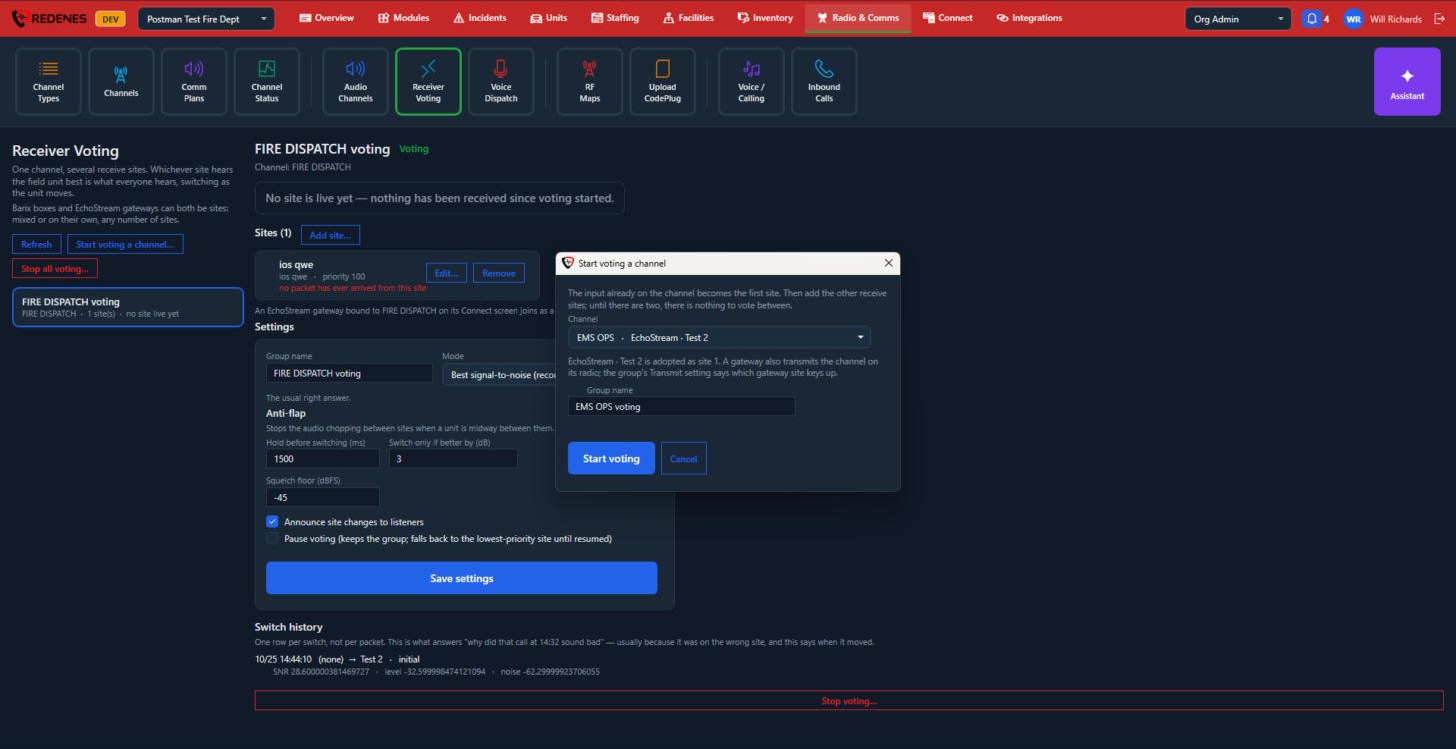 123
Pick the Channel 1. The input already on it becomes the first site. Name the group 2 and click Start voting 3, then add the other receive sites. Until there are two sites there is nothing to vote between.
To add a site, first add the device as an input on the channel under Connect. An EchoStream gateway joins by itself when it is set to the channel on its Connect screen.