Comm plans and channel status
Comm Plans
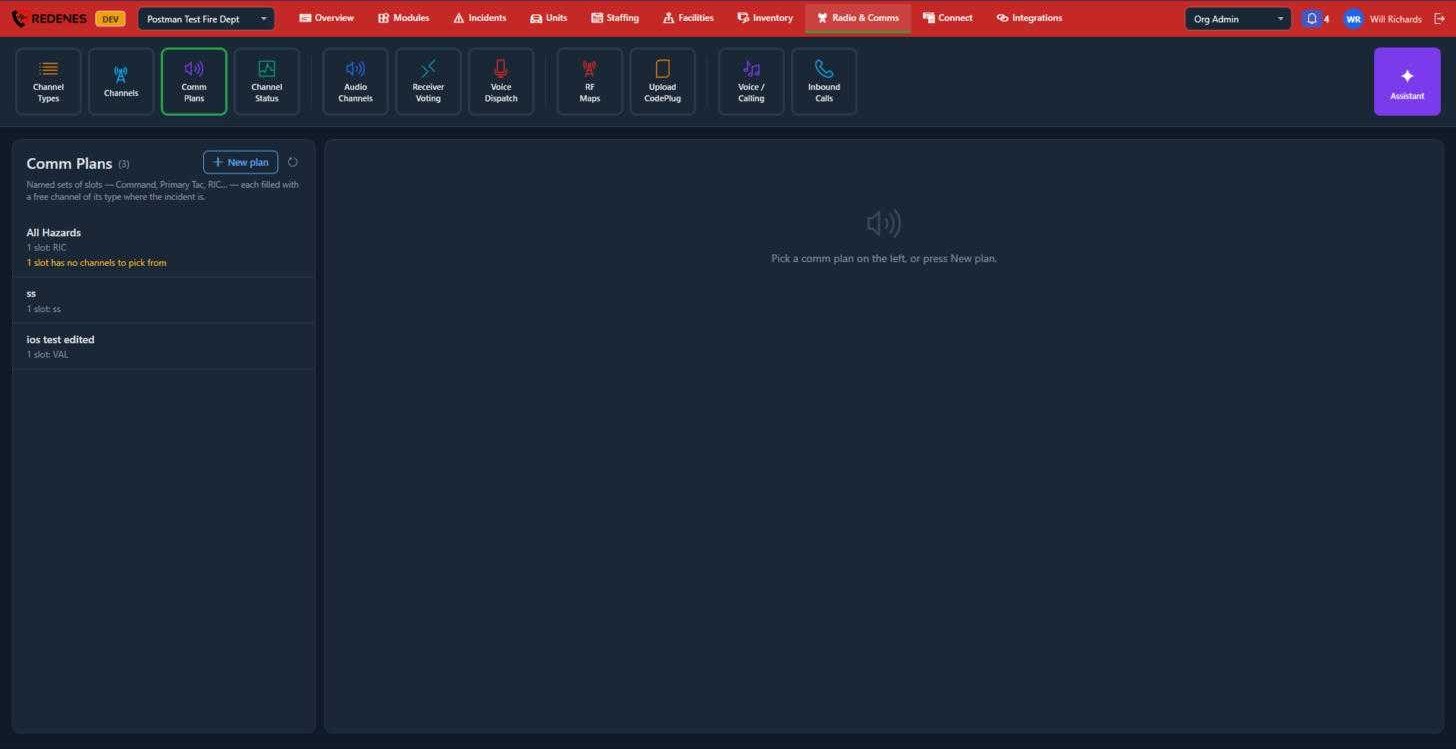
A comm plan is a named set of slots, for example Command, Primary Tac and RIC. When the plan is applied to an incident, each slot is filled with a free channel of the slot's type, for the area the incident is in.
Where: Radio & CommsComm Plans
 123
- New plan 1 starts a plan. Name it, then add its slots. Each slot has a label and a channel type.
- Click a plan 2 to edit its slots or delete it.
- A yellow warning 3 means a slot asks for a type that has no channels, so that slot would stay empty. Fix it under Channels.
A plan opened
 12345
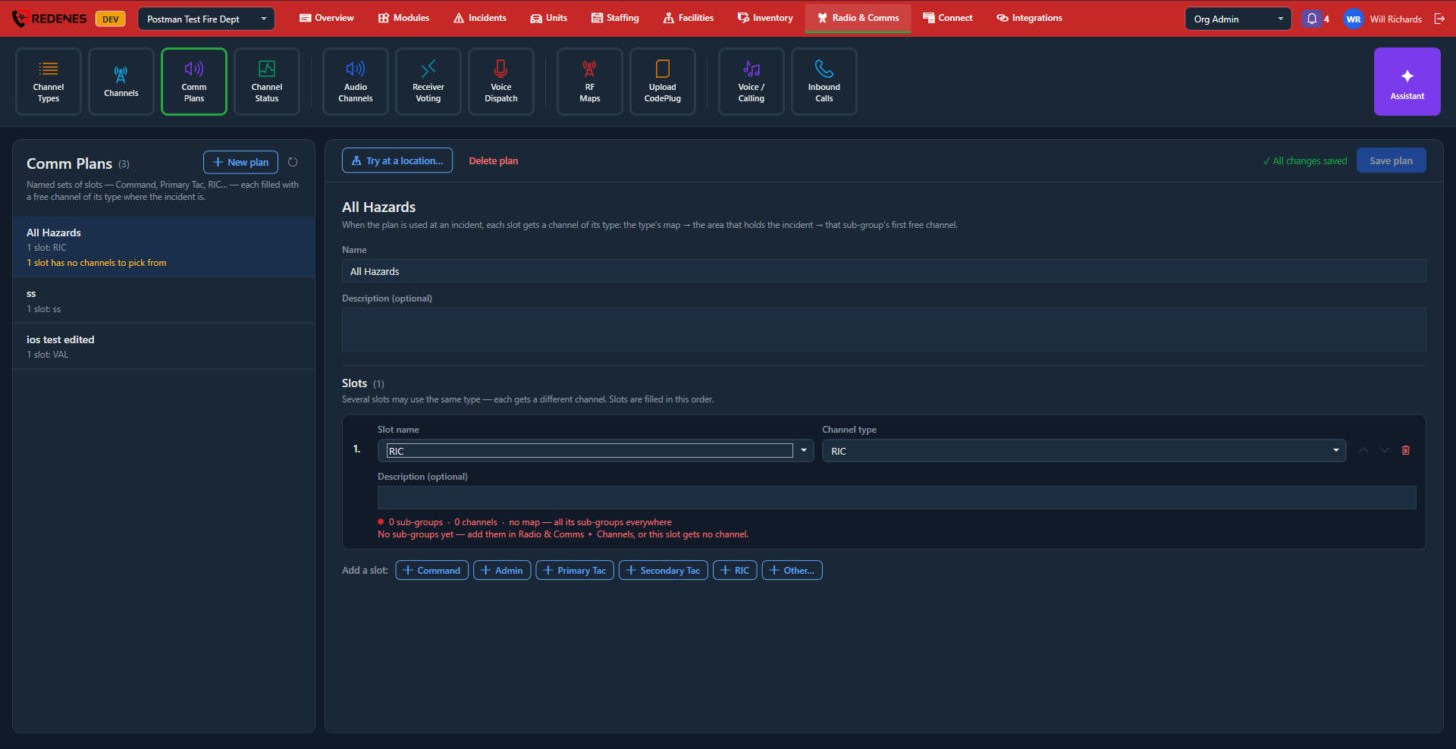
- Name and Description 1.
- Each slot 2 has a Slot name, a Channel type and an optional description. The line under it says how many sub-groups and channels the type has, and turns red when the slot would get no channel. The arrows change the order the slots are filled in, and the bin removes the slot.
- Add a slot 3: one button for each common slot, or Other for any channel type. Several slots may use the same type, and each one gets a different channel.
- Try at a location 4 shows what the plan would pick at a place, without using any channel.
- Save plan 5. Delete plan is beside Try at a location.
 123
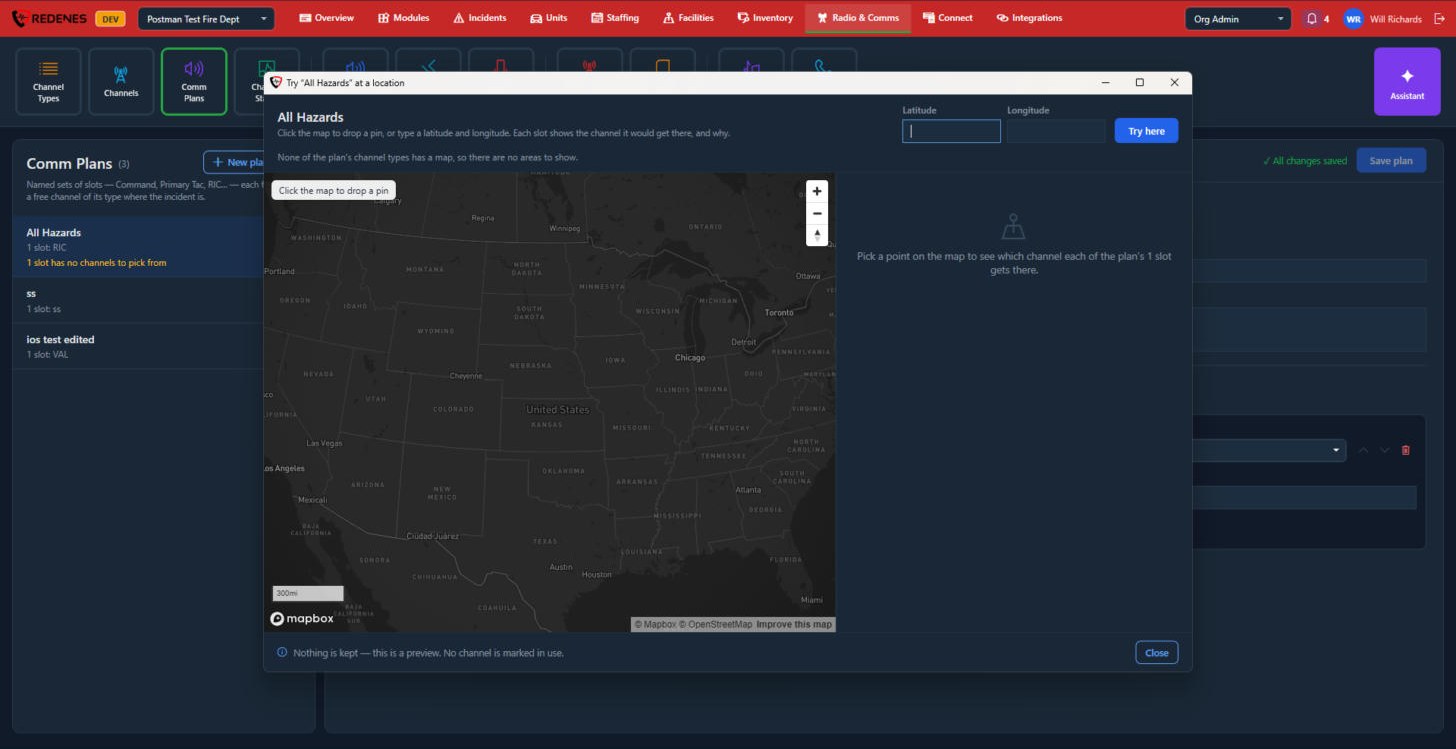
Click the map 1 to drop a pin, or type a Latitude and Longitude 2 and click Try here. The right side 3 lists the channel each slot would get there, and why. Nothing is kept and no channel is marked in use.
Plans are attached to incident types under Incident Types, and are read aloud by Voice Dispatch if you include them in the announcement.
Channel Status
Channel Status is the live board of every radio channel your agency has.
Where: Radio & CommsChannel Status
 1234
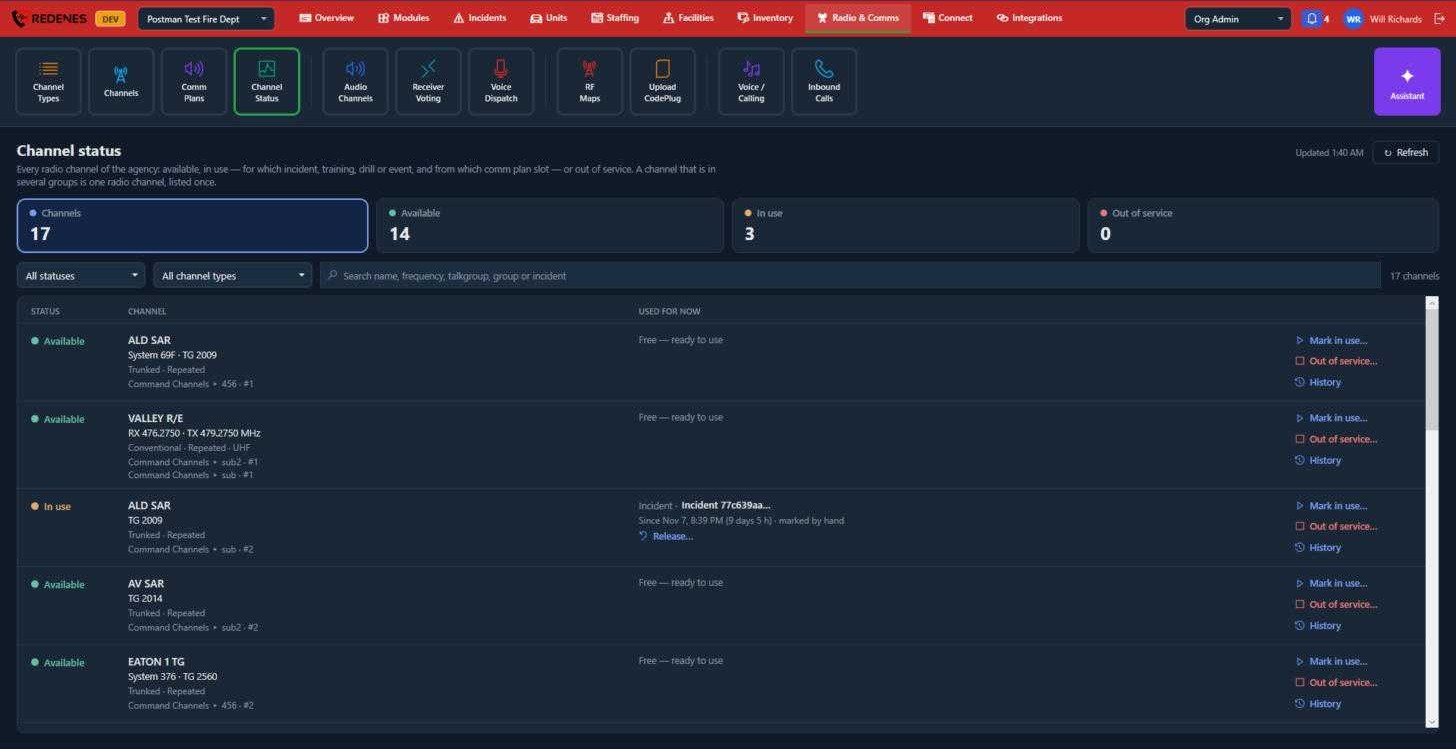
- The counters 1 show how many channels are Available, In use and Out of service. Click one to filter the list.
- Filter and search 2 by status, channel type, name, frequency, talkgroup, group or incident.
- Used for now 3 names the incident, training, drill or event holding the channel, since when, and whether it was picked by a comm plan or marked by hand. Release frees it.
- On each row 4:
- Mark in use holds the channel by hand, for something REDENES does not know about.
- Out of service takes the channel out of the pool, so comm plans skip it, until you put it back.
- History shows what the channel was used for in the past.
A channel that sits in several groups is listed once.
History of a channel
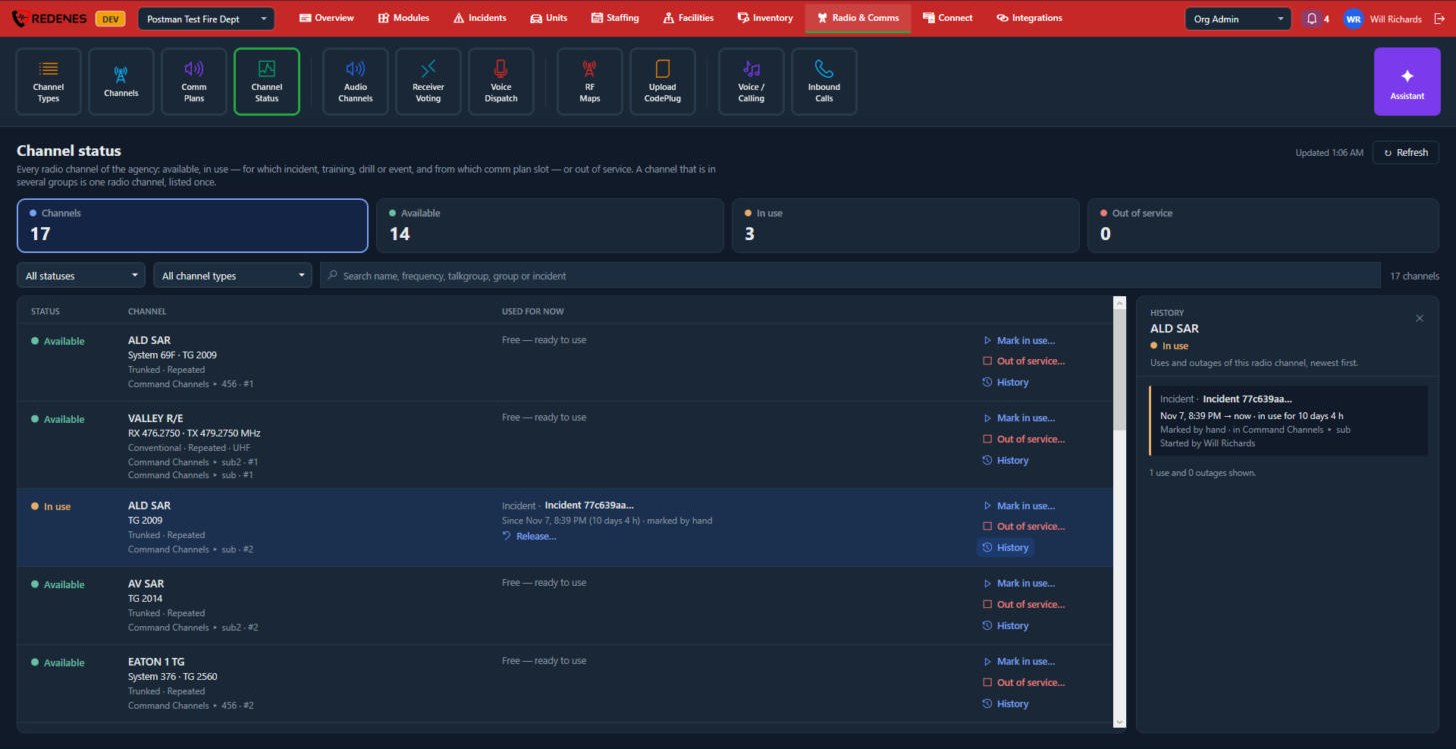 12
Click History 1 on a row. The panel 2 lists the uses and outages of that channel, newest first: what it was used for, from when to when, how it was picked and who started it.
Mark in use
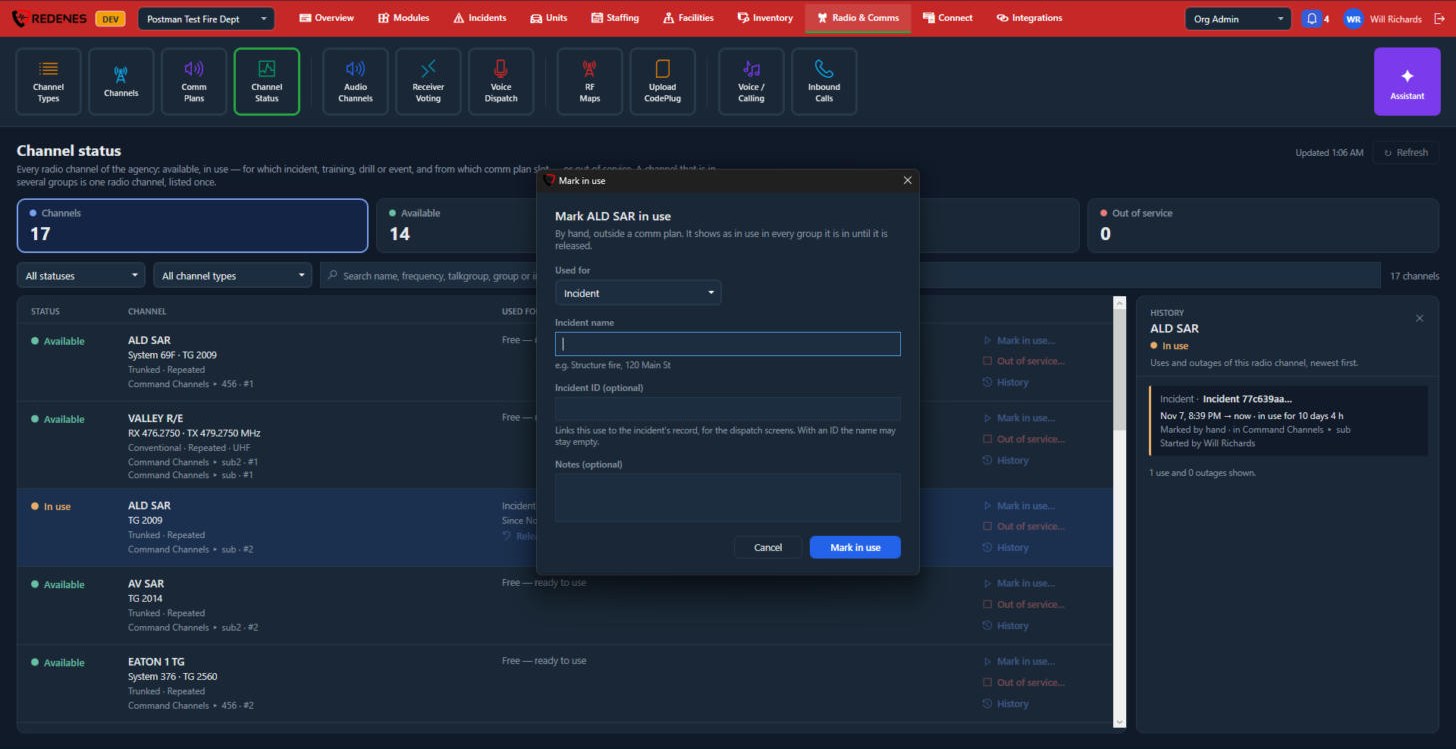 1234
- Used for 1: an incident, training, a drill or an event.
- Its name 2. For an incident you can also give the Incident ID, which links the use to the incident's record.
- Notes 3, if you like.
- Click Mark in use 4. The channel shows as in use in every group it is in, until you Release it.
Out of service
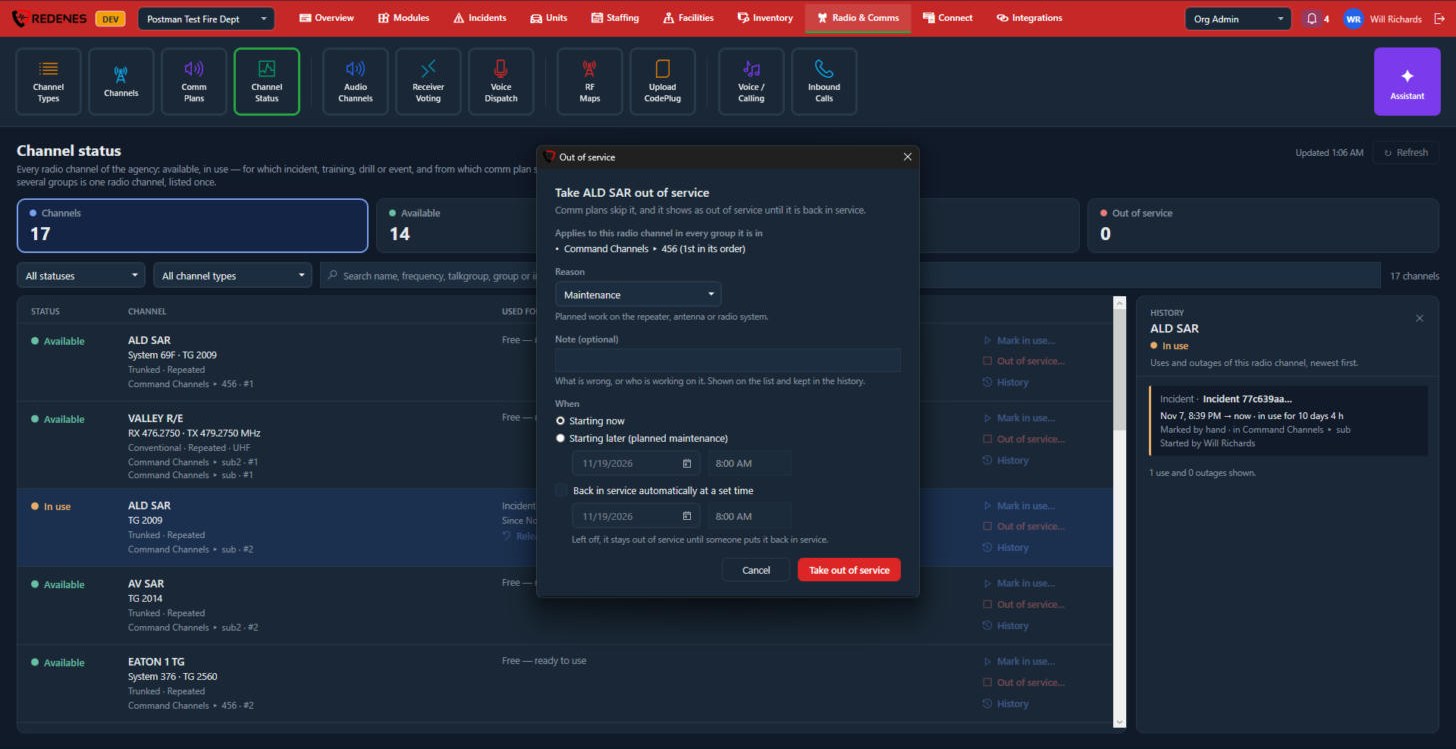 1234
- The top 1 lists every group the channel is in. It goes out of service in all of them.
- Pick a Reason and add a Note 2 saying what is wrong or who is working on it. The note is shown on the list and kept in the history.
- When 3: starting now, or starting later for planned maintenance. Tick Back in service automatically at a set time to end it by itself. Left off, the channel stays out until someone puts it back.
- Click Take out of service 4.