Upload CodePlug
A codeplug is the programming file of a radio. Uploading yours saves typing: REDENES reads its zones, channels and talkgroups, and you can then pick channels from it instead of entering frequencies by hand.
Where: Radio & CommsUpload CodePlug
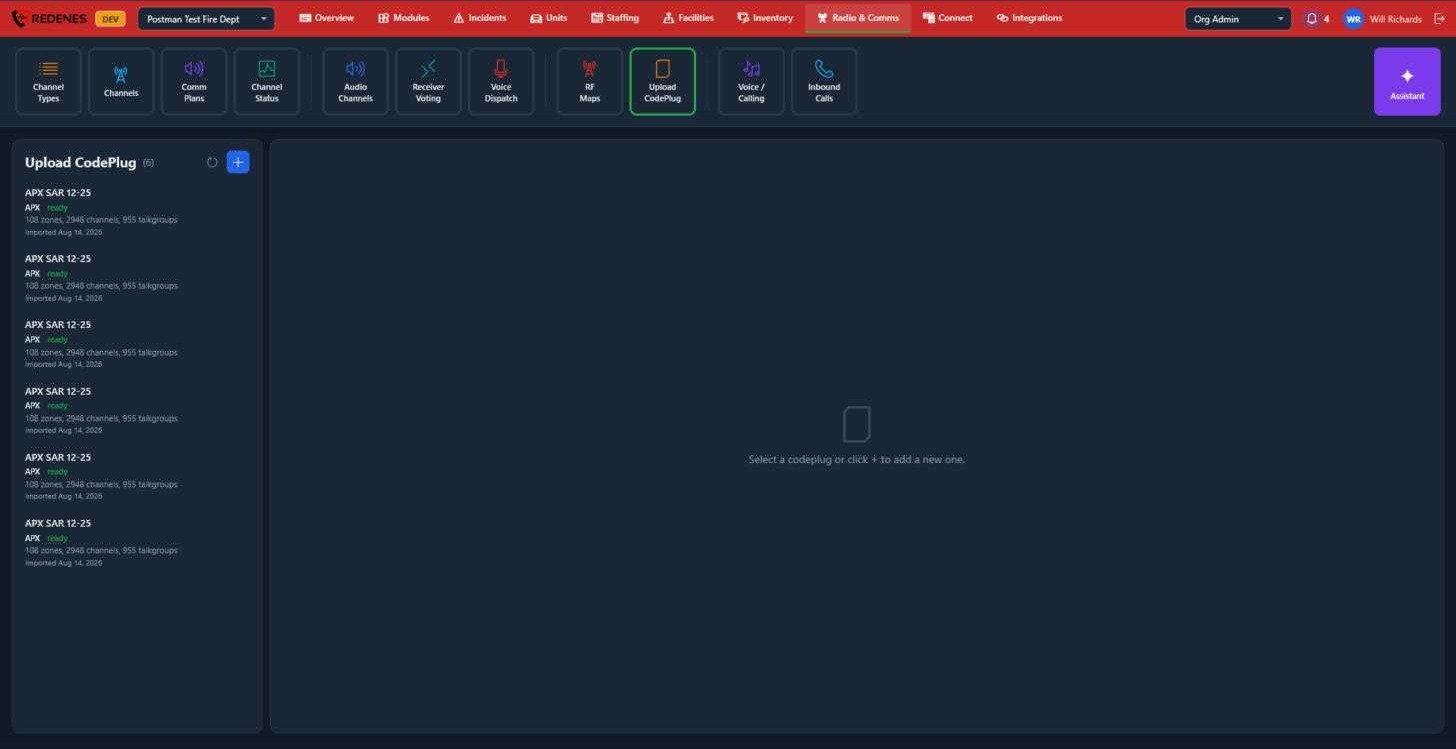 12
- Click + 1, give the codeplug a name, and choose the file exported from your radio programming software.
- When the import finishes, the entry 2 reads ready and shows how many zones, channels and talkgroups it contains.
- Click the entry to browse its zones and channels.
After that, the channels are available to pick when you add a channel under Channels.
note
Upload a new codeplug when your radios are reprogrammed. Older uploads stay in the list until you delete them, so name each one with its date.
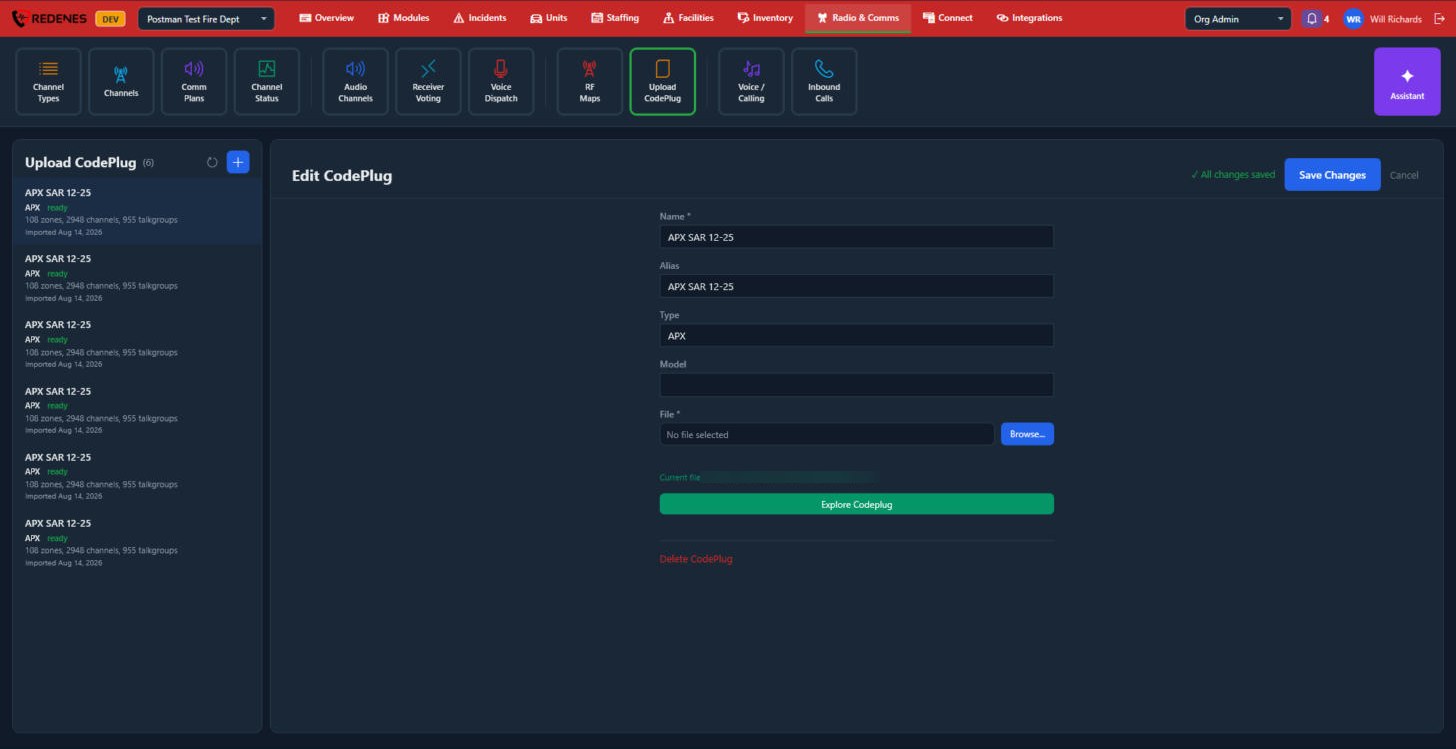
A codeplug opened
 12345
- Name, Alias, Type and Model 1.
- File 2: Browse picks a newer file to replace the one stored. The current file is named under it.
- Explore Codeplug 3 opens everything that was read from the file.
- Delete CodePlug 4.
- Save Changes 5.
Explore a codeplug
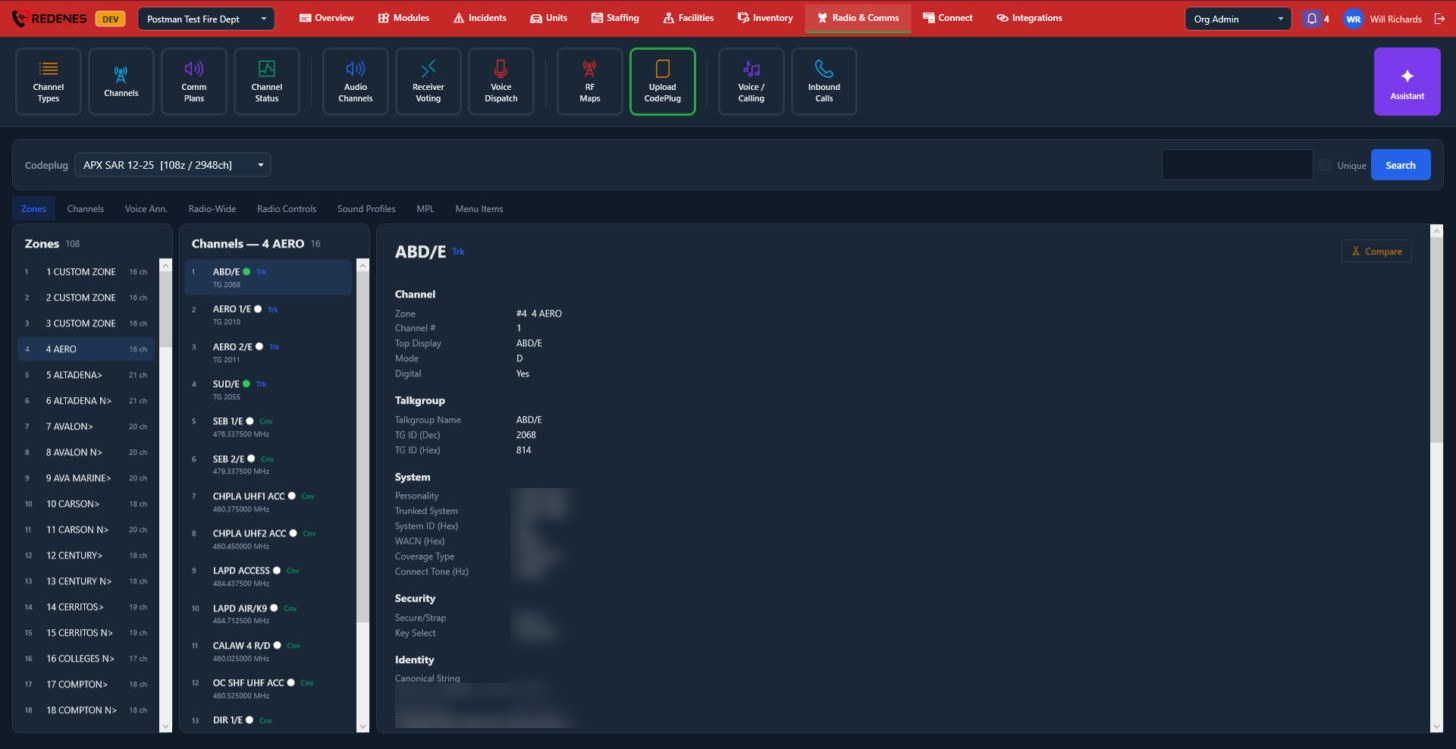 123456
- The Codeplug you are looking at 1, with its number of zones and channels.
- The tabs 2: Zones, Channels, Voice Ann., Radio-Wide, Radio Controls, Sound Profiles, MPL and Menu Items.
- Zones 3: click a zone to list its channels.
- Channels 4 of that zone. A green dot marks a channel already in one of your channel groups.
- The details of the channel you clicked 5: its zone and position, talkgroup or frequencies, system and security settings. Compare sets it beside another channel.
- Search 6 finds a channel by name across the codeplug. Tick Unique to list each channel once.
Exploring never changes the codeplug or your radios.