Connected Agencies
Connect with mutual aid partners so you can share worksheets with them and choose what each side sees. Dispatching for a partner is set up separately under Dispatch Partners.
Where: OverviewConnected Agencies
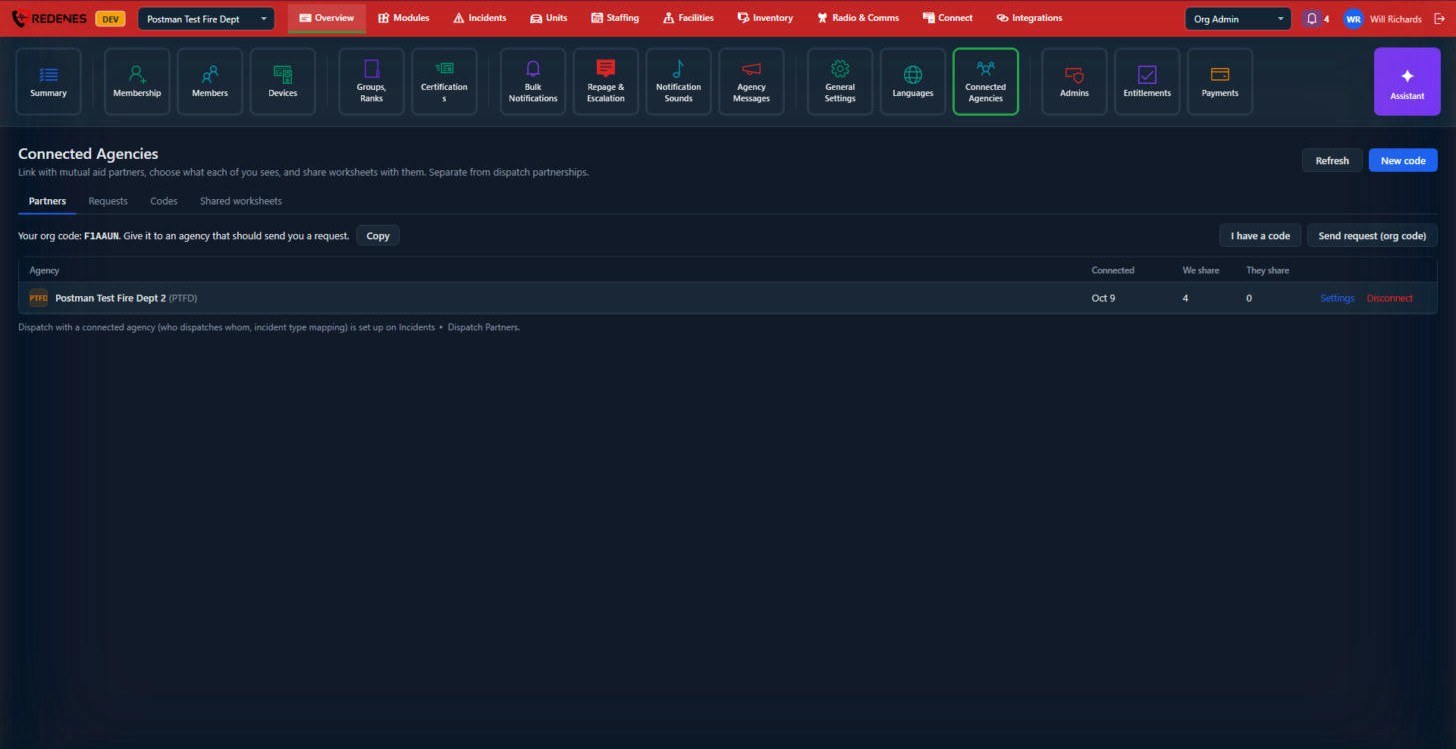 1234
The tabs 1
| Tab | Shows |
|---|---|
| Partners | Agencies you are connected with, since when, and how many items each side shares. |
| Requests | Requests waiting for you or for the other agency. |
| Codes | One-time codes you made for a partner to use. |
| Shared worksheets | The worksheets you share and the ones shared with you. |
Connect with another agency
There are two ways:
- They come to you. Give them your org code 2 (use Copy). They send a request, and you approve it under Requests.
- You go to them. Click Send request (org code) 3 and type their org code, or click I have a code if they gave you a one-time code.
Once connected, the partner appears in the list 4. Settings on its row controls what you share with them, and Disconnect ends the connection.
Partner settings
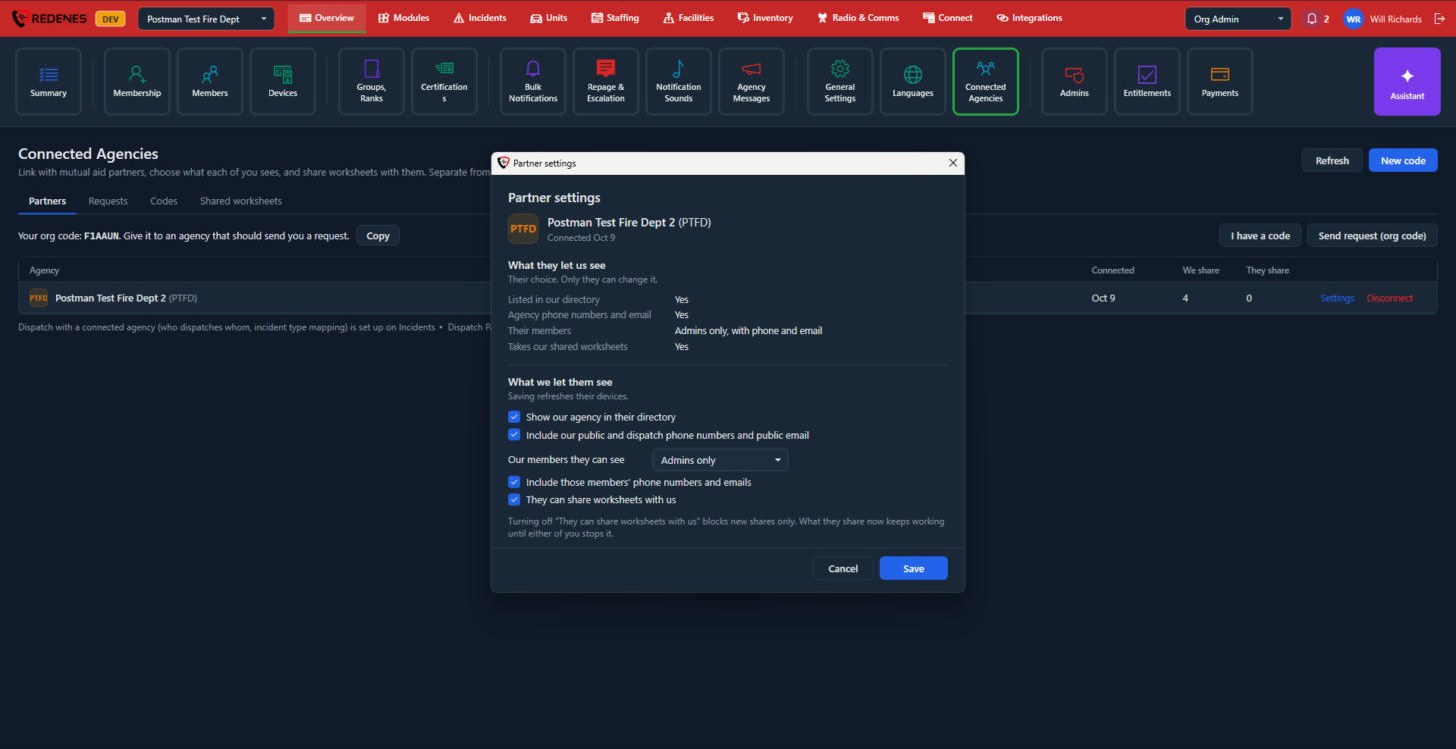
Click Settings on a partner's row.
 123
- What they let us see 1 is the other agency's choice. Only they can change it.
- What we let them see 2 is yours:
| Setting | Meaning |
|---|---|
| Show our agency in their directory | Your agency appears in their Directory. |
| Include our public and dispatch phone numbers and public email | They also see how to reach you. |
| Our members they can see | None, Admins only or Everyone. |
| Include those members' phone numbers and emails | Adds contact details for the members they can see. |
| They can share worksheets with us | Allows them to share pages with your agency. Turning it off blocks new shares only. What they share now keeps working until either of you stops it. |
- Save 3 saves and refreshes their devices.
I have a code
 123
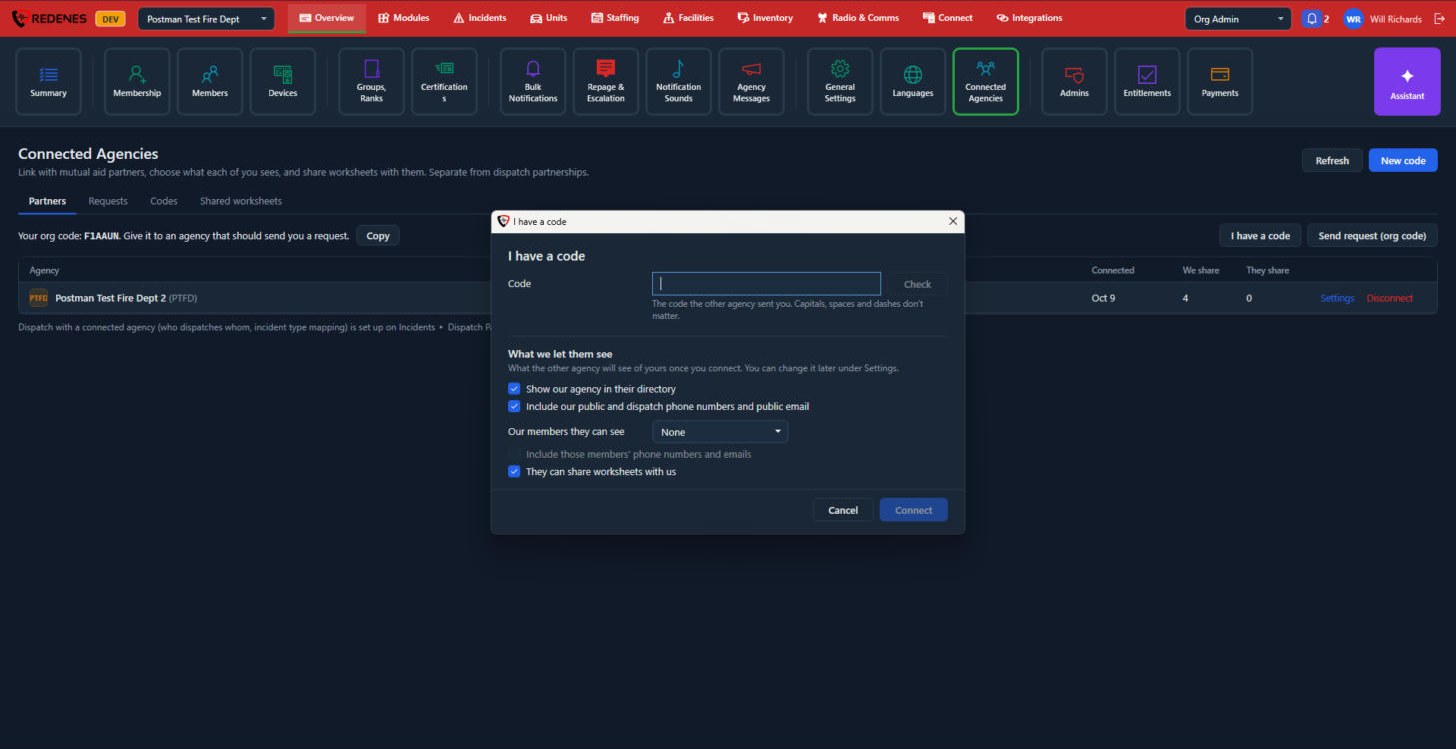
- Type the Code the other agency sent you 1 and click Check. Capitals, spaces and dashes do not matter.
- Choose What we let them see 2. You can change it later under Settings.
- Click Connect 3.
To give a partner a code instead, click New code at the top right. A code works once. Open codes are listed on the Codes tab with who made them and when they expire. Used, cancelled and expired codes drop off the list.
Requests
The Requests tab has two lists. Waiting for our approval shows agencies that asked to connect with you. Review a request to choose what they see, then approve it. Sent by us shows requests you sent by org code. You see the agency's name once they approve.
Shared worksheets
 1234
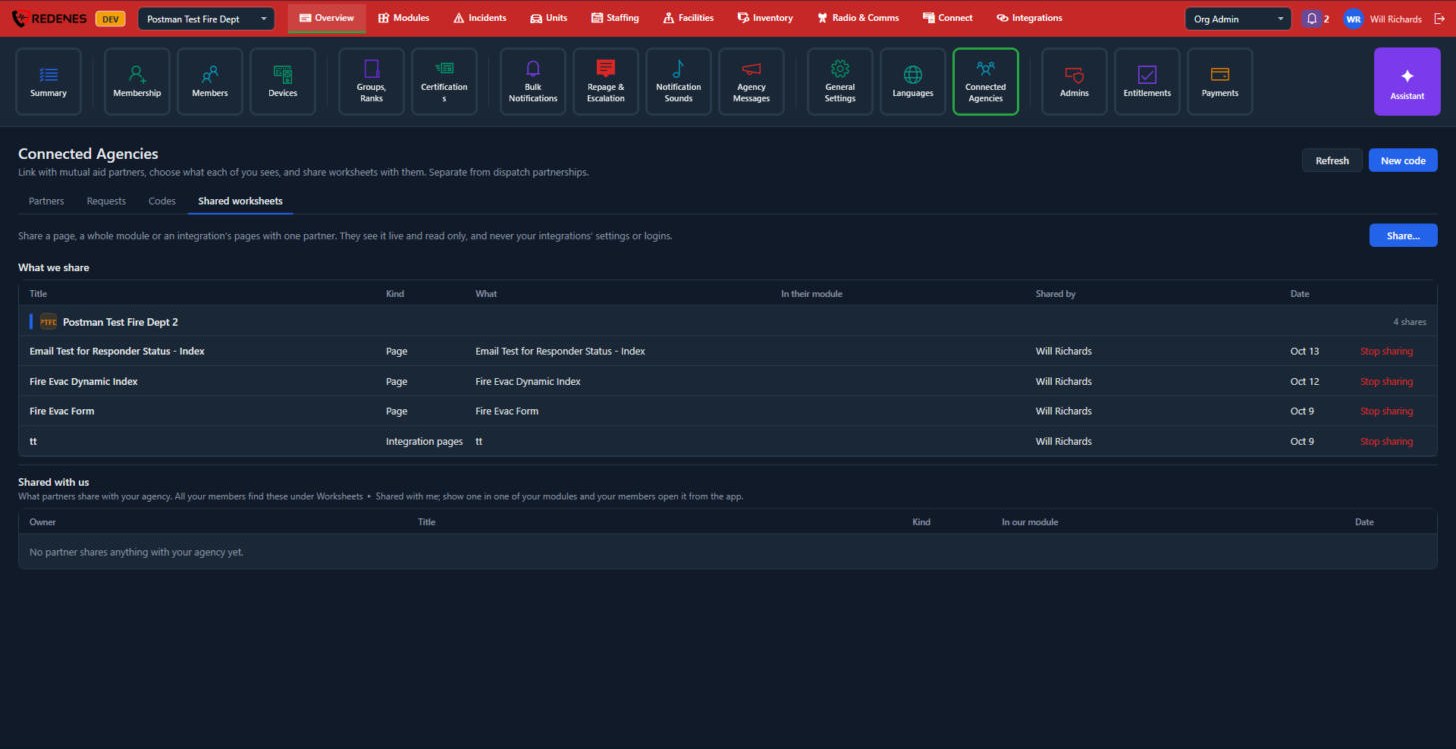
- Share 1 shares something with one partner.
- What we share 2 is grouped by partner, with what each item is, who shared it and when. Stop sharing 3 ends one share.
- Shared with us 4 lists what partners share with your agency. Your members find these under Worksheets, then Shared with me. You can also show one inside one of your own modules.
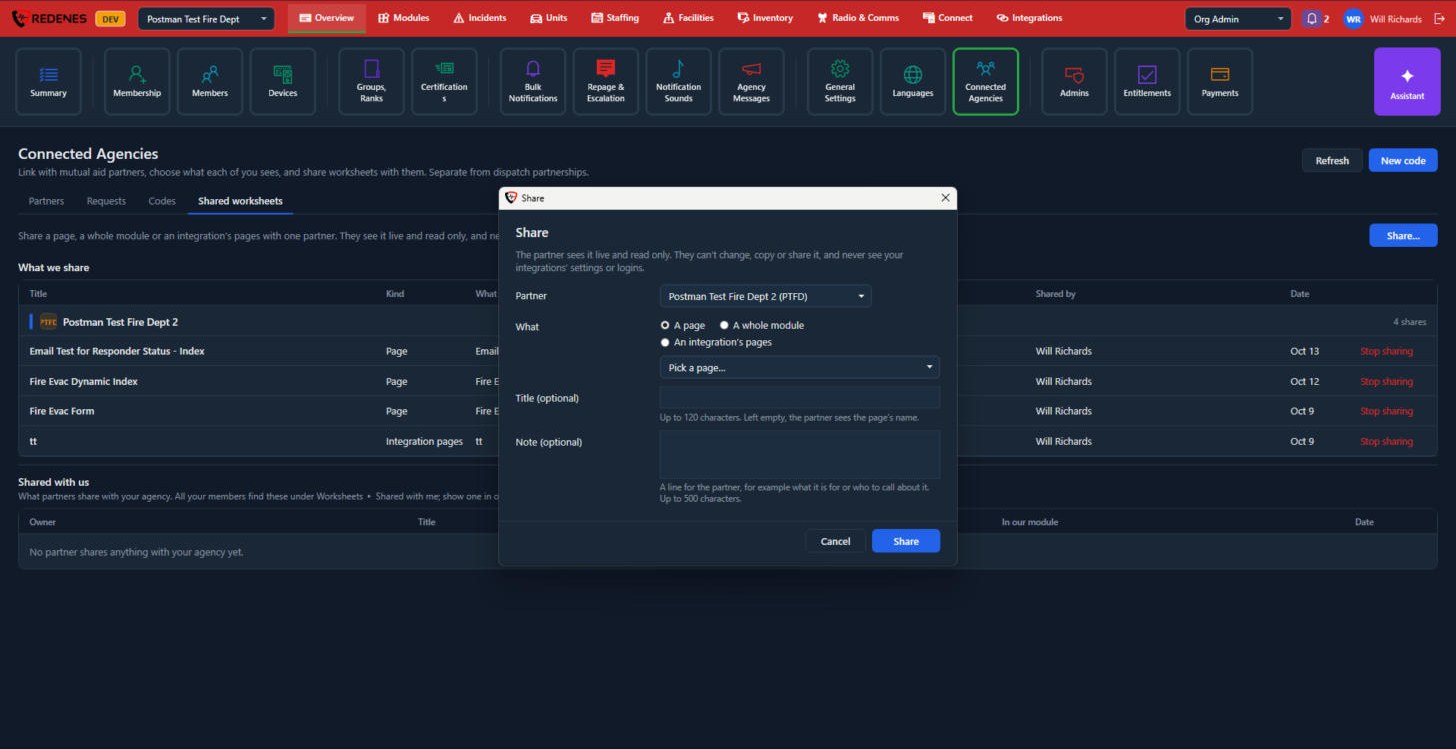 123
- Pick the Partner 1.
- Choose What 2: A page, A whole module or An integration's pages, then pick it from the list.
- Add a Title and a Note 3 if you want. Left empty, the partner sees the page's own name.
- Click Share.
The partner sees it live and read only. They cannot change, copy or share it, and they never see your integrations' settings or logins.