Statuses and Profiles
Four tiles that define the choices people have during an incident. You attach them to incident types.
Task Statuses
Where: IncidentsTask Statuses
 123
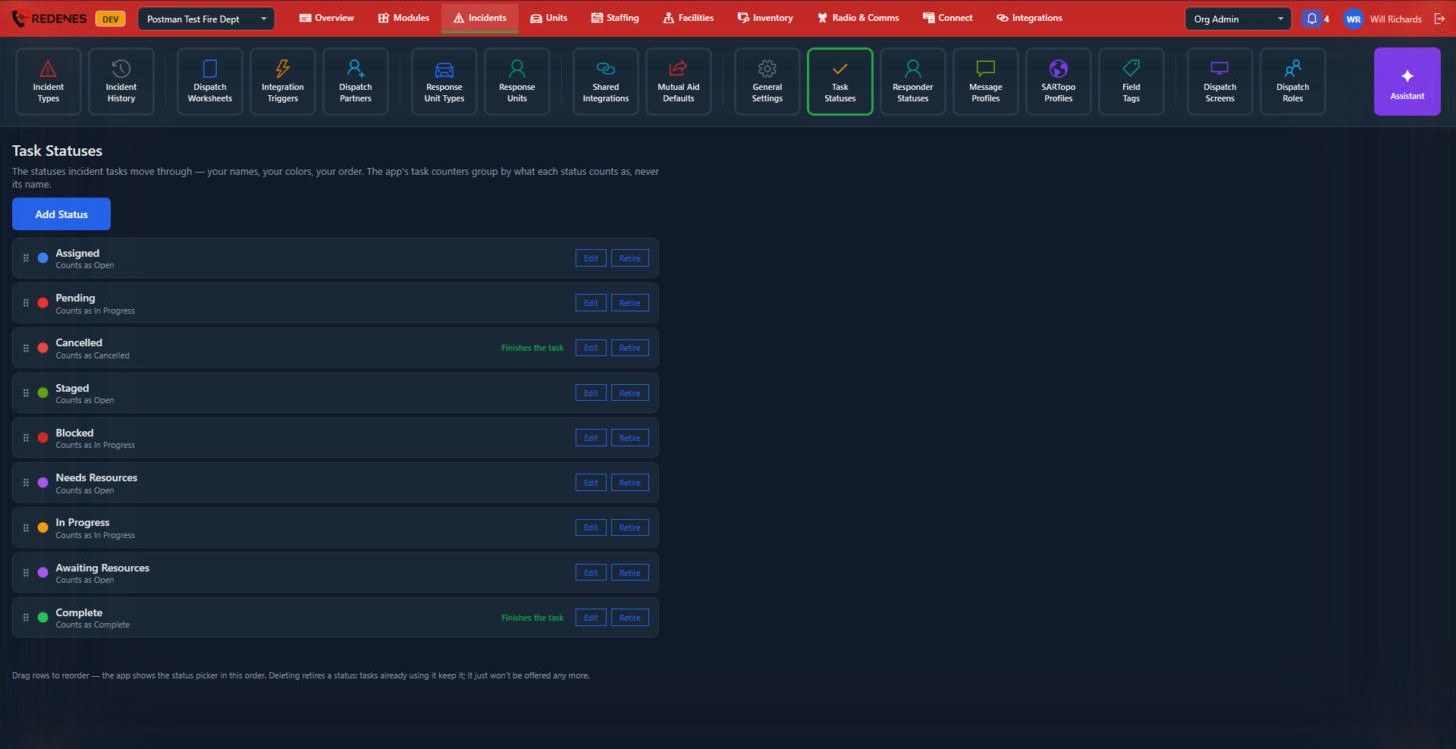
The statuses an incident task moves through.
- Add Status 1, then give it a name and a color.
- Each status counts as Open, In Progress, Complete or Cancelled. The apps' task counters group by that, never by the name, so you can call a status whatever your agency says on the radio.
- A status marked Finishes the task 3 closes it.
- Drag rows by the handle 2 to reorder. The app shows the status picker in this order.
- Retire removes a status from the picker. Tasks already using it keep it.
 1234
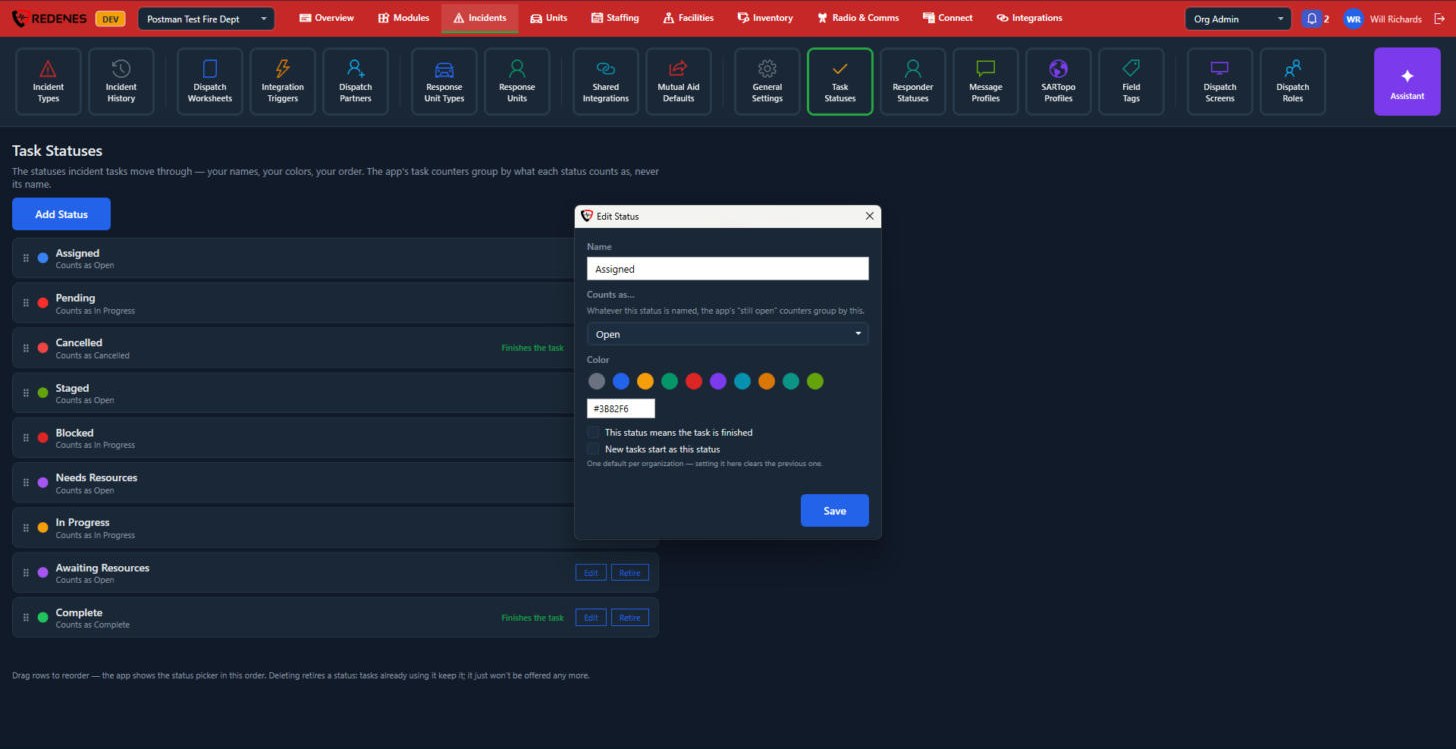
Add Status and Edit open the same window: the Name 1, what it Counts as 2, the Color 3, and two ticks 4. This status means the task is finished closes the task. New tasks start as this status makes it the first status of every new task. Only one status can be the starting one.
Responder Statuses
Where: IncidentsResponder Statuses
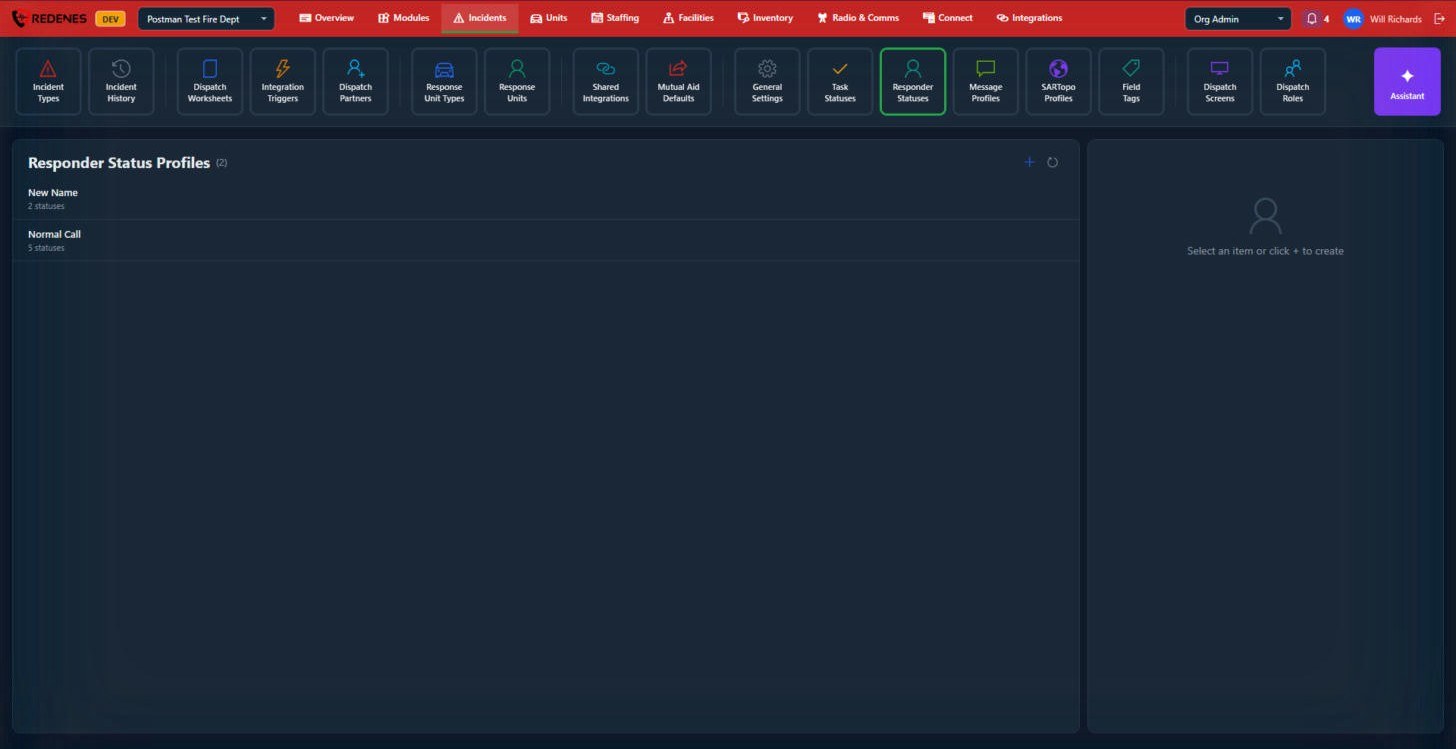
A responder status profile is the set of answers members can give when an incident goes out, such as Responding, Delayed or Unavailable. Make one profile for normal calls and others where the choices differ.
 1234
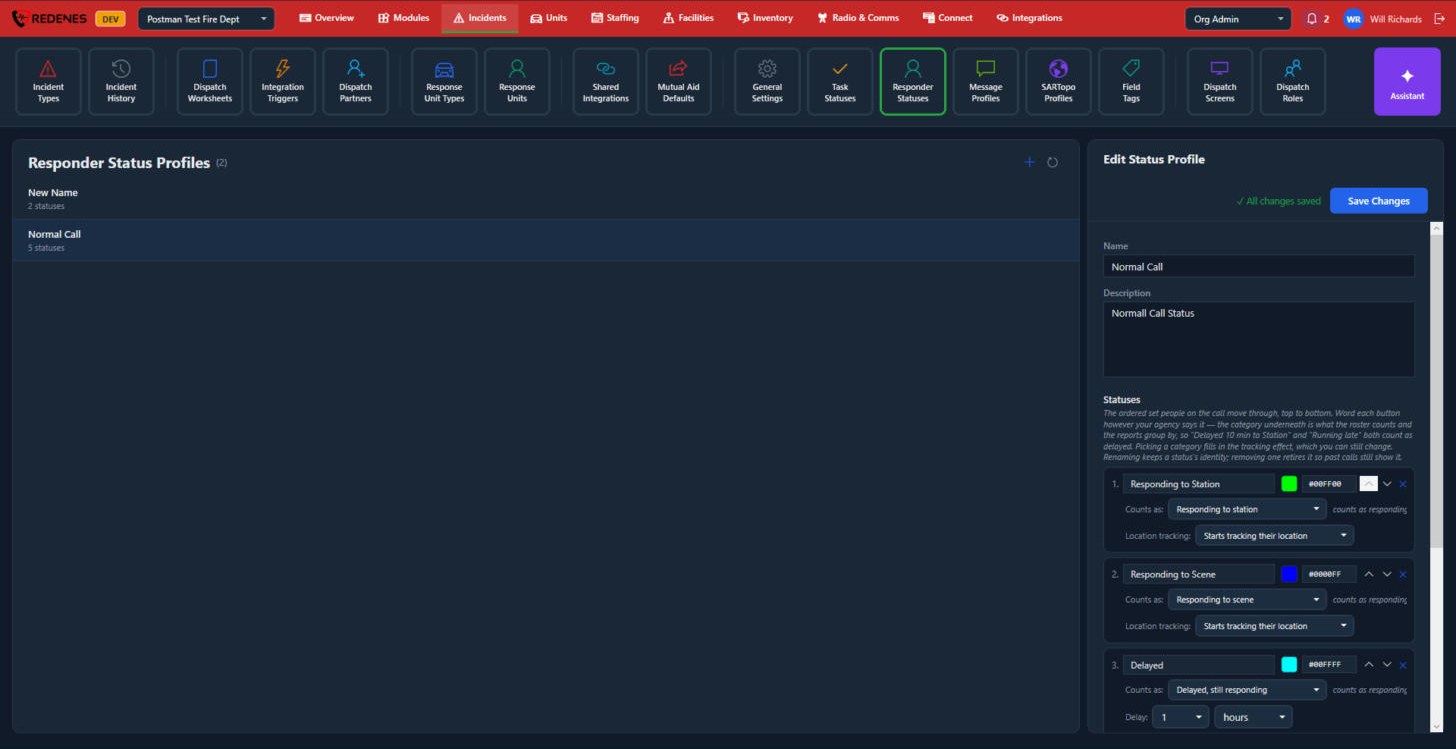
Click a profile 1. On the right:
- Name and Description 2.
- Statuses: the buttons people on the call move through, from top to bottom. For each one 3 you set the wording, the color, and:
- Counts as: what the roster and the reports count it as. Delayed 10 min to Station and Running late can both count as delayed.
- Location tracking: whether choosing this status starts or stops sharing the person's location. A delayed status has a Delay time in its place.
- The arrows move a status up or down and the x removes it 4. Past calls still show a removed status.
Click Save Changes.
Message Profiles
Where: IncidentsMessage Profiles
A message profile is a set of ready-made text messages for an incident, so the same wording goes out every time.
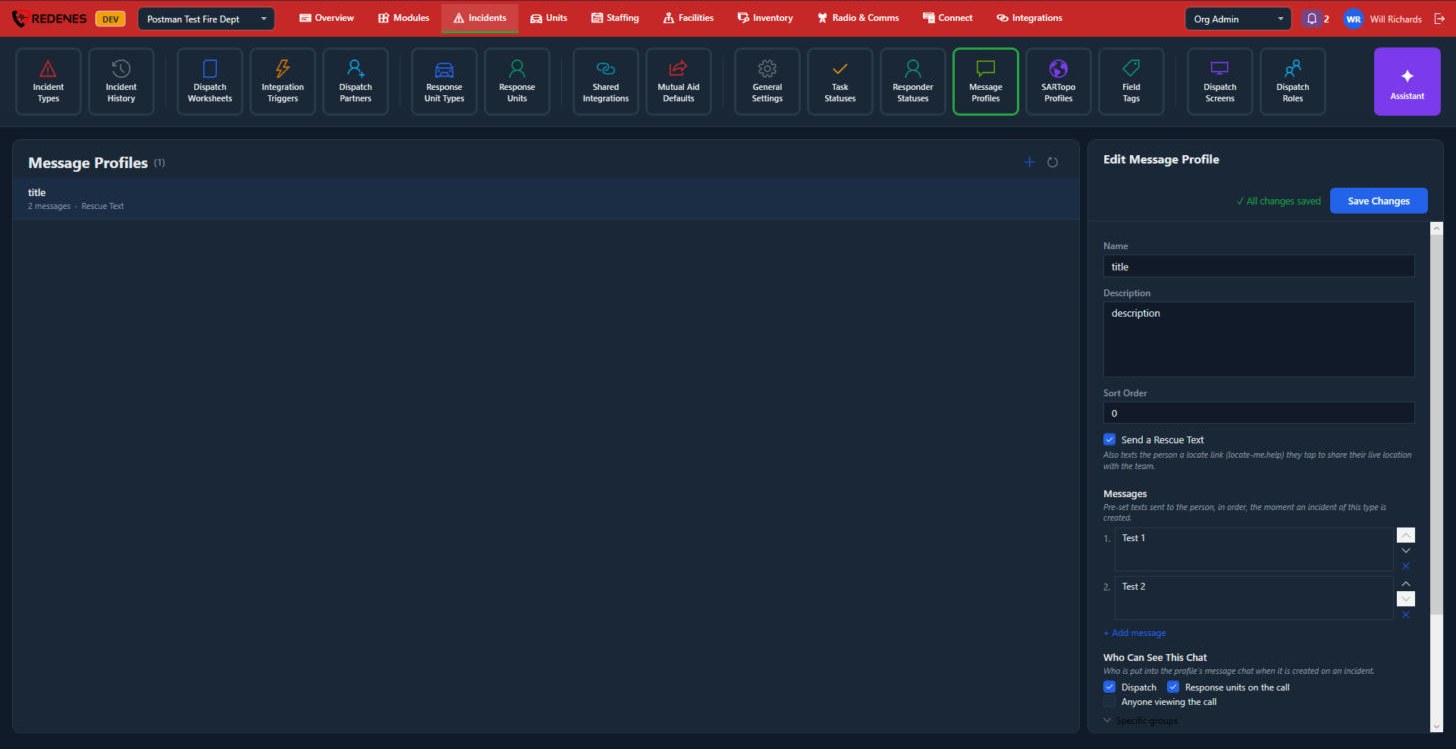 1234
- Name, Description and Sort Order 1.
- Send a Rescue Text 2 also texts the person a link they tap to share their live location with the team.
- Messages 3: the texts sent to the person, in order, as soon as an incident of this type is created. + Add message adds one.
- Who Can See This Chat 4: dispatch, the response units on the call, anyone viewing the call, or chosen groups.
SARTopo Profiles
Where: IncidentsSARTopo Profiles
A SARTopo profile describes the folders and markers REDENES creates on the SARTopo map when an incident of that type starts, so every search map is laid out the same way.
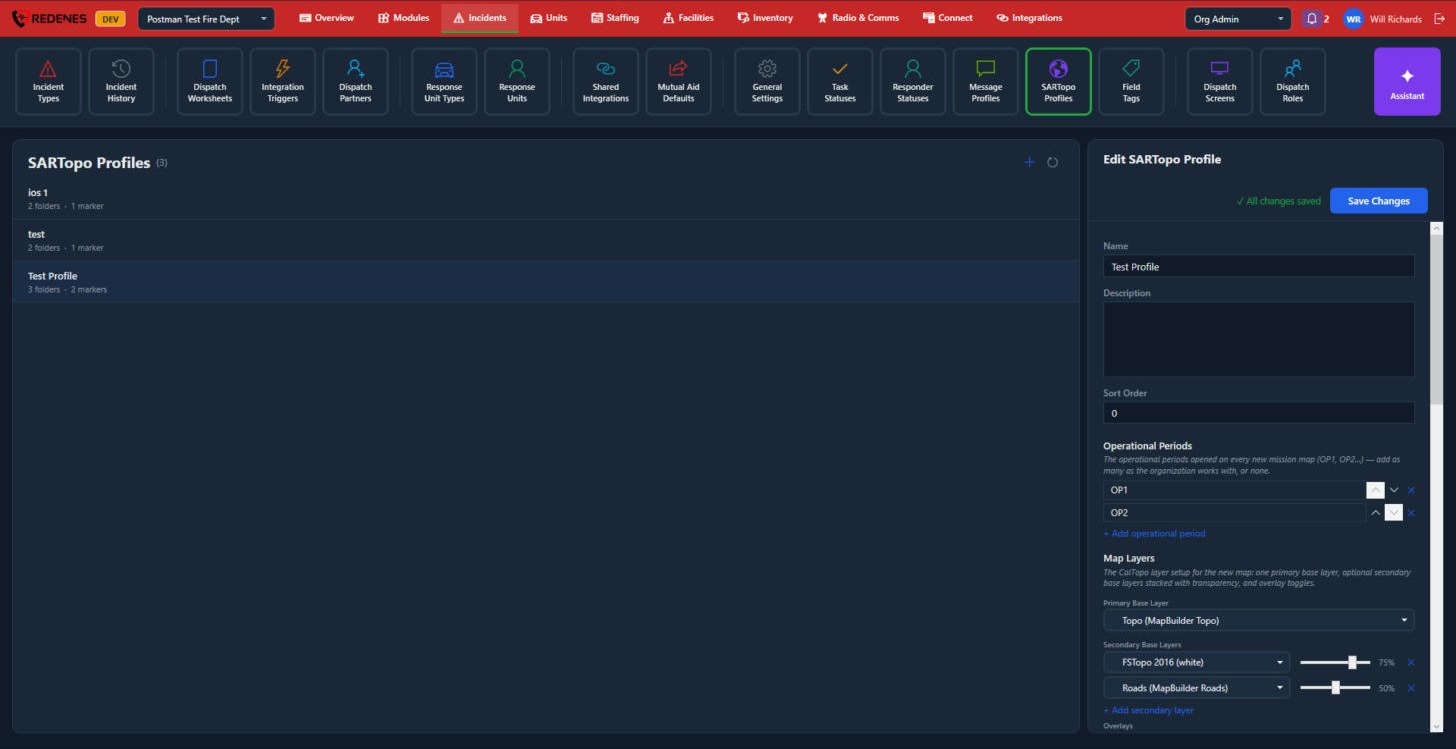 123
- Name, Description and Sort Order 1.
- Operational Periods 2: the periods opened on every new map, such as OP1 and OP2.
- Map Layers 3: the Primary Base Layer, any Secondary Base Layers laid over it with a slider for how strongly each shows, and the overlays that are switched on.
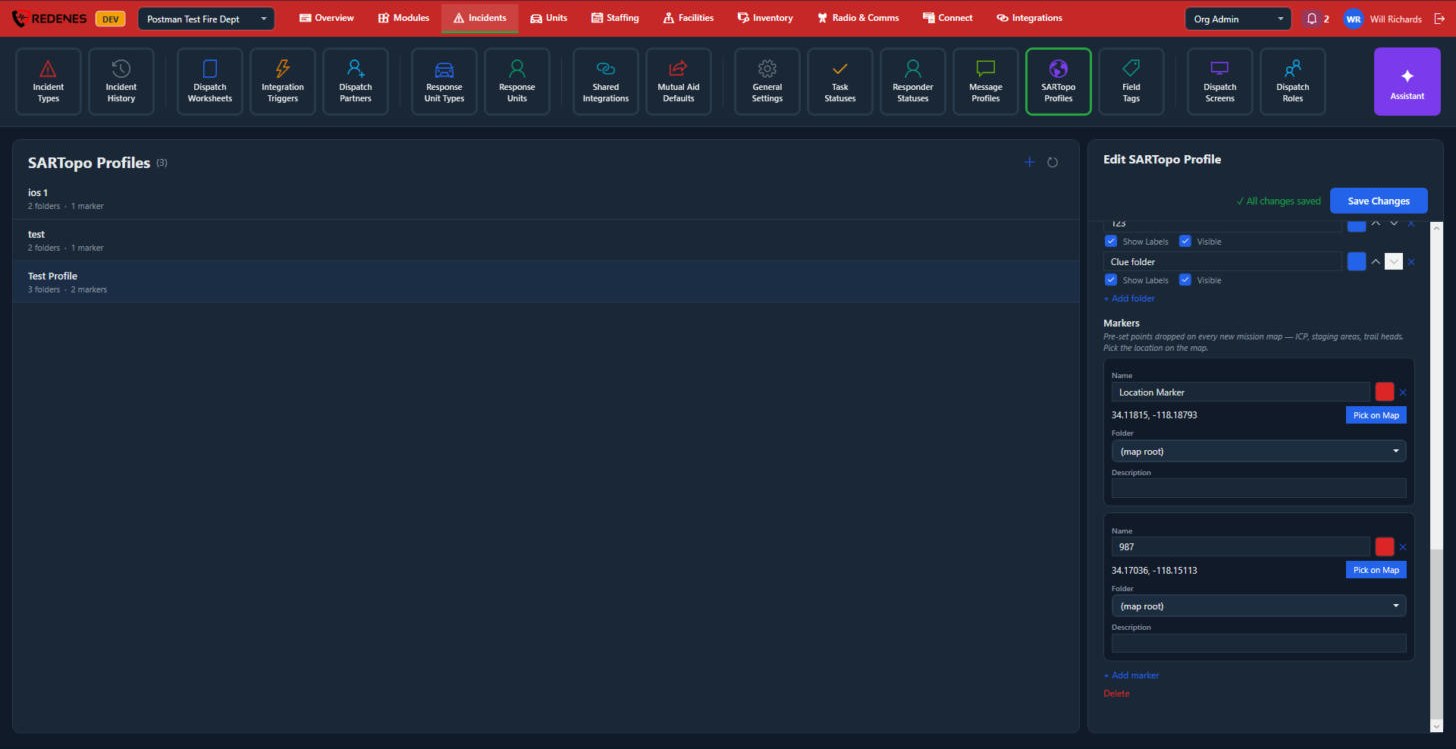 123
- Folders 1: the folders made on every new map, each with a color and ticks for Show Labels and Visible.
- Markers 2: points put on every new map, such as the command post or a trailhead. Give each a name and color, click Pick on Map to place it, and choose its folder.
- Delete 3 removes the profile.
All three kinds of profile work the same way: click +, name the profile, add its items on the right and click Save Changes.