Field Tags
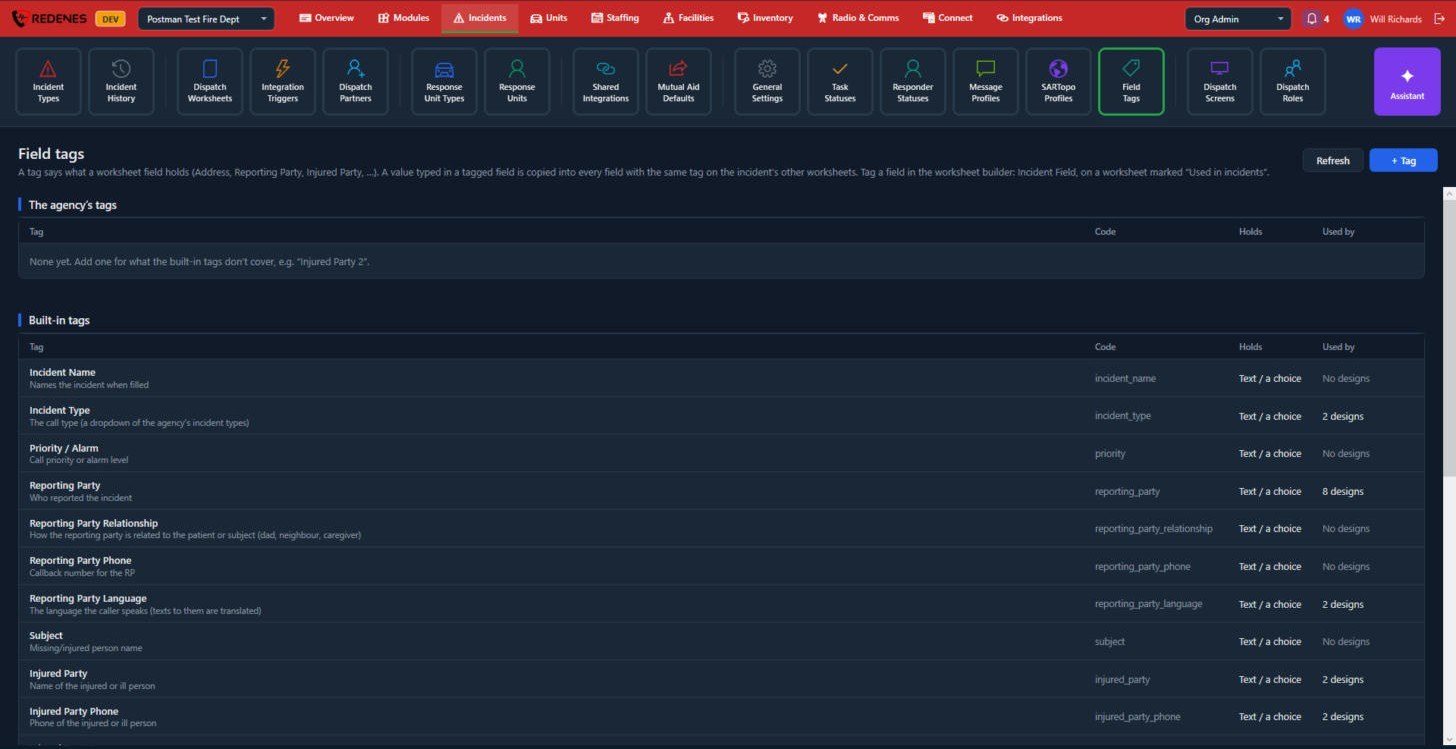
A tag says what a worksheet field holds: Address, Reporting Party, Injured Party and so on. A value typed in a tagged field is copied into every field with the same tag on the incident's other worksheets, so nobody types the address twice.
Where: IncidentsField Tags
 1234
- Built-in tags 2 cover the common ones: Incident Name, Incident Type, Priority, Reporting Party and their phone and language, Subject, Injured Party and more.
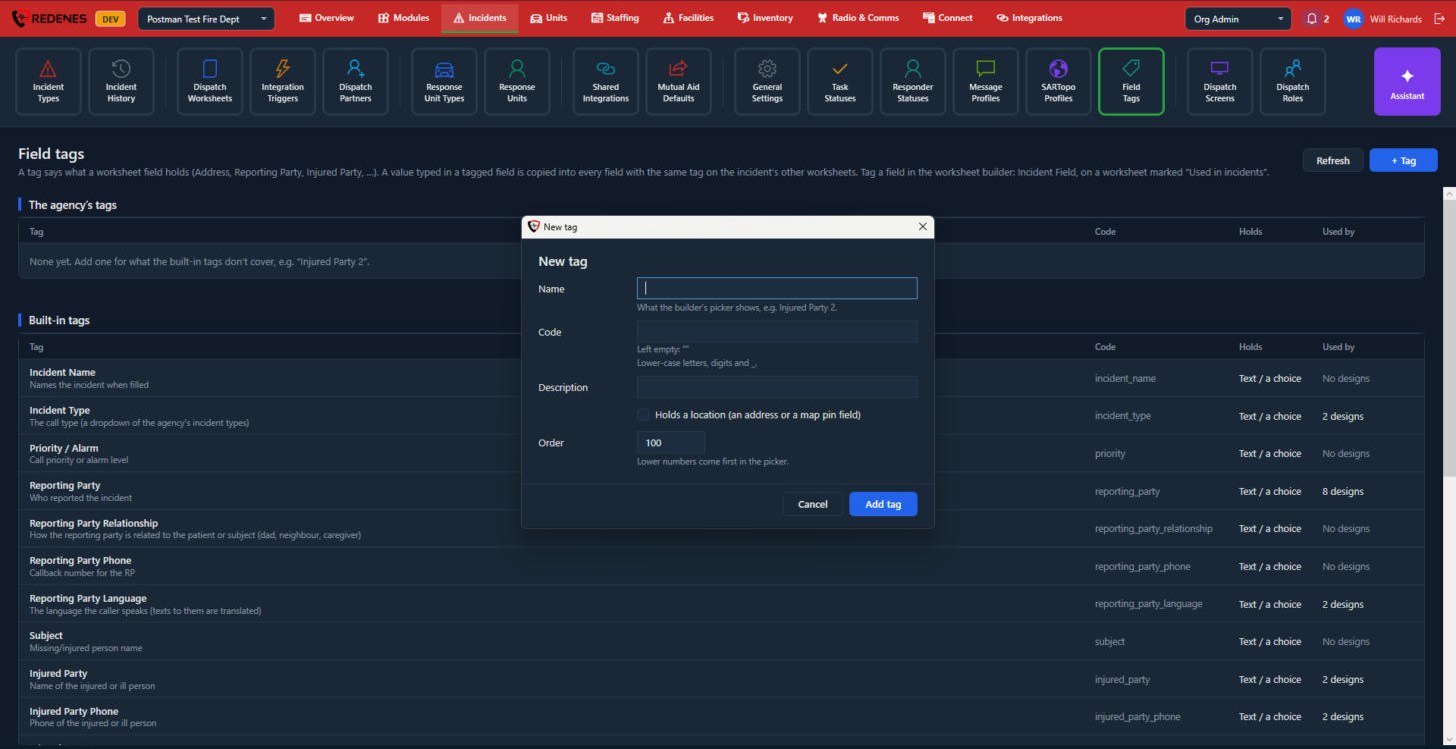
- The agency's tags 1 are your own. Click + Tag 4 to add one for something the built-in tags do not cover.
- Used by 3 shows how many worksheet designs use each tag.
 12345
- Name 1: what the worksheet builder shows.
- Code 2: a short code in lower-case letters, digits and underscores. Leave it empty and one is made from the name.
- Description 3.
- Holds a location 4: tick it when the field is an address or a map pin.
- Order 5: lower numbers come first in the builder's list.
Tag a field
Open the worksheet in the Worksheet Designer, select the field, and set its Incident Field. The worksheet must be marked Used in incidents.