PDF Builder
The PDF Builder makes the printable version of a worksheet, so a filled-in form comes out as a proper document.
Where: ModulesPDF Builder
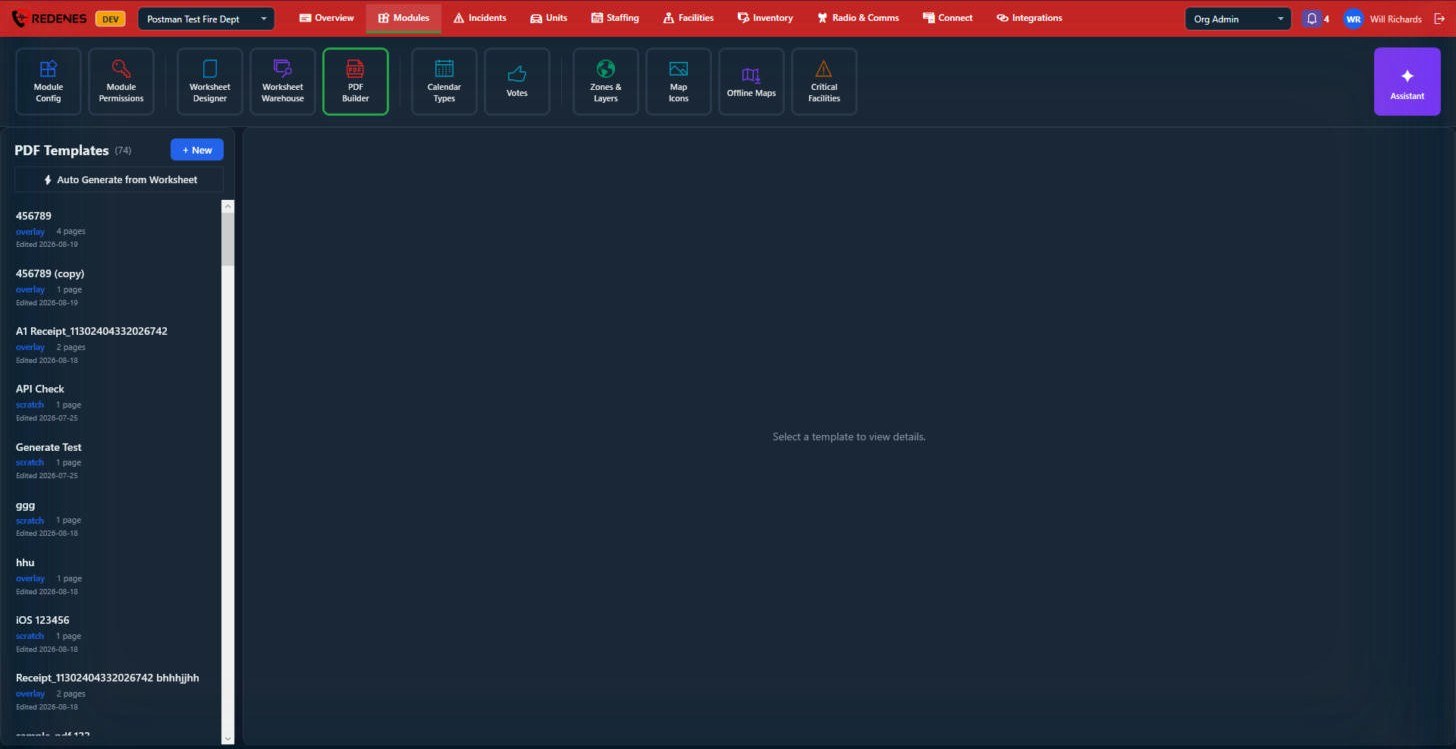 123
Two kinds of template 3
- Overlay: you upload an existing PDF form, such as an official ICS form, and place your worksheet's fields on top of it. The result looks exactly like the original form, filled in.
- Scratch: you lay the page out yourself with headings, fields and tables.
Make a template
- + New 1 starts an overlay or scratch template by hand.
- Auto Generate from Worksheet 2 builds a first version from a worksheet's fields. It is the fastest start; tidy the layout afterwards.
Then attach the template to its worksheet so Share as PDF in the apps uses it.
+ New offers Blank (Scratch) and Upload PDF (Overlay).
A template's page
Click a template in the list.
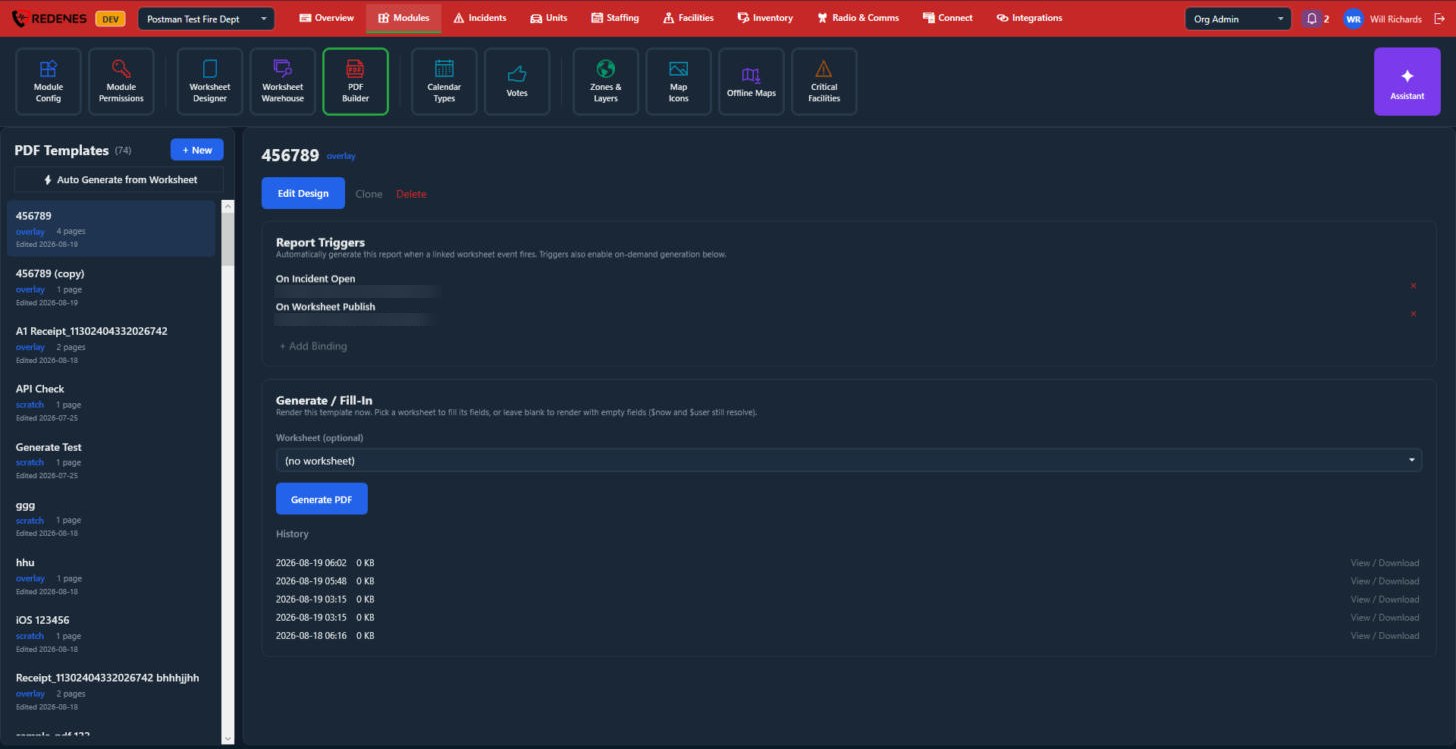 1234
- Edit Design opens the designer. Clone makes a copy. Delete removes the template 1.
- Report Triggers 2: make this PDF by itself when something happens, such as when an incident opens or a worksheet is published. Click + Add Binding to add a trigger and the red x to remove one.
- Generate / Fill-In 3: make the PDF now. Pick a worksheet to fill its fields, or leave it empty for a blank form, then click Generate PDF.
- History 4: every PDF made from this template, with View / Download.
The PDF Designer
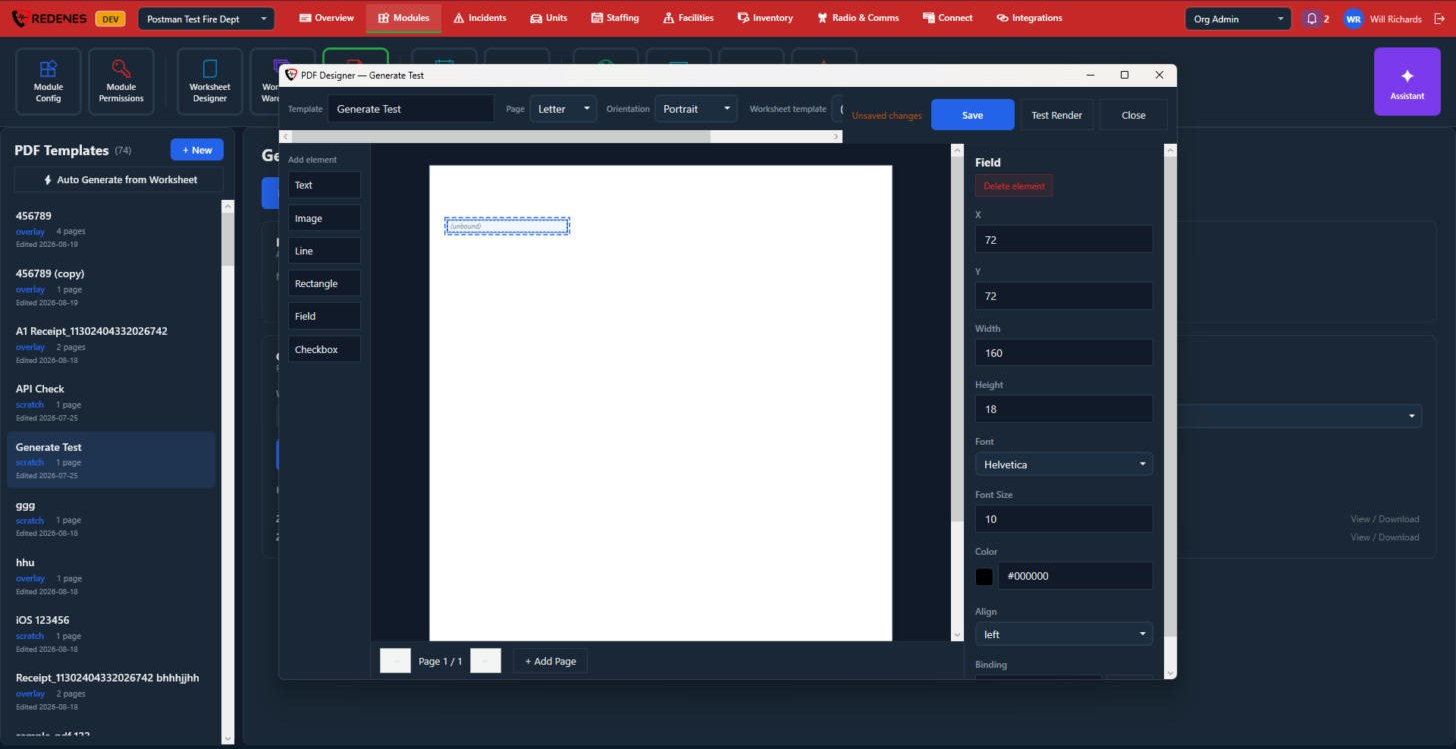 123456
- The top row 1: the template's name, the Page size and Orientation, and the Worksheet template whose fields you can place.
- Add element 2: Text, Image, Line, Rectangle, Field and Checkbox. A Field shows a value from the worksheet. A Checkbox is ticked from a worksheet value.
- The page 3: click an element to select it and drag it into place. On an overlay template your uploaded PDF is the background.
- The settings of the selected element 4: position and size, font, size, color and alignment, and for a field its Binding, which is the worksheet value it shows. Delete element removes it.
- Save, Test Render and Close 5. Test Render makes a sample PDF so you can check the layout.
- The page arrows and + Add Page 6.