Module Permissions
Module Permissions decides who can see each module in the apps, and who can add to it, edit it and share from it.
Where: ModulesModule Permissions
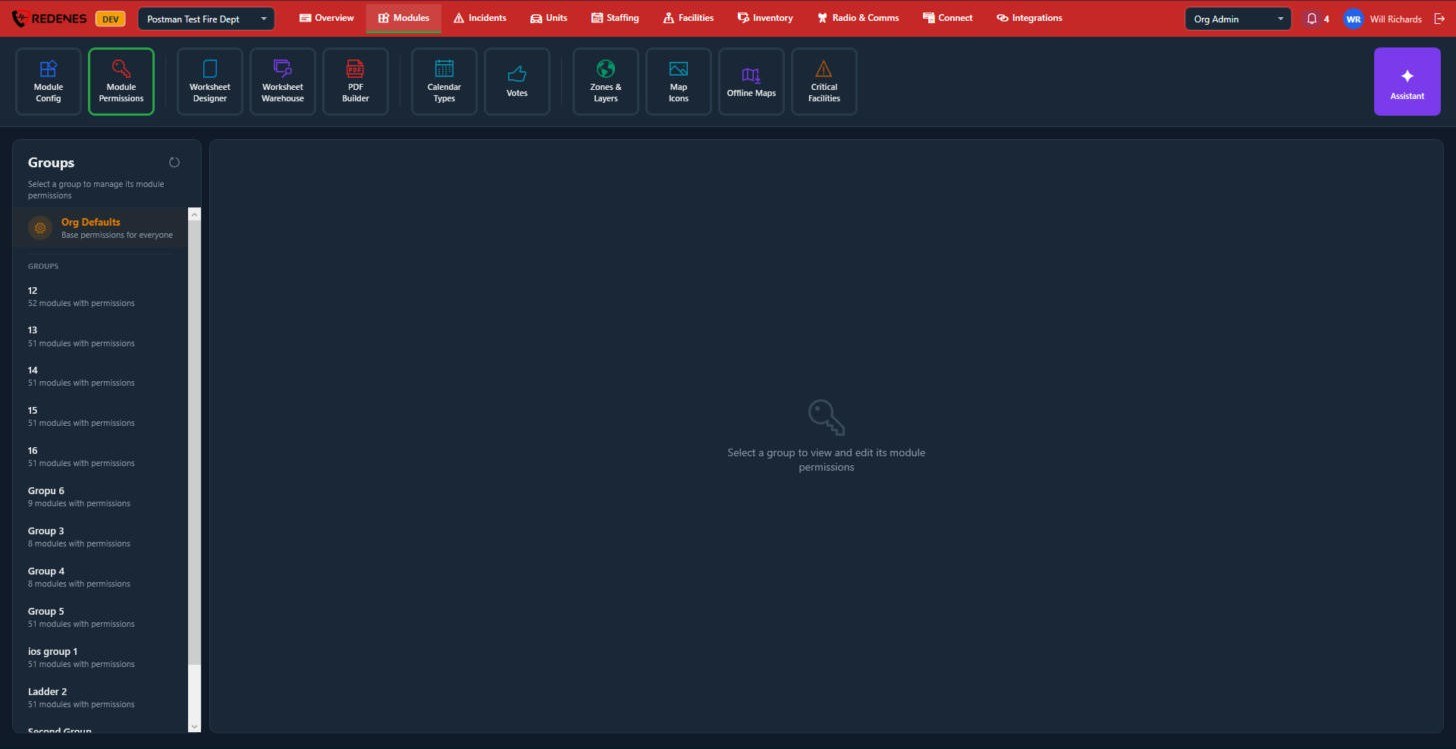 12
How permissions add up
- Org Defaults 1 is the base that applies to everyone.
- Each group 2 can then be given more. A member gets the defaults plus everything their groups allow.
Set permissions
- Click Org Defaults or a group.
- For each module, tick what its members may do:
| Permission | Lets the member |
|---|---|
| View | See the tile and open it. |
| Add | Create new entries. |
| Edit | Change existing entries. |
| Share | Share entries with others. |
- Save.
Give Org Defaults view access to what everyone needs, such as Directory, Calendar and Status. Then create groups for officers or specialty teams and give those groups the extra modules.
Org Defaults
 1234
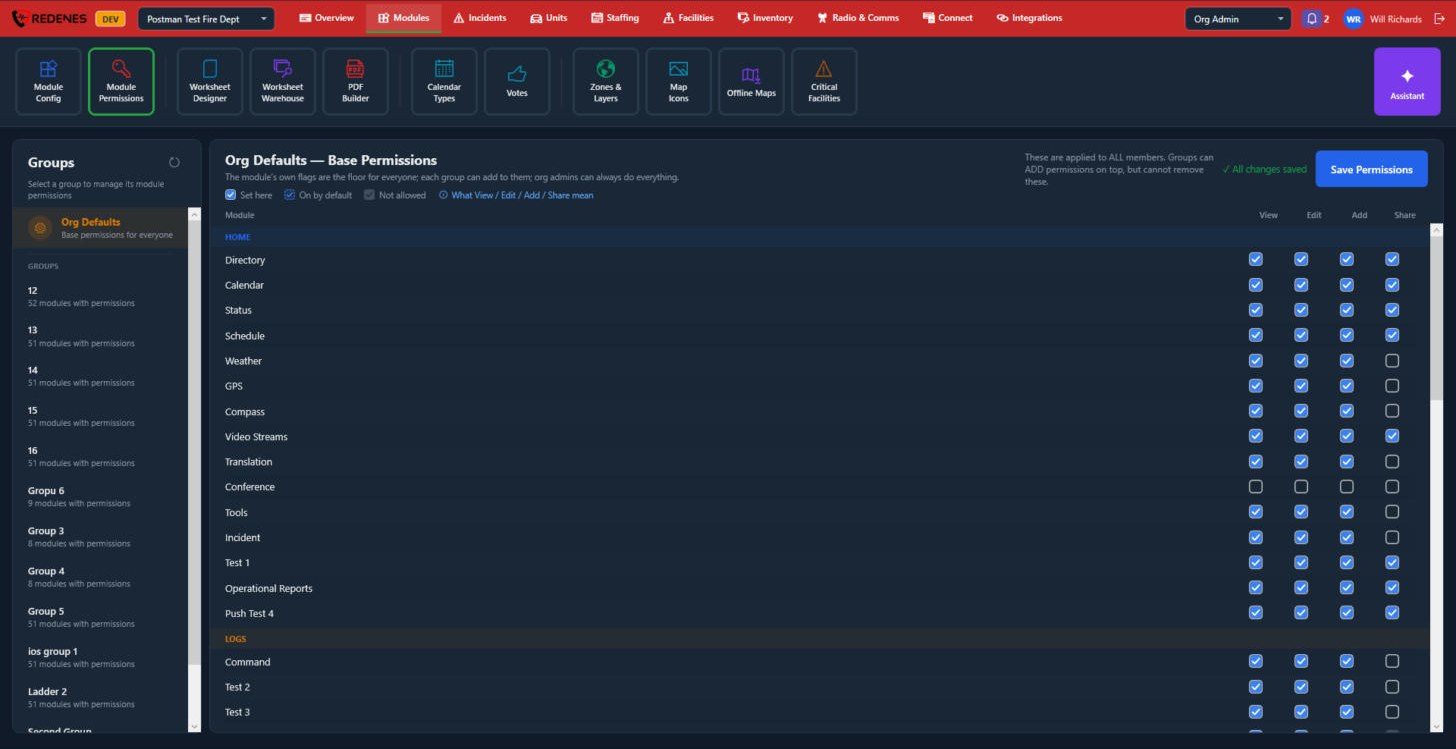
Click Org Defaults 1. Every module is listed under its app screen, with four boxes 3: View, Edit, Add and Share. What you tick here applies to all members. Groups can add to it but cannot take anything away. Click Save Permissions 4 when you are done.
The legend 2 explains the three kinds of box:
| Box | Meaning |
|---|---|
| Set here | Ticked on this page, for Org Defaults or for this group. |
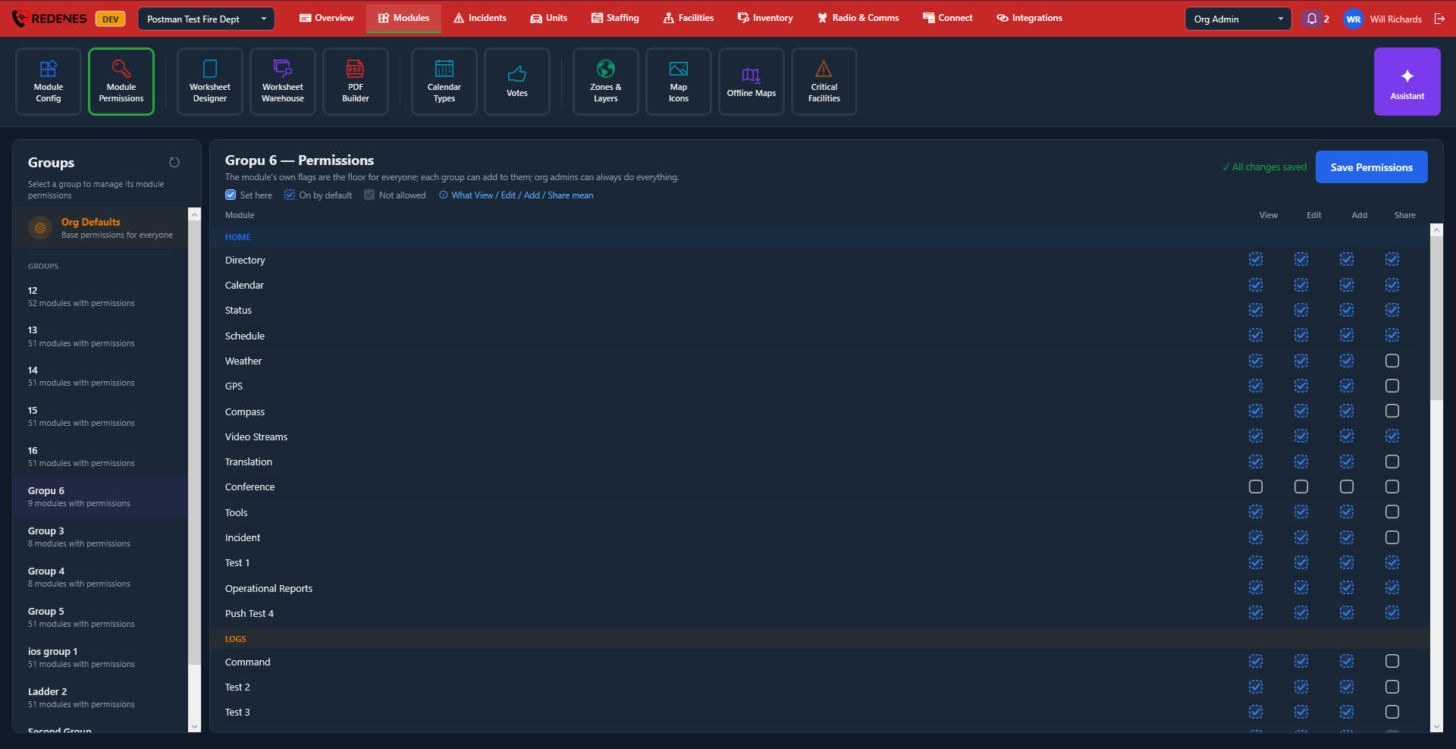
| On by default | Already allowed by Org Defaults, so the group has it without you ticking it. Shown with a dashed edge. |
| Not allowed | The module does not have that action, so the box cannot be ticked. |
A group
 123
Click a group 1. The line under each group's name shows how many modules it has permissions for. In the grid 2, tick the extra things this group may do and click Save Permissions. A member in several groups gets everything any of them allows.
 1
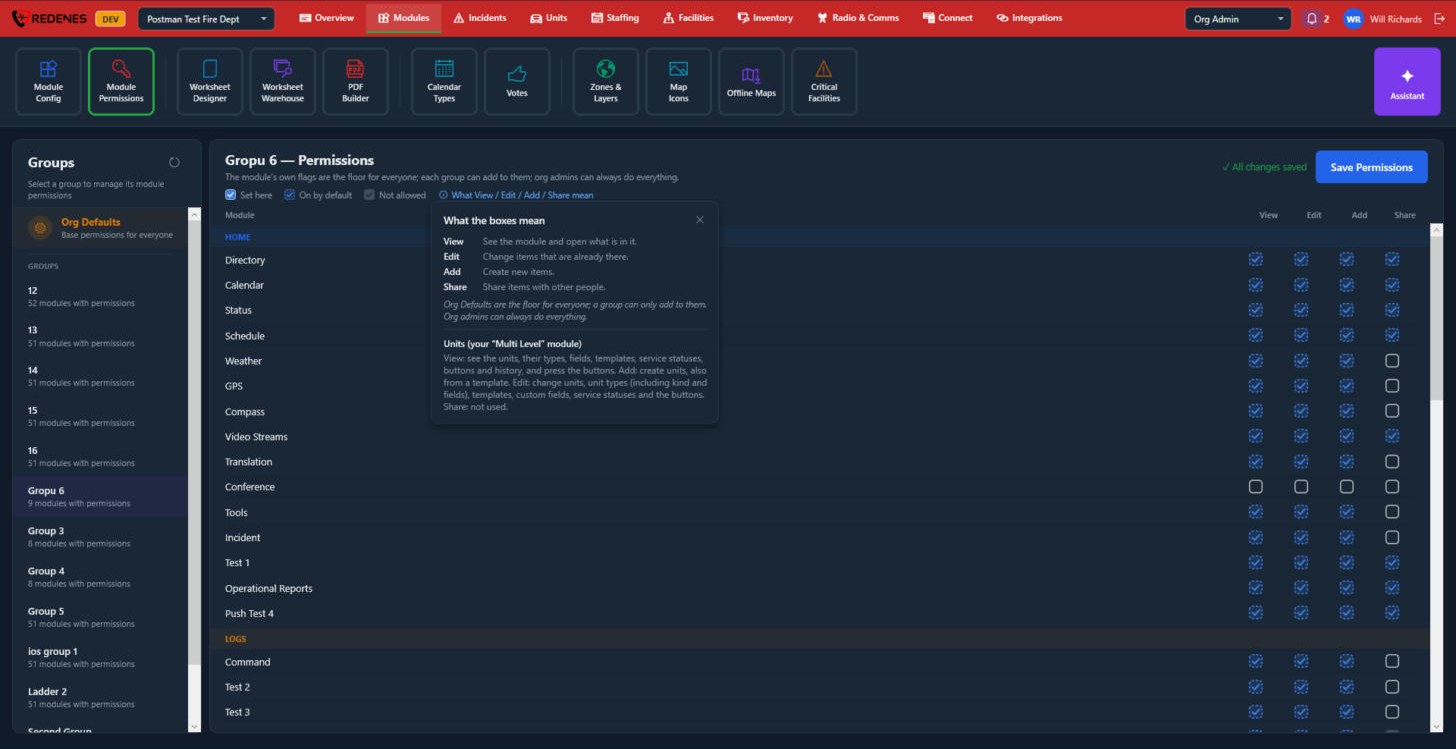
Click What View / Edit / Add / Share mean 3 for a reminder 1. Some modules, such as Units, list exactly what each box covers there.
To see the result for one person, open them under Members and scroll to Module Permissions.