Votes
Votes lets your members vote from their phones: a motion at a meeting, a poll, a quick decision.
Where: ModulesVotes
 123
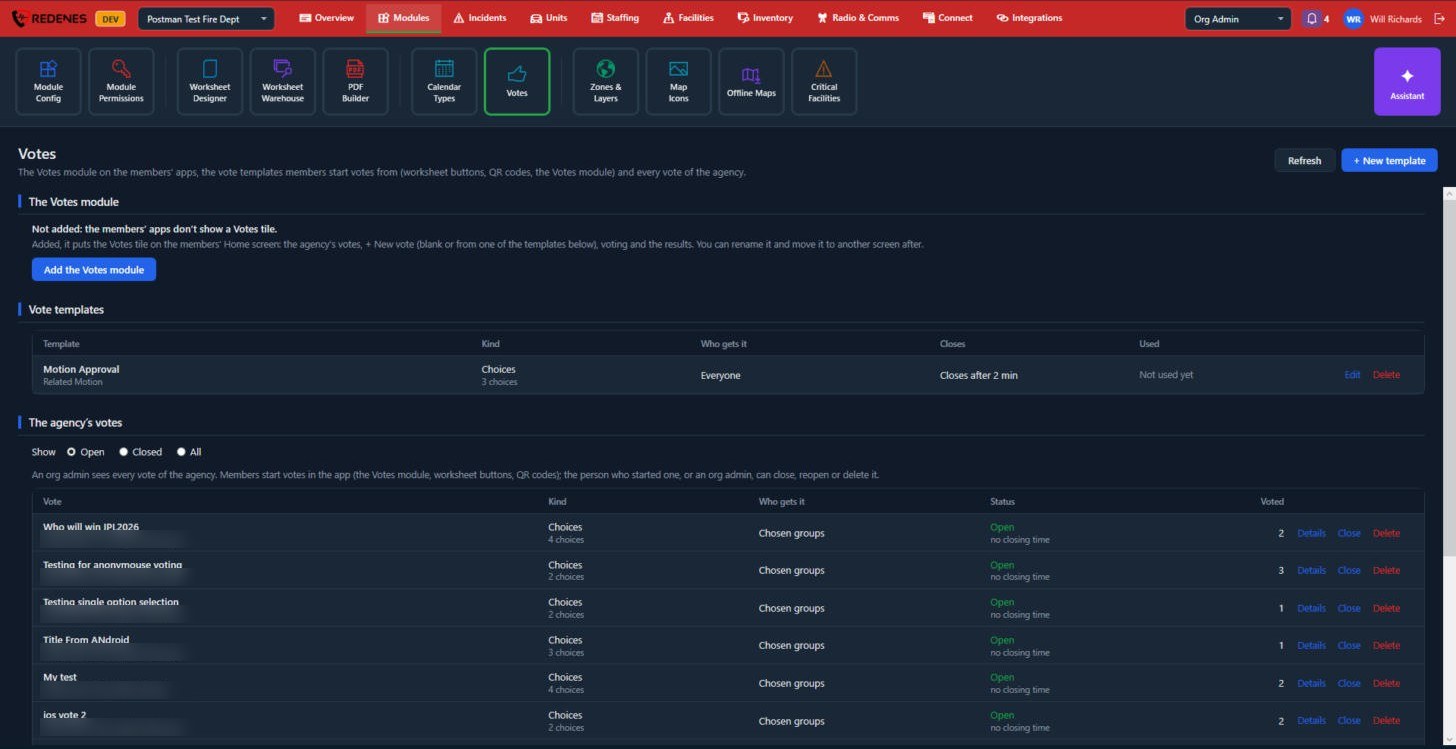
The Votes module 1
Until you click Add the Votes module, members have no Votes tile. Once added, the tile appears on their Home screen with the agency's votes, + New vote, voting and results. You can rename it and move it to another screen in Module Config.
Vote templates 2
A template saves the setup of a vote you hold often. Click + New template and set:
- the kind and the choices,
- who gets it: everyone or chosen groups,
- when it closes, for example after two minutes.
Members start a vote from a template in the Votes module, from a worksheet button or from a QR code.
 123456
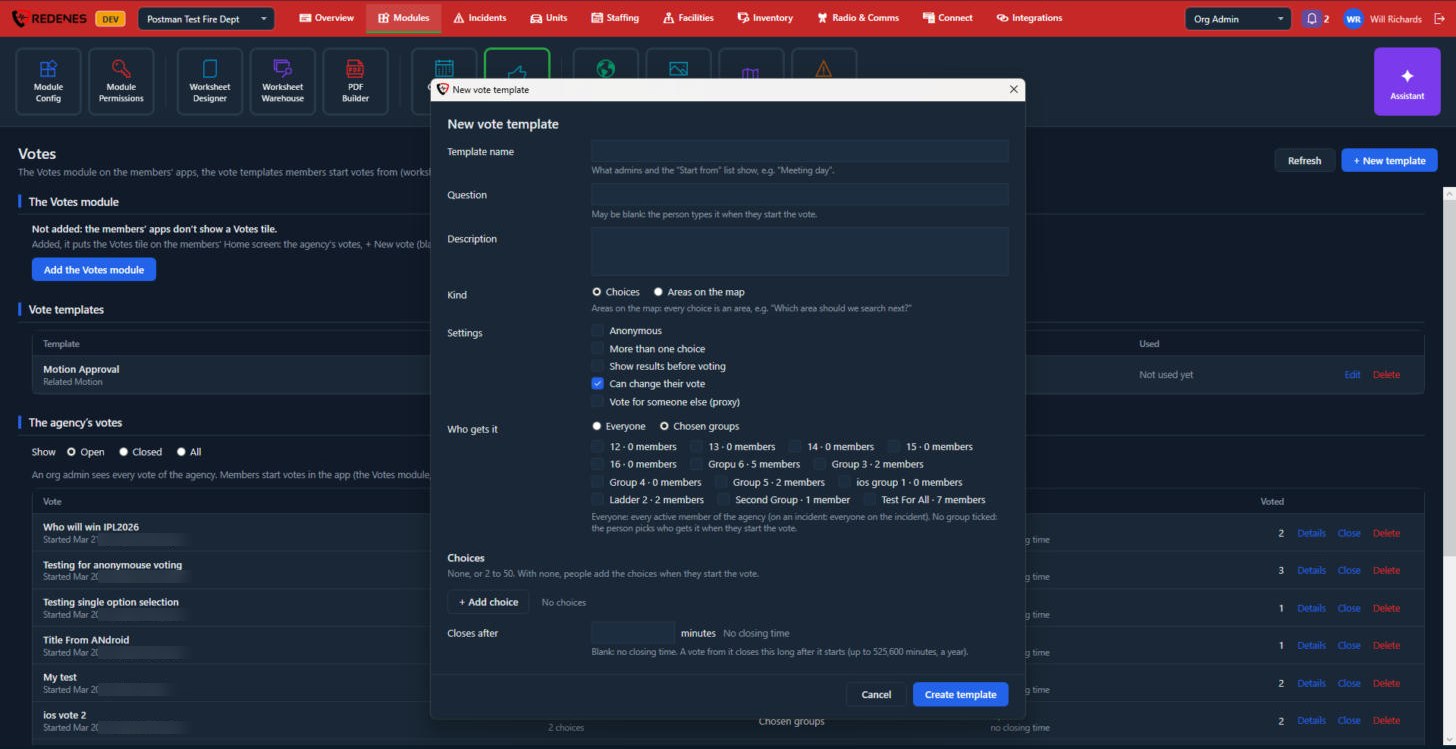
- Template name, Question and Description 1. The question may be left empty. The person then types it when they start the vote.
- Kind 2: Choices, or Areas on the map where every choice is an area.
- Settings 3:
| Setting | Meaning |
|---|---|
| Anonymous | Nobody sees who voted for what. |
| More than one choice | A voter may pick several choices. |
| Show results before voting | Voters see the count before they vote. |
| Can change their vote | A voter may change their vote while the vote is open. |
| Vote for someone else (proxy) | A member may cast a vote for another member. |
- Who gets it 4: Everyone, or Chosen groups. With no group ticked, the person picks who gets it when they start the vote.
- Choices 5: none, or 2 to 50. With none, the person adds the choices when they start the vote.
- Closes after 6: a number of minutes, or empty for no closing time.
Edit and Delete on a template's row change or remove it.
The agency's votes 3
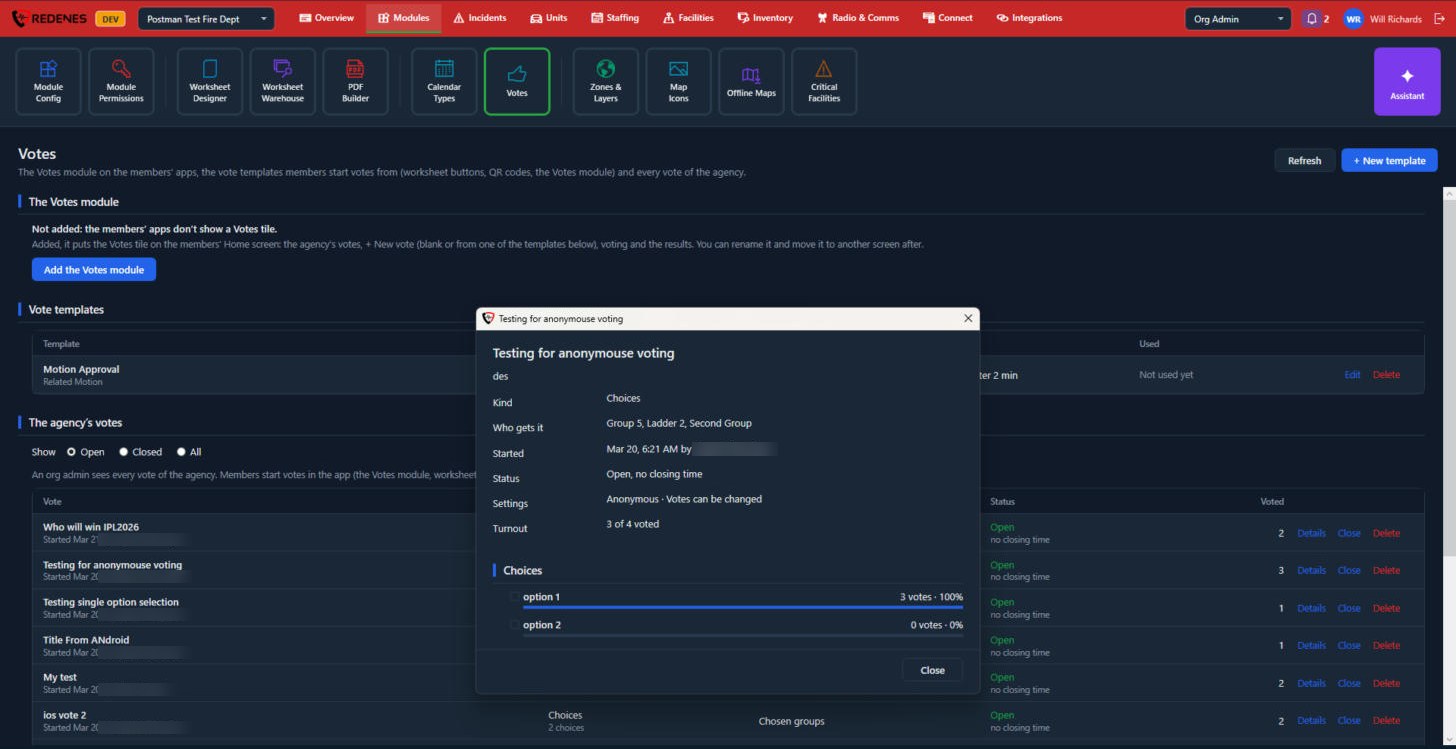
An org admin sees every vote. Switch between Open, Closed and All. Details shows the results, Close ends voting, and Delete removes the vote. The person who started a vote can also close, reopen or delete it.
 12
Details shows the facts of the vote 1, with the turnout, and each choice with its votes and share 2.