Payments
See your plan, what this month costs, and how the agency pays.
Where: OverviewPayments
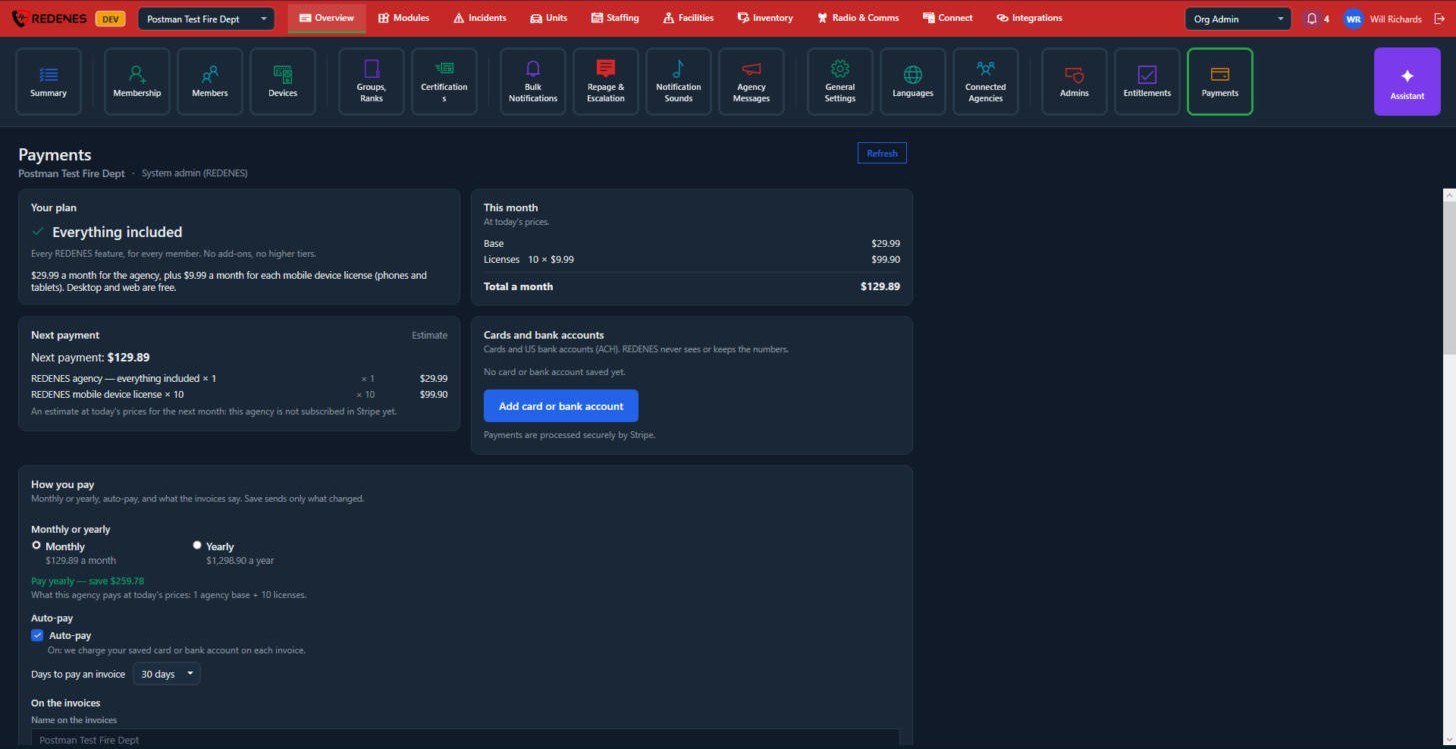 1234
- Your plan 1: what is included and how the price is made up.
- This month 2: the base price, your device licenses and the total at today's prices.
- Next payment: an estimate of the next invoice.
- Cards and bank accounts 3: click Add card or bank account to add a card or a US bank account (ACH). Payments are processed by Stripe. REDENES never sees or keeps the numbers.
- How you pay 4: monthly or yearly, Auto-pay, how many days you have to pay an invoice, and the name printed on invoices.
Only a full admin sees this page.
Invoices
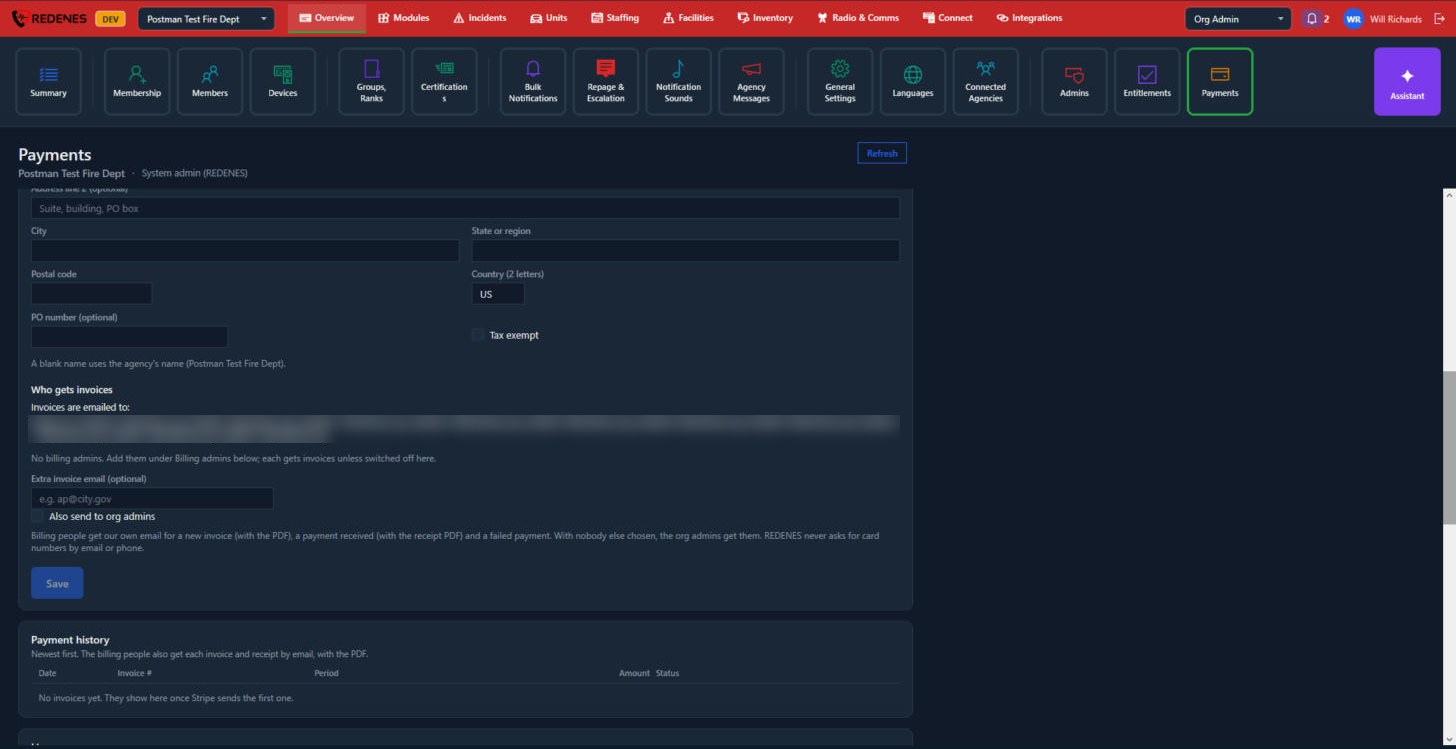 1234
- The invoice address 1: address, city, state, postal code and country, an optional PO number and Tax exempt. A blank name uses the agency's name.
- Who gets invoices 2 lists the addresses invoices are emailed to. Add an Extra invoice email, for example your accounts payable office, and choose whether org admins get them too. Billing people get an email for a new invoice, a payment received and a failed payment, each with the PDF. REDENES never asks for card numbers by email or phone.
- Save 3 sends only what you changed.
- Payment history 4 lists every invoice, newest first, with its period, amount and status.
Licenses, billing code and billing admins
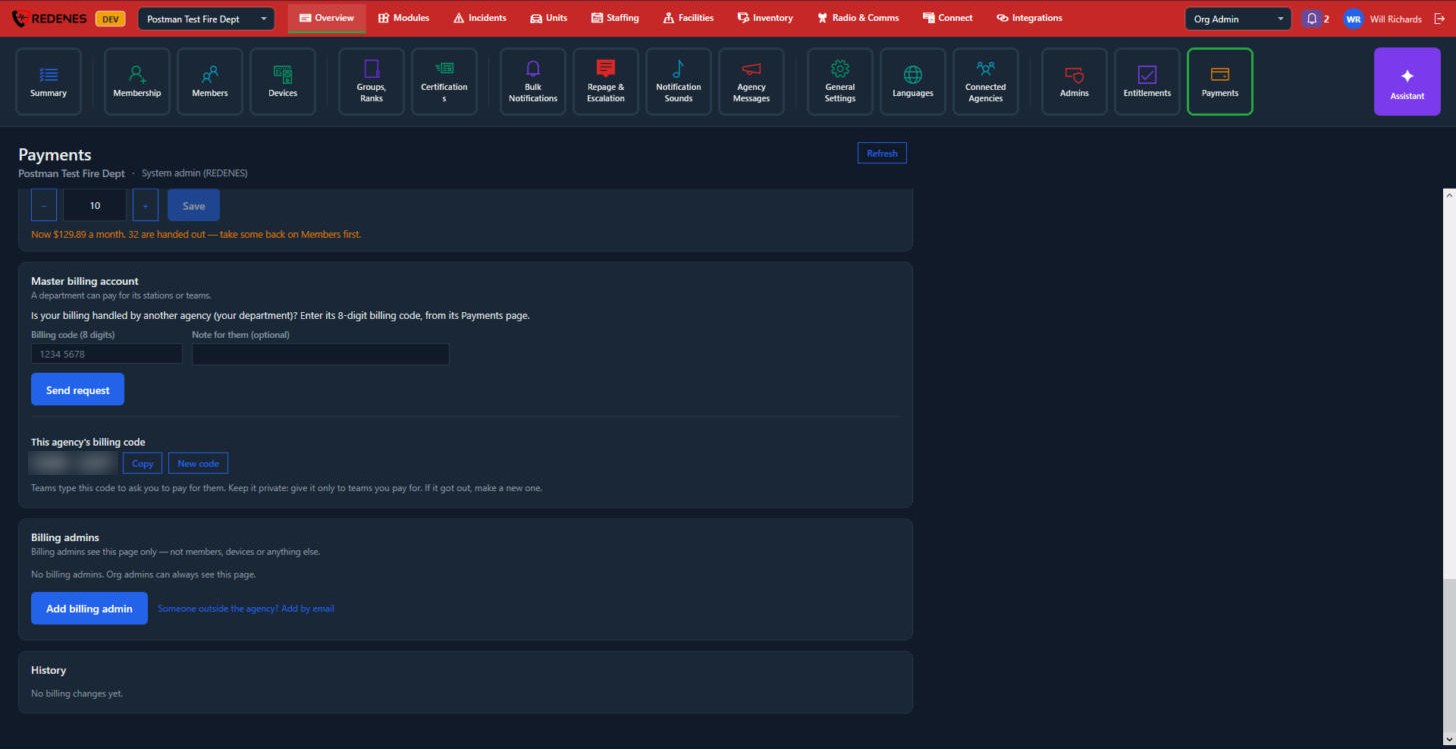 12345
- Device licenses 1: use - and + to change how many mobile device licenses the agency buys, then Save. The line underneath shows the new monthly price. If more licenses are handed out than you are buying, take some back under Members first.
- Master billing account 2: if another agency, such as your department, pays for yours, type its 8-digit billing code and click Send request.
- This agency's billing code 3: give this code to a station or team that you pay for. Keep it private. New code replaces it if it got out.
- Billing admins 4: people who see this page only, and nothing else in the agency. Add billing admin picks a member. Use Add by email for someone outside the agency.
- History 5: a record of every billing change.