Notification Sounds
Upload alert sounds once and every member gets them in their own sound list, ready to assign to any notification.
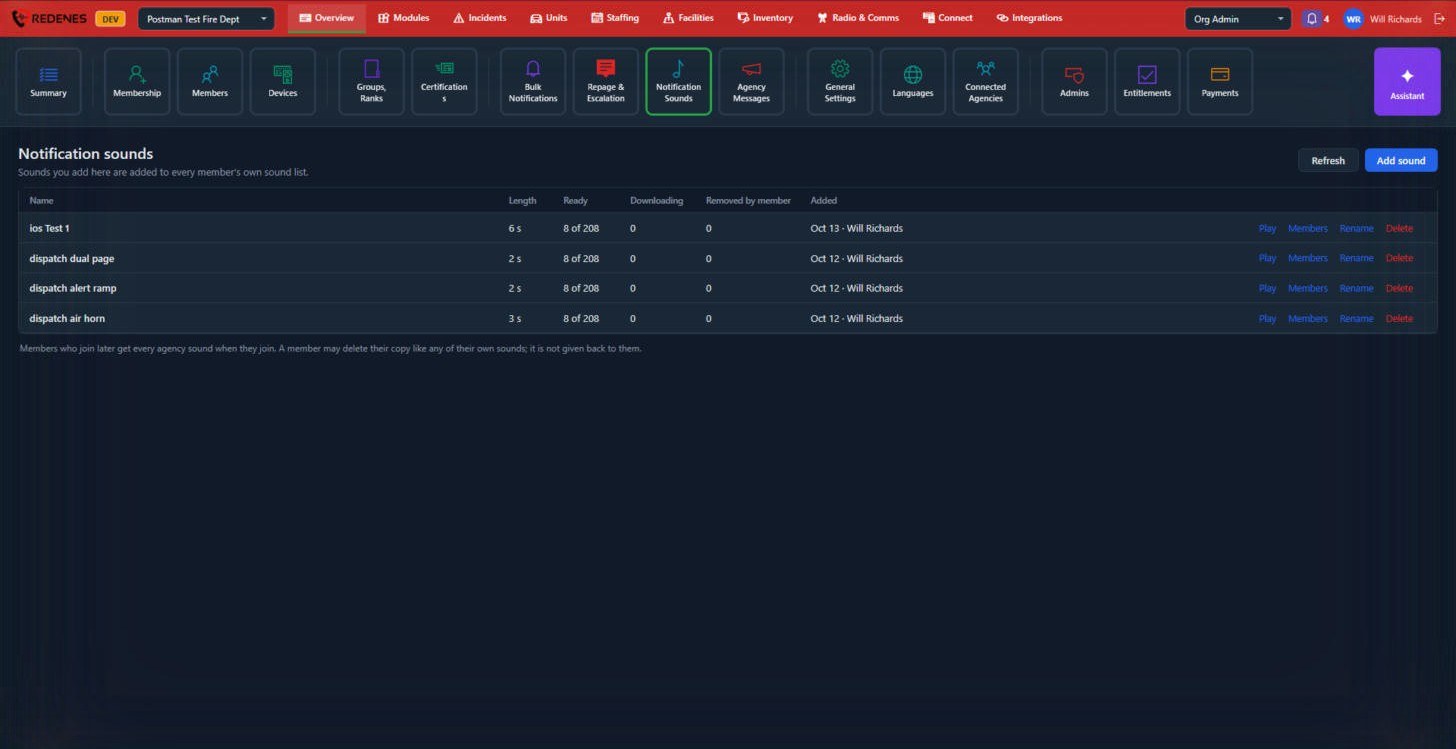
Where: OverviewNotification Sounds
 123
Add a sound
- Click Add sound 1 and choose an audio file (WAV, CAF or AIFF). Short sounds of a few seconds work best.
- Name it. Members see this name.
Watch it roll out 2
- Ready: members whose devices have downloaded it.
- Downloading: devices still fetching it.
- Removed by member: members who deleted their copy.
Manage a sound 3
Play it, see which Members have it, Rename it or Delete it.
Members who join later get every agency sound when they join. A member may delete their copy like any of their own sounds; it is not given back to them.
See how members pick sounds: Notification sounds in the app.
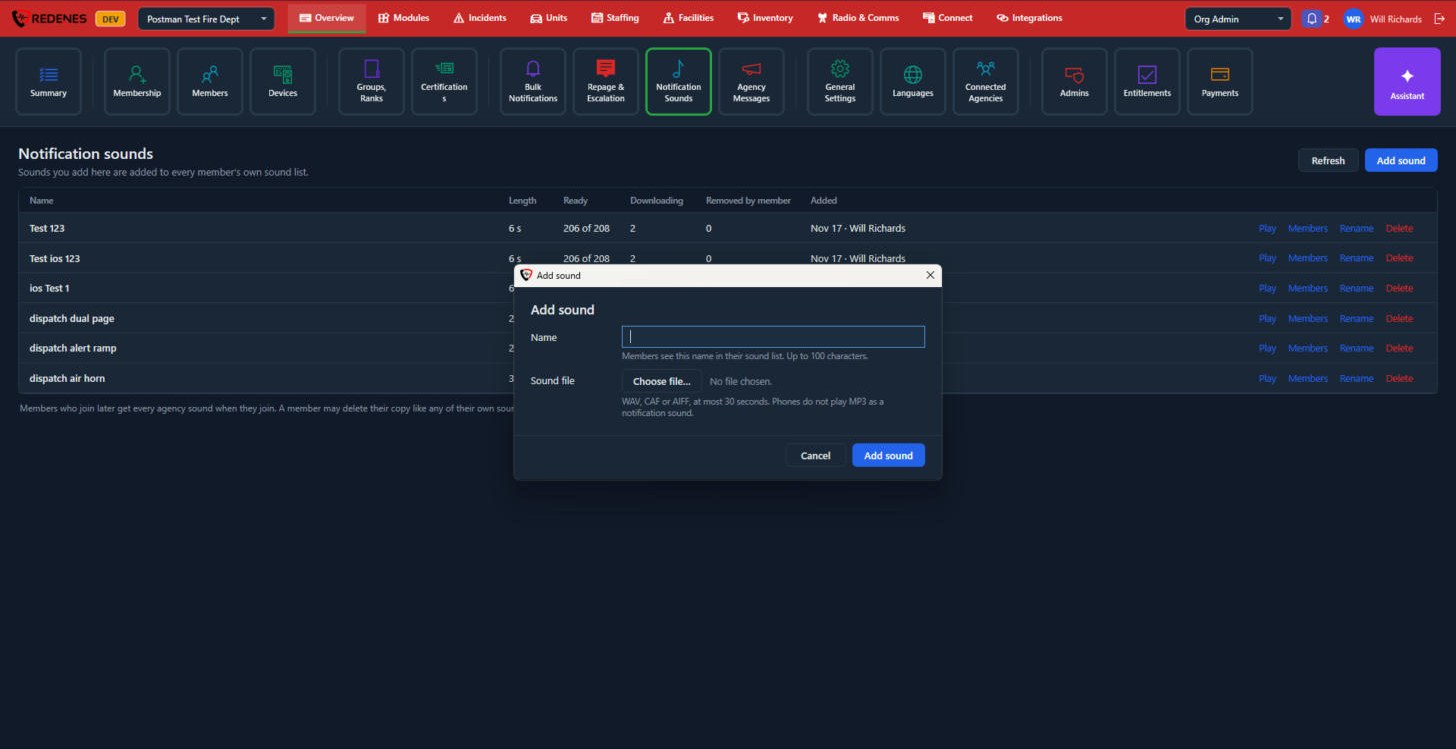
The Add sound window
 12
- Name 1: up to 100 characters. Members see this name in their sound list.
- Sound file 2: click Choose file. Use WAV, CAF or AIFF, at most 30 seconds. Phones do not play MP3 as a notification sound.
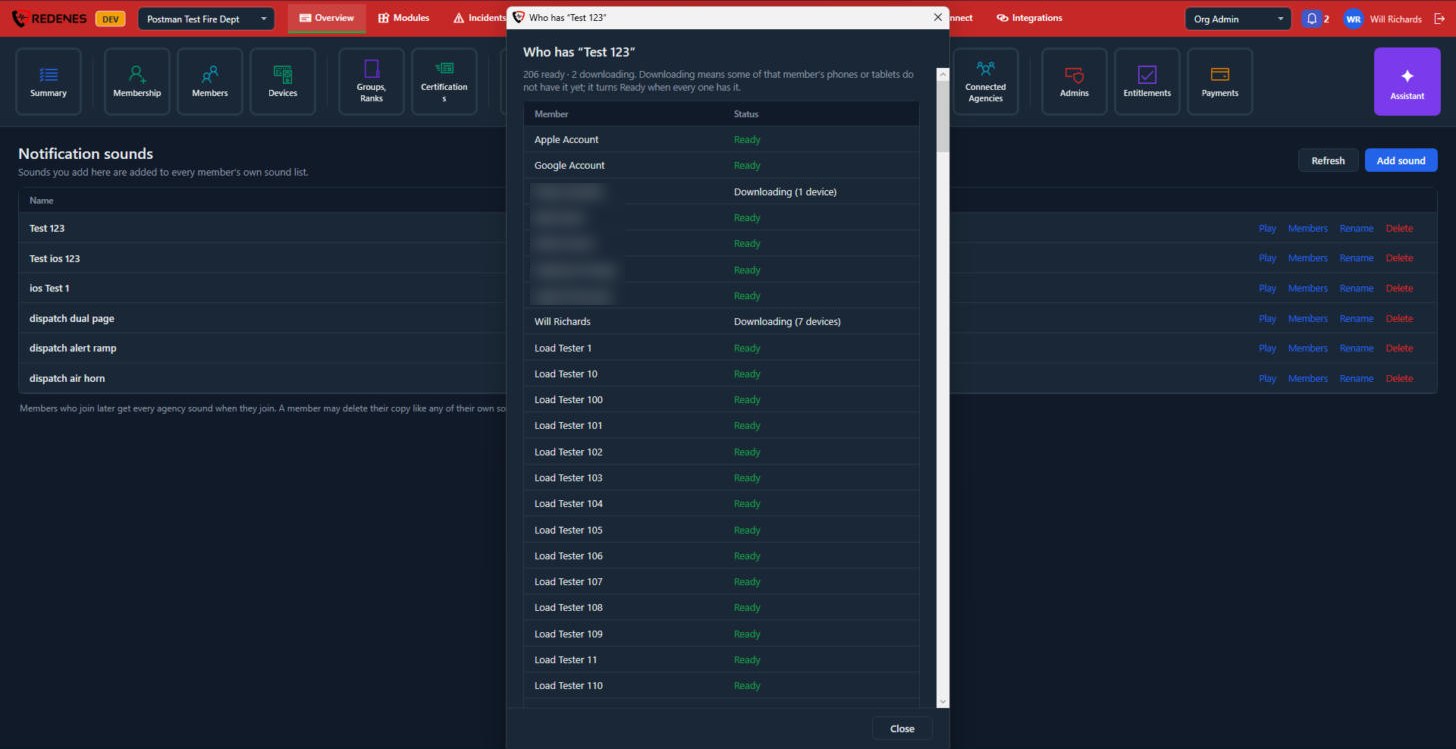
Who has a sound
Click Members on a row.
 12
The line at the top 1 counts how many members are ready and how many are still downloading. In the list 2, Ready means every one of that member's phones and tablets has the sound. Downloading means some of their devices do not have it yet, and shows how many.
Rename changes the name members see. Delete removes the sound from the agency's list.