General Settings
Agency-wide settings in four tabs.
Where: OverviewGeneral Settings
 123
The tabs 1
| Tab | What it sets |
|---|---|
| Logo and icon | The agency's logo for reports and documents, and its icon for the apps and the contact card. |
| Agency phone number | The number your agency's texts and calls come from. |
| Duty statuses | How On Duty, On Call and Off Duty work for your members. |
| Default app settings | The app settings a new member starts with. |
Logo and icon
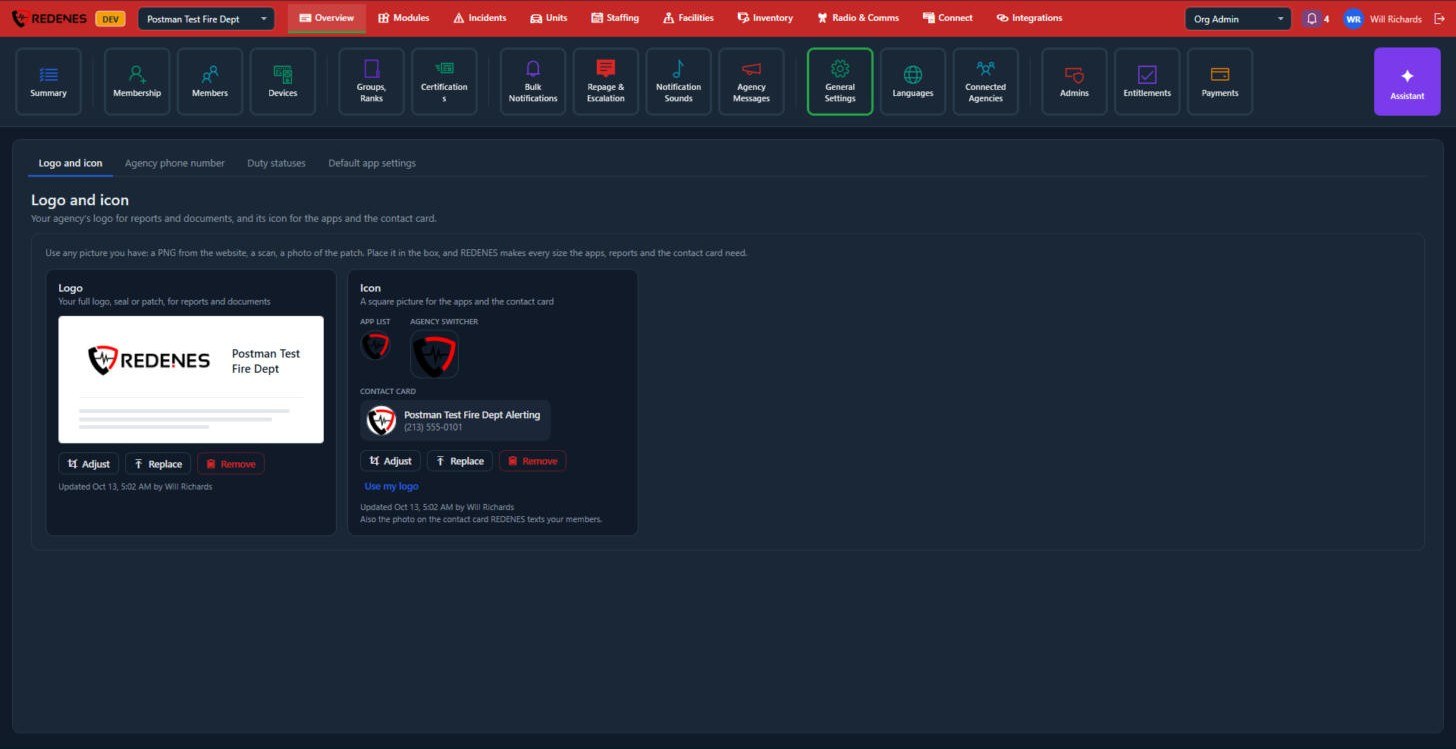
- Logo 2: your full logo, seal or patch. Use any picture you have (a PNG from the website, a scan, a photo of the patch). Adjust positions it, Replace swaps it, Remove clears it.
- Icon 3: a square picture shown in the app list and the agency switcher. The same picture is used on the contact card REDENES texts to your members, so alerts from your agency show your icon on their phone.
REDENES makes every size the apps and reports need from the one picture you upload.
Agency phone number
 123
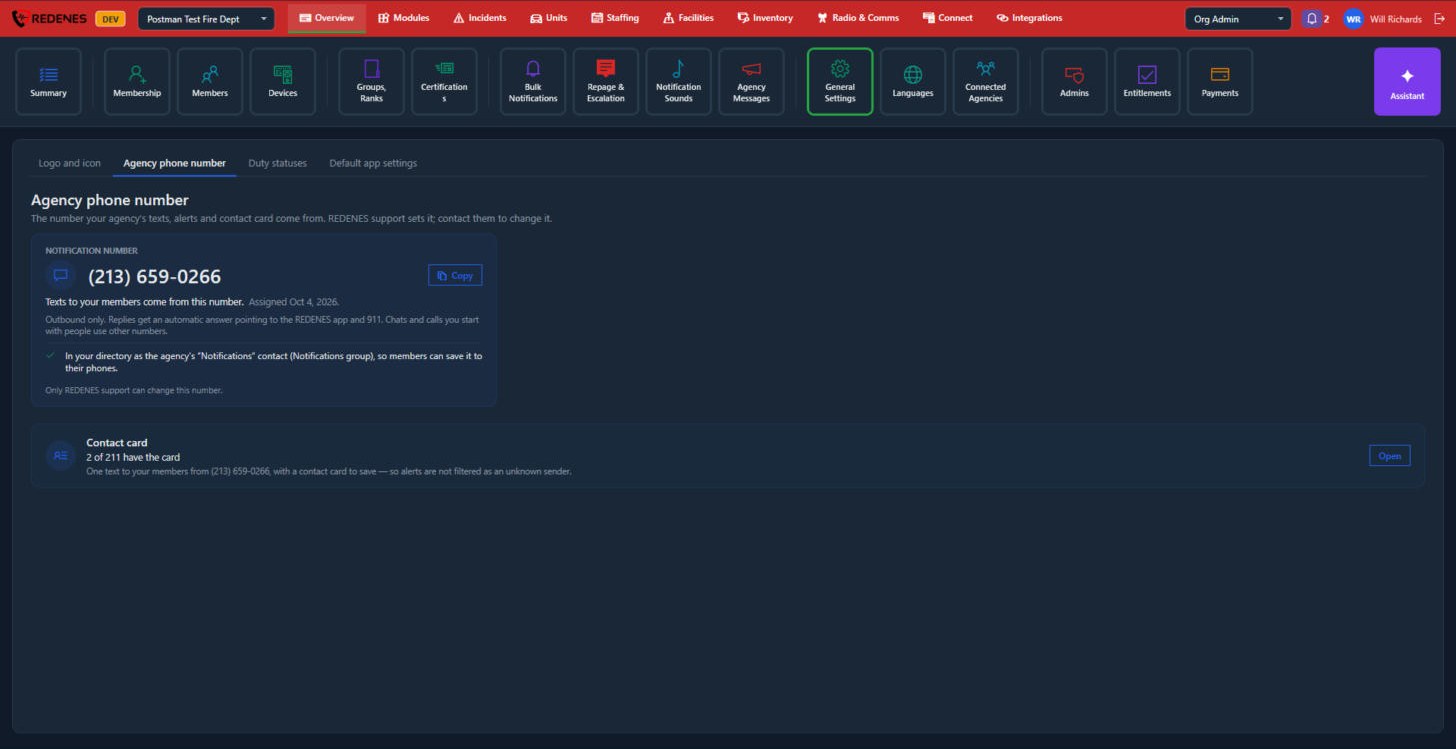
- Notification number 1: the number your agency's texts, alerts and contact card come from. Copy puts it on the clipboard. It is outbound only: a reply gets an automatic answer pointing to the REDENES app and 911. Only REDENES support can change this number.
- The tick 2 confirms the number is in your directory as the agency's Notifications contact, so members can save it to their phones.
- Contact card 3 shows how many members have the card. Click Open to see and send it.
The contact card
Phones often silence or filter texts from unknown numbers. The contact card is one text to your members with a contact to save, so alerts from your agency are never treated as an unknown sender.
 123
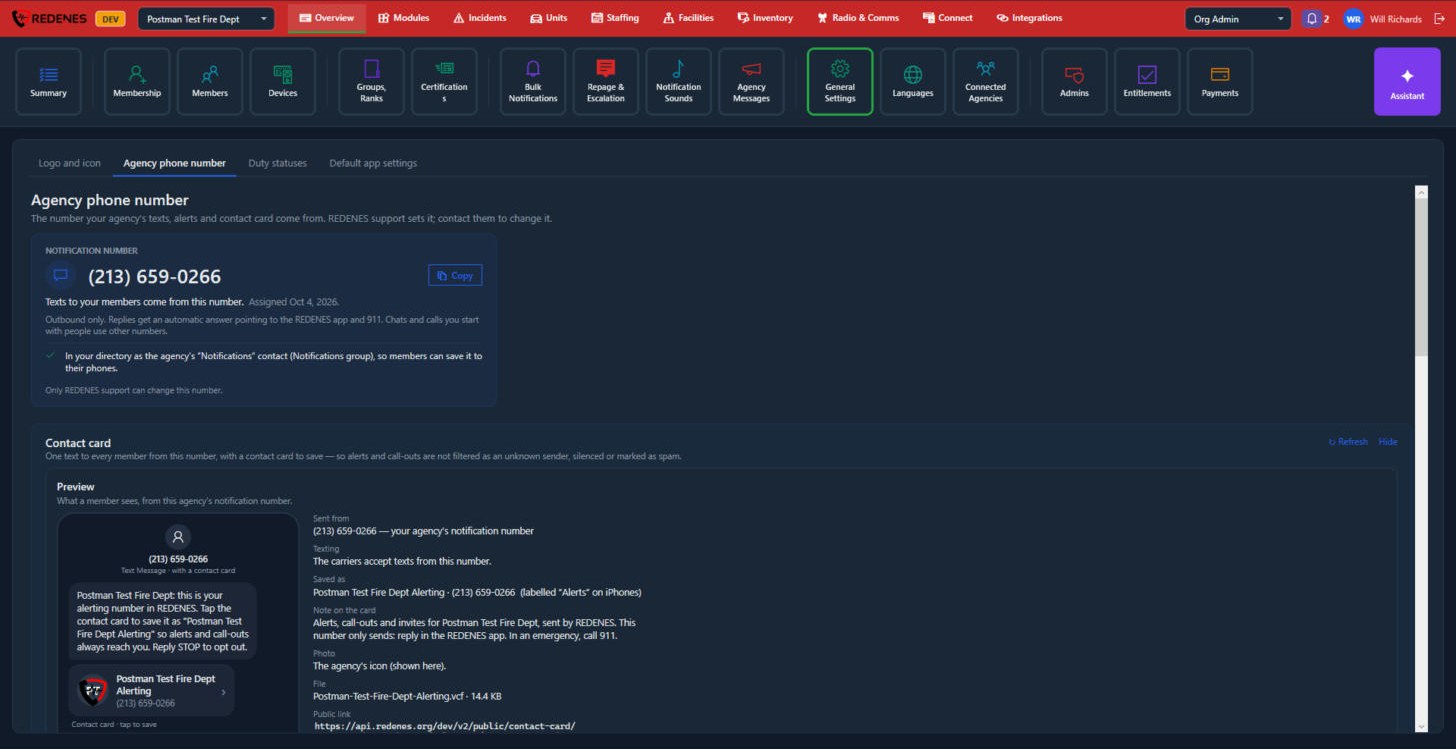
- Preview 1 shows the text exactly as a member sees it.
- The details 2 show the number it is sent from, the name it is saved as, the note on the card, the photo (your agency's icon) and the file.
- Refresh and Hide 3 reload the section or fold it away.
 12345
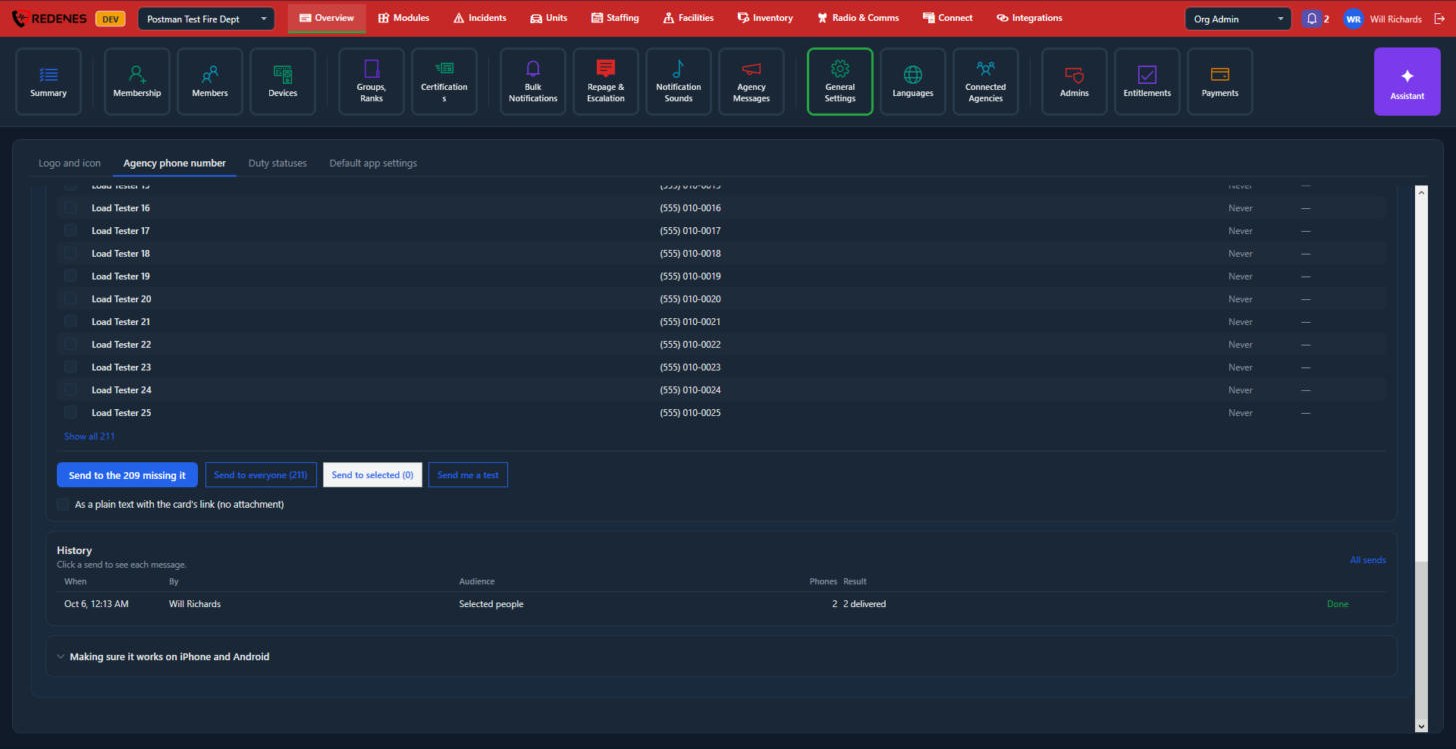
- The list 1 shows every member with their mobile number and whether the card was sent to them. Tick people to send to a chosen few. Show all opens the whole list.
- The send buttons 2: Send to the ones missing it, Send to everyone, Send to selected and Send me a test. Start with a test to yourself.
- As a plain text with the card's link 3 sends a link instead of an attachment, for phones that do not accept attachments.
- History 4 lists every send. Click one to see each message.
- Making sure it works on iPhone and Android 5 opens short instructions you can pass on to members.
Duty statuses
 123
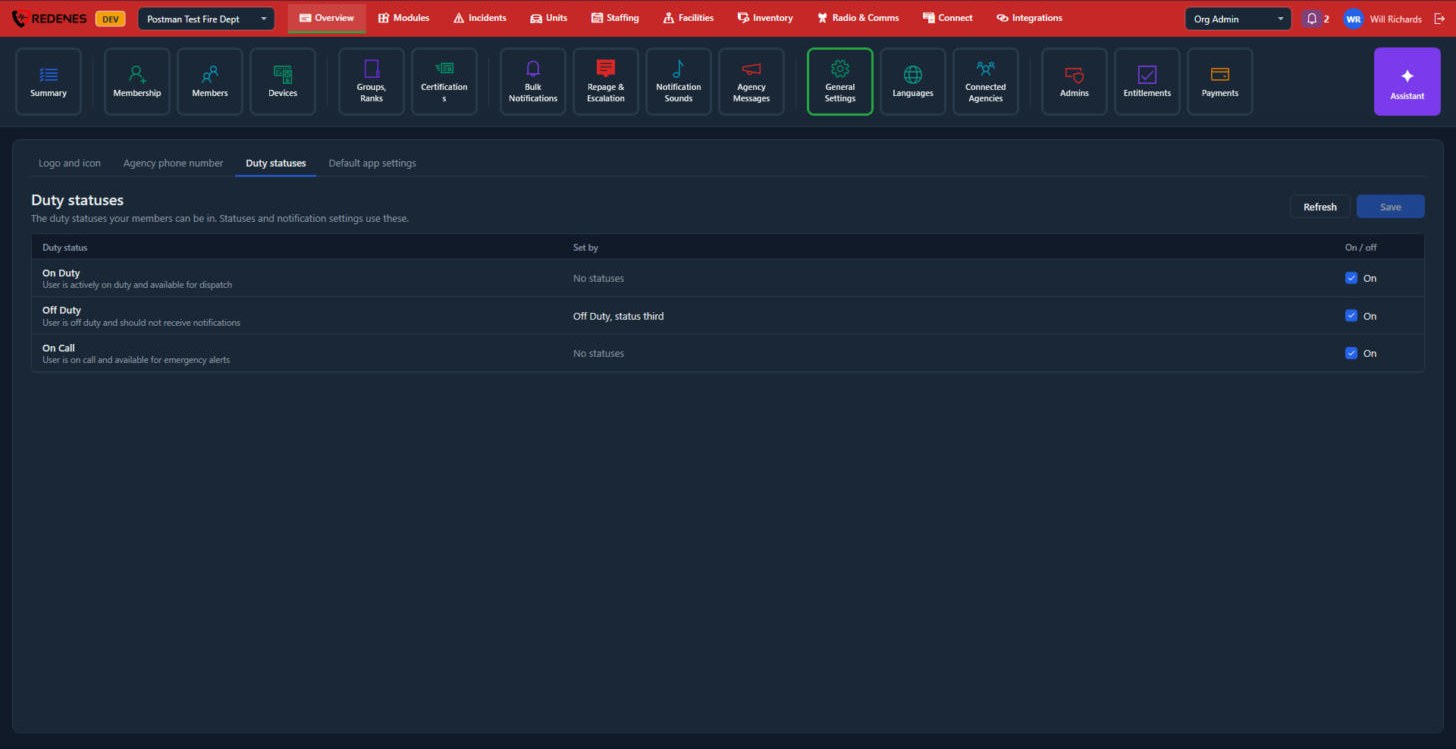
A duty status decides which set of notification levels a member is on. There are three: On Duty, Off Duty and On Call.
- Set by 1 lists the member statuses that put someone into this duty status. You link them on the Statuses tab of Groups, Ranks and Statuses.
- On / off 2: switches a duty status on or off for your agency.
- Click Save 3.
Default app settings
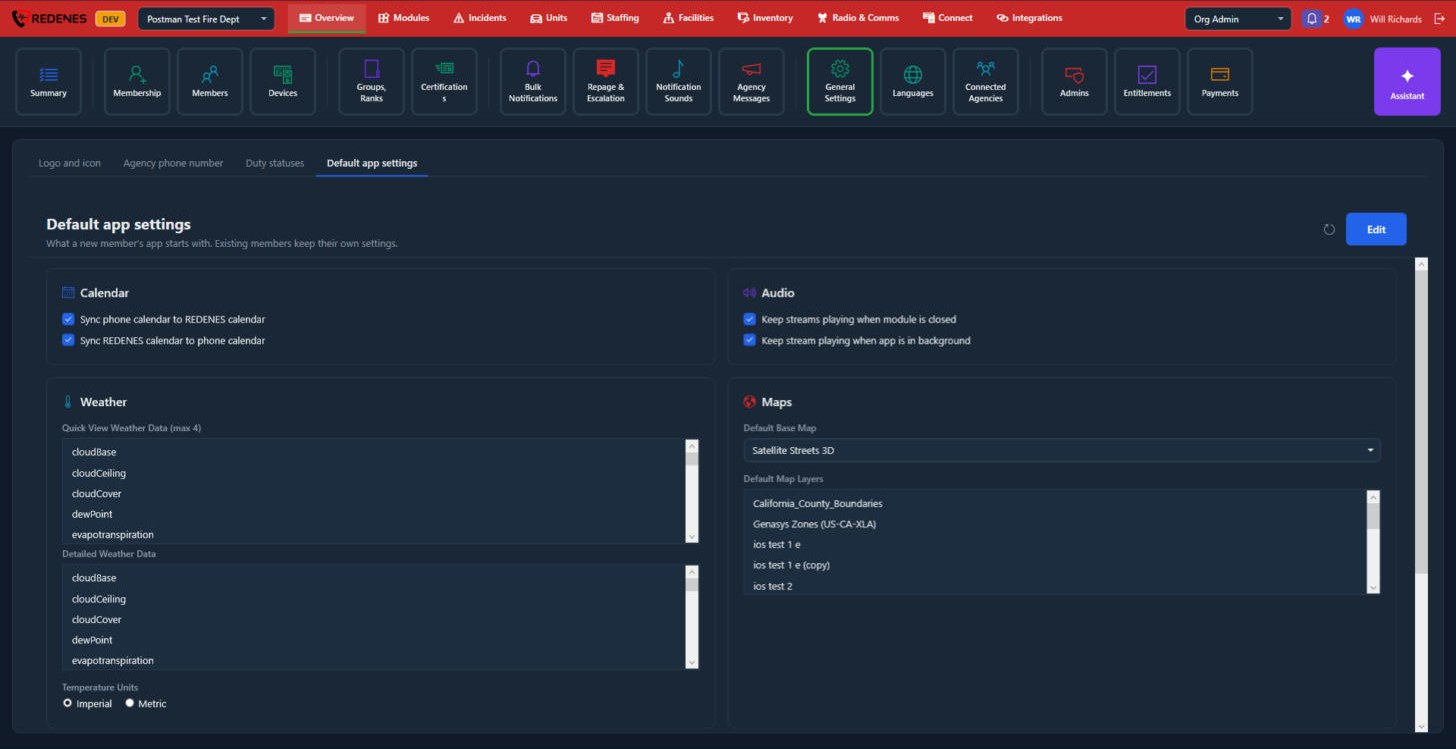
What a new member's app starts with. Existing members keep their own settings.
 12345
Click Edit 1, make your changes, then save.
- Calendar 2: whether the phone's calendar and the REDENES calendar copy events to each other.
- Audio 3: keep radio streams playing when the module is closed and when the app is in the background.
- Weather 4: which readings show in the quick view (up to 4) and in the detailed view, and the temperature units.
- Maps 5: the base map and the layers that are switched on to begin with.
 12
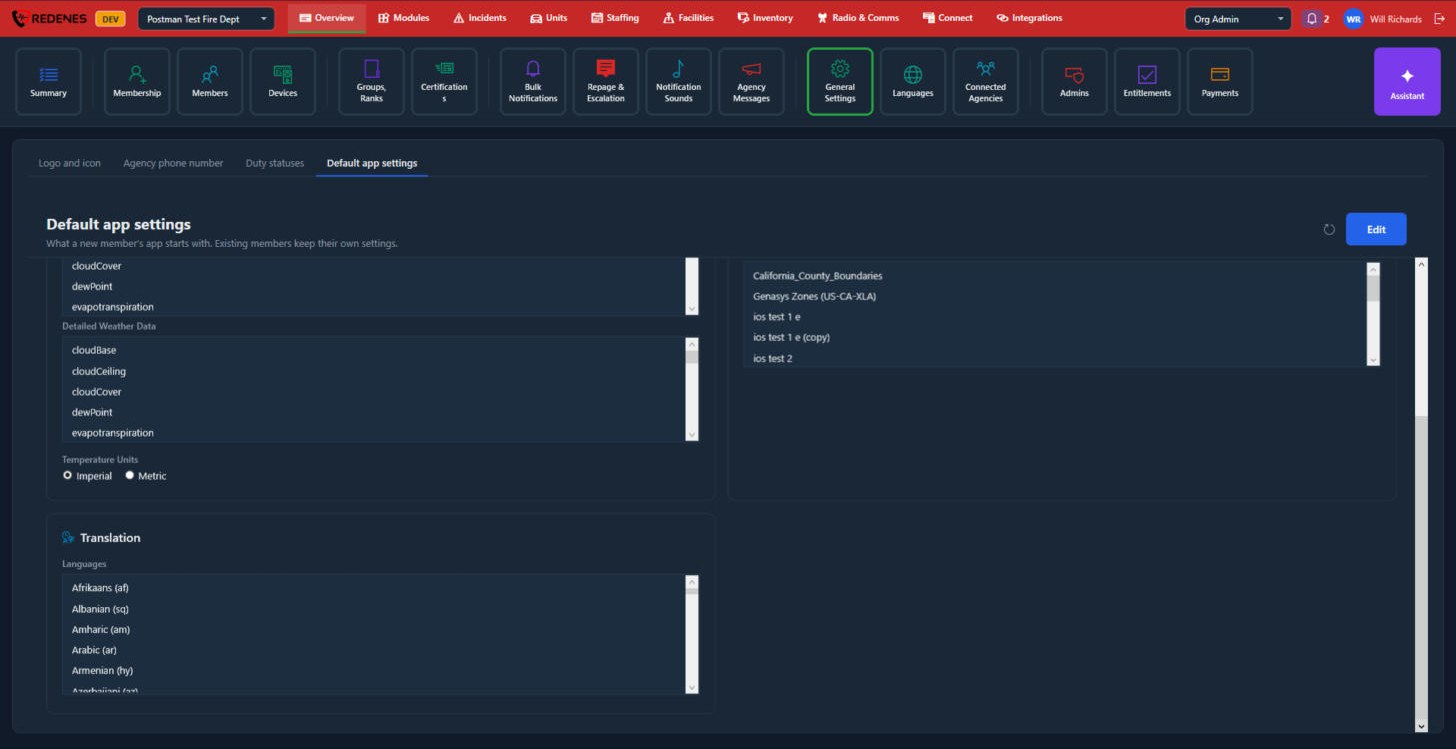
- Temperature Units 1: Imperial or Metric.
- Translation 2: the languages offered in the app's translator.
A member can change any of these for themselves. An admin can change them for one member with Settings on their page under Members.