Bulk Notifications
Every member chooses their own notification levels in the app. Bulk Notifications lets you set those levels for many people at once, set the defaults new members start with, and pause alerts while you test.
Where: OverviewBulk Notifications
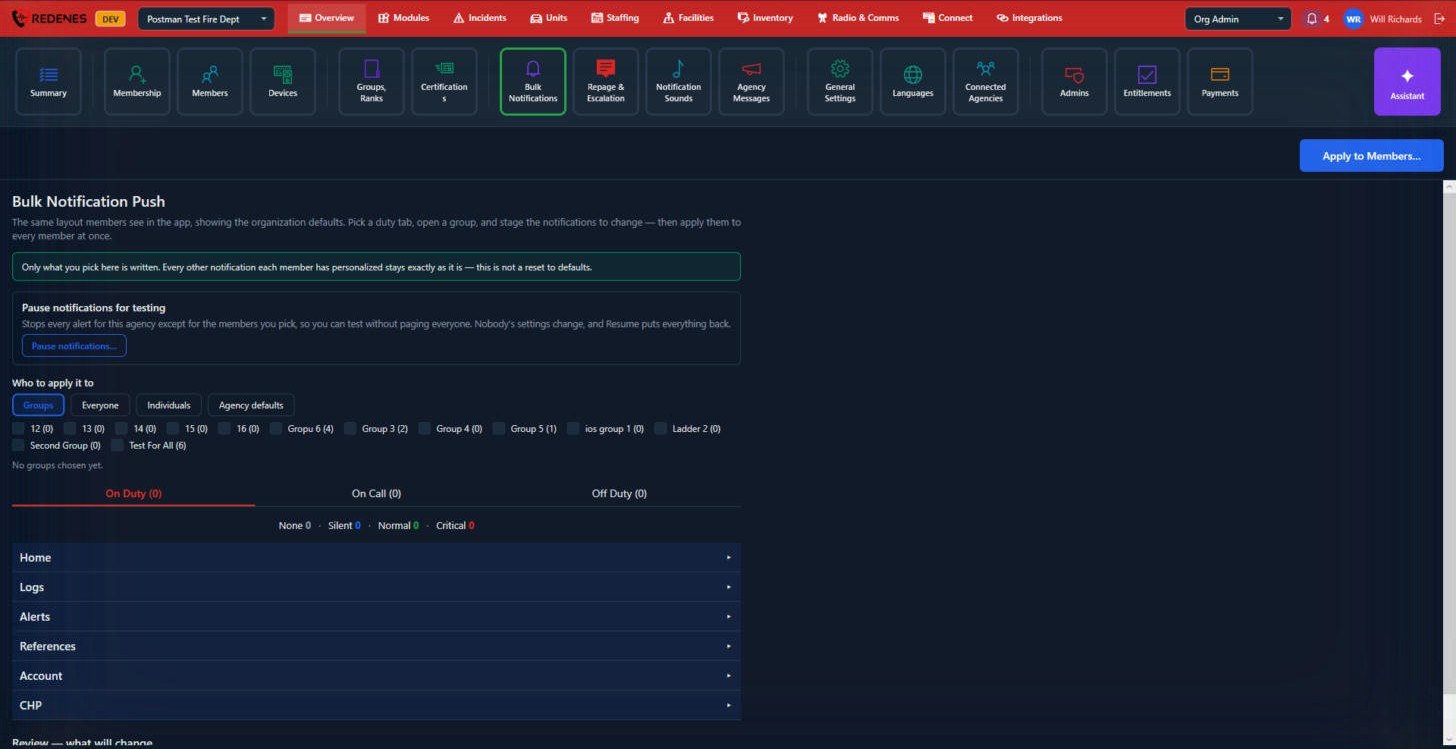 12345
Change notifications for many members
- Under Who to apply it to 1 pick Groups, Everyone or Individuals, then tick the groups or people.
- Pick the duty tab 2: On Duty, On Call or Off Duty. Members have a separate set of levels for each.
- Open a section 3 (Home, Logs, Alerts and so on) and set the level for the items you want to change: None, Silent, Normal or Critical.
- Check Review at the bottom, then click Apply to Members 4.
Everything else each member has personalized stays exactly as it is. This is not a reset to defaults.
Agency defaults
Choose Agency defaults under Who to apply it to to set what a brand-new member starts with. Existing members are not changed.
Pause notifications for testing 5
Pause notifications stops every alert for the agency except for the members you pick, so you can test a new form or integration without paging everyone. Nobody's settings change, and Resume puts everything back.
See also what members see: Push notification settings.
Staging the changes, step by step
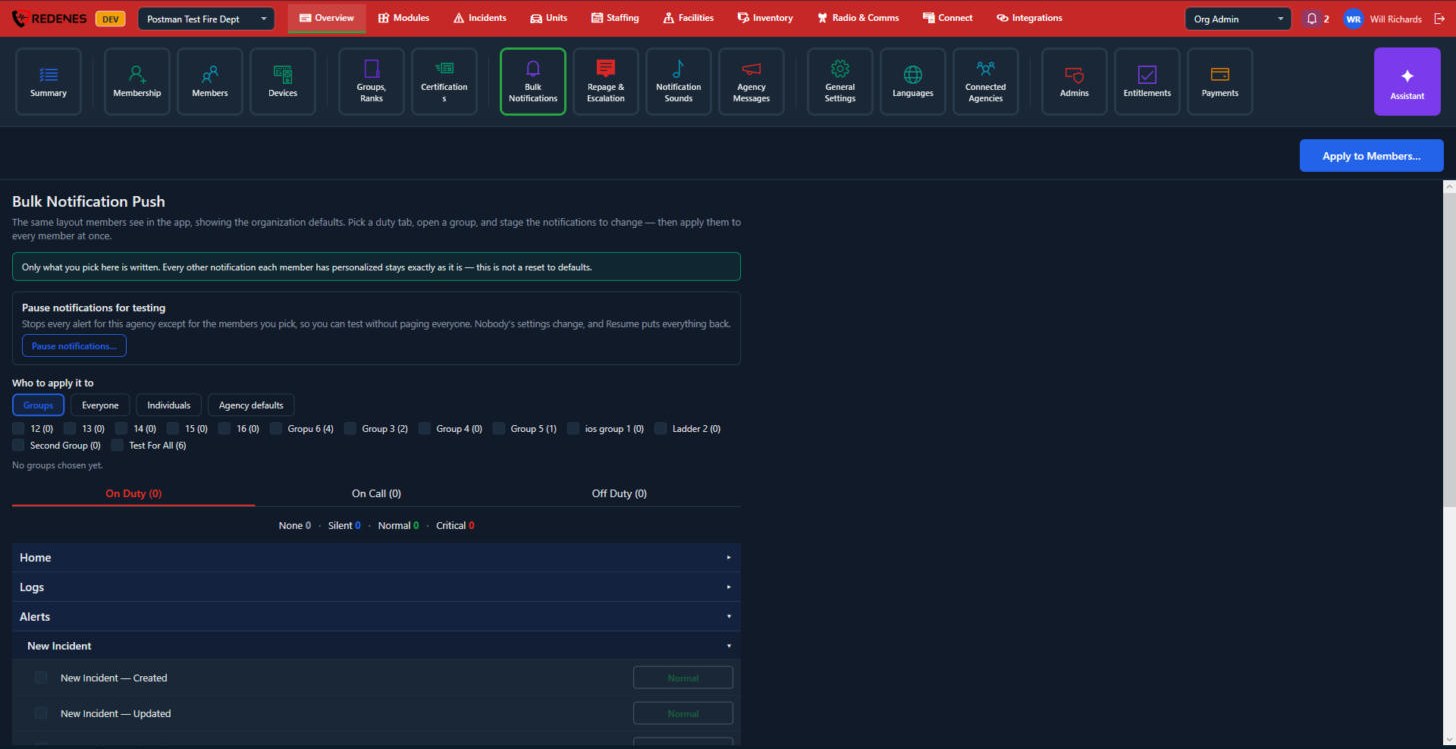 12
Open a section, then a module inside it. Each notification has a tick box 1 and a level button 2.
- Tick the notifications you want to change. Only ticked rows are written.
- Click the level button to set the level those members should get.
- Do the same on the other duty tabs if needed.
- Scroll to Review, what will change at the bottom. It lists every staged change in plain words.
- Click Apply to Members. You are asked to confirm before anything is written.
With Individuals chosen, a Choose members button appears in place of the group boxes.
Agency defaults, step by step
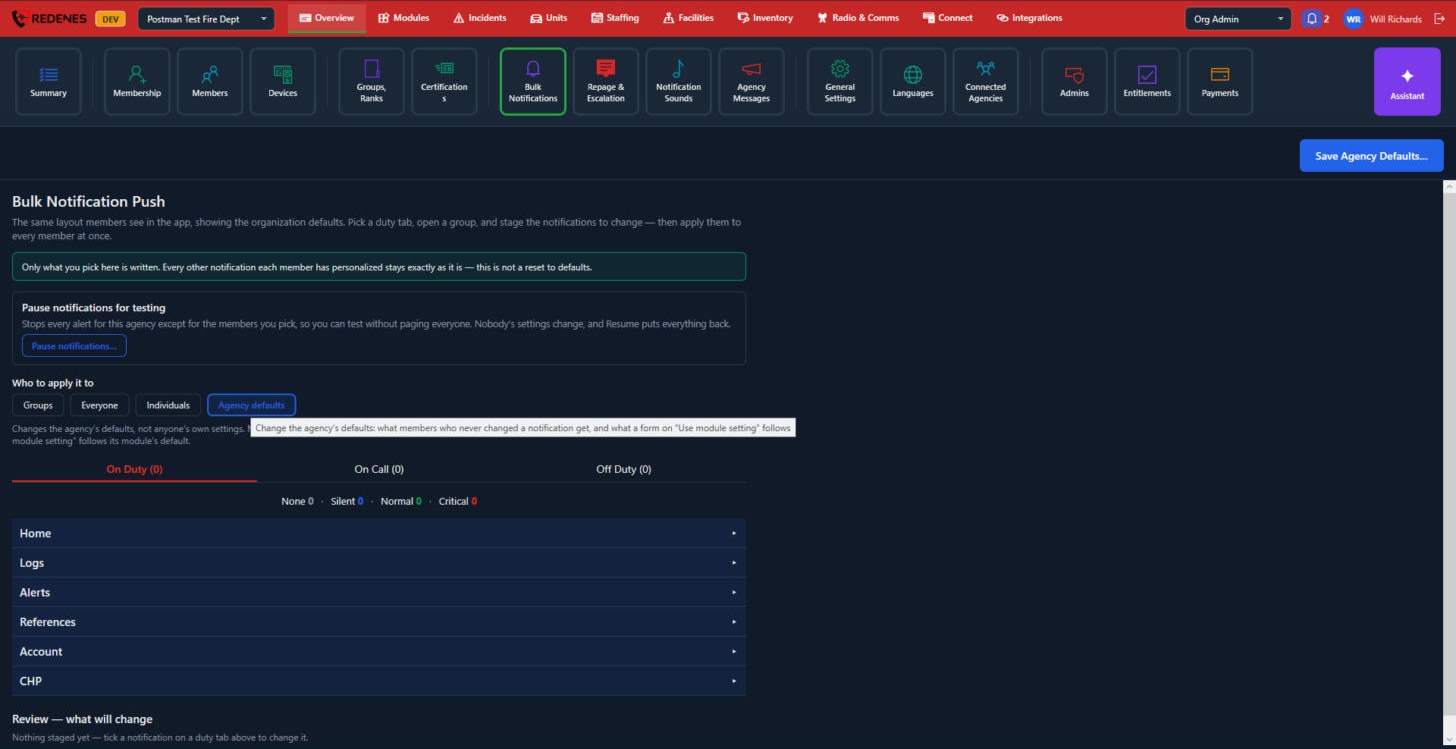 12
Choose Agency defaults 1. You are now changing what members who never changed a notification get, and what a form set to Use module setting follows. Nobody's own choices are touched. The button at the top right becomes Save Agency Defaults 2.
The Pause window
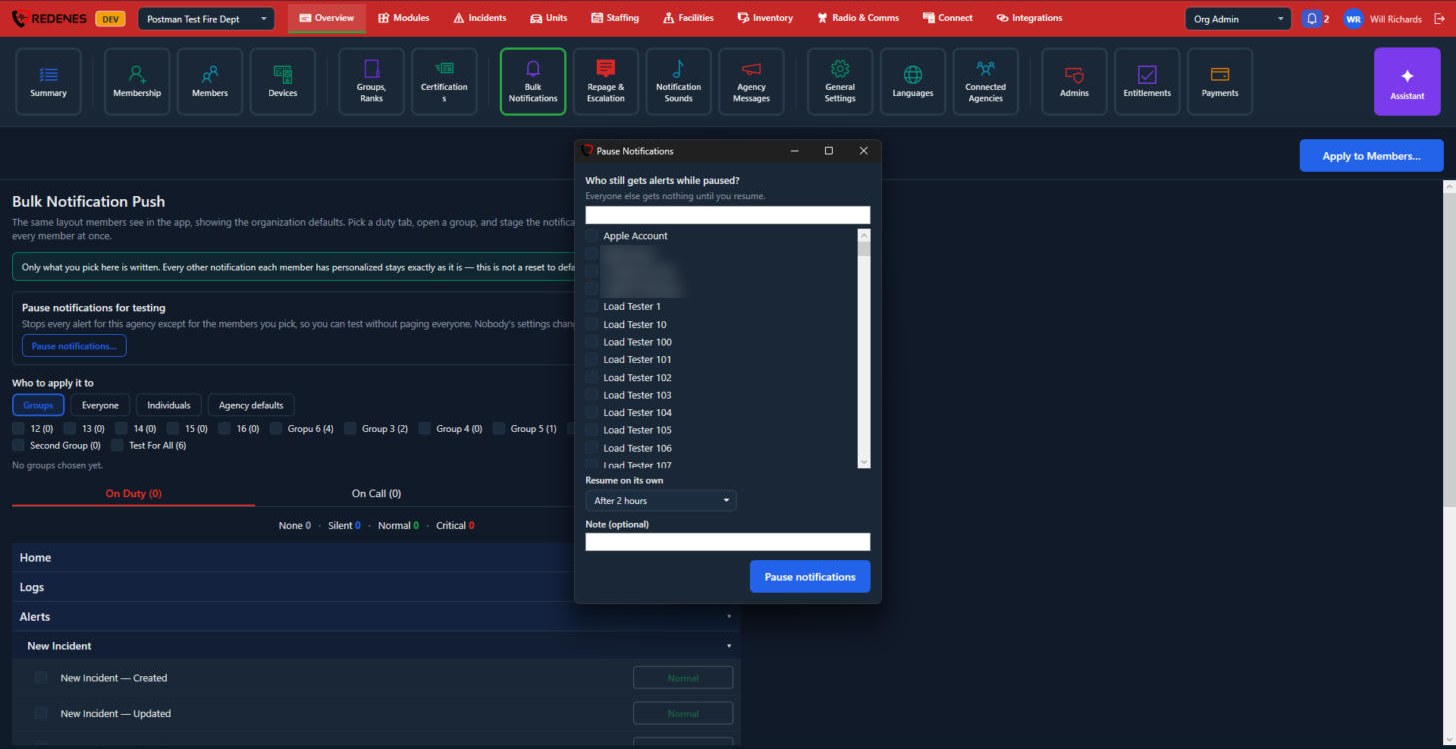 12345
- Tick the people who should still get alerts while paused 2, usually yourself and whoever is testing with you. Use the search box 1 to find them. Everyone else gets nothing until you resume.
- Resume on its own 3: pick when the pause ends by itself, so it can never be forgotten.
- Add a Note 4 if you like, for example what you are testing.
- Click Pause notifications 5.
While paused, the screen shows a Resume button.