Devices
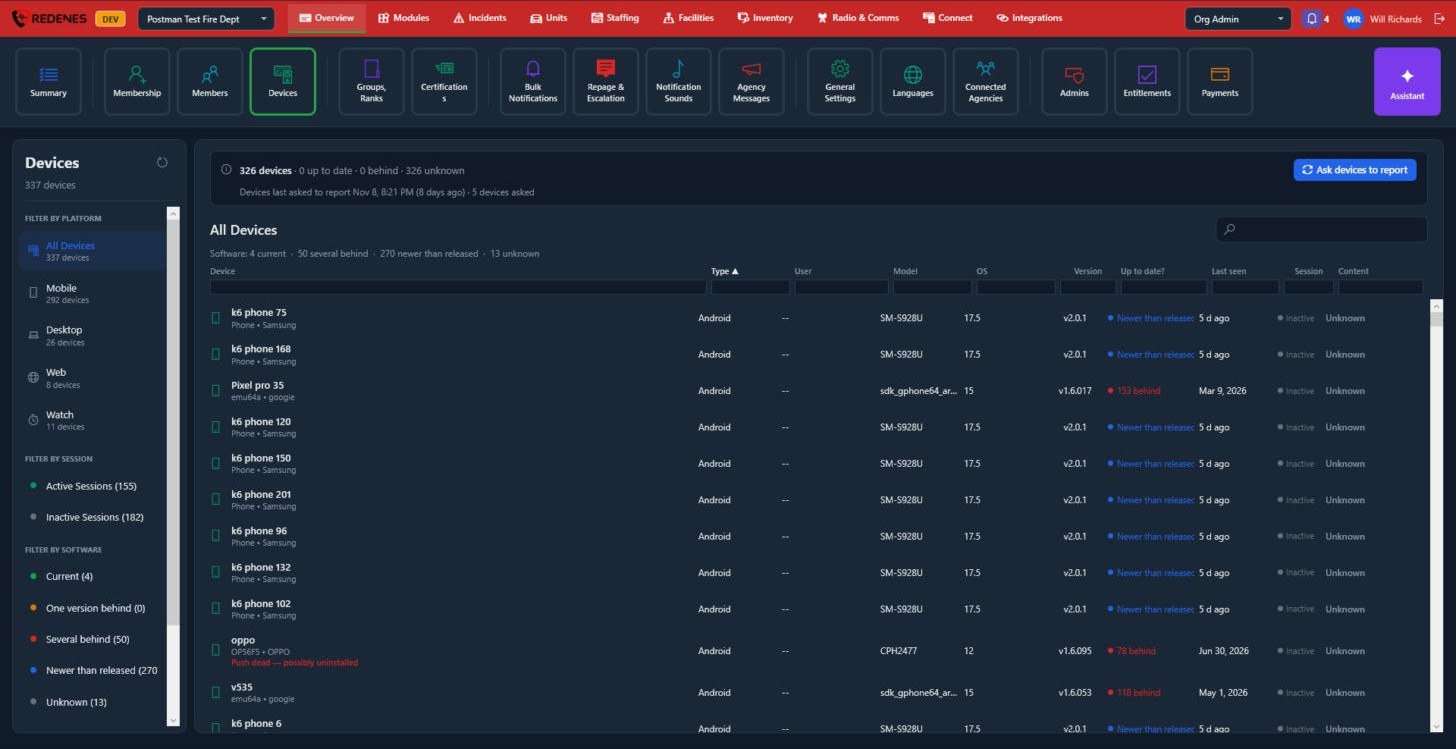
Devices lists every phone, tablet, desktop, browser and watch signed in to your agency, and tells you which ones are running old software.
Where: OverviewDevices
 123
Filters
- By platform 1: All, Mobile, Desktop, Web or Watch.
- By session: devices signed in now (Active) or signed out (Inactive).
- By software 2: Current, One version behind, Several behind, Newer than released (test builds) or Unknown.
Check who needs to update
- Click Ask devices to report 3. Every device quietly sends back its version.
- Give it a minute, then filter by Several behind.
- The Up to date? column shows how far behind each device is.
A red note such as Push dead, possibly uninstalled means REDENES can no longer reach that device. The member has probably removed the app or replaced the phone.
The list
- The line at the top counts how many devices are up to date, behind or unknown, and when devices were last asked to report.
- Each column heading has a box under it. Type in a box to filter that column, for example a model or a version. The search box at the top right searches everything.
- Click a column heading to sort by it.
Open a device
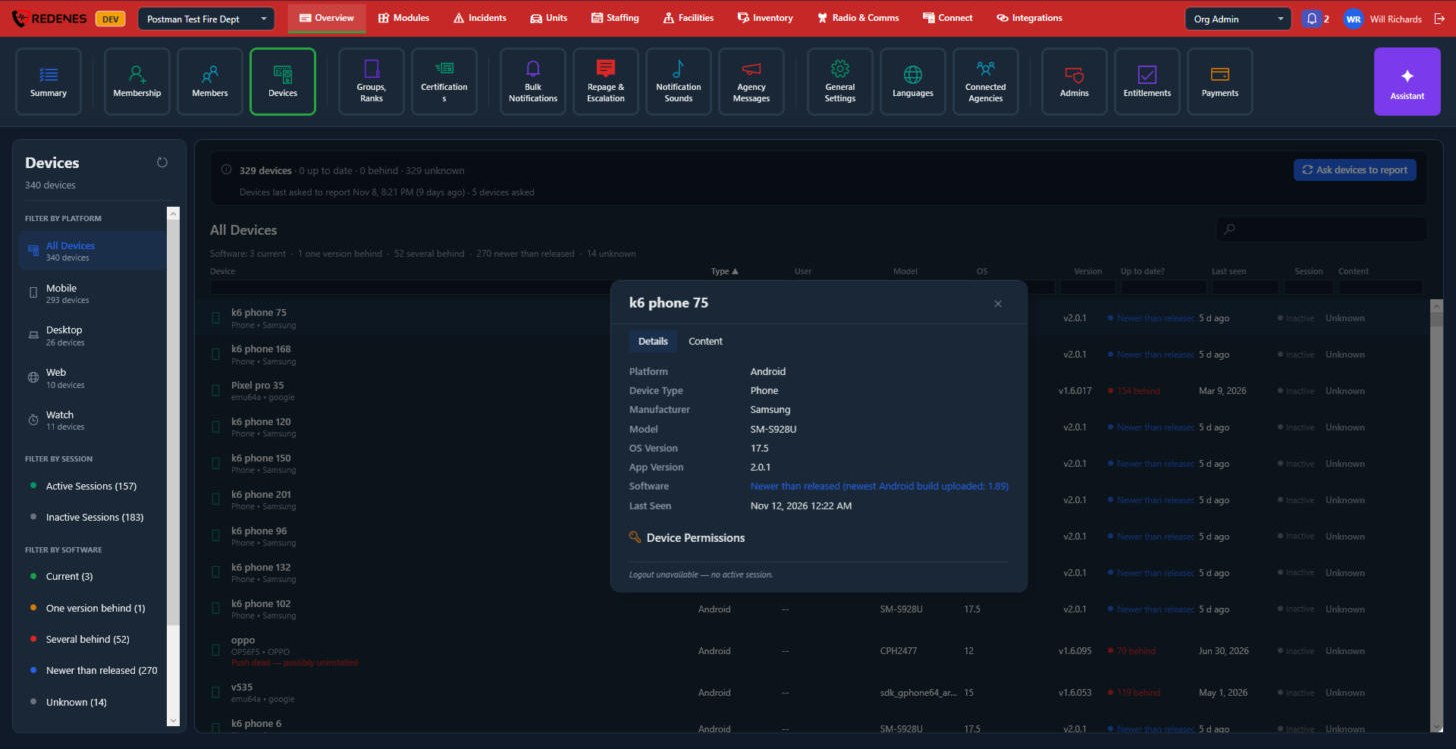
Click any row.
 123
- The tabs 1 are Details and Content. Details shows the platform, type, maker, model, operating system and app version, and when it was last seen. Content shows whether the device holds the newest agency data.
- Software 2 compares the app on the device with the newest released version.
- Device Permissions lists what was allowed on the phone, when the device has reported it.
- At the bottom 3 you can sign the device out. When it has no active session the window says so instead.
To see all of one person's devices together, open them under Members.