Groups, Ranks and Statuses
One tile with three tabs. Together they describe how your people are organized.
Where: OverviewGroups, Ranks & Statuses
 123
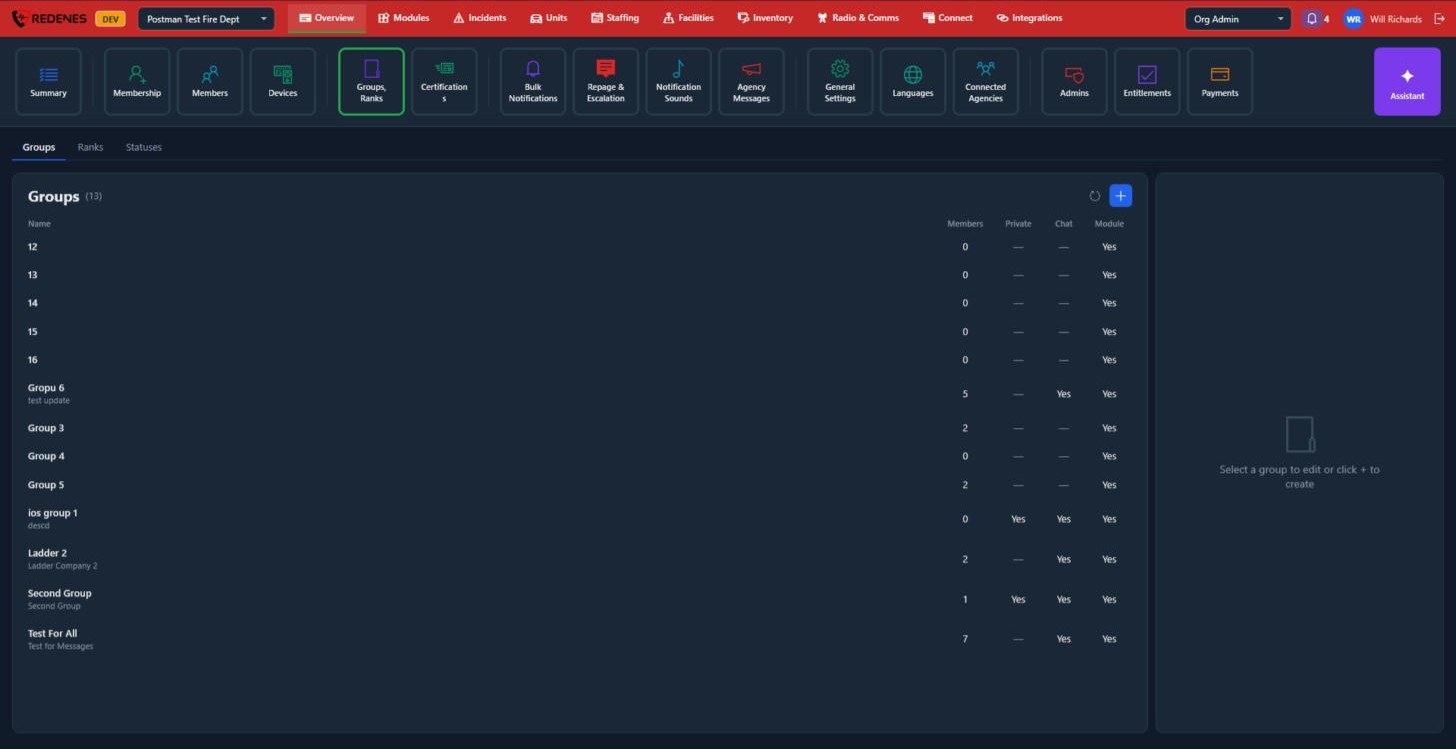
Pick a tab 1, click a row to edit it, or use + 3 to add one.
Groups
A group is any set of members: a station, a shift, a team, a committee. Groups are used all over REDENES to decide who sees a module, who gets an alert and who is in a chat.
The columns 2 tell you how each group is used:
| Column | Meaning |
|---|---|
| Members | How many people are in it. |
| Private | Only its members can see that the group exists. |
| Chat | The group has its own group chat in Messages. |
| Module | The group can be given module permissions. See Module Permissions. |
Edit a group
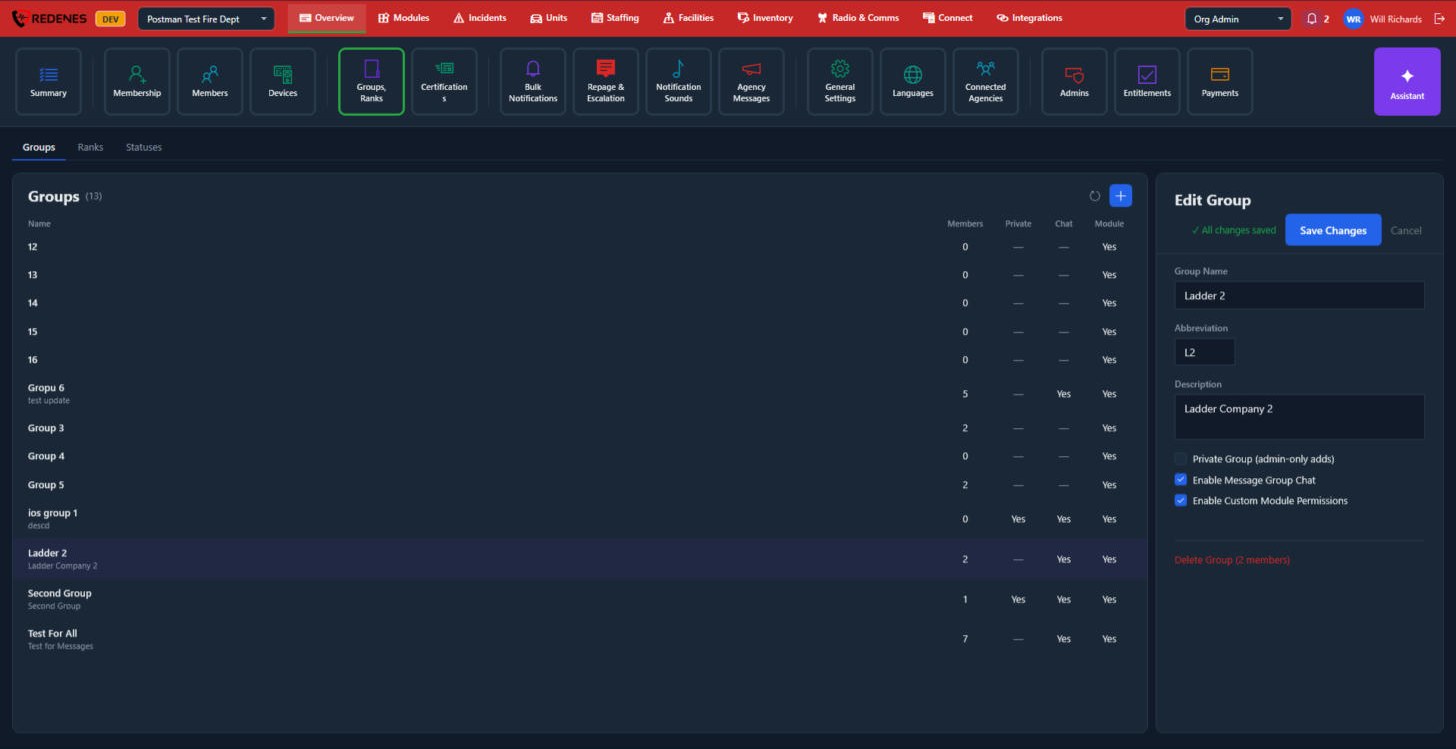
Click a group. The Edit Group panel opens on the right.
 12345
- The selected row 1 is highlighted.
- Group Name, Abbreviation and Description 2.
- The three tick boxes 3:
| Box | When ticked |
|---|---|
| Private Group (admin-only adds) | Only an admin can put people in it, and only its members see it. |
| Enable Message Group Chat | The group gets its own chat in Messages. |
| Enable Custom Module Permissions | The group can be given its own module permissions. |
- Save Changes 4 saves. Cancel closes the panel.
- Delete Group 5 shows how many members are in it before you delete it.
To make a new group, click + and fill in the same panel. To put people in a group, use Assign on each person's page under Members, or the default group under Membership.
Ranks
 123
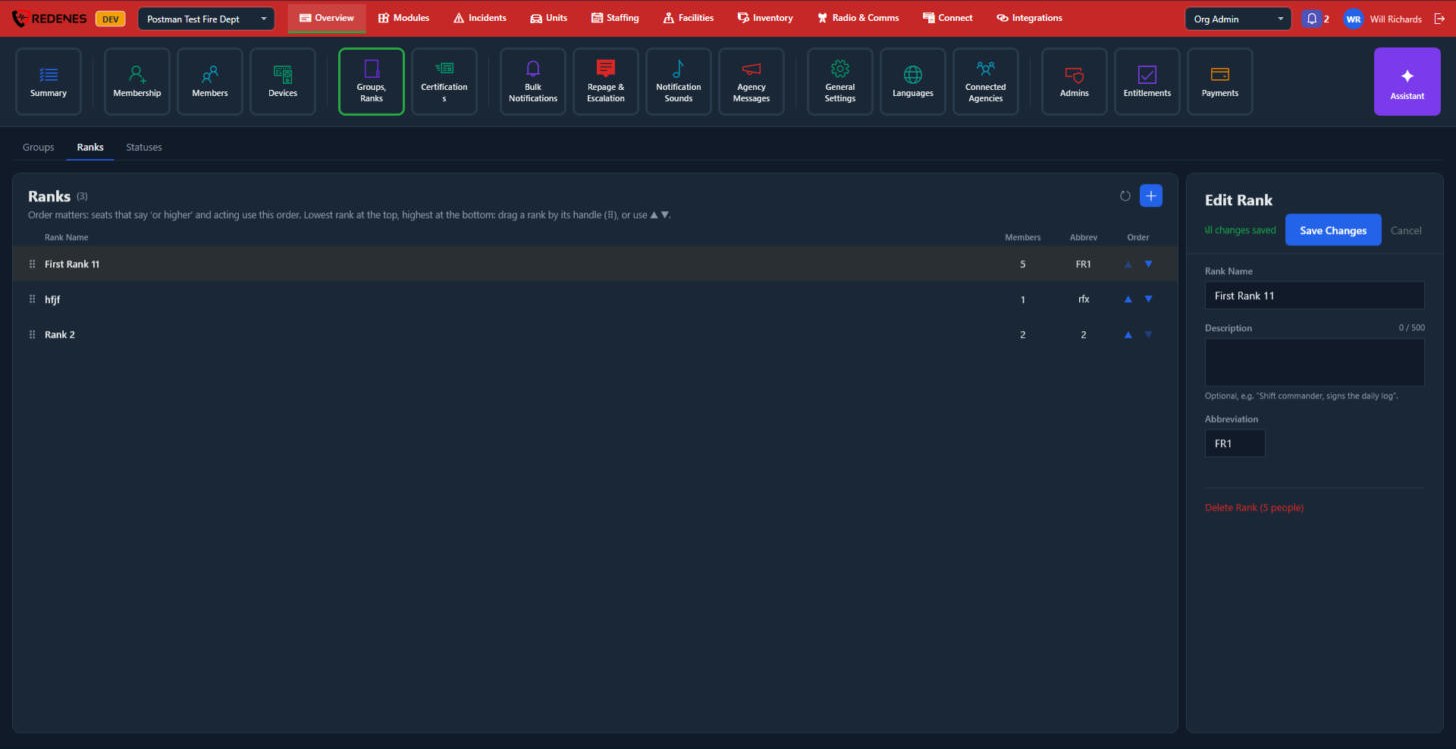
Your agency's ranks, lowest at the top and highest at the bottom. The order matters: staffing seats that say "or higher", and acting assignments, use it.
- Drag a rank by its handle 1, or use the up and down arrows 2, to change the order.
- Click a rank to edit its Rank Name, Description and Abbreviation 3, then Save Changes.
- Delete Rank shows how many people hold it.
Statuses
 12
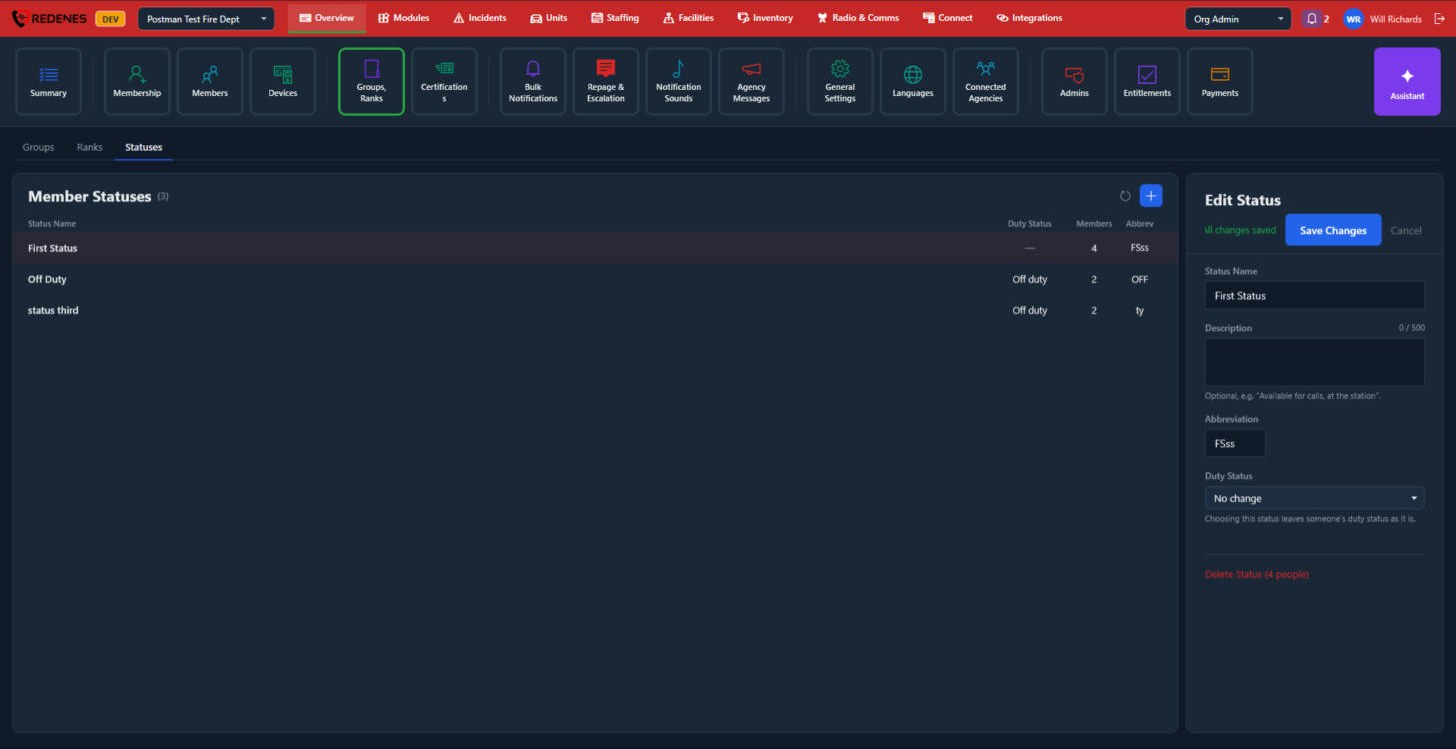
Member statuses are the labels your agency uses for people, such as Active, Probationary or Leave of absence. Each member has one.
- Duty Status 1 shows whether choosing the status also changes the person's duty status.
- In the panel, Duty Status 2 sets that link. No change leaves the person's duty status as it is. Pick Off duty, for example, and anyone given this status goes off duty and their notifications follow their Off Duty levels.
- Delete Status shows how many people have it.
Which duty statuses exist is set under General Settings.